
Best Ways to Run Linux Smoothly on Low-End and Aging Hardware

Old computers are often discarded long before their hardware actually stops working.
A laptop that feels painfully slow with a modern operating system may still have a perfectly functional processor, usable memory, a working display, and enough computing power for everyday tasks. The problem is often not the hardware itself. Instead, modern software environments gradually demand more memory, processing power, storage performance, and graphical capabilities.
This is where Linux offers something fundamentally different.
Linux gives users the freedom to adapt the operating system to the hardware instead of forcing the hardware to adapt to increasingly demanding software. However, there is an important misconception that needs to be addressed: Linux is not automatically lightweight.
A modern Linux distribution with a feature-rich desktop environment, numerous background services, visual effects, and demanding applications can perform poorly on older hardware just like any other operating system.
What makes Linux particularly effective on low-end and aging computers is flexibility.
Users can select a lightweight desktop environment, reduce unnecessary background processes, choose efficient applications, optimize memory usage, and even move demanding workloads away from the local machine.
With the right approach, an old PC can become a capable workstation, development terminal, home server, educational computer, or lightweight productivity device.
This article explores the best ways to run Linux smoothly on low-end and aging hardware and explains how users can combine lightweight local computing with remote Linux infrastructure for a more efficient modern workflow.
1. Understand That Linux Is Not Automatically Lightweight
One of the biggest myths surrounding Linux is that every Linux distribution uses very few system resources.
That is simply not true.
Linux is an ecosystem rather than a single desktop experience. A Linux installation can range from an extremely minimal command-line system using very little memory to a feature-rich desktop environment designed for powerful modern hardware.
A typical Linux desktop may include:
- Graphical effects
- Background indexing
- Automatic update services
- Bluetooth management
- Network discovery
- Desktop search
- Cloud synchronization
- Hardware monitoring
- Package management services
- Multiple pre-installed applications
Each feature consumes some amount of CPU time, memory, storage, or background activity.
On a modern workstation, users may never notice these resource requirements.
On an old computer with limited RAM and a mechanical hard drive, however, the combined impact can significantly reduce responsiveness.
The key advantage of Linux is not that every version is lightweight.
The real advantage is that Linux allows users to decide how lightweight the system should become.
You can change:
- The desktop environment
- The window manager
- Startup applications
- Background services
- File manager
- Web browser
- Media player
- System utilities
This flexibility allows users to create an operating environment that matches the capabilities of their hardware.

2. Choose the Right Lightweight Linux Distribution
The first major decision is choosing an appropriate Linux distribution.
A distribution that works perfectly on a modern laptop may not be ideal for a machine with:
- 2GB of RAM
- An older dual-core processor
- Integrated graphics
- A mechanical hard drive
The best approach is to choose a distribution based on the hardware you actually have.
For Very Old Computers
Machines with extremely limited resources benefit from minimal distributions and lightweight desktop environments.
Look for distributions that focus on:
- Low memory usage
- Minimal background services
- Lightweight graphical interfaces
- Fast startup
- Efficient package management
A minimal installation can dramatically improve responsiveness because the operating system does not consume unnecessary resources.
For Moderately Old Computers
Systems with 4GB or more RAM provide significantly more flexibility.
You can use lightweight desktop environments while still enjoying a polished and familiar experience.
This category is often ideal for:
- Xfce
- LXQt
- MATE
- Lightweight KDE configurations
The goal is not necessarily to choose the smallest possible Linux distribution.
The goal is to find the best balance between performance and usability.
A desktop that saves a small amount of memory but creates a frustrating user experience is not necessarily the best solution.
3. Use a Lightweight Desktop Environment
The desktop environment has one of the biggest impacts on perceived Linux performance.
A desktop environment controls much of what users see and interact with, including:
- Application menus
- Panels
- Windows
- Notifications
- File management
- Settings
- Widgets
- Animations
A feature-rich desktop can provide an excellent experience on modern hardware.
But on an older computer, those additional features may consume resources that could otherwise remain available for applications.
Xfce: A Strong Balance Between Speed and Usability
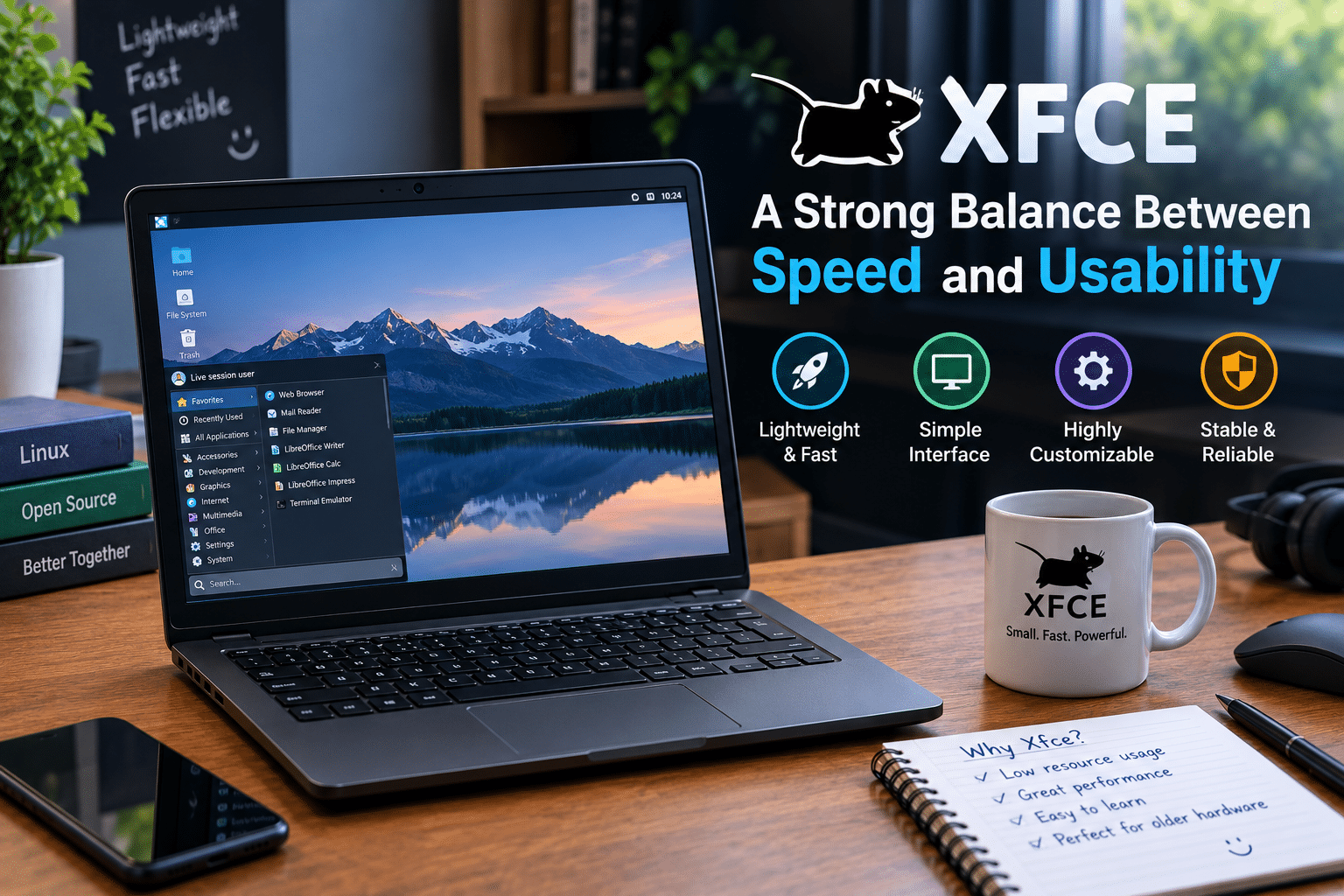
Xfce remains one of the most popular choices for older computers.
It provides a traditional desktop experience without requiring excessive system resources.
Users benefit from:
- Familiar menus
- Customizable panels
- Lightweight file management
- Minimal graphical overhead
- Extensive configuration options
Xfce works particularly well for users who want an efficient system without sacrificing the familiarity of a full desktop environment.
LXQt: Designed for Efficiency

LXQt is another strong option for low-resource computers.
It focuses on delivering a modern desktop experience with relatively low overhead.
It can work well for:
- Older laptops
- Entry-level PCs
- Virtual machines
- Remote desktops
- Low-memory systems
LXQt demonstrates an important principle: a lightweight desktop does not need to look outdated.
Modern Linux users can still enjoy attractive interfaces while keeping system resource consumption under control.
Minimal Window Managers
For extremely old hardware, users can go even further.
Minimal window managers can reduce system overhead significantly.
However, there is a trade-off.
Minimal environments often require more manual configuration and may not provide the same convenience as a complete desktop environment.
For experienced Linux users, that trade-off may be worthwhile.
For beginners, Xfce or LXQt often provides a better balance.
4. Remove Unnecessary Startup Applications
A computer can feel slow before the user even opens an application.
This often happens because too many programs automatically launch during startup.
Common background applications include:
- Update managers
- Cloud synchronization tools
- Bluetooth services
- Printer services
- Messaging applications
- Desktop indexing
- Hardware monitoring utilities
Not every service is unnecessary.
The goal is not to disable everything.
Instead, ask a simple question:
Do I actually use this service?
For example, a desktop computer without Bluetooth hardware does not necessarily need Bluetooth-related services running continuously.
A computer that never prints documents may not need printing services consuming memory.
Reducing unnecessary startup applications can improve:
- Boot time
- Available memory
- CPU availability
- Desktop responsiveness
On older hardware, even small improvements can add up.
5. Check Background Services Regularly
Background services often consume resources quietly.
Users may notice that a computer feels slow without realizing that multiple processes are running continuously.
Linux provides powerful tools for monitoring system activity.
Users can inspect:
- CPU utilization
- Memory consumption
- Disk activity
- Running processes
- Network connections
Tools such as system monitors and command-line utilities can help identify applications that consume excessive resources.
When troubleshooting performance, avoid guessing.
Measure the problem.
If the CPU is constantly active, identify the process responsible.
If memory is full, determine which applications consume it.
If the disk is constantly active, investigate background indexing, updates, or other storage-intensive processes.
Data-driven troubleshooting is far more effective than randomly disabling services.

6. Upgrade from a Hard Drive to an SSD
If you can make only one hardware upgrade to an aging computer, replacing a mechanical hard drive with an SSD can provide one of the most noticeable improvements.
Traditional hard drives contain moving parts.
They perform reasonably well for large sequential operations but can struggle with the thousands of small read and write operations performed by a modern operating system.
Linux regularly accesses:
- Configuration files
- Shared libraries
- Application data
- Package databases
- Browser caches
- System logs
An SSD handles these operations much faster.
Users often notice improvements in:
- Boot times
- Application launch speed
- File management
- System updates
- Overall responsiveness
Even an older processor can feel significantly more responsive when storage latency decreases.
This is an important reminder that system performance does not depend entirely on CPU speed.
Storage performance can become a major bottleneck.
7. Add RAM When Possible
Memory limitations can significantly affect the Linux experience.
When available RAM becomes exhausted, the system may begin relying heavily on swap space.
Swap allows the operating system to move inactive memory pages to storage.
While this prevents immediate application crashes, storage is much slower than RAM.
On an old computer with:
- Limited RAM
- A mechanical hard drive
heavy swapping can make the entire system feel unresponsive.
If the hardware allows upgrades, increasing RAM can improve multitasking.
More memory provides additional space for:
- Web browsers
- Office applications
- Development tools
- Background processes
However, users should consider the cost.
Spending large amounts upgrading an extremely old computer may not always make economic sense.
Sometimes a lightweight configuration provides enough improvement without requiring significant investment.
8. Choose Applications Carefully
A lightweight operating system can lose its performance advantage when users install extremely demanding applications.
Modern software has grown increasingly resource-intensive.
Some desktop applications now bundle large frameworks and browser engines.
A single application can consume hundreds of megabytes of memory before the user performs any serious work.
When working with older hardware, application selection matters.
Consider efficient alternatives for:
- Text editing
- Image viewing
- Media playback
- File management
- Development
This does not mean users should always choose the smallest application.
The best software is software that performs the required task efficiently.
For example, installing a massive development suite for simple text editing may waste resources.
Likewise, running multiple heavyweight applications simultaneously can overwhelm an older computer regardless of which operating system it uses.
9. Control Your Web Browser Usage
For many users, the web browser is now the most demanding application on the computer.
Modern websites often include:
- Large JavaScript frameworks
- High-resolution media
- Embedded videos
- Advertising scripts
- Analytics tools
- Real-time communication
- Interactive web applications
A lightweight Linux desktop may consume relatively little memory.
But opening ten or twenty browser tabs can quickly consume the remaining resources.
To improve browser performance:
- Close unused tabs
- Remove unnecessary extensions
- Block intrusive advertising where appropriate
- Avoid multiple browser instances
- Reduce automatic video playback
- Use tab management tools
Users should also recognize the limits of old hardware.
A computer with 2GB of RAM cannot realistically provide the same modern browsing experience as a system with 16GB.
Linux can optimize resource usage.
It cannot remove the physical limitations of the hardware.
10. Reduce Visual Effects and Animations
Visual effects make desktop environments look polished.
However, animations, transparency, shadows, and compositing can increase GPU and CPU workload.
On modern hardware, these effects are rarely a problem.
On older systems with integrated graphics, they may contribute to lag.
Consider reducing:
- Window animations
- Transparency
- Desktop compositing
- Visual transitions
The difference may not always be dramatic.
But on low-end hardware, multiple small optimizations can collectively improve responsiveness.
Performance optimization works best when users address several bottlenecks instead of searching for one magical solution.
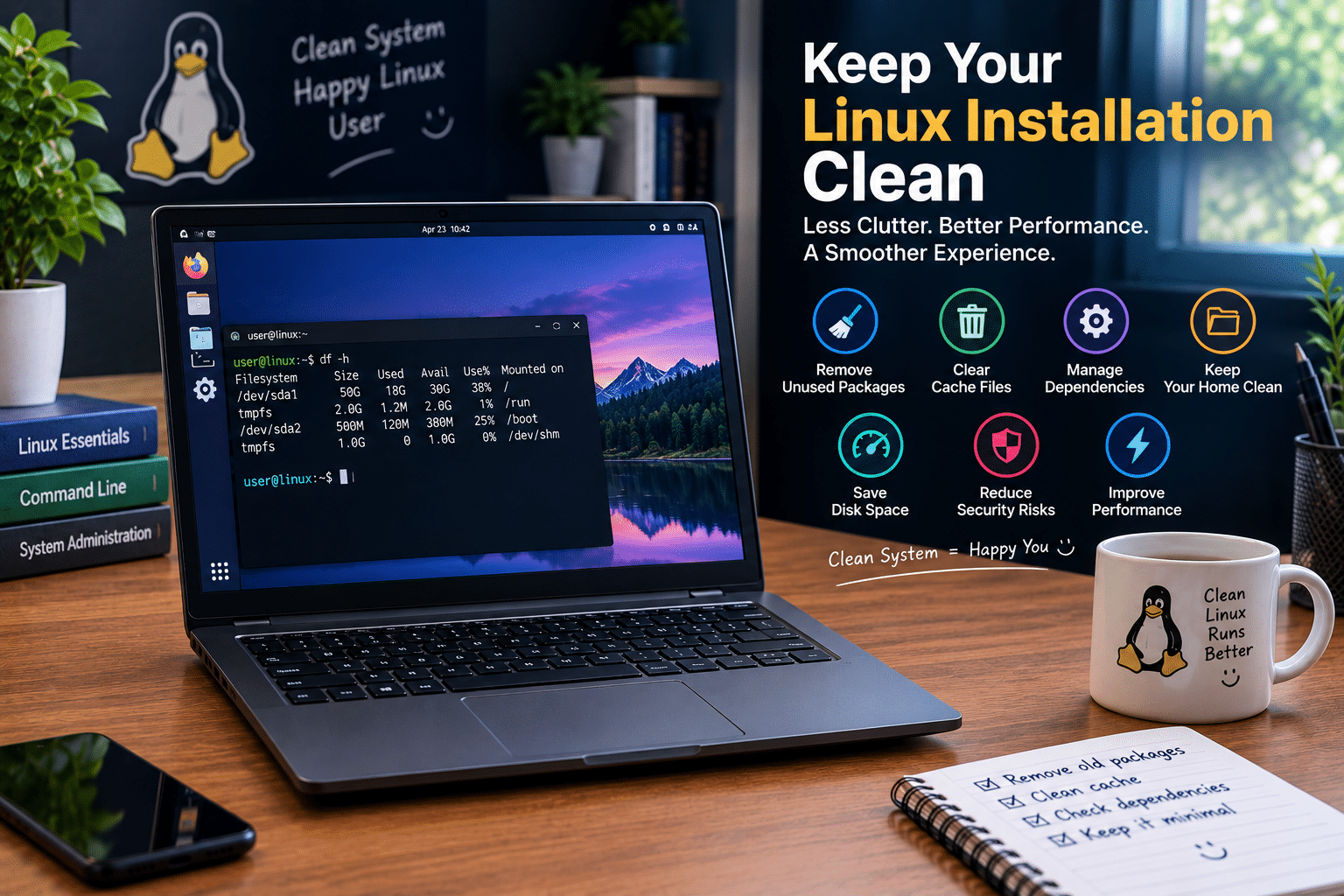
11. Keep Your Linux Installation Clean
Over time, operating systems accumulate unnecessary software.
Users install applications for temporary projects and then forget about them.
Old packages remain.
Unused services continue running.
Caches grow.
A clean system is easier to maintain.
Periodically review:
- Installed applications
- Startup programs
- Background services
- Large files
- Package caches
Removing unnecessary software can improve organization and reduce the possibility of unwanted background activity.
The goal is not obsessive minimalism.
A useful computer should contain useful software.
The objective is simply to avoid maintaining unnecessary workloads.
12. Use Swap and Memory Management Intelligently
Linux offers flexible memory management options.
Systems with limited RAM can benefit from carefully configured swap.
Modern Linux environments may also support memory compression technologies.
Compressed memory can help reduce pressure when physical RAM becomes limited.
However, memory optimization should not become an excuse to ignore insufficient hardware.
Software optimization can improve efficiency.
It cannot permanently replace physical memory for demanding workloads.
The best strategy is to combine:
- Adequate RAM where possible
- Sensible swap configuration
- Lightweight applications
- Controlled multitasking
This produces more consistent results than relying on a single optimization.

13. Keep Your Kernel and Drivers Appropriate
Hardware compatibility can also influence performance.
An old computer may require specific drivers for:
- Wireless networking
- Graphics
- Audio
- Power management
A properly configured system often performs better and provides a more stable experience.
However, users should avoid installing unnecessary proprietary drivers without understanding their purpose.
Start with hardware detection.
Check:
- Which devices are recognized
- Whether graphics acceleration works
- Whether the network connection remains stable
- Whether power management behaves correctly
Linux provides extensive tools for investigating hardware.
The more accurately you understand the system, the easier it becomes to optimize.
14. Use an Old Computer for the Right Job
One of the biggest mistakes is expecting an aging computer to perform exactly like a modern workstation.
Older hardware still has value.
But it may be better suited for specific workloads.
An old computer can become:
- A writing machine
- A web browsing device
- An educational computer
- A coding terminal
- A media player
- A home server
- A monitoring station
- A lightweight office computer
By matching workloads to available resources, users can extend the useful life of hardware significantly.
For example, an old laptop may struggle with local virtualization.
But it may work perfectly as a terminal for managing remote servers.
This distinction creates new possibilities.
15. Move Heavy Workloads Away From Old Hardware
One of the smartest ways to extend the usefulness of aging hardware is to stop forcing the local computer to perform every task.
Modern computing does not require every workload to run on the same physical machine.
A low-end laptop can act as the client.
More demanding workloads can run elsewhere.
For example, instead of running multiple development services locally, users can move workloads to remote infrastructure.
This may include:
- Web servers
- Databases
- Development environments
- Application hosting
- Automation
- Background workers
- Testing environments
The local computer handles:
- Writing code
- SSH access
- Remote administration
- Documentation
- Basic applications
The server handles the computational workload.
This creates a much more efficient architecture.
16. Combine Lightweight Linux with Remote Infrastructure
This is where lightweight computing becomes especially interesting.
Instead of asking an old laptop to become a powerful workstation, users can combine a lightweight Linux desktop with remote computing resources.
The architecture is simple:
Lightweight local computer → Remote Linux infrastructure
This approach separates the user interface from the demanding computational workload.
For example:
Local Linux machine
Handles:
- Web browsing
- Text editing
- SSH
- Terminal work
- Basic development
- File management
Remote Linux server
Handles:
- Application deployment
- Web hosting
- Databases
- Background processing
- Development servers
- Automation
- Resource-intensive services
This model allows users to continue using older hardware without sacrificing access to modern computing resources.
How 99RDP Can Support a Modern Linux Workflow
For users who need additional computing resources beyond what their local hardware can provide, remote infrastructure becomes a practical option.
99RDP’s Linux VPS solutions can complement lightweight local Linux environments by providing dedicated virtual resources for workloads that do not need to run directly on an aging computer.
A Linux VPS can serve as a remote environment for:
- Web hosting
- Application deployment
- Development servers
- Linux experimentation
- Databases
- Automation
- Remote administration
The advantage is not simply more computing power.
It is workload separation.
Instead of installing every service on a local computer, users can maintain a cleaner and lighter desktop environment while moving persistent services to a remote server.
This approach can be particularly useful for:
Developers
Developers can use an older laptop as a coding and administration terminal while running development services remotely.
Startups
Startups can deploy applications without requiring every team member to maintain powerful local infrastructure.
Freelancers
Freelancers can access remote Linux environments for client projects and server-side workloads.
Students and Learners
Students can experiment with Linux server administration without turning their personal computer into a complex collection of services.
Small Businesses
Businesses can separate employee workstations from critical applications and server workloads.
This approach reflects an important shift in computing.
The device in front of you does not need to perform every task locally.
A lightweight device can become the gateway to more powerful infrastructure.
Why Workload Separation Improves Performance
Running everything locally creates competition for resources.
Imagine an old laptop attempting to run:
- A web browser
- An IDE
- Docker containers
- A database
- A web server
- Background synchronization
- Development tools
Even a modern system can experience pressure under this workload.
An older system will struggle significantly.
By separating workloads, users can create a more efficient environment.
The local device focuses on interaction.
The remote server focuses on computation.
This provides several benefits.
Better Local Performance
The local operating system has fewer demanding processes competing for resources.
Improved Flexibility
Users can access the same server environment from multiple devices.
Easier Maintenance
Server-side services remain separate from personal desktop configurations.
Better Scalability
When workloads increase, users can upgrade infrastructure independently from local hardware.
Cleaner Development Environments
Developers can isolate projects and services rather than installing everything directly on one computer.
This architecture can significantly extend the useful life of low-end hardware.
Use SSH Instead of Heavy Remote Desktop When Possible
Remote access methods also matter.
A graphical remote desktop session can consume additional bandwidth and processing resources.
For server administration, SSH provides an extremely efficient alternative.
SSH allows users to:
- Manage servers
- Install software
- Edit configuration files
- Monitor resources
- Deploy applications
- Run commands
An old computer that struggles with heavy graphical workloads can still manage powerful remote infrastructure through a simple terminal connection.
This is another reason Linux remains effective for aging hardware.
The command-line ecosystem provides powerful functionality with minimal system requirements.
A lightweight laptop connected to a Linux VPS through SSH can become a surprisingly capable workstation.
Turn an Old Computer Into a Dedicated Linux Terminal
Instead of treating an old computer as a failed modern PC, consider giving it a specialized role.
For example, you can configure an old laptop as:
A Linux Administration Terminal
Use it for:
- SSH
- Server monitoring
- Infrastructure management
- Documentation
A Writing Workstation
Install:
- A lightweight desktop
- Text editors
- Office software
A Development Client
Write code locally while using remote infrastructure for builds and services.
A Home Network Dashboard
Monitor servers, network devices, and system activity.
A Learning Machine
Use Linux to learn:
- Bash
- Networking
- Python
- System administration
- Web development
Specialization can make aging hardware far more useful.
Don’t Chase the Lowest RAM Usage
Users sometimes become obsessed with idle memory consumption.
They compare screenshots showing:
- 250MB RAM
- 400MB RAM
- 700MB RAM
These numbers can be interesting.
But extremely low idle RAM usage does not automatically create the best computing experience.
A system should be evaluated based on:
- Application responsiveness
- Stability
- Hardware compatibility
- Workflow efficiency
- Ease of maintenance
A desktop environment that uses slightly more memory but significantly improves productivity may be a better choice.
Optimization should serve the user.
The user should not become a servant to optimization.
The goal is to create a system that feels fast enough for the intended workload.
Measure Performance Before Making Changes
The best optimization strategy follows a simple process.
Step 1: Identify the bottleneck
Is the problem:
- CPU?
- RAM?
- Storage?
- Graphics?
- Background services?
Step 2: Measure system behavior
Use monitoring tools to identify the source of the problem.
Step 3: Make one meaningful change
For example:
- Switch desktop environments
- Remove unnecessary startup applications
- Upgrade storage
Step 4: Measure again
Determine whether the change actually improved the experience.
This prevents unnecessary modifications.
Performance optimization should be evidence-based.
Build a Practical Optimization Checklist
Before replacing an old computer, try the following:
Software Optimization
- Install a lightweight Linux distribution
- Choose Xfce, LXQt, or another efficient desktop
- Remove unnecessary startup programs
- Disable services you genuinely do not use
- Reduce visual effects
- Choose efficient applications
Hardware Improvements
- Upgrade from HDD to SSD
- Add RAM if cost-effective
- Check cooling and thermal performance
Workflow Optimization
- Reduce excessive browser tabs
- Use SSH for remote administration
- Move persistent services to remote infrastructure
- Separate heavy workloads from lightweight local tasks
These steps can collectively make a dramatic difference.
The Future of Old Hardware Is Not Necessarily the Trash
Technology companies often encourage a constant hardware upgrade cycle.
New processors appear.
New operating systems demand additional resources.
Applications become increasingly complex.
But not every computer needs to run the most demanding modern workload.
Linux provides an alternative.
It allows users to rethink how computing resources are allocated.
An old laptop does not have to become a gaming workstation.
It does not have to run complex AI models locally.
It does not have to host multiple containers.
Instead, it can become something more practical.
A lightweight interface.
A development terminal.
A remote administration device.
A learning platform.
A productive writing machine.
When combined with remote infrastructure such as a Linux VPS, an aging computer can remain part of a modern computing workflow.

Final Thoughts
Running Linux smoothly on low-end and aging hardware requires more than simply installing a distribution and hoping for the best.
The most successful approach involves understanding the hardware and building the software environment around its limitations.
Start by choosing a lightweight desktop environment.
Reduce unnecessary background services.
Use efficient applications.
Upgrade storage to an SSD when possible.
Manage browser usage carefully.
Add memory if it provides a reasonable return on investment.
Most importantly, recognize that every workload does not need to run locally.
Modern computing gives users the ability to separate lightweight client devices from demanding infrastructure.
That creates a powerful opportunity for old hardware.
A ten-year-old laptop may no longer compete with a modern workstation in raw performance.
But with Linux, careful optimization, and access to remote infrastructure, it can still become a useful and productive part of a modern workflow.
That is the real strength of Linux.
It does not promise that every computer will suddenly become powerful.
Instead, it gives users the freedom to decide how efficiently their hardware should operate.
And when local hardware reaches its limits, users can extend their capabilities further by connecting lightweight devices to remote computing resources such as 99RDP’s Linux VPS infrastructure.
The future of efficient computing is not simply about buying faster hardware.
It is about using the right resources for the right workloads.
With lightweight Linux on the local machine and scalable infrastructure available remotely, even aging hardware can continue to deliver meaningful value for years.
EXPLORE MORE ; What’s New in SparkyLinux 2026.06?

READ OUR BLOGS


