How to Check Disk Format (SSD or HDD) in Linux
When managing a Linux system, it’s often useful to know whether your storage device is a Solid-State Drive (SSD) or a Hard Disk Drive (HDD). Each type of storage has its own characteristics, performance metrics, and use cases. In this blog post, we’ll explore several methods to identify whether your disk is an SSD or an HDD on a Linux system.
Method 1: Using lsblk
The lsblk command can provide detailed information about all block devices. By examining the ROTA (rotation) attribute, you can determine the type of disk.
- Open a terminal.
- Run the following command:
lsblk -d -o name,rota
Here,
-drestricts the output to only the main devices, and-ospecifies the columns to display. Thenamecolumn shows the device name, and therotacolumn indicates if the device is rotational (1 for HDD, 0 for SSD)
Example Output:
NAME ROTA
sda 1

In this example, sda is an HDD (ROTA=1) and sdb is an SSD (ROTA=0).
Method 2: Using cat with /sys Filesystem
The /sys filesystem provides a way to access kernel-related information. You can check the queue/rotational file for each block device.
- Open a terminal.
- Run the following command:
cat /sys/block/sdX/queue/rotational
Replace
sdXwith the actual device name (e.g.,sda,sdb).

Example Command:
cat /sys/block/sda/queue/rotational

Example Output:
1

If the output is 1, it indicates an HDD. If it is 0, it indicates an SSD.
Method 3: Using lsblk with Extended Information
You can use lsblk to get extended information about your storage devices.
- Open a terminal.
- Run the following command:
lsblk -o name,rota,disc-aln,disc-gran,disc-max,disc-zero

Example Output:
NAME ROTA DISC-ALN DISC-GRAN DISC-MAX DISC-ZERO
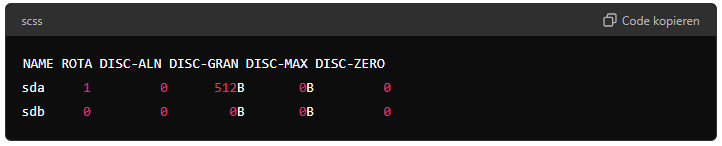
In this output, ROTA indicates whether the device is rotational. SSDs typically have DISC-GRAN, DISC-MAX, and DISC-ZERO values set to 0B, reflecting their lack of physical sectors.
Method 4: Using smartctl
The smartctl utility from the smartmontools package can also provide detailed information about your disk.
- Install
smartmontoolsif it’s not already installed:sudo apt-get install smartmontools
- Run the following command:
sudo smartctl -a /dev/sdX | grep RotationReplace
sdXwith the actual device name.

Example Command:
sudo smartctl -a /dev/sda | grep Rotation
Example Output:
Rotation Rate: 7200 rpm
If the output includes a rotation rate, the device is an HDD. If no rotation rate is mentioned, it’s likely an SSD.
Method 5: Using hdparm
The hdparm command can also be used to get information about a disk.
- Install
hdparmif it’s not already installed:sudo apt-get install hdparm - Run the following command:
sudo hdparm -I /dev/sdX | grep 'Nominal Media Rotation Rate'Replace
sdXwith the actual device name.
Example Command:
sudo hdparm -I /dev/sda | grep 'Nominal Media Rotation Rate'
Example Output:
Nominal Media Rotation Rate: 7200
If the output includes a nominal media rotation rate, the device is an HDD. If there is no such entry, it’s an SSD.
Conclusion
Identifying whether a disk is an SSD or an HDD on a Linux system can be accomplished using several methods. By leveraging commands like lsblk, examining the /sys filesystem, or using tools like smartctl and hdparm, you can easily determine the type of storage device in your system. Each method provides reliable results, allowing you to make informed decisions about storage management and performance optimization.
How to Check Disk Format (SSD or HDD) in Linux (F.A.Q)
How can I check if my disk is an SSD or HDD using the terminal?
You can use the lsblk command to check the type of your disk. Run the following command in the terminal:
lsblk -d -o name,rota
If the ROTA value is 1, it’s an HDD. If the value is 0, it’s an SSD.
What is the significance of the ROTA attribute in the lsblk command?
The ROTA attribute indicates whether the disk is rotational or not. A value of 1 means the disk is rotational (HDD), while a value of 0 means the disk is non-rotational (SSD).
Can I use smartctl to determine if a disk is an SSD or HDD?
Yes, you can use the smartctl command from the smartmontools package. Run the following command:
sudo smartctl -a /dev/sdX | grep Rotation
Replace sdX with your disk identifier. If it shows a rotation rate (e.g., 7200 rpm), it’s an HDD. If there is no rotation rate, it’s likely an SSD.