If you’ve been trying to stream on Facebook or Telegram using OBS Studio and encountered an SSL error, you’re not alone. This common issue usually prevents the stream from connecting to the server, leaving many users frustrated. Fortunately, there’s a simple workaround with a lightweight portable tool.
Step-by-Step Guide to Fix the SSL Error
- Download the Fix Tool
Head over to this GitHub release page and download the application. It’s a portable.exefile, so no installation is required. - Run as Administrator
Once downloaded, right-click on the file and choose “Run as administrator.” This step is mandatory; otherwise, the tool won’t be able to make the necessary fixes. - Activate the Application
After launching, log in through the Login option. Activation enables all available features of the tool. 
- Use the SSL Fixer
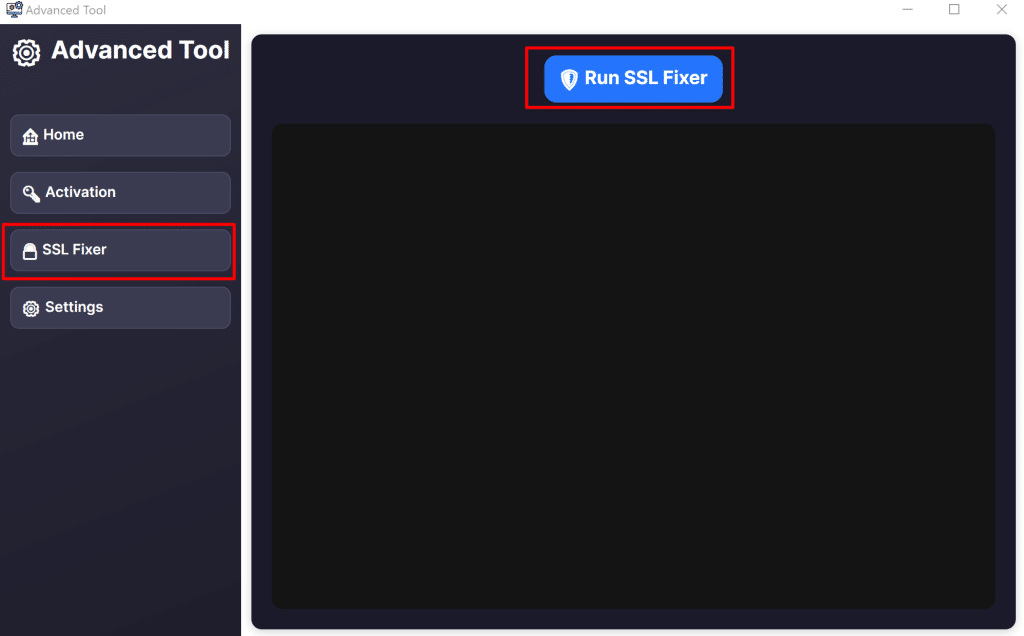
Navigate to the SSL Fixer tab, click the “Fix SSL” button, and wait for the process to complete. The tool will automatically resolve SSL issues that interfere with OBS streaming. 
- Test Your Stream
Open OBS Studio again, reconnect your stream key for Facebook or Telegram, and try streaming. The SSL error should now be resolved.

Why This Works
The issue often arises from outdated or mismatched SSL/TLS certificates. The portable tool resets and updates the required SSL configurations, allowing OBS to establish a secure connection with streaming servers.
How to Fix OBS Streaming SSL Error for Facebook and Telegram (F.A.Q)
Do I need to install the tool?
No, it’s completely portable. Just download and run the .exe file.
Can this tool fix SSL issues for platforms other than Facebook and Telegram?
Yes, in most cases, it can also help with other streaming services that use SSL connections.
Why must I run the app as administrator?
Admin rights are needed to make system-level SSL and network adjustments.
Will this affect my existing OBS settings?
No, your OBS configuration remains unchanged. The tool only fixes SSL-related problems.