
How to Skip Bloatware and Automate Windows 11 Installs (2026 Tech Guide)

Windows installation has traditionally been a repetitive, time-consuming process filled with unnecessary prompts, bundled apps, and post-install cleanup. But that paradigm is changing fast. With the latest updates to Rufus, power users, developers, and IT professionals can now automate Windows 11 installs and eliminate bloatware before the OS even boots for the first time.
This guide breaks down the modern, efficient workflow for deploying a clean Windows 11 system—along with how to extend that efficiency into cloud environments using 99RDP for high-performance use cases like trading, development, and remote workloads.
Why Traditional Windows Installs Are Inefficient
A default Windows 11 installation often includes:
- Pre-installed apps (Xbox, Clipchamp, Teams, etc.)
- Forced Microsoft account setup
- Telemetry and tracking services enabled by default
- Background services that consume CPU and RAM
Real-world impact:
- Idle RAM usage can exceed 3–4 GB on stock installs
- Boot times are longer due to startup services
- Manual setup time ranges from 30 to 60 minutes per system
For individual users, that’s annoying. For IT teams or traders deploying multiple systems, it’s a productivity bottleneck.
The Modern Solution: Automated + Debloated Installs
The latest version of Rufus introduces:
- Unattended installation (zero user interaction)
- Pre-install debloating options
- Bypass of TPM, Secure Boot, and account restrictions
- Preconfigured system settings
This effectively turns Rufus into a lightweight Windows deployment engine.
Step-by-Step: Automate Windows 11 Installation with Rufus
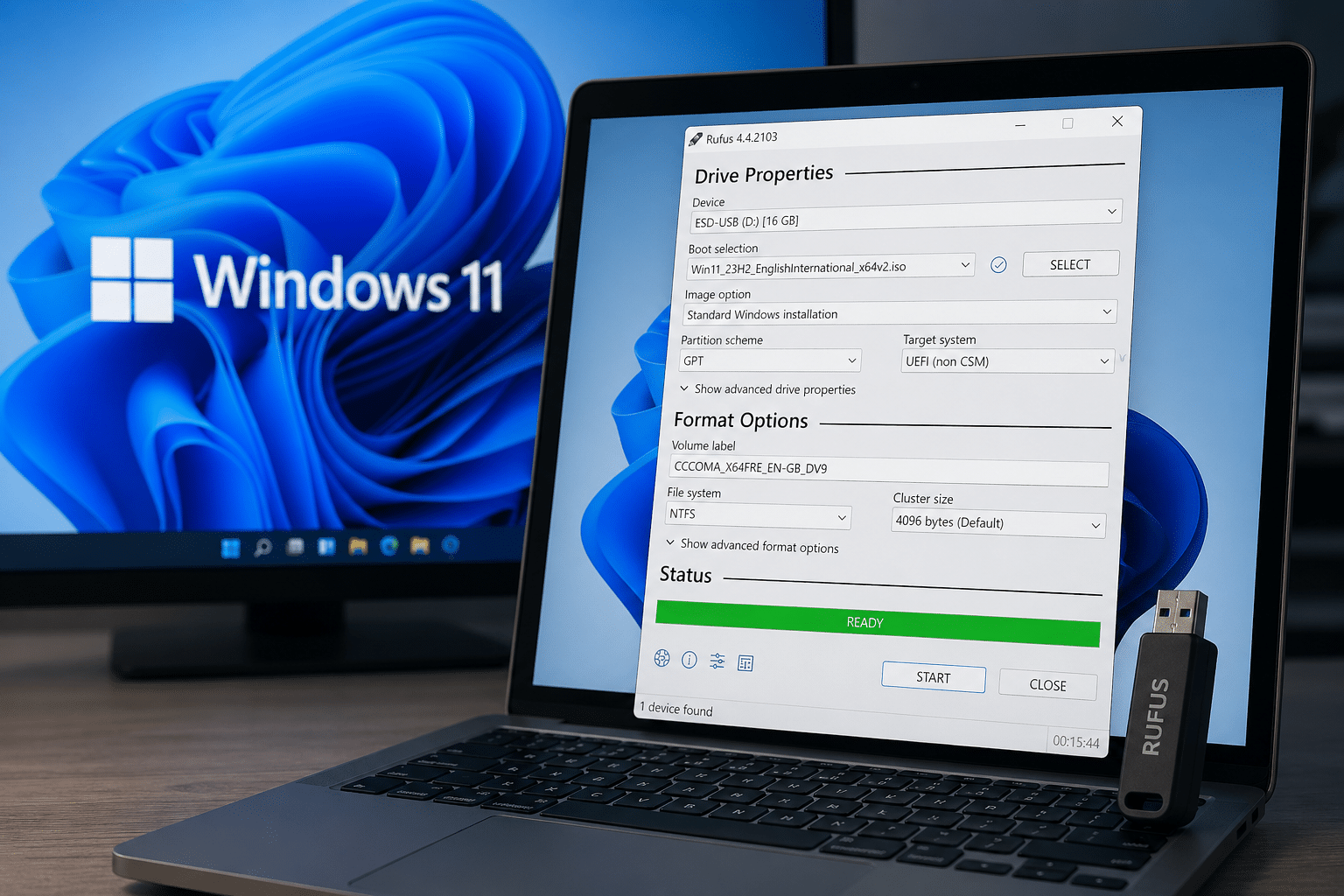
1. Download Windows 11 ISO
- Get the official ISO from Microsoft
- Ensure you’re using the latest build for compatibility and updates
2. Prepare Bootable Media with Rufus
- Launch Rufus
- Insert a USB drive (8GB+ recommended)
- Select the Windows 11 ISO
3. Enable Advanced Customization (Game-Changer Step)
Once you select the ISO, Rufus prompts you with customization options:
✔ Remove Bloatware Before Installation
- Strip bundled apps
- Disable unnecessary features
- Prevent auto-installation of unwanted software
✔ Disable Telemetry & Tracking
- Turn off diagnostic data collection
- Limit background communication with Microsoft servers
✔ Skip Microsoft Account Requirement
- Create a local account automatically
- Avoid forced online sign-in
✔ Bypass Hardware Restrictions
- Install Windows 11 on unsupported systems
- Skip TPM, RAM, and Secure Boot checks
✔ Set Regional & User Preferences
- Predefine language, keyboard, timezone
- Automate user creation
Result: A fully customized Windows install—no clicks required
4. Start Silent Installation
- Boot from the USB
- Rufus handles everything automatically
- No prompts, no interruptions
Time saved: Up to 40–70% faster setup
What “Debloating” Actually Does
Debloating is not just removing apps—it’s about reducing system overhead at multiple layers:
Application Layer
- Removes UWP apps and bundled services
- Prevents auto-installation during updates
Service Layer
- Disables unnecessary background services
- Reduces CPU wake cycles
Network Layer
- Limits telemetry endpoints
- Reduces background data usage
Resource Impact
- Lower RAM usage (often 1–2 GB saved)
- Faster disk I/O due to fewer background processes
Performance Gains (Data-Driven Insights)
| Metric | Default Windows 11 | Debloated Install |
|---|---|---|
| Idle RAM Usage | 3–4 GB | 1.8–2.5 GB |
| Boot Time | 25–40 sec | 15–25 sec |
| Background Processes | 120–150 | 70–100 |
| CPU Idle Load | 5–10% | 1–3% |
These improvements directly impact:
- Gaming performance
- Trading latency
- Development builds
Why VPS Matters
Even with a perfectly optimized OS, local systems have limitations:
- Power outages
- Internet instability
- Hardware constraints
This is where 99RDP becomes a critical extension of your workflow.
Rufus + 99RDP: A High-Performance Workflow
Step 1: Build a Clean Windows Image
Use Rufus to:
- Install a lean, optimized OS
- Remove unnecessary overhead
Step 2: Deploy Workloads on VPS
Move critical tasks to 99RDP:
- 24/7 uptime
- Data-center reliability
- Low-latency connectivity
Step 3: Scale & Automate
- Run bots, scripts, or apps continuously
- Avoid local interruptions
- Scale resources on demand
Real-World Use Cases
1. Forex Trading Automation
- Install optimized Windows
- Deploy trading platforms on VPS
- Ensure uninterrupted execution
Traders using VPS environments often achieve lower latency and higher execution reliability
2. Development & Testing
- Rapidly deploy clean environments
- Test apps without OS-level interference
3. Remote Workstations
- Use VPS as a high-performance remote desktop
- Access from anywhere without hardware limitations
Best Practices (Avoid Common Pitfalls)
Don’t Over-Debloat
- Removing critical services can break:
- Windows Update
- Microsoft Store
- Security features
✔ Keep It Balanced
- Remove unnecessary apps
- Retain core system components
Avoid Unknown Script
- Stick to trusted tools like Rufus
- Random scripts can introduce instability
✔ Test Before Scaling
- Validate your setup on one machine
- Then replicate across systems
Security Considerations
- Disabling telemetry ≠ disabling security
- Always:
- Keep Windows Defender active
- Install updates regularly
- Use secure network practices
Strategic Insight: The Shift to Automated OS Deployment
What we’re seeing is a broader trend:
Operating systems are becoming programmable deployment environments
Tools like Rufus:
- Reduce manual effort
- Enable reproducible setups
- Bring enterprise-level automation to individuals
Meanwhile, platforms like 99RDP:
- Decouple workloads from physical machines
- Provide consistent, scalable performance
Final Thoughts
Skipping bloatware and automating Windows 11 installs is no longer a niche trick—it’s becoming the standard workflow for serious users.
By combining:
- Automated deployment (Rufus)
- Cloud execution (99RDP VPS)
You create a system that is:
- Faster to deploy
- Lighter to run
- More reliable in production
Bottom Line
- Use Rufus to install Windows 11 faster and cleaner
- Use 99RDP to run critical workloads without interruption
That’s the modern, efficient Windows ecosystem in 2026—optimized, automated, and built for performance.
EXPLORE MORE ; What Ubuntu ‘s 26.04 Yaru Icons System Means for Developers

READ OUR BLOGS


