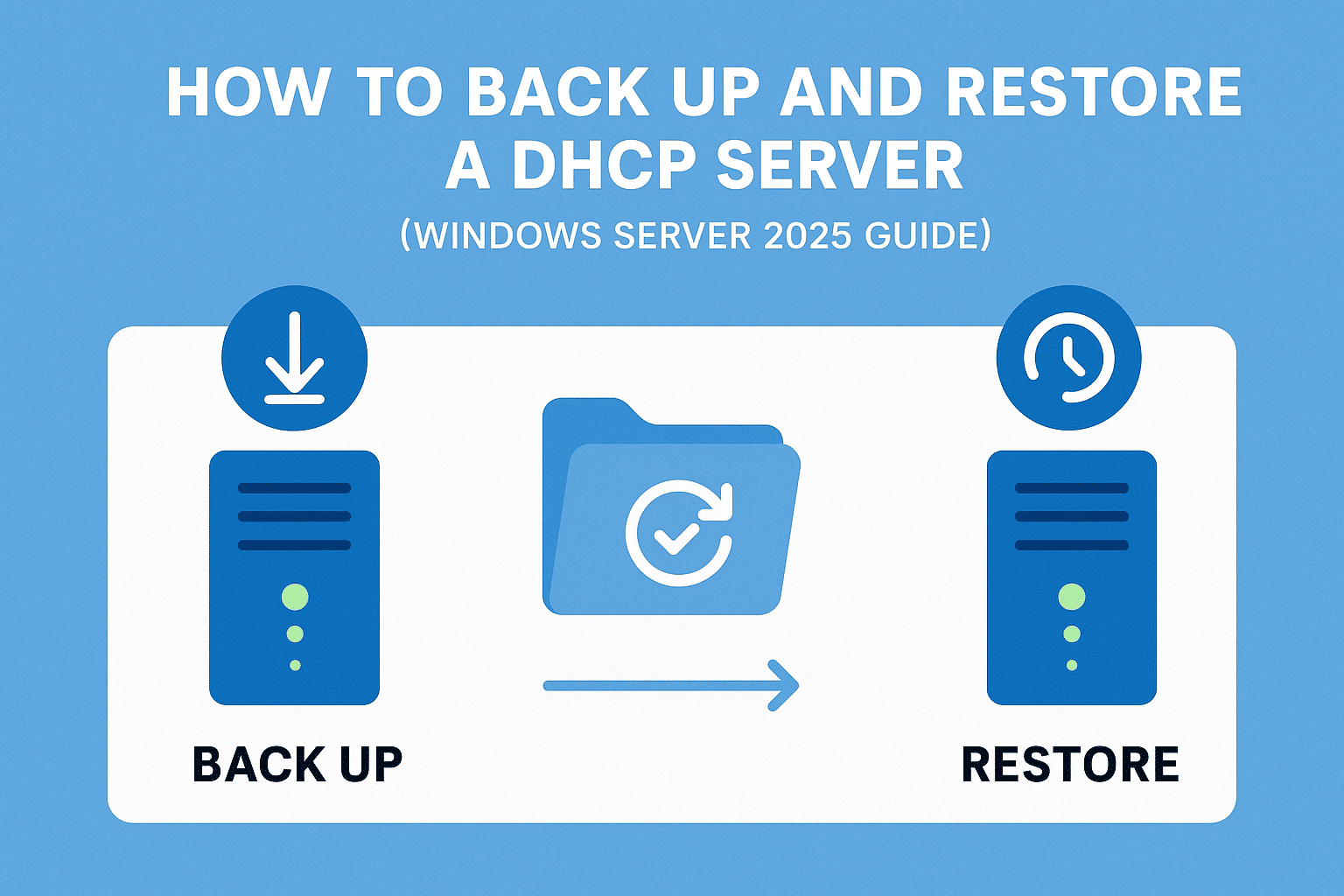
Managing DHCP (Dynamic Host Configuration Protocol) is a critical part of any Windows Server environment. If your DHCP database becomes corrupted or lost, devices will no longer receive IP addresses automatically — causing network outages and downtime.
That’s why regular DHCP backups are essential. In this guide, you’ll learn how to back up and restore a DHCP Server in Windows Server 2025 using both GUI and PowerShell.
✅ Why Backing Up DHCP Is Important
- Protects your IP lease database
- Ensures quick recovery after server failure
- Supports migration to a new server
- Prevents manual recreation of scopes, reservations, and options
1. How to Back Up DHCP Server
Windows Server automatically keeps a backup every 60 minutes, but you should still create manual backups—especially before migrations or major changes.
Method 1: Backup Using DHCP Manager (GUI)
- Open Server Manager
- Go to Tools → DHCP
- Right-click the DHCP Server name
- Select Backup…
- Choose a folder (example:
C:\DHCP-Backup) - Click OK
Your DHCP database, scopes, options, and reservations are now saved.
Method 2: Backup Using PowerShell
PowerShell is the fastest and most reliable way to export DHCP data.
Run this command:


Export-DhcpServer -ComputerName localhost -Leases -File "C:\DHCP-Backup\dhcp-backup.xml"
What this command does:
- Exports all scopes
- Includes all lease information
- Creates a clean XML backup file that can be restored anytime
2. How to Restore DHCP Server
Restoring DHCP usually happens when:
- The server crashes
- The database becomes corrupted
- You’re migrating DHCP to a new server
Method 1: Restore Using DHCP Manager (GUI)
- Open DHCP Manager
- Right-click the DHCP Server name
- Click Restore…
- Select the backup folder (example:
C:\DHCP-Backup) - Confirm and restart the DHCP service when asked
Method 2: Restore Using PowerShell
If your backup was created with Export-DhcpServer, use this:

Import-DhcpServer -ComputerName localhost -File "C:\DHCP-Backup\dhcp-backup.xml" -BackupPath "C:\DHCP-Backup" -Leases -Force
This restores:
- All scopes
- Leases
- Reservations
- Server options
Important:
If restoring to a new DHCP server, make sure it is authorized in Active Directory:
Add-DhcpServerInDC -DnsName "NEW-SERVER.domain.local" -IPAddress 192.168.1.10
3. Tips for DHCP Backup Best Practices
| Task | Recommended Frequency |
|---|---|
| Manual Backup | Before changes, monthly |
| Automatic Backup | Enabled by default (every 60 min) |
| Offsite Backup | Weekly |
| Test Restore | Quarterly |
How to Back Up and Restore a DHCP Server (Windows Server 2025 Guide) (F.A.Q)
Where is the DHCP database stored?
Typically in:C:\Windows\System32\dhcp
Can I restore DHCP to a different server?
Yes. Use Export-DhcpServer and Import-DhcpServer for clean migration.
Do I need to stop the DHCP service before restoring?
No, the wizard will automatically restart the service during restoration.
Does DHCP backup include reservations?
Yes. It includes scopes, options, leases, and reservations.