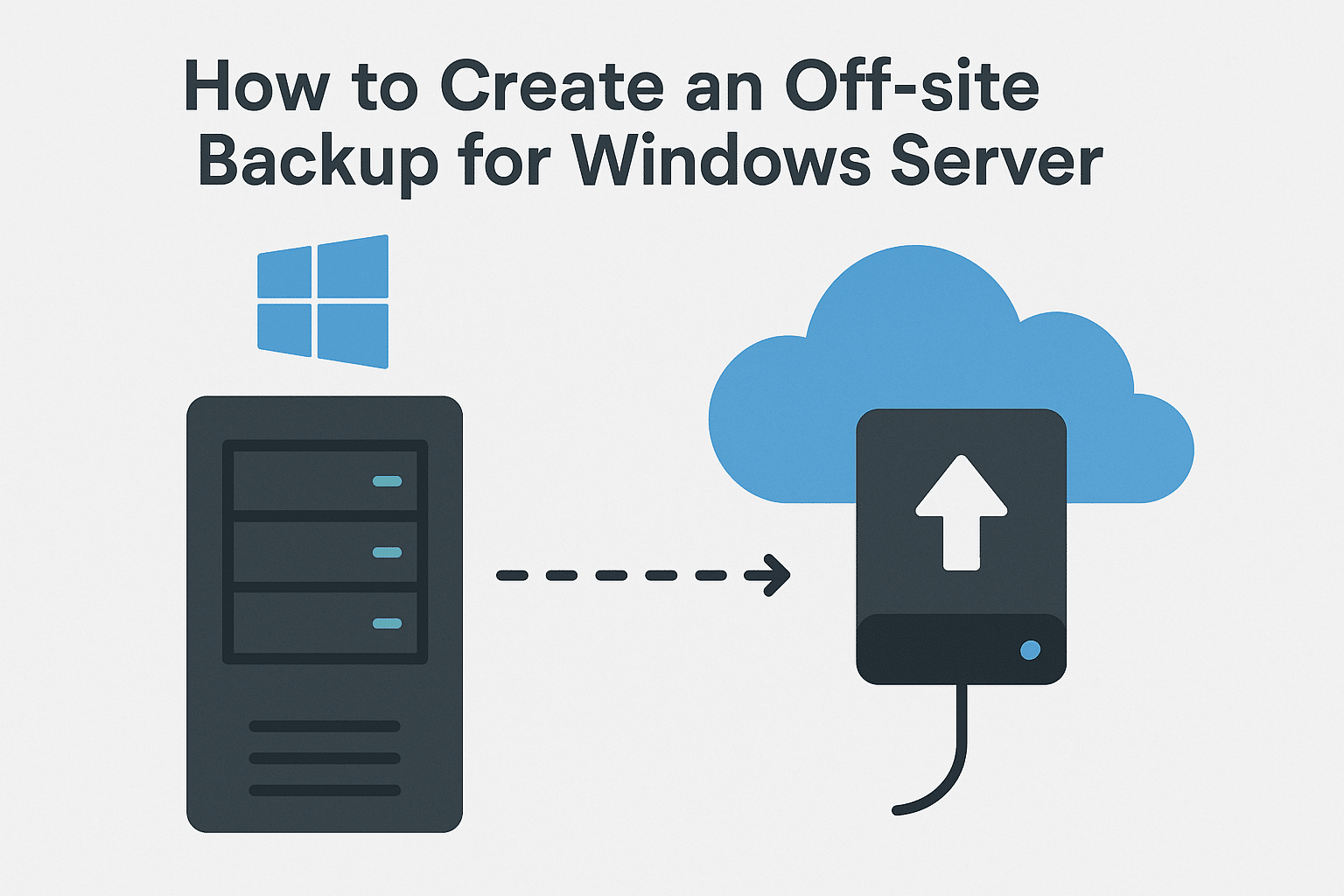
When it comes to protecting your business-critical data, a local backup alone is not enough. Fire, theft, hardware failure, ransomware, or natural disasters can wipe out your onsite backups instantly. That’s why creating an off-site backup for Windows Server is essential.
This guide will walk you through the best methods and tools to set up a secure, reliable off-site backup strategy for Windows Server in 2025.
Why Off-Site Backups Matter
Off-site backups store your data in a physically separate location—usually in the cloud or at a remote site. Benefits include:
- Protection from local disasters
- Enhanced ransomware recovery
- Long-term data retention
- Compliance with many industry standards
Best Methods to Create an Off-Site Backup for Windows Server
1. Using Windows Server Backup + Cloud Storage
Windows Server Backup (WSB) does not support cloud backup directly, but you can still use it with a cloud sync tool.
Steps:
- Install Windows Server Backup using Server Manager or PowerShell:
Install-WindowsFeature Windows-Server-Backup - Configure a local backup to an external drive or SMB share.
- Use a cloud sync application such as:
- OneDrive for Business
- Azure File Sync
- Google Drive File Stream
- Dropbox Business
- Sync the backup directory to your cloud folder.
This option is simple but not ideal for large enterprise backups.
2. Using Azure Backup (Recommended)
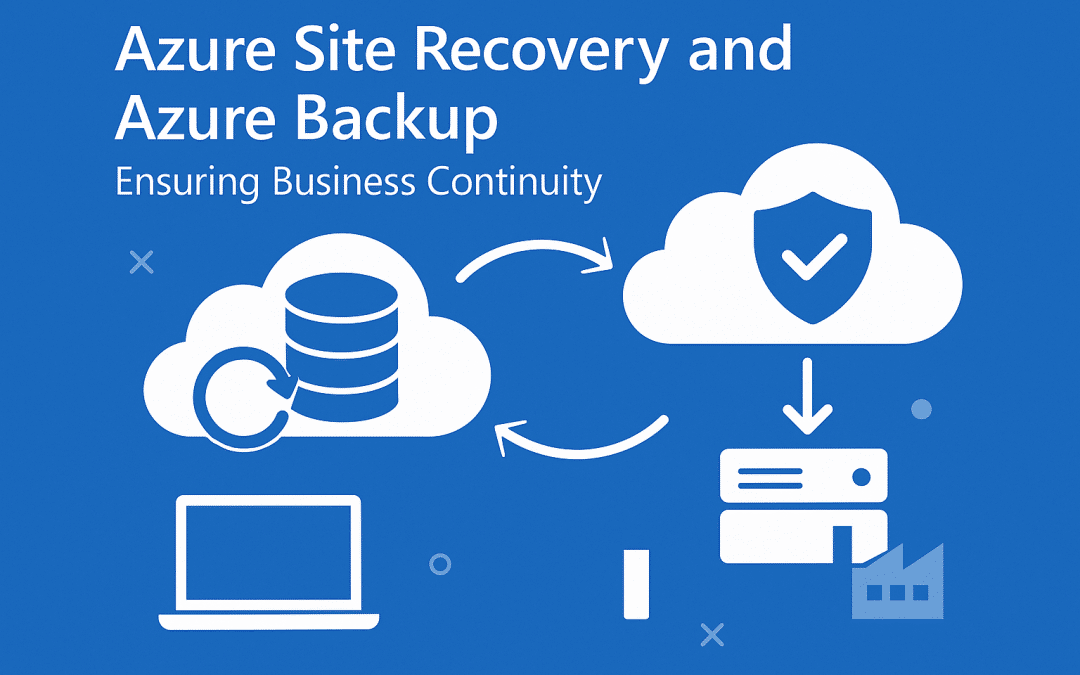
Azure Backup is Microsoft’s official off-site backup solution designed for Windows Server.
Why choose Azure Backup?
- End-to-end encryption
- Built-in ransomware protection
- Instant and granular recovery
- No need for hardware
- Works with Hyper-V, SQL Server, and file servers
Steps:
- Create a Recovery Services Vault in the Azure Portal.
- Download and install the Azure Backup Agent on your Windows Server.
- Register the server with your Azure Vault.
- Configure:
- Files/Folders
- System State
- Hyper-V VMs
- Application-consistent backups
- Set backup schedules and retention policies.
- Azure stores the backups securely off-site.
This is the easiest and most reliable option for modern Windows Server environments.
3. Using Third-Party Backup Solutions
If your infrastructure is hybrid or complex, a third-party backup solution may be ideal.
Popular Tools:
- Veeam Backup & Replication (most popular)
- Acronis Cyber Protect
- Synology Active Backup
- Altaro VM Backup / Hornetsecurity
These tools offer:
- Incremental backups
- Off-site replication
- Cloud storage integration
- Bare-metal restore
- VM-level and app-level backups
Set up normally involves:
- Install backup software on the Windows Server.
- Add backup repositories (local + cloud).
- Configure cloud storage (AWS S3, Azure Blob, Backblaze B2, Wasabi, etc.).
- Schedule backups and test recovery.
4. Using Site-to-Site Replication (for Companies With Multiple Locations)
If you have a second branch office, you can replicate to that remote site.
Options include:
- DFS Replication
- Hyper-V Replica
- Storage Replica (Windows Server Datacenter edition)
This is ideal when your company has two physical locations.
Example: Storage Replica
- Configure both servers with a dedicated replication volume.
- Set up a connection using PowerShell:
New-SRPartnership -SourceComputer ServerA -SourceRG RG1 -SourceVolume D: ` -DestinationComputer ServerB -DestinationRG RG2 -DestinationVolume E: - Data will replicate off-site continuously.


Best Practices for Off-Site Backups
- Follow the 3-2-1 rule
- 3 copies of data
- 2 different storage types
- 1 off-site
- Encrypt all backups
- Test restore scenarios monthly
- Monitor backup job reports
- Use multi-factor authentication for cloud backup portals
Conclusion
Creating an off-site backup for Windows Server is one of the most important steps to protect your business data in 2025. Whether you choose Azure Backup, third-party tools, or replication between sites, make sure your off-site strategy includes encryption, monitoring, and regular restore testing.
How to Create an Off-site Backup for Windows Server (F.A.Q)
What is an off-site backup?
A backup stored at a remote location, usually in the cloud or another physical site.
Can I back up Hyper-V VMs off-site?
Yes, using Azure Backup, Veeam, or Hyper-V Replica.
Is Azure Backup good for Windows Server?
Yes, it’s the most reliable and secure off-site backup option for Windows Server.
How often should off-site backups run?
Daily is recommended, but mission-critical data should be backed up hourly.