How to Share Your Clipboard Between Raspberry Pi and All Devices (Windows, Mac, Android)
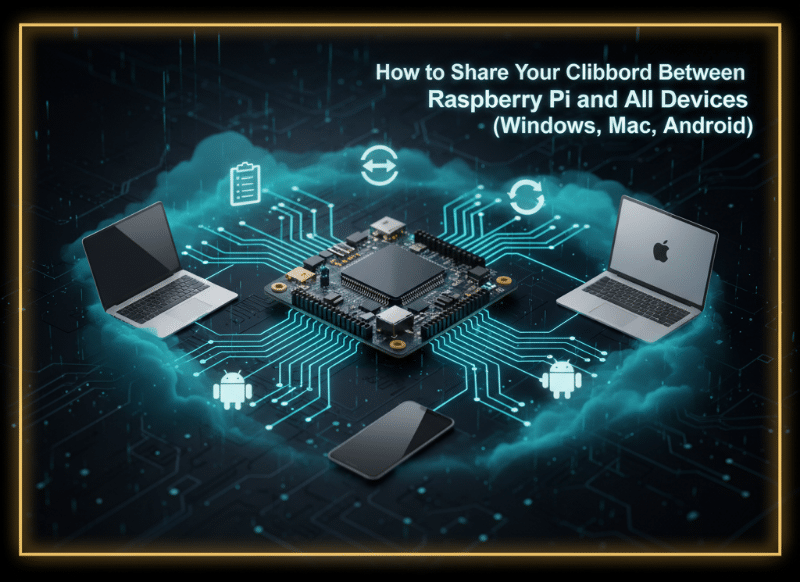
In a world where productivity depends on seamless cross-device workflows, something as simple as copying and pasting text between devices becomes essential. Whether you work with a Raspberry Pi, a Windows PC, a MacBook, or an Android phone, the ability to share your clipboard instantly saves time, eliminates friction, and improves efficiency.
Why Clipboard Sharing Across Devices Matters
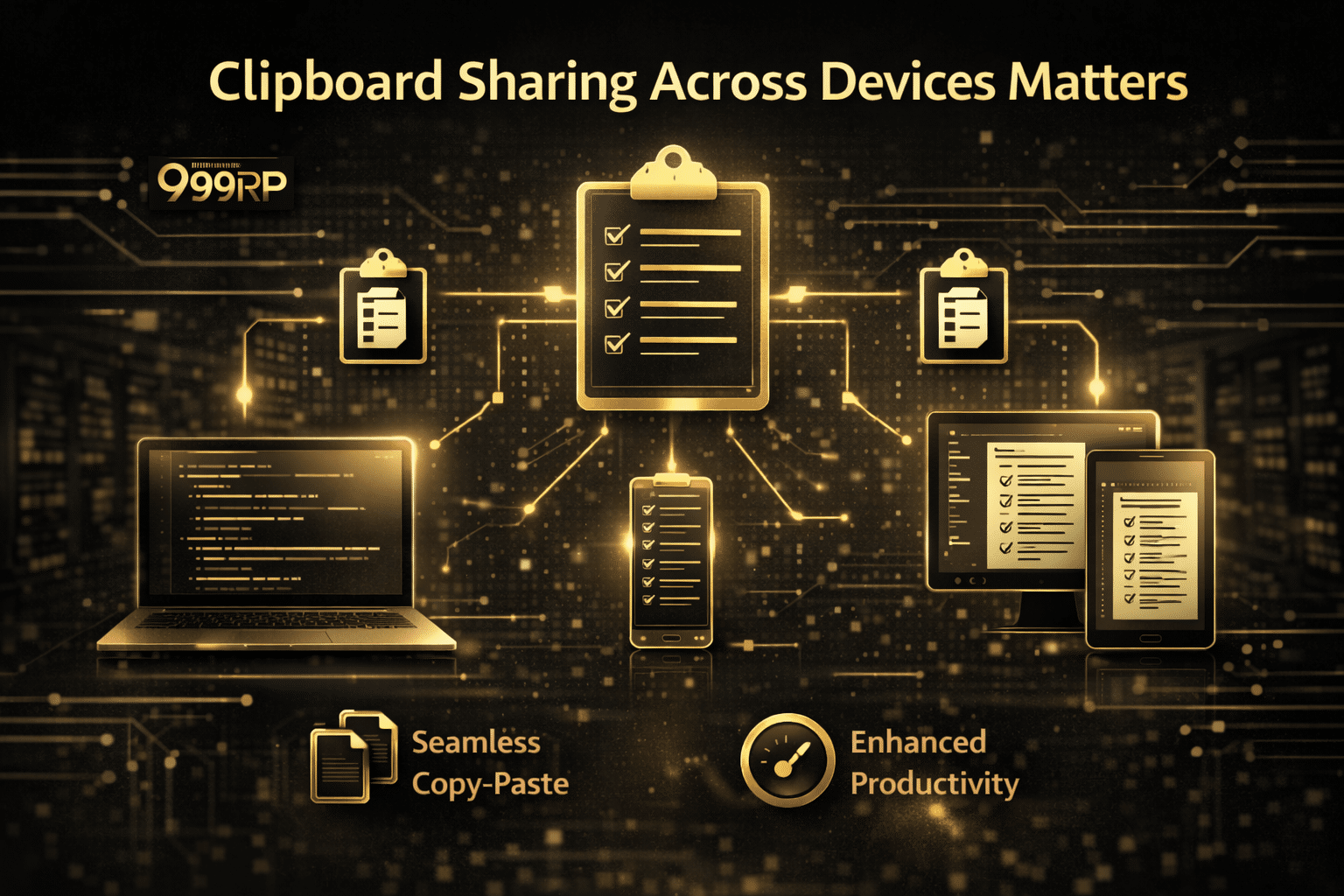
Modern users often shift between multiple devices during a typical work session. Developers move code snippets from a laptop to the Pi. Tech hobbyists test commands on Pi while researching from smartphones. Students copy text from online notes directly into Pi-based projects.
Here’s why cross-device clipboard sync is important:
- Faster Workflow — You avoid emailing yourself text or using USB drives for tiny files.
- Instant Snippet Transfer — Copy commands, scripts, URLs, and notes instantly.
- Better Cross-Platform Continuity — Works across Windows, macOS, Linux, and Android.
- Improved Productivity for Developers, Makers & Students — No interruptions; everything flows smoothly.
With a well-set clipboard-sharing solution, your Raspberry Pi becomes a more efficient part of your digital ecosystem.
Methods to Share Clipboard Between Raspberry Pi and Other Devices
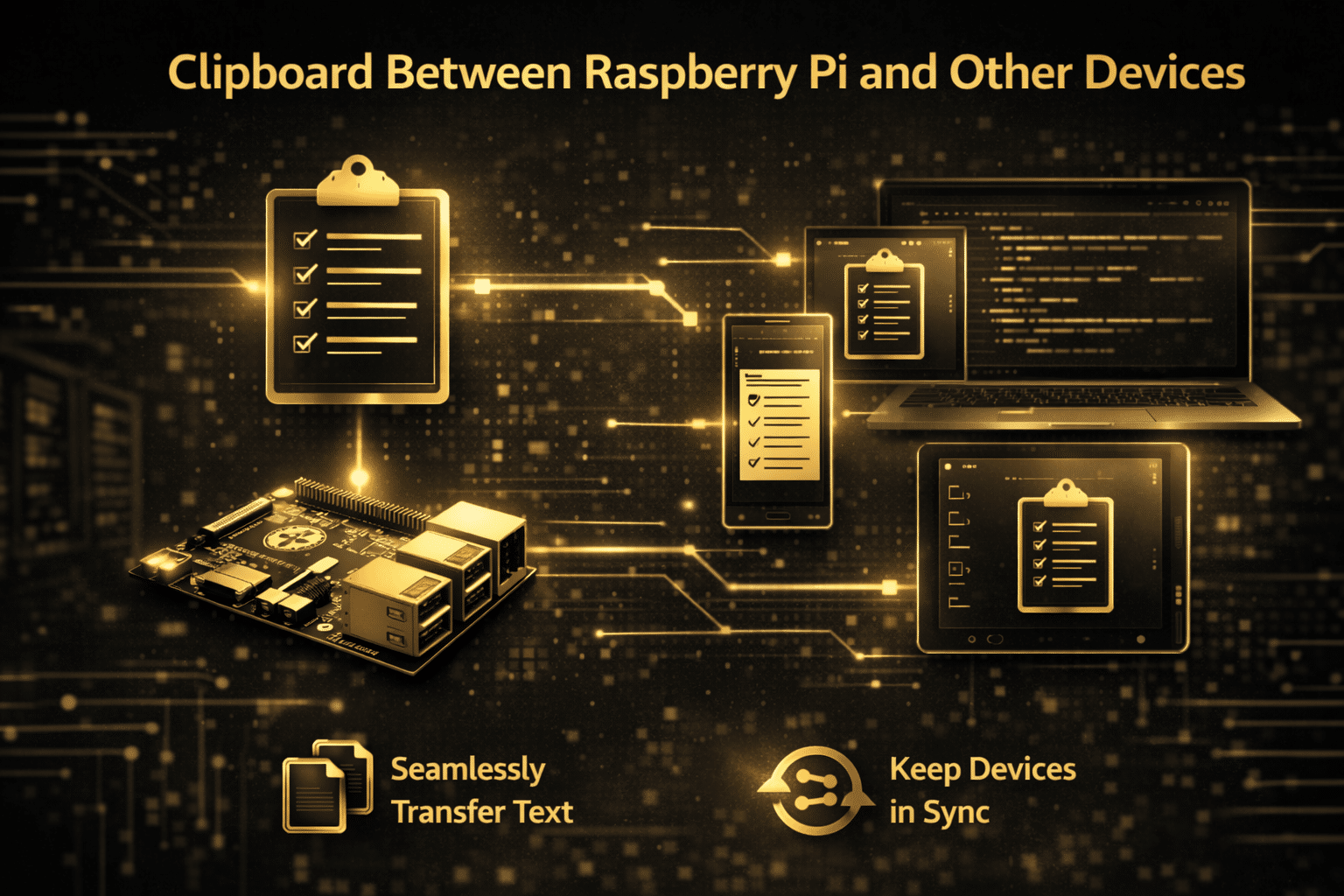
There are several ways to sync clipboard content across devices. Below are the most effective approaches users rely on today.
1. Use Browser-Based Clipboard Sharing (Raspberry Pi Connect)
Raspberry Pi Connect is now widely used for remote access and clipboard-sharing functionality. It allows you to control your Pi through a web browser and sync clipboard content across devices.
How it works:
- Open Raspberry Pi Connect in your browser (Chrome/Edge recommended).
- Connect to your Pi remotely.
- Copy text on the local device.
- Use the “Paste to Remote” option to send the clipboard content directly to the Pi.
Pros:
- Works across Windows, Mac, Linux, Android.
- Zero installation on your PC except browser support.
- Extremely beginner-friendly.
Cons:
- Clipboard sharing sometimes fails due to browser permission restrictions.
- Firefox often blocks clipboard access, causing the “Paste to remote” button to malfunction.
- Requires stable internet and login.
This is a good option for quick home projects and remote Pi sessions, but it may not be ideal for professional or heavy workflows.
2. Use a Python-Based DIY Clipboard Sync System
If you love coding and want complete control, creating your own clipboard sync between your Pi and another device is possible using Python.
Required modules:
- rpyc — for remote Python calls
- pyperclip — for accessing clipboard content
How it works:
- Install Python libraries on both systems.
- Run a “copy script” on the device sending clipboard data.
- Run a “paste script” on Raspberry Pi to receive clipboard text.
- Both devices should be on the same network.
Pros:
- Fully self-hosted.
- No dependence on cloud services.
- Fast transfer inside a home LAN.
Cons:
- Requires Python setup and scripting experience.
- Works only in local network unless additional tunneling is configured.
- Cannot scale easily for heavy or professional workflows.
This method is great for DIY lovers, but not ideal if you want remote accessibility from anywhere in the world.
3. Use Remote Desktop (RDP) — The Most Reliable Clipboard Sharing Method
Remote Desktop Protocol (RDP) offers built-in clipboard synchronization. When you remotely access your Raspberry Pi (or a server) through RDP, everything—including clipboard, files, and sometimes even audio—can be shared across devices seamlessly.
This is where 99RDP becomes extremely powerful.
How 99RDP Enhances Clipboard Sharing & Remote Workflows
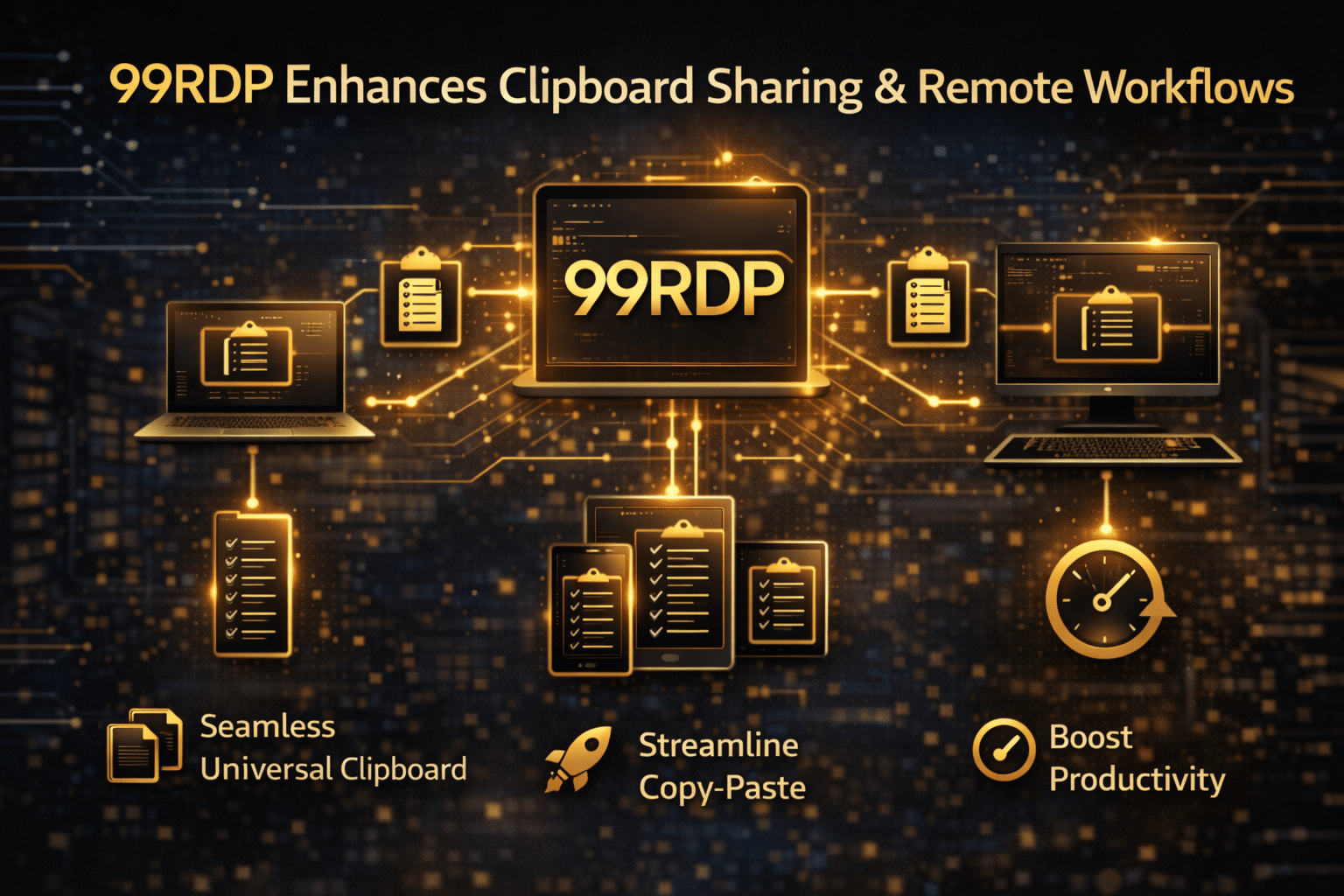
99RDP is a leading provider of high-performance RDP servers and VPS machines. For Raspberry Pi users, developers, students, IT engineers, and remote workers, 99RDP offers much more than simple clipboard sync.
Here’s how it improves your workflow:
✔ Clipboard Sync Built Directly into RDP
When you access a remote environment through RDP, clipboard sharing is automatic. You can instantly copy/paste:
- commands
- scripts
- notes
- URLs
- small files
This makes RDP far more stable compared to browser-based clipboard tools.
99RDP’s Windows RDP servers come with clipboard sharing enabled by default, ensuring smooth text and file transfers.
✔ Cross-Device Access from Anywhere
You can use your RDP from:
- Windows
- macOS
- Linux
- Android
- iOS
This enables true multi-device access to a powerful remote system without any setup on your Pi.
✔ High Performance for Heavy Tasks
If you use Raspberry Pi for experimentation but need more CPU/RAM for:
- coding
- simulations
- automation
- machine learning
- server management
99RDP offers powerful VPS options that outperform any home hardware. You get:
- fast NVMe storage
- high bandwidth
- dedicated RAM
- strong processors
This allows you to run tasks you normally cannot on a Pi.
✔ Perfect for Developers & Students
With 99RDP, you can:
- develop code on a remote machine
- run resource-heavy tools
- transfer clipboard data instantly
- access the same environment from any device
- store projects in one stable place
This removes limitations of Raspberry Pi hardware while keeping your workflow consistent.
✔ Secure and Reliable Connections
99RDP provides:
- encrypted access
- stable uptime
- secure authentication
- dedicated firewall
- zero packet loss on premium plans
This is far more reliable than browser-based clipboard syncing or DIY network scripts.
When Should You Use Raspberry Pi Clipboard Sharing vs 99RDP?
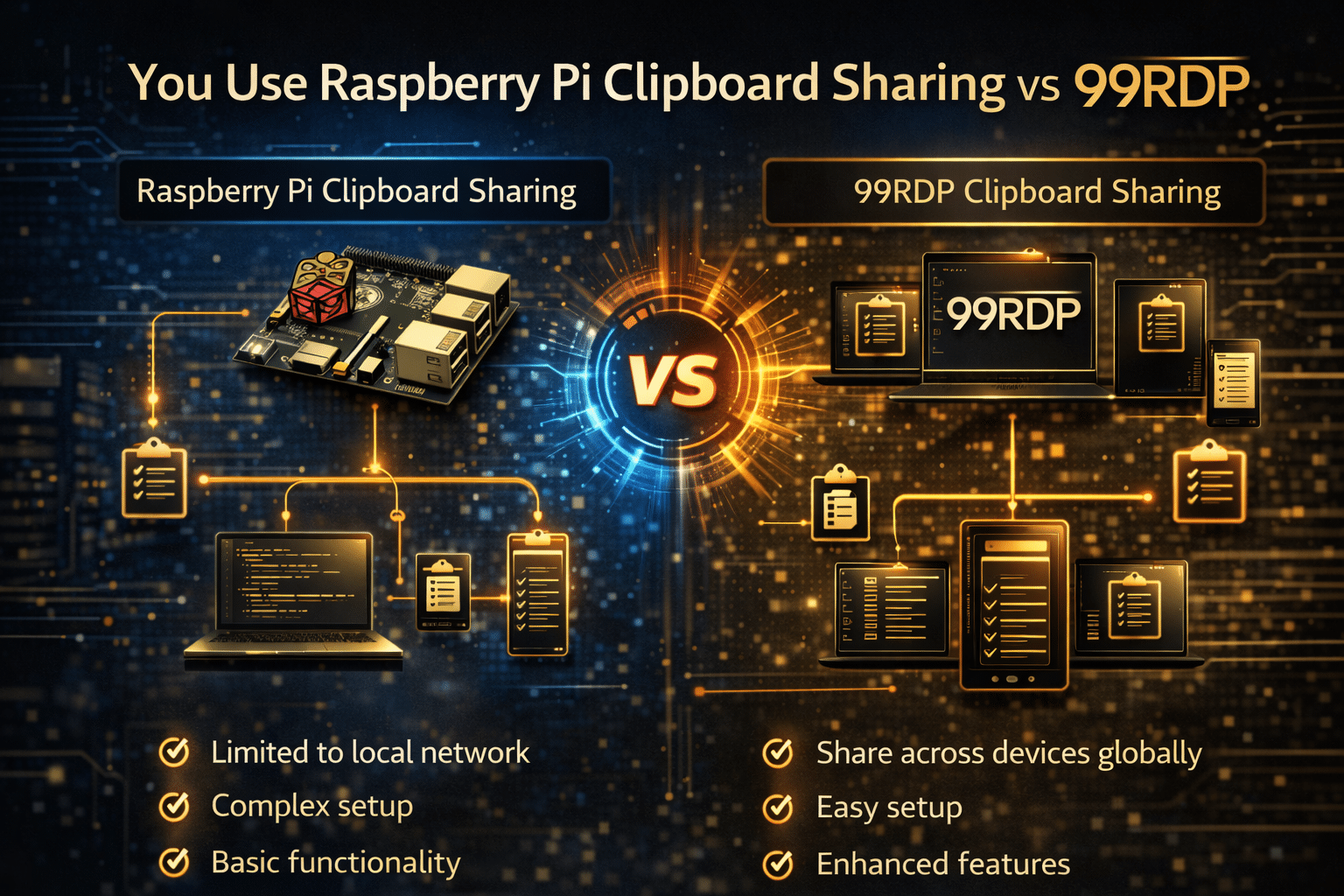
| Scenario | Best Option |
|---|---|
| Simple text transfer within the same network | Raspberry Pi Connect or Python sync |
| Quick copy/paste from laptop to Pi | Browser-based clipboard |
| Need remote access from outside home | 99RDP |
| Need stable clipboard + file transfer | 99RDP |
| Running heavy computational tasks | 99RDP VPS |
| Working on multi-device development | 99RDP |
Best Practices for Smooth Clipboard Sharing
To ensure consistent performance:
- Use Chrome/Edge for web-based clipboard sync.
- Enable clipboard permissions manually if blocked.
- Avoid copying large files via clipboard (use file transfer instead).
- On RDP sessions, enable both “clipboard” and “drive redirection.”
- Keep your Raspberry Pi updated to prevent permission bugs.
Clipboard Sharing is Easy — Full Remote Power is Better

Sharing clipboard between Raspberry Pi, Windows, Mac, Android, and Linux devices can dramatically simplify your daily workflow. Browser-based tools and Python scripts work fine for home projects, but they fall short for professional, reliable, cross-device usage.
If you want:
- reliable clipboard sharing,
- stable remote access,
- faster performance,
- more storage,
- secure connectivity,
- and cross-device freedom
then 99RDP is the smarter and more powerful option.
With 99RDP, you do not just share your clipboard—you upgrade your entire computing experience.
EXPLORE MORE; Raspberry Pi OS Gets a Debian 13 Upgrade: Trixie
READ OUR BLOGS