
Linux “Everything Is a File”: How a 50-Year-Old Idea Still Shapes Modern Servers

Linux has a surprisingly simple philosophy behind its powerful command line: treat many different system resources through a common interface. Discover how this decades-old Unix idea makes Linux flexible, simplifies server administration, and helps developers build efficient workflows.
Linux powers everything from personal development environments to cloud infrastructure and high-performance computing systems. Yet one of the ideas that helps explain its distinctive design emerged decades before cloud computing, containerization, and modern DevOps became mainstream.
That idea is known as “everything is a file.”
At first, the phrase sounds strange. How can a processor, a device, a running process, and a document all behave like files?
The answer lies in the design philosophy inherited from Unix. Instead of requiring a completely different approach for every resource, Linux provides consistent interfaces that let programs interact with many resources using familiar operations.
This design encourages developers to combine small tools, automate repetitive tasks, and inspect system information without building a separate application for every job.
For anyone working with Linux servers, understanding this philosophy offers more than historical insight. It provides a practical foundation for managing applications, troubleshooting problems, and building reliable server workflows.
Let’s explore how it works, why it still matters, and how you can put it into practice on a Linux server.
1. What Does “Everything Is a File” Mean in Linux?
The phrase everything is a file summarizes an important principle inherited from Unix: many system resources can be accessed through file-like interfaces.
In Linux, a regular file stores information such as documents, configuration settings, application code, or logs. Other resources can also expose interfaces that programs access using familiar file operations.
These include:
- Regular files: Store persistent data on storage devices.
- Directories: Organize filesystem entries into a hierarchy.
- Device files: Provide interfaces to hardware and certain kernel-managed devices.
- Pipes: Transfer data between processes.
- Virtual filesystem entries: Expose selected information about processes, devices, and kernel state.
- File descriptors: Give processes handles for working with open files and other input/output resources.
However, Linux does not literally represent every resource as an ordinary file. Network sockets, for example, have specialized APIs and behaviors.
The underlying idea is to provide consistent ways to interact with different resources whenever practical.
A simple example
Suppose you want to read a text file. You can run:
cat notes.txt
Now suppose you want to inspect information about the processor.
Run:
cat /proc/cpuinfo
Both commands use the same utility, but they access different kinds of resources.
notes.txtcontains ordinary stored data./proc/cpuinfoexposes processor information through a virtual filesystem.
Linux allows you to read both through a familiar interface.
Similarly, you can inspect memory information with:
cat /proc/meminfo
Or examine system uptime with:
cat /proc/uptime
These examples demonstrate how Linux makes selected system information accessible through familiar filesystem paths.
Why does this matter?
Developers and administrators can reuse existing command-line tools to inspect and process information instead of creating specialized programs for every task.
That flexibility is one reason Linux remains attractive for technical workloads.
2. The Unix Roots of a Linux Philosophy
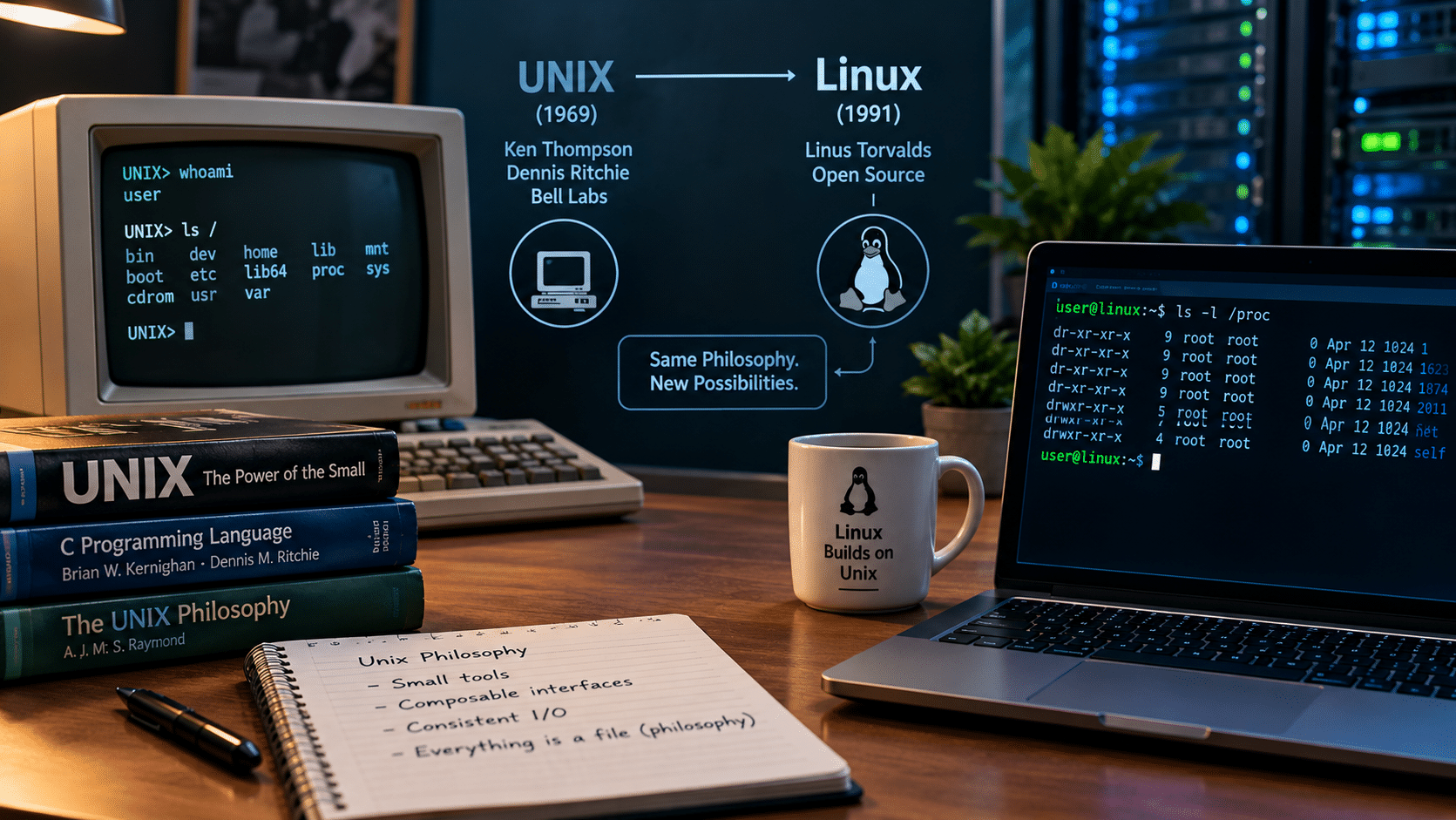
The origins of this approach go back to Unix, which emerged at Bell Labs in the late 1960s and early 1970s.
Engineers needed an operating system that could support multiple users, manage files, run programs, and coordinate access to system resources.
Unix developed a philosophy centered on relatively small tools, composable interfaces, and consistent input/output mechanisms.
Rather than making every program responsible for an entire workflow, developers could connect tools and let each one handle a specific task.
Three ideas helped make this approach particularly powerful.
A. Standard input and output
Unix-like systems provide three standard streams to most command-line processes.
| Stream | File descriptor | Purpose |
|---|---|---|
| Standard input | 0 | Receives input |
| Standard output | 1 | Produces normal output |
| Standard error | 2 | Produces diagnostic messages |
These streams allow programs to communicate without needing to understand each other’s internal implementation.
For example, you can search a log file for errors:
grep "ERROR" application.log
You can redirect the results into another file:
grep "ERROR" application.log > errors.txt
Or count the matching lines:
grep "ERROR" application.log | wc -l
The pipe (|) sends the first command’s standard output to the second command’s standard input.
grep searches for matching lines, while wc -l counts them.
Each program performs one focused task, and the shell connects them.
B. Small tools that work together
Unix popularized the idea that tools should perform focused tasks and work well together.
Consider this example:
ps aux | grep nginx
The first command lists running processes. The second filters the output for lines containing nginx.
You can use the same general approach to search logs, transform text, identify processes, or prepare information for another program.
Instead of developing a custom application for every administrative task, you can often combine established utilities.
C. Consistent access to system resources
Linux exposes selected kernel and device information through filesystem paths.
| Path | Purpose |
|---|---|
/proc/cpuinfo |
Reports processor information |
/proc/meminfo |
Reports memory statistics |
/proc/uptime |
Reports system uptime and idle time |
/proc/loadavg |
Reports load-average information |
/sys |
Exposes information about kernel devices and subsystems |
/dev/null |
Provides a destination that discards written data |
These interfaces make system inspection and automation more accessible.
They do not all behave like ordinary files stored on a disk. Many virtual filesystem entries expose information generated dynamically by the kernel.
Nevertheless, the common interface makes them easier to work with using familiar tools.
The lasting lesson: A small set of well-designed interfaces can support a remarkably broad range of computing tasks.
3. Why Linux Still Feels Different From Other Operating Systems
Linux is not the only operating system with powerful command-line tools or sophisticated resource-management interfaces.
Windows, macOS, and other platforms provide their own APIs, automation capabilities, and system abstractions.
What distinguishes the traditional Unix approach is its emphasis on composability through common input/output conventions.
Consider a few everyday server administration tasks.
To check system uptime:
uptime
To inspect memory usage:
free -h
To check filesystem capacity:
df -h
To examine recent system messages on a system using systemd:
journalctl -n 100
Each command handles a different task, but the overall workflow remains familiar.
You run a focused utility, examine its output, and combine the results with other tools when necessary.
You can also combine these commands in a shell script:
#!/usr/bin/env bash

echo "===== SYSTEM UPTIME ====="
uptime

echo
echo "===== MEMORY USAGE ====="
free -h

echo
echo "===== DISK SPACE ====="
df -h
Save the script as system-check.sh and run:
chmod +x system-check.sh
./system-check.sh
The script collects several useful indicators in one place.
You do not need to implement your own memory-monitoring system, filesystem scanner, or uptime calculator. You simply reuse the tools already available on the system.
Where this approach proves useful
The Unix philosophy supports several practical activities:
- System administration: Combine existing utilities to inspect and maintain servers.
- Software development: Redirect application output and integrate command-line tools.
- Automation: Schedule scripts for recurring maintenance tasks.
- Troubleshooting: Collect evidence from logs, process information, and system metrics.
- DevOps: Build repeatable workflows around scripts and standard tools.
This approach does not eliminate complexity. Instead, it gives developers and administrators practical ways to organize it.
4. The Data Behind Linux’s Role in Modern Infrastructure
Linux’s architecture becomes even more interesting when we examine its position in modern computing.
Linux supports a broad range of workloads, including cloud servers, embedded systems, development environments, and supercomputers.
The TOP500 project provides one measurable example of Linux’s role in high-performance computing.
According to the project’s November 2025 operating-system family statistics, Linux accounted for all 500 systems in the TOP500 ranking.
That is a specific finding about the TOP500 supercomputer list, not a claim that Linux runs every supercomputer or every cloud server worldwide.
Why is this relevant to developers and server administrators?
Linux provides an environment where users can work directly with processes, filesystems, system services, permissions, and command-line utilities. These capabilities support the development and operation of a wide variety of technical workloads.
The Unix philosophy is not the sole reason Linux has achieved widespread adoption. Its open-source development model, portability, hardware support, ecosystem, and flexibility also matter.
Nevertheless, its consistent interfaces and composable tools help explain why the operating system remains useful across so many different environments.
For anyone learning server administration, Linux fundamentals remain valuable skills.
5. Five Ways This Philosophy Helps With Server Management
Understanding Linux becomes more useful when you apply its concepts to real administrative tasks.
Here are five examples of how familiar interfaces and command-line tools help you inspect and maintain a server.
5.1 Monitor memory usage
Linux exposes memory information through /proc/meminfo.
Run:
cat /proc/meminfo
For a more readable summary, use:
free -h
The first command reports detailed kernel memory information, while the second presents a convenient overview.
Practical benefit: You can investigate memory consumption when diagnosing slow applications, resource constraints, or unexpected system behavior.
5.2 Investigate disk capacity
Run:
df -h
This command reports filesystem capacity and usage in a human-readable format.
To summarize the space used by a particular directory, run:
du -sh /var/log
The second command helps you determine how much space the specified directory consumes.
Practical benefit: These tools help identify storage constraints before they disrupt applications.
5.3 Inspect running processes
Run:
ps aux
To filter for a particular application:
ps aux | grep nginx
You can also use:
top
This provides an interactive view of running processes and resource consumption.
Practical benefit: These tools help you investigate CPU usage, identify relevant processes, and determine what deserves further attention.
Keep in mind that a text search can also match the search command itself. A matching process name does not automatically indicate a problem.
5.4 Read application logs
On a system using systemd, you can inspect logs for a particular service:
journalctl -u nginx
To show only recent entries:
journalctl -u nginx -n 100
Replace nginx with the relevant service name.
Practical benefit: Log inspection helps you investigate service failures, configuration mistakes, and application errors.
Not every Linux distribution or application uses the same logging mechanism, so adjust the commands to match your environment.
5.5 Automate recurring checks
You can combine familiar utilities into one reusable script:
#!/usr/bin/env bash

set -u

echo "===== SYSTEM STATUS ====="
date

echo
echo "===== UPTIME ====="
uptime

echo
echo "===== MEMORY ====="
free -h

echo
echo "===== DISK SPACE ====="
df -h

echo
echo "===== RECENT SYSTEM ERRORS ====="
journalctl -p err -n 10 --no-pager
Save the script as health-check.sh and execute:
chmod +x health-check.sh
./health-check.sh
This script gathers basic diagnostic information using existing utilities.
It does not replace a complete monitoring system, but it provides a useful starting point for routine server checks.
The broader lesson is straightforward: Linux encourages you to build useful workflows by combining tools rather than reinventing each component.
6. Why Your Server Environment Matters
Understanding Linux is valuable, but knowledge alone does not provide the resources needed to run real applications.
Developers also need an environment where they can install software, configure services, test scripts, and deploy projects.
For many workloads, a virtual private server offers a practical starting point.
A Linux VPS provides a virtualized server environment with allocated resources and administrative access, depending on the hosting plan.
With root access, authorized administrators can generally install packages, manage services, and configure supported operating-system settings.
That flexibility complements Linux’s command-line-oriented approach.
What can you do with a Linux VPS?
Host a website
Install a web server, configure your domain, deploy application code, and manage supporting services.
Build a development environment
Install compatible programming languages, test deployments, and reproduce server-side behavior without relying entirely on your local computer.
Run automation scripts
Execute scheduled maintenance tasks, process data, or automate repetitive operations.
Learn Linux administration
Practice package management, user permissions, service configuration, logging, and networking.
Deploy backend applications
Host APIs, lightweight databases, background workers, and other applications when the server’s resources meet their requirements.
A VPS does not automatically guarantee good performance or security. You must still select appropriate resources, configure your applications, apply updates, and monitor your systems.
The right environment simply gives you greater control over how you manage those responsibilities.
99RDP Linux VPS: Put Linux’s Flexibility Into Practice
Reading about file descriptors, virtual filesystems, and shell pipelines helps build a theoretical understanding of Linux. Working with an actual server lets you apply those concepts to real applications and administrative tasks.
This is where 99RDP Linux VPS hosting becomes relevant.
99RDP advertises Linux VPS plans with root access, SSD storage, allocated virtual CPU and memory resources, bandwidth allowances, and Ubuntu or AlmaLinux options. Its published configurations provide several starting points for developers and administrators to evaluate.
A. Root access for greater control
Root access allows authorized administrators to install software, manage services, and configure supported system settings.
For example, you can install a web server, inspect its logs, and create scripts that automate routine checks.
This flexibility makes a Linux VPS useful for developers who want more control than a restricted hosting environment provides.
Explore the available options on the official 99RDP Linux VPS page.
B. Different configurations for different workloads
A small test application does not necessarily need the same resources as a server running multiple services.
99RDP lists configurations with different combinations of virtual CPUs, memory, SSD storage, and bandwidth.
The following table summarizes four configurations displayed on its Linux VPS page at the time of research.
| Plan | vCPU | RAM | SSD storage | Listed bandwidth |
|---|---|---|---|---|
| Linux VPS #1 | 1 | 1 GB | 20 GB | 1 TB |
| Linux VPS #2 | 1 | 2 GB | 30 GB | 2 TB |
| Linux VPS #3 | 2 | 2 GB | 40 GB | 3 TB |
| Linux VPS #4 | 2 | 4 GB | 50 GB | 4 TB |
Specifications reflect the provider’s published plan information at the time of research. Verify current availability, pricing, and resource limits on the official website before purchasing.
These configurations can help you compare your expected requirements with the resources available.
For example:
- A small test application may work with a modest configuration.
- A development environment running multiple services may require more memory.
- A busier website may benefit from additional CPU capacity and storage.
- A database-heavy application may need careful storage and memory planning.
Actual performance depends on the workload, software configuration, and hosting environment. Always test the configuration against your application rather than relying on specifications alone.
C. Linux distribution options
99RDP advertises Ubuntu and AlmaLinux options for its Linux VPS offering.
Ubuntu may suit developers who value its extensive documentation and software ecosystem.
AlmaLinux may suit administrators who prefer an enterprise-oriented Linux distribution.
Before choosing either option, verify compatibility with your software, required package versions, and preferred maintenance lifecycle.
D. A remote environment for development
You can manage a Linux VPS remotely through SSH.
For example:
ssh username@your-server-ip
After connecting, inspect the operating system:
uname -a
Check memory:
free -h
Review filesystem usage:
df -h
Inspect running processes:
top
These simple commands demonstrate how you can use Linux’s familiar tools to administer a remote server.
For better security, use SSH keys where appropriate, protect administrative credentials, restrict unnecessary network access, and keep the operating system updated.
E. A practical starting point for growing projects
A VPS can provide a useful foundation for a website, development environment, or small application.
You can begin with a suitable configuration, monitor the workload, and increase resources when necessary.
However, increasing the resources of a single server does not solve every infrastructure problem. High availability, database replication, load balancing, and horizontal scaling require additional planning.
Choose your hosting architecture according to your application’s actual requirements.
Want to explore the available configurations? Visit 99RDP Linux VPS hosting to review the current plans and find an option that fits your workload.
Practical Tutorial: Build a Basic Linux Server Health-Check Script
Let’s bring the concepts together in a simple project.
Imagine you manage a Linux VPS that hosts a website. You want to check system uptime, memory usage, disk space, and recent errors associated with your web server.
You could run each command separately. Alternatively, you can combine them into a reusable script.
Step 1: Create the script
Open a terminal and create a file:
nano server-status.sh
Add the following content:
#!/usr/bin/env bash

set -u

echo "===== SERVER STATUS ====="
date

echo
echo "===== UPTIME ====="
uptime

echo
echo "===== MEMORY ====="
free -h

echo
echo "===== DISK SPACE ====="
df -h

echo
echo "===== WEB SERVER STATUS ====="

if systemctl is-active --quiet nginx; then
    echo "Nginx is active."
else
    echo "Nginx is not active."
fi

echo
echo "===== RECENT SERVICE ERRORS ====="
journalctl -u nginx -p err -n 10 --no-pager
This example assumes your server uses systemd and runs Nginx. If you use a different web server, replace nginx with the relevant service name.
Step 2: Make the script executable
Run:
chmod +x server-status.sh
Step 3: Run the checks
Execute:
./server-status.sh
The script now gathers several useful indicators in one place.
Step 4: Interpret the results
Look for warning signs such as:
- Filesystems approaching capacity.
- Unexpectedly high memory consumption.
- Services that are not running.
- Repeated errors in service logs.
These indicators do not automatically identify the root cause of a problem, but they help you determine what to investigate.
Step 5: Schedule recurring checks
You can schedule the script with cron.
Open your crontab:
crontab -e
To run the script every day at 9:00 AM, add:
0 9 * * * /home/username/server-status.sh >> /home/username/server-status.log 2>&1
Replace /home/username/ with the actual directory containing your script.
This configuration appends the output to a log file.
Remember that this is a basic diagnostic workflow, not a complete monitoring solution. It does not automatically alert you when a threshold is exceeded. You would need to add alerting or integrate a monitoring platform to achieve that.
What does this tutorial demonstrate?
It illustrates three important principles.
Reuse: Existing commands handle specific administrative tasks.
Composition: A shell script combines the commands into one workflow.
Automation: Cron can execute the workflow on a recurring schedule.
On a properly configured Linux VPS, this approach provides a useful starting point for routine server checks.
It also shows why administrative access matters: the more control you have over your environment, the more freely you can adapt your workflows.
Where the “Everything Is a File” Philosophy Has Limits
The phrase offers a useful introduction to Linux, but developers should not interpret it literally.
Linux does not represent every resource as a conventional file. Understanding the exceptions helps you use the system correctly.
Network sockets have specialized behavior
Linux applications commonly use socket APIs to create and manage network connections.
Once created, sockets can be represented by file descriptors, allowing programs to use familiar operations where appropriate.
However, sockets have connection semantics and specialized operations that ordinary disk files do not.
Some device operations require specialized interfaces
A device file may allow a program to read or write data, but more advanced operations can require interfaces such as ioctl().
These interfaces expose device-specific functionality that cannot be reduced to simple byte streams.
Virtual filesystems do not behave like ordinary storage
Files under /proc and /sys often expose information generated dynamically by the kernel or device subsystems.
Reading such an entry may retrieve current system information rather than data stored permanently on disk.
Some entries support writes, but changing them can affect system behavior and may require elevated permissions.
Security still depends on permissions
A common interface does not mean unrestricted access.
Linux enforces access controls, and administrators must understand file permissions, ownership, service privileges, and other security mechanisms.
For example:
ls -l /etc
This command lists directory entries and displays relevant permission information.
Never assume that a resource is safe to modify simply because it appears in the filesystem.
The takeaway: “Everything is a file” describes an influential architectural pattern, not a literal rule governing every Linux resource.
Five Lessons Developers Can Take From This Philosophy
The longevity of this idea offers lessons that extend beyond operating-system design.
1. Prefer reusable interfaces
Consistent interfaces let developers reuse tools across different tasks.
This can reduce duplication and simplify maintenance.
2. Build workflows from smaller components
A complex administrative task does not always require a complex application.
Several established utilities connected through a script may provide a simpler, more maintainable solution.
3. Automate repeatable work
Once a workflow becomes predictable, automation can reduce repetitive manual effort.
For server administrators, this might mean checking disk usage, collecting system information, or reviewing logs.
4. Understand the underlying environment
Automation is only as reliable as its assumptions.
Developers should understand file permissions, process behavior, service managers, resource limits, and the differences between Linux distributions.
5. Match infrastructure to the workload
A well-designed script cannot compensate for insufficient memory, inadequate storage, or a poorly configured application.
The operating environment matters just as much as the tools you run.
A Linux VPS with suitable resources and administrative access can give developers room to apply these principles to actual projects.
Conclusion: A 50-Year-Old Idea With Practical Value Today
The Unix philosophy of treating many system resources through common file-like interfaces has endured because it makes complex environments easier to work with.
Developers can redirect output, connect programs with pipes, inspect virtual filesystems, and combine small utilities into larger workflows.
These capabilities make Linux particularly useful for server administration, software development, and automation.
The principle does not mean every resource is literally a file. Instead, it illustrates the value of consistent interfaces and composable tools.
And that lesson remains relevant in modern computing.
If you want to apply these ideas beyond your local machine, a Linux VPS gives you a practical environment for installing software, managing services, experimenting with automation, and deploying applications.
99RDP’s Linux VPS plans offer root access and configurable resources that developers can evaluate for these purposes.
Explore the current options on the official 99RDP Linux VPS hosting page and choose a configuration that matches your technical requirements.
After all, the best way to understand Linux’s philosophy is not simply to read about it.
Open a terminal, explore the system, and start building something useful.
EXPLORE MORE; Why Smart Developers Are Pairing RP2040 Boards with Cloud RDP Servers

READ OUR BLOGS


