
10 Best Open-Source Backup Solutions in 2026 to Protect Your Data

Data loss can disrupt a business, interrupt a development project, or erase years of personal work in seconds. A failed hard drive, accidental deletion, ransomware attack, or unsuccessful system update can turn an ordinary day into a costly recovery exercise.
The solution starts with a reliable backup strategy.
Fortunately, you do not need to invest in expensive proprietary software to build one. Open-source backup solutions give individuals, developers, system administrators, and businesses flexible ways to protect important files, automate backups, and recover data when something goes wrong.
The challenge lies in choosing the right tool.
Some applications specialize in encrypted file backups. Others create complete disk images, manage multiple computers, or help Linux users recover system configurations. Each tool addresses a different problem, so understanding its strengths and limitations will help you make a better decision.
In this guide, we examine 10 open-source backup solutions worth considering in 2026. We compare their features, explain their best use cases, and explore how you can combine backup software with reliable infrastructure to create a more resilient data protection strategy.
We also explain how a Linux virtual private server (VPS) can support remote backup workflows, particularly for developers and website owners who need more control over their server environments.
For users exploring remote Linux infrastructure, 99RDP’s Linux VPS hosting offers configurable server resources and root access that can support compatible backup applications and automation.
Let’s explore the tools that can help you protect your data.
Why Should You Use Open-Source Backup Software?
Open-source backup software allows users to access and use source code under the terms of the relevant open-source license. Depending on the project, users may also modify and redistribute the software.
This approach gives you greater flexibility when designing your backup infrastructure.
Here are the main benefits.
1. Reduce Software Licensing Costs
Many open-source backup applications are available without software licensing fees.
You can use them to protect personal files, development projects, and server data without automatically committing to a recurring software subscription.
However, free software does not mean zero operating costs. You may still need to pay for storage, VPS resources, bandwidth, maintenance, and technical support.
2. Automate Repetitive Backup Tasks
Manual backups are easy to postpone.
Backup applications can schedule recurring jobs, preserve historical versions, and reduce the effort required to protect frequently changing files.
Automation becomes particularly useful when you manage multiple websites, servers, or development environments.
3. Improve Control Over Your Data
Many open-source backup tools let you choose where to store your backups.
Depending on the application, destinations may include external drives, network-attached storage (NAS), remote servers, and supported cloud storage services.
This flexibility helps you design a storage strategy that fits your budget, security requirements, and recovery objectives.
4. Protect Sensitive Information with Encryption
Several open-source backup applications encrypt data before transferring or storing it.
Encryption can help protect confidential documents, application configurations, and other sensitive information if someone gains unauthorized access to the backup repository.
You must still protect passwords and encryption keys. Losing the credentials required to decrypt a backup can make the data unrecoverable.
5. Recover Earlier Versions of Files
Backup tools that preserve snapshots or historical versions allow you to recover files from earlier points in time.
This capability helps when someone accidentally deletes a document, overwrites a configuration file, or discovers that a project contains unwanted changes.
The key takeaway: Choose backup software based on the data you need to protect, the recovery options you require, and the infrastructure you can maintain.
10 Best Open-Source Backup Solutions in 2026

The following tools cover different backup requirements, from individual files and Linux configurations to disk imaging and centralized server administration.
We selected them based on their capabilities, intended use cases, and suitability for different types of users. This list is a practical comparison rather than a universal performance ranking: the best option depends on your environment.
1. Restic — Best Overall for Secure, Automated Backups
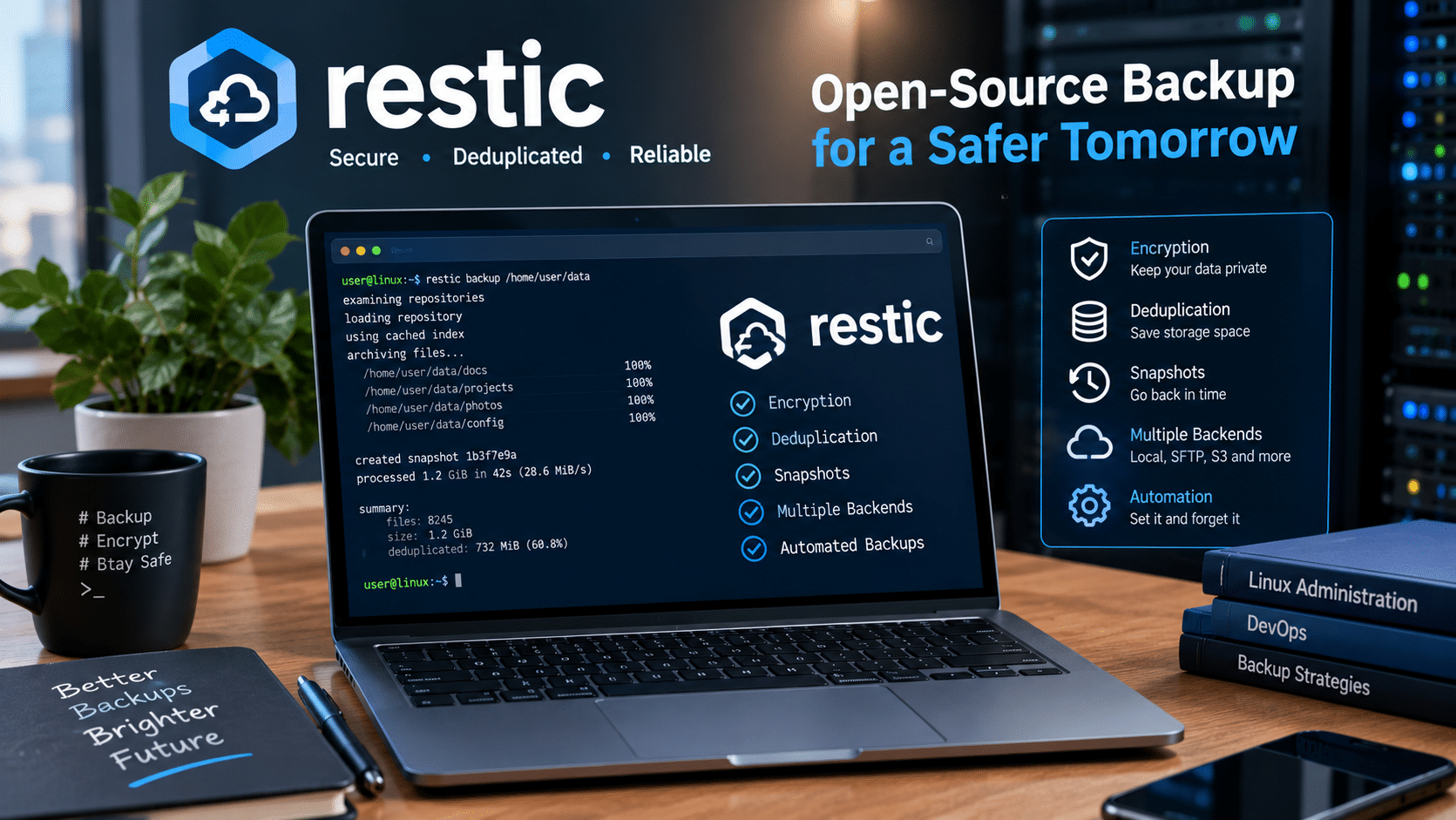
Best for: Developers, Linux administrators, and users who want encrypted backups across different storage destinations.
Restic is a modern, open-source backup program that combines encryption, snapshots, deduplication, and support for multiple storage backends.
Its straightforward design makes it a strong starting point for users who want to automate backups without deploying a complicated backup server.
Restic supports Linux, Windows, macOS, and several BSD systems. It can store backups locally, transfer them to remote servers through SFTP, and work with supported object-storage platforms and other backends.
Key Features
- Encryption: Protects backup data through cryptographic mechanisms.
- Deduplication: Avoids storing repeated data unnecessarily within a repository.
- Snapshots: Preserves historical versions of files and directories.
- Remote storage: Supports several storage backends, including SFTP and S3-compatible storage.
- Automation: Integrates with scripts and scheduled tasks.
- Verification: Provides commands for checking repository data and supporting recovery workflows.
Why Restic Stands Out
Imagine that you manage a website and regularly modify its application files.
Instead of manually copying the entire project into a new directory every day, you can configure Restic to create scheduled snapshots of the important files.
If an update introduces a problem, you can locate an earlier snapshot and restore the required files.
Deduplication can also reduce repeated storage when successive backups contain similar data.
Actual storage savings depend on how much the data changes and how the repository is configured.
How to Use Restic with a VPS
A Linux VPS can serve as a remote backup destination when its operating system, storage, connectivity, and access configuration meet your requirements.
You could configure a workstation or application server to transfer encrypted backups to a separately managed machine.
For example, a developer might protect:
- Website source files.
- Application configuration.
- Deployment scripts.
- Important documents.
- Selected database exports.
A VPS with sufficient storage and network capacity can support this workflow.
If you need a configurable Linux environment, explore 99RDP’s Linux VPS hosting and evaluate the available resources against your backup requirements.
Remember that Restic requires the correct repository password to access encrypted backup data. Store that password securely and test your restoration process before relying on it for disaster recovery.
Our verdict: Restic is an excellent starting point for users who want a versatile, encrypted, and automation-friendly backup tool.
Official project: Restic
2. BorgBackup — Best for Efficient Linux and Unix Backups
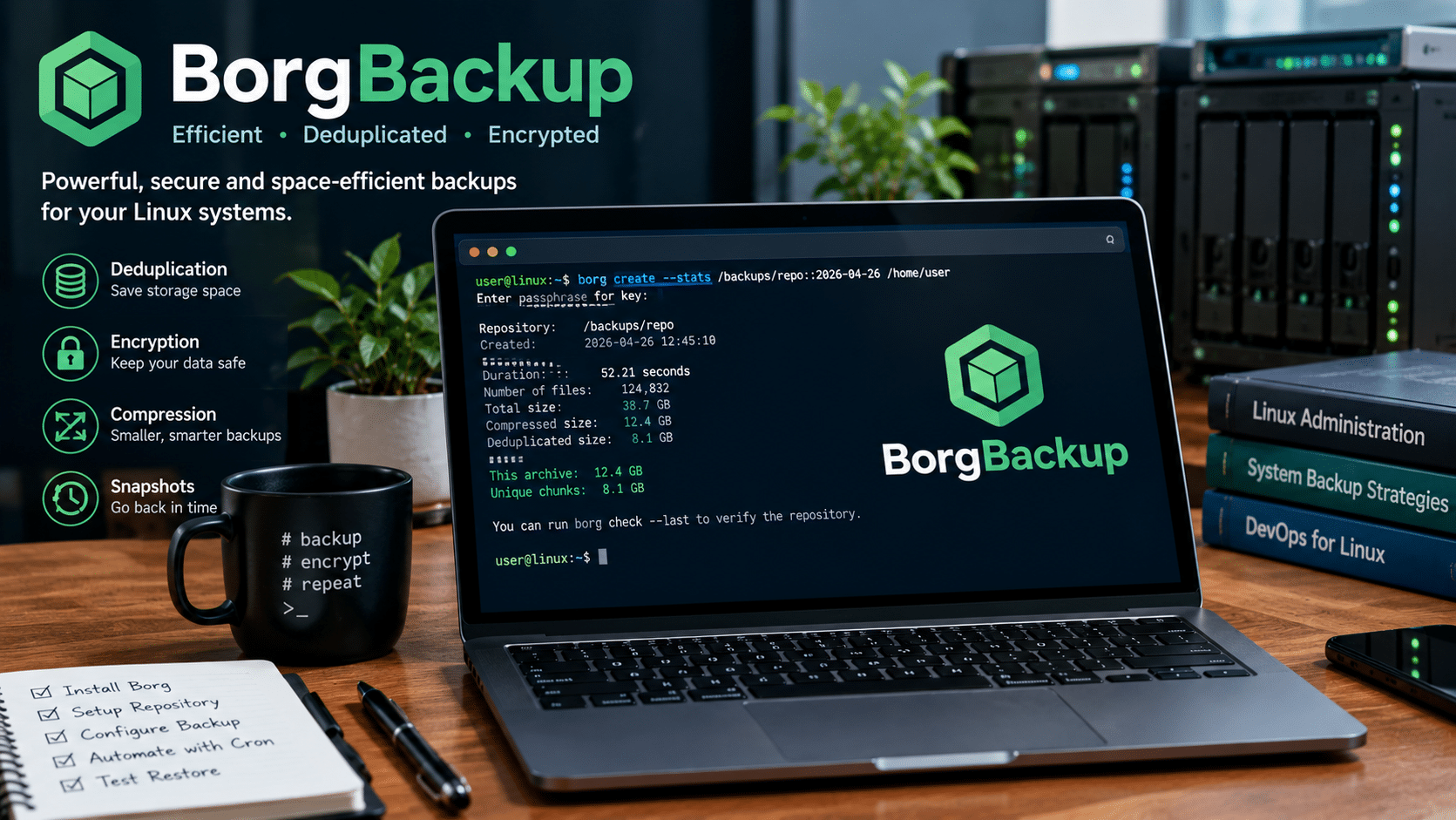
Best for: Linux administrators, developers, and technically experienced users managing file-based backups.
BorgBackup, commonly called Borg, focuses on efficient backups through deduplication, compression, and optional authenticated encryption.
It particularly suits users who prefer command-line administration and want to maintain backup repositories on local storage or remote systems accessible through SSH.
The official project lists Borg 1.4.5, released on July 19, 2026, as its stable release at the time of this article’s research. Borg 2.0 remains in beta, so production deployments should use an appropriate stable release.
Key Features
- Deduplication: Reduces repeated data within backup repositories.
- Compression: Supports options for reducing storage consumption.
- Encryption: Provides authenticated encryption options.
- Archive management: Maintains multiple backup archives in a repository.
- Remote operation: Supports backup workflows over SSH.
- Flexible retention: Allows users to manage historical archives.
Why BorgBackup Matters
Consider a Linux server that stores 30 GB of application files and configuration data.
If the data changes only slightly between backups, Borg’s deduplication can reduce the amount of repeated information stored.
However, the actual storage savings depend on the dataset. You should measure your own workload rather than assume a specific reduction.
Borg also gives administrators control over retention policies, helping them balance historical recovery needs against available storage.
Ideal Use Cases
Choose BorgBackup if you:
- Administer Linux or Unix systems.
- Want efficient file backups over SSH.
- Need encryption and compression options.
- Prefer command-line tools.
- Want to maintain historical backup archives.
What About VPS Hosting?
Borg can work well in VPS-based environments when administrators configure compatible storage, SSH access, permissions, and backup schedules.
For example, you might run Borg on an application server and store archives on a separate Linux machine.
Keep the backup destination separate from the original workload, restrict repository access, and maintain another recovery copy for important data.
Our verdict: BorgBackup is a strong choice for Linux-focused users who value efficiency and direct control over their backup workflows.
Official project: BorgBackup
3. Kopia — Best for Modern Snapshot-Based Backups
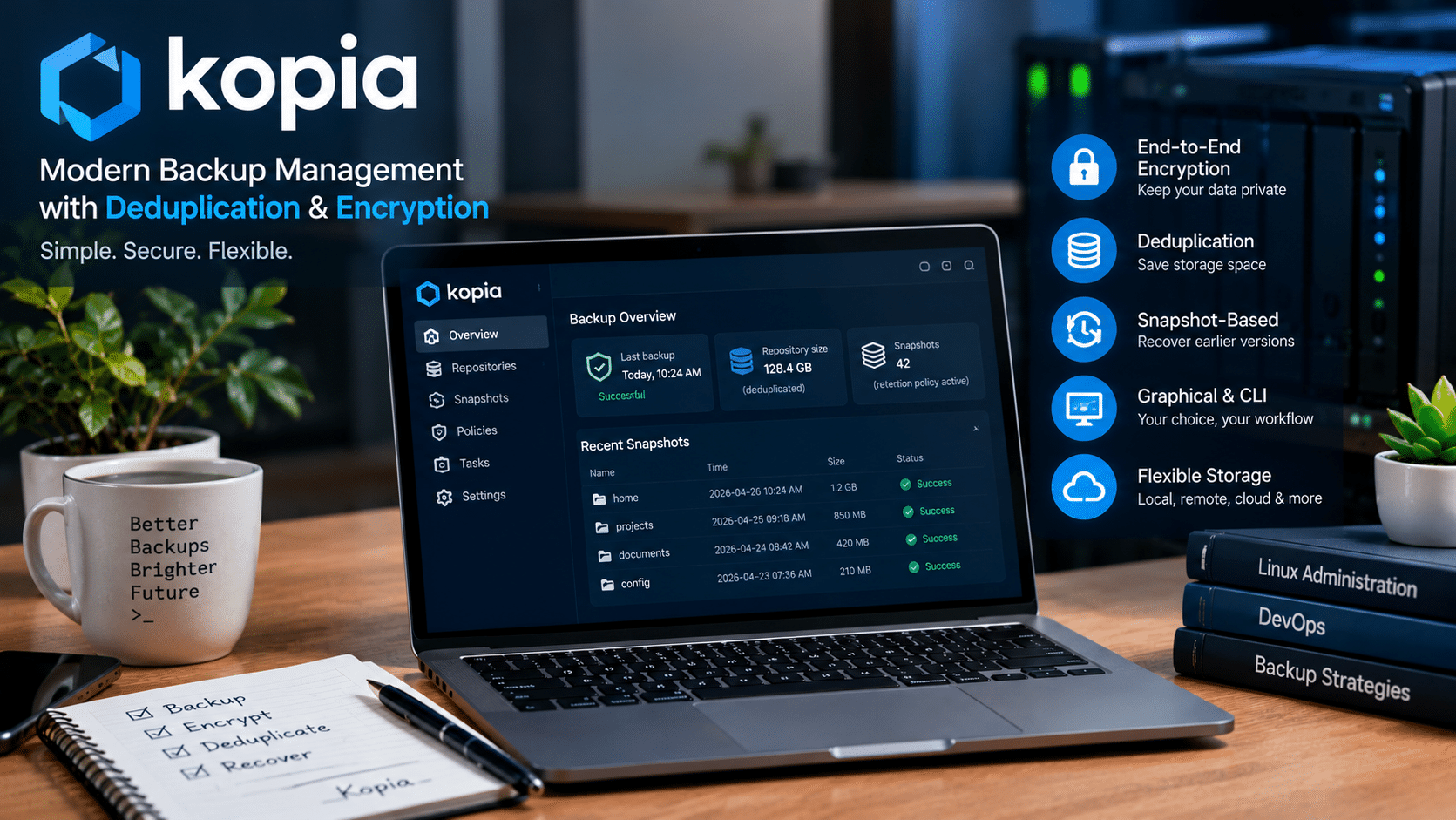
Best for: Users who want encrypted snapshots, flexible storage options, and a choice between graphical and command-line administration.
Kopia is an open-source backup and restoration application designed to protect files and directories through encrypted snapshots.
It offers both a graphical user interface and a command-line interface, making it suitable for a wider range of users than command-line-only tools.
Kopia supports local storage, network-attached storage, remote servers, and several cloud-storage backends. Its features include compression, deduplication, and user-controlled end-to-end encryption.
Key Features
- Encrypted snapshots: Protects backup data before it leaves the source machine.
- Deduplication: Reduces repeated storage of unchanged content.
- Compression: Helps reduce storage requirements for suitable files.
- Graphical interface: Makes many backup operations accessible without relying entirely on terminal commands.
- Flexible destinations: Supports multiple storage arrangements.
- Selective recovery: Allows users to restore individual files or entire directories.
Why Kopia Deserves Attention
Suppose a developer maintains several projects and wants to preserve their historical states.
Kopia can create snapshots that record the files at particular points in time.
When the developer needs an earlier version of a document or configuration file, the application can restore the selected data without requiring a complete system rollback.
Kopia also encrypts snapshot data before uploading it to the selected repository, helping protect the contents during remote storage.
Who Should Use Kopia?
Kopia may suit:
- Developers protecting source code and project files.
- Users who prefer a graphical backup interface.
- Administrators managing encrypted snapshots.
- Small teams protecting files across several machines.
- Users who want flexibility in their storage destinations.
Can Kopia Work with a VPS?
Yes, provided the VPS and repository configuration support the chosen workflow.
For example, administrators can evaluate a remote server as a backup destination or use Kopia’s supported repository options.
Before deployment, confirm the required storage capacity, operating system compatibility, and security configuration.
Our verdict: Kopia is a compelling option for users who want modern snapshot management without giving up flexibility.
Official project: Kopia Documentation
4. Duplicati — Best for Users Who Prefer a Web Interface

Best for: Home users, small businesses, and administrators who prefer graphical backup configuration.
Duplicati offers a web-based interface for configuring backup jobs, choosing destinations, setting schedules, and managing routine operations.
This approach makes it attractive to people who do not want to manage every backup task through terminal commands.
Key Features
- Graphical backup configuration.
- Scheduled backup jobs.
- Encryption and compression options.
- Support for multiple storage destinations.
- Incremental backup workflows.
- Recovery and backup management through its interface.
Why Duplicati Is Useful
Consider a small business that needs to back up documents, invoices, and selected application directories.
An administrator can use Duplicati’s interface to define which folders to protect, select a destination, and schedule recurring jobs.
This reduces the need to build a custom command-line workflow from scratch.
However, a graphical interface does not eliminate the need for monitoring and testing.
Administrators should check that scheduled jobs complete successfully and verify that the software can restore the files they need.
Important Considerations
Before adopting Duplicati, review the licensing of the exact version and components you intend to deploy, along with its current maintenance status and documentation.
Also, avoid exposing its administrative interface directly to the public internet without appropriate authentication and network restrictions.
Our verdict: Duplicati is worth considering when ease of configuration matters more than command-line flexibility.
Official project: Duplicati
5. UrBackup — Best for Centralized Backups Across Multiple Computers

Best for: Small businesses, schools, offices, and administrators managing several computers.
UrBackup uses a client-server architecture to help administrators manage backups from multiple machines.
Instead of configuring every computer as an entirely independent backup system, users can centralize important backup operations.
Key Features
- Centralized backup management.
- File-level backups.
- Image-based backups for supported systems.
- Automated backup schedules.
- Management of multiple client computers.
- A web interface for administration.
Why UrBackup Is Practical
Imagine a small office with 15 computers.
Each computer contains important documents, project files, and application data. Manually copying files from every machine would require time and consistent effort.
UrBackup can help centralize backup administration and automate supported file- and image-backup workflows.
However, the organization must still allocate sufficient storage and network capacity.
Storage Planning Matters
Do not calculate storage requirements using the number of computers alone.
Consider:
- How much data each computer contains.
- How frequently that data changes.
- How many historical versions you want to retain.
- Whether you need image backups in addition to file backups.
- How much capacity you need for future growth.
A centralized backup system also introduces a critical responsibility: protecting the server that stores the backups.
Use restrictive permissions and maintain an additional copy in a separate location.
Our verdict: UrBackup is a practical candidate when you need to coordinate backups across multiple computers rather than protect a single device.
Official project: UrBackup
6. Timeshift — Best for Recovering Linux System Configurations
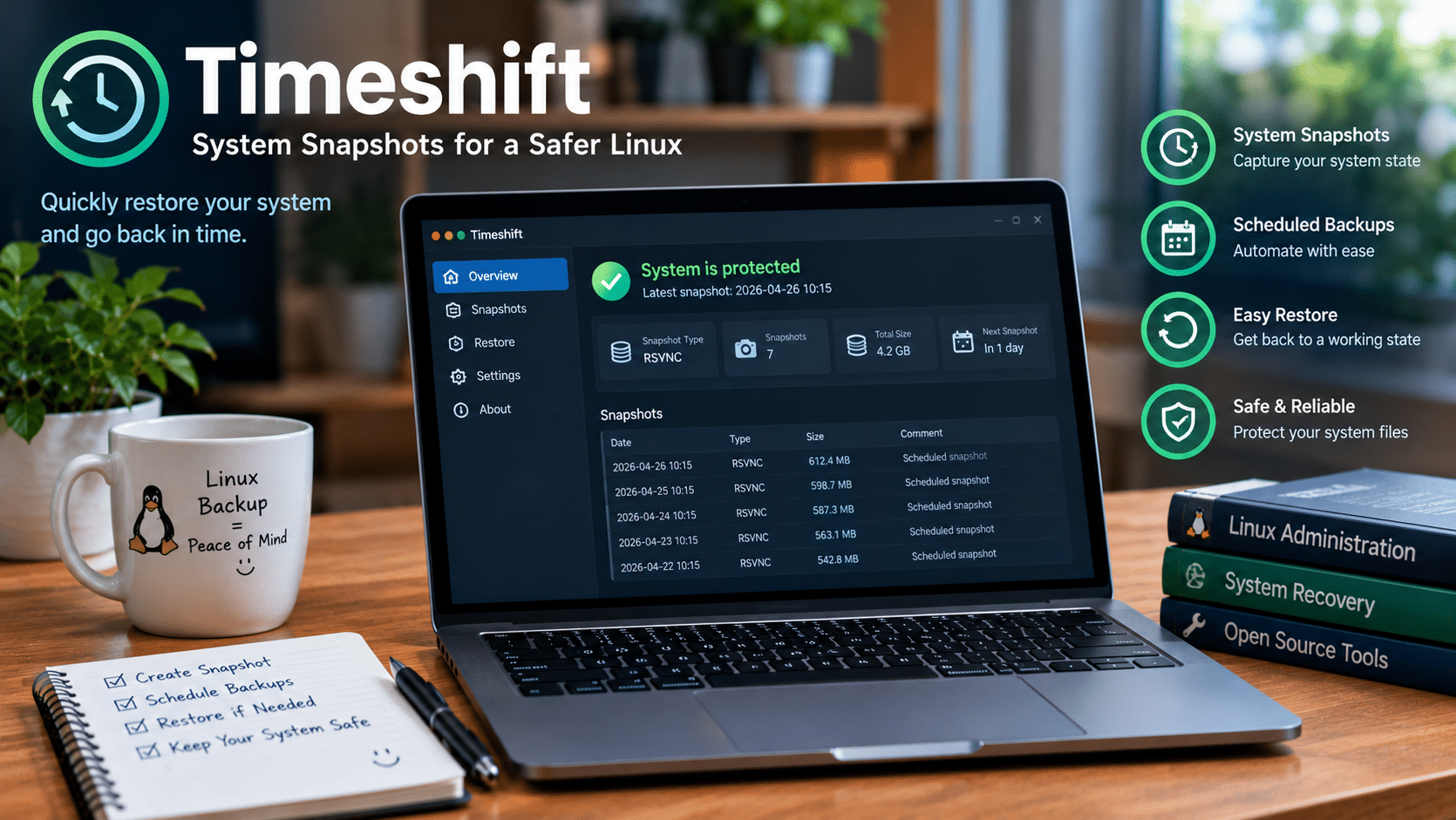
Best for: Linux desktop users who want a convenient way to recover system files and configurations.
Timeshift helps Linux users create system snapshots that can assist with recovery after problematic updates, software installations, or configuration changes.
It addresses a different problem from general-purpose file backup tools.
Key Features
- System snapshots.
- Scheduled snapshot creation.
- Recovery after certain system-level changes.
- Support for appropriate snapshot-based or copy-based configurations.
- A workflow designed around Linux system recovery.
Why Timeshift Is Valuable
Imagine that you modify several system settings and discover that your desktop environment no longer behaves correctly.
A suitable Timeshift snapshot may help you restore relevant system files to an earlier state.
This can save time compared with manually reversing every change.
The Limitation You Must Understand
Timeshift is not a complete replacement for personal-file backups or disaster recovery.
Protect your documents, photographs, source code, databases, and other important data through an appropriate separate backup process.
A snapshot stored on the same physical disk can also disappear if that disk fails.
For stronger protection, combine system snapshots with an independent backup stored elsewhere.
Our verdict: Timeshift works best as one component of a broader Linux data protection strategy.
Official project: Timeshift on GitHub
7. Clonezilla — Best for Disk Imaging and System Cloning
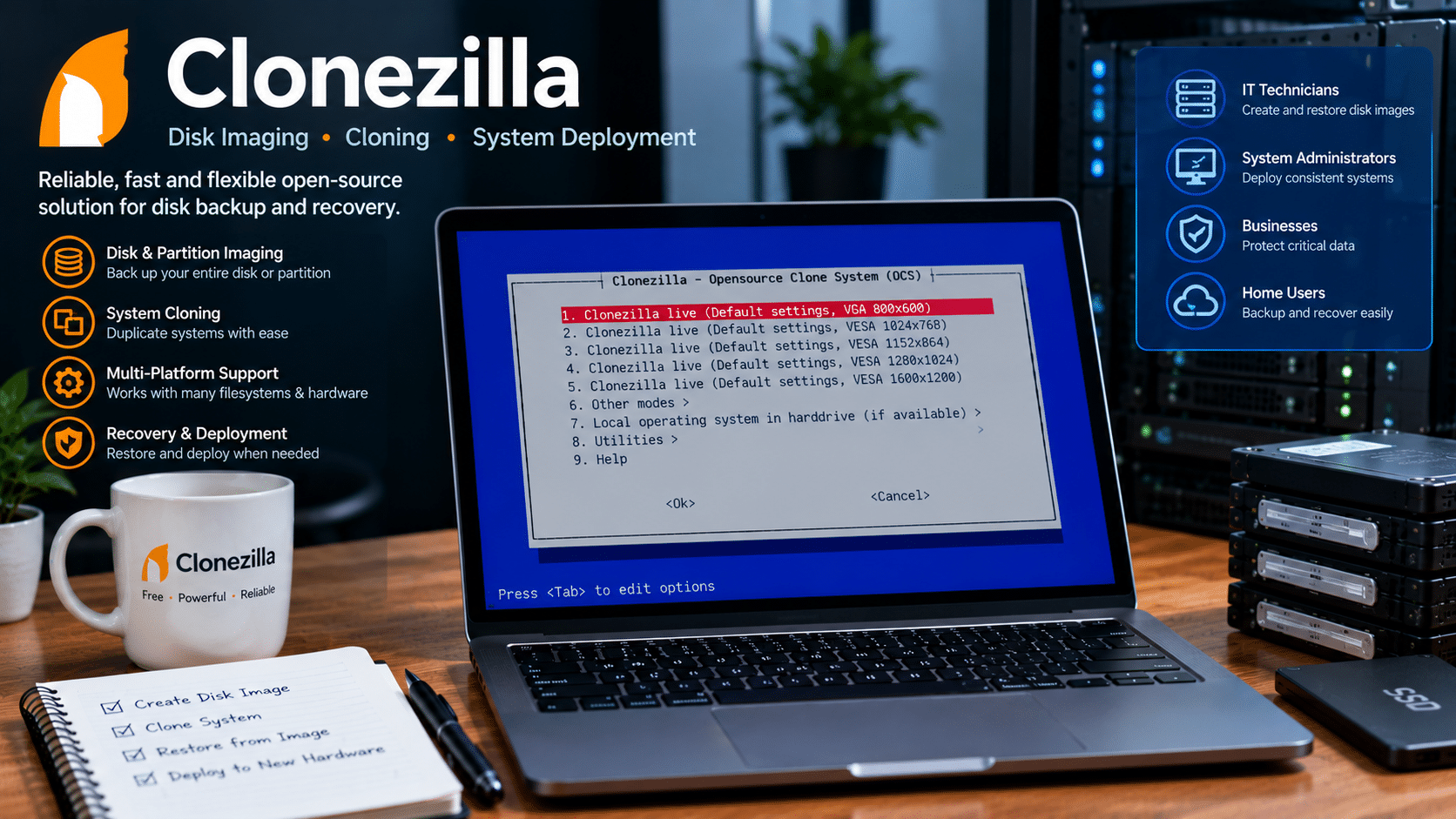
Best for: IT technicians, system administrators, and users who need disk images or system deployment capabilities.
Clonezilla focuses on disk imaging and cloning rather than the continuous, file-level backup workflows offered by tools such as Restic.
It can help administrators create images of supported disks and partitions, clone systems, and restore captured system states.
Key Features
- Disk and partition imaging.
- System cloning.
- Support for many filesystems and storage configurations.
- Recovery from previously created images.
- Deployment workflows for compatible systems.
When Should You Choose Clonezilla?
Consider Clonezilla if you need to:
- Create a recovery image of a supported system.
- Duplicate a computer’s disk.
- Migrate an operating system.
- Deploy consistent configurations across several machines.
- Restore a system from a suitable image.
Disk Imaging vs. File Backups
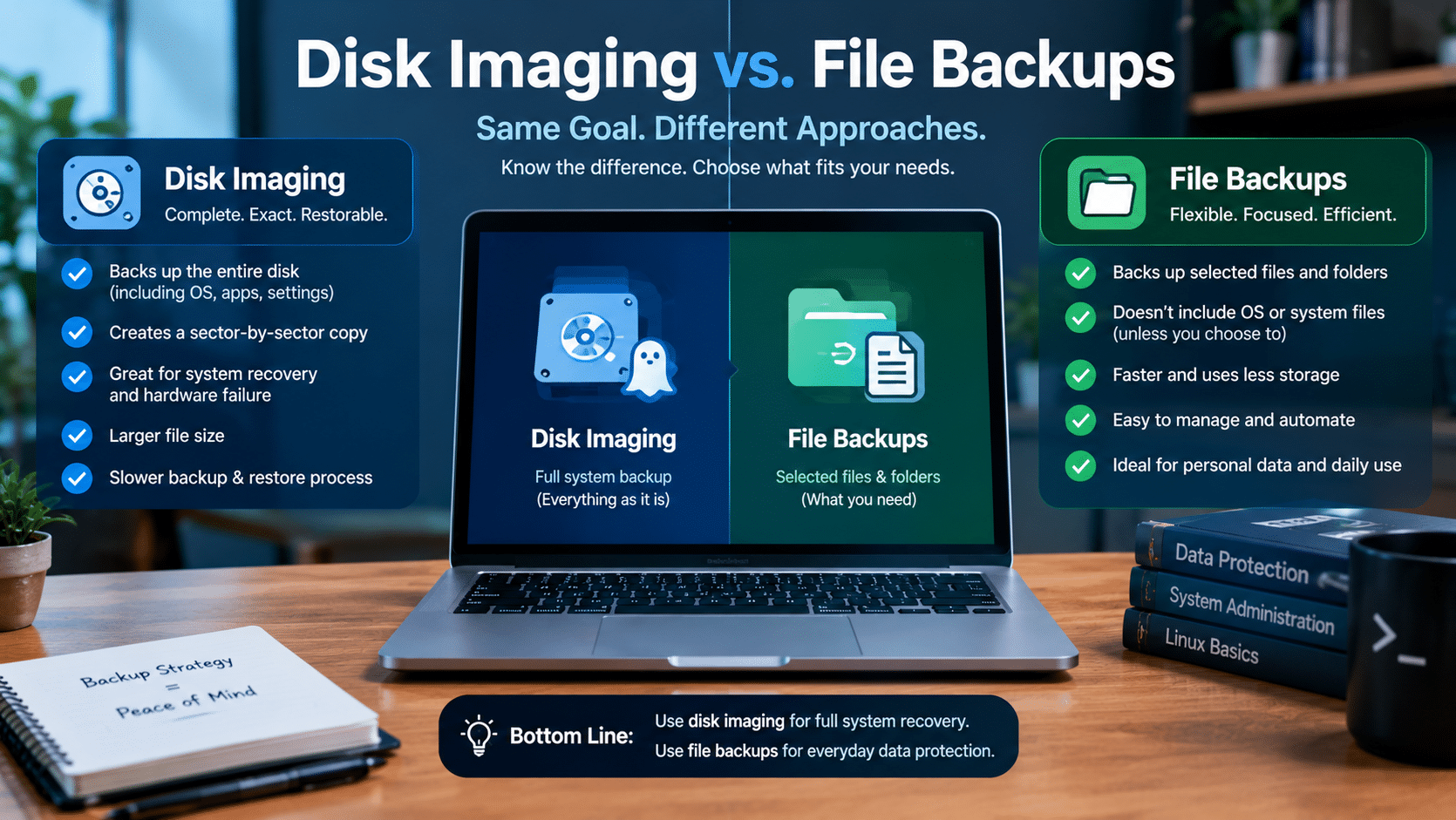
A file backup preserves selected files and directories.
A disk image captures a broader representation of a disk or partition, depending on the tool and configuration.
This distinction matters during recovery.
If a workstation experiences a major operating system failure, an appropriate disk image may help restore its previous state more comprehensively than restoring a few individual files.
However, imaging does not replace frequent backups of important data.
A disk image captured last month may not contain documents created yesterday.
For frequently changing data, combine imaging with regular file-level or application-aware backups.
Our verdict: Clonezilla is particularly useful for system recovery and deployment, but it serves a different purpose from everyday file-backup software.
Official project: Clonezilla
8. Amanda — Best for Network-Based Backup Administration
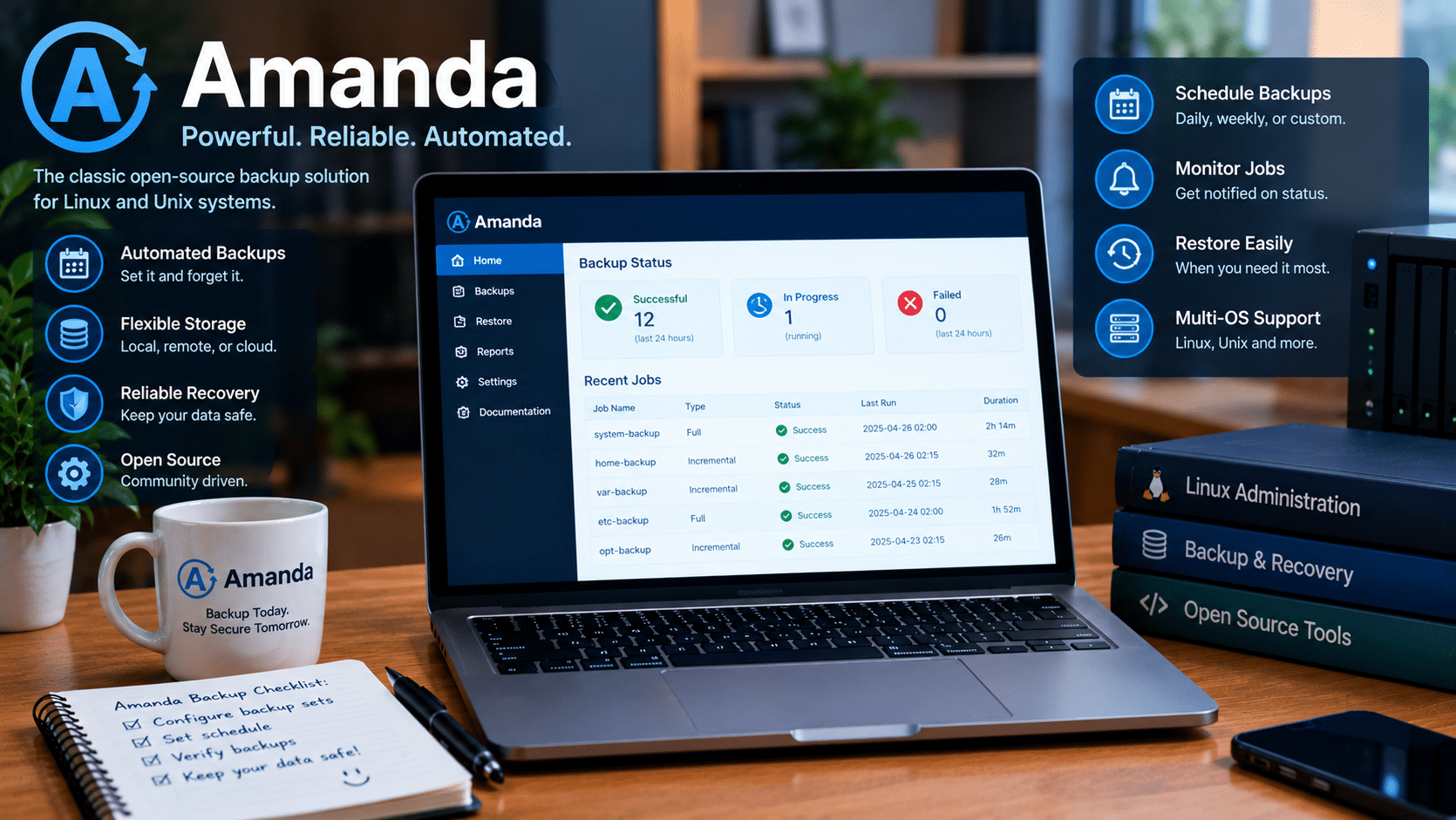
Best for: Experienced administrators who need to coordinate backups across multiple systems.
Amanda, or the Advanced Maryland Automatic Network Disk Archiver, is an established backup and recovery system designed for managing data across networked computers.
It can help administrators build centralized backup workflows for environments containing multiple clients and different storage requirements.
Key Features
- Network-based backup management.
- Centralized scheduling.
- Support for disk and tape workflows.
- Backup management across multiple clients.
- Configurable storage and retention arrangements.
Why Amanda Matters
As organizations add servers and workstations, their backup requirements become more complicated.
An administrator may need to coordinate backup schedules, track which systems have completed their jobs, and maintain recovery procedures for multiple machines.
Amanda provides a structured approach to this challenge.
However, centralized backup management requires more planning than a simple file-backup application.
Administrators must consider client compatibility, storage capacity, network bandwidth, maintenance, and recovery objectives.
Is Amanda Suitable for Small Businesses?
It can be, particularly when a business has someone with the technical expertise to configure and maintain the system.
For a user protecting a few documents on a personal computer, a simpler tool will usually be easier to manage.
Our verdict: Amanda deserves consideration when you need a network-oriented backup architecture and have the expertise to operate it.
Official project: Amanda Backup
9. Bareos — Best for Enterprise and Multi-System Backup Management
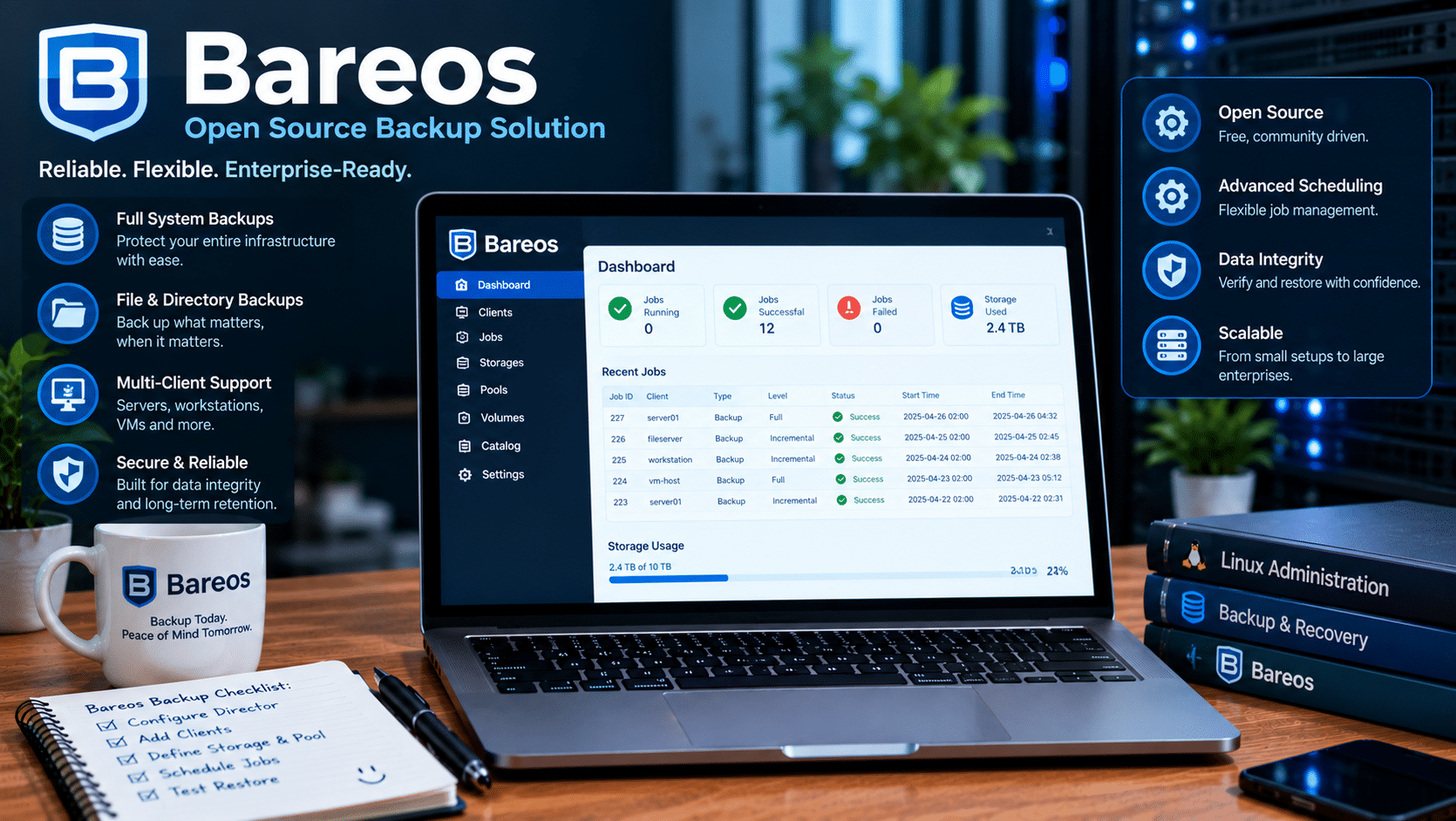
Best for: IT teams and organizations that need structured backup administration across multiple systems.
Bareos is an open-source backup and recovery solution designed for environments with more demanding management requirements.
It supports centralized administration, client-based backup operations, and structured management of backup jobs and storage.
Key Features
- Centralized backup administration.
- Client-server architecture.
- Scheduled backup jobs.
- Storage and retention management.
- Network-based backup workflows.
- Support for more complex organizational environments.
Why Consider Bareos?
Organizations often need to protect more than individual files.
They may manage application servers, employee workstations, business records, and other systems with different recovery requirements.
A centralized backup platform can help administrators establish consistent procedures and manage multiple backup jobs.
However, these capabilities introduce operational complexity.
Your team must understand how to configure the platform, maintain its components, monitor jobs, and restore the required data.
Where a VPS Fits In
A VPS can provide computing resources for certain supporting services or compatible backup workloads.
Before deploying Bareos, assess the expected data volume, the number of clients, storage performance, network requirements, and the application’s architecture.
A small VPS may be appropriate for a limited test environment but insufficient for an organization with large datasets and demanding recovery requirements.
Our verdict: Bareos is worth evaluating when you need a more structured backup platform and have the resources to manage it properly.
Official project: Bareos
10. Back In Time — Best for Simple Linux File Snapshots
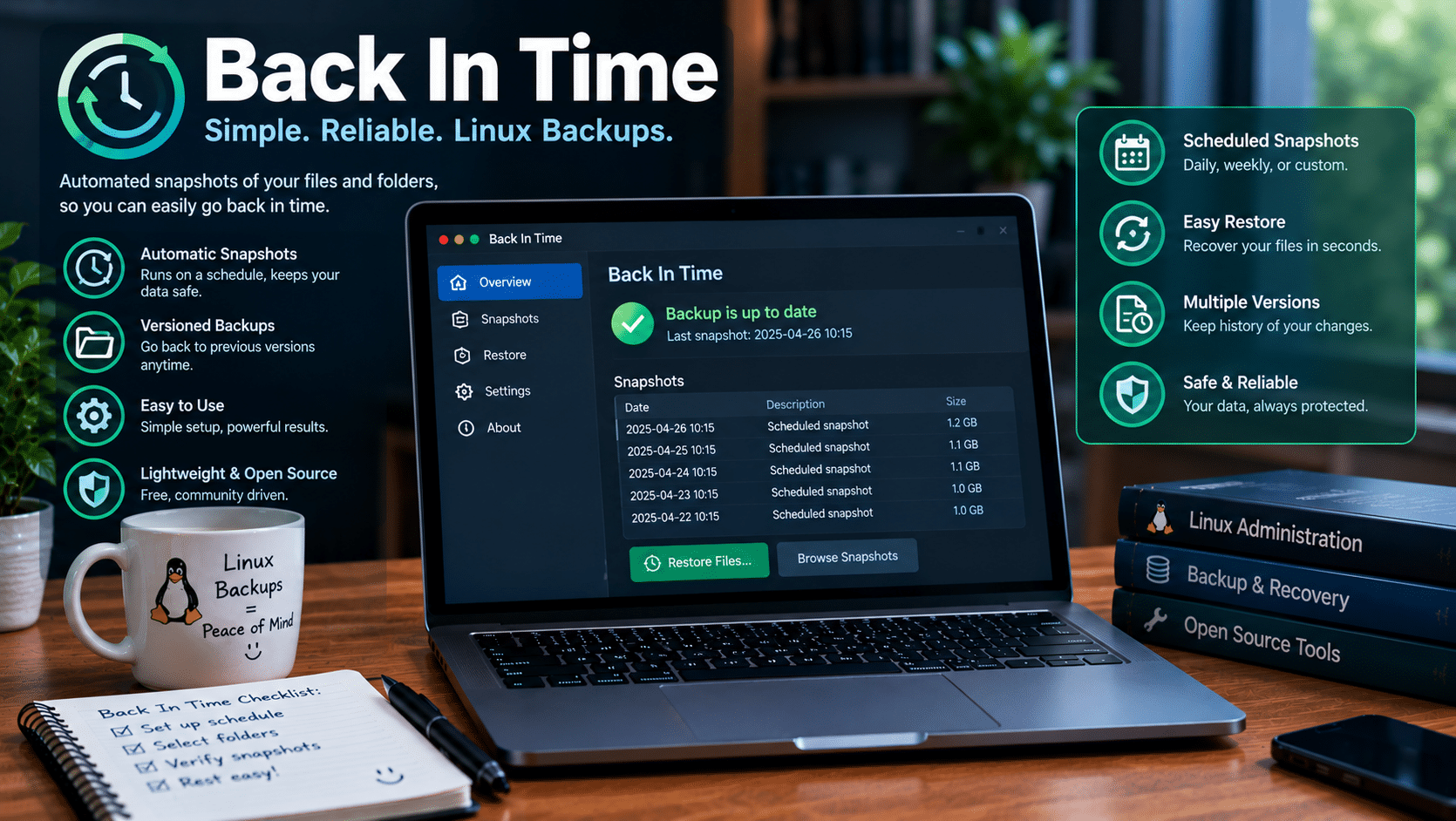
Best for: Linux desktop users who want convenient historical copies of files and directories.
Back In Time is a backup application that uses filesystem snapshots to help users preserve earlier versions of selected files.
It can be useful for people who want a straightforward way to protect documents, project files, and other important directories.
Key Features
- Scheduled snapshots.
- File and directory backup.
- Historical recovery points.
- Graphical configuration.
- Support for appropriate local and remote backup workflows.
Why Back In Time Is Useful
Suppose you edit an important report and accidentally remove several paragraphs.
If an earlier snapshot contains the original document, you may be able to recover it without reconstructing the missing content manually.
This makes historical backups useful even when the computer itself continues to operate normally.
What Should You Consider?
Back In Time’s protection depends on how you configure the destination and snapshot schedule.
A local snapshot alone does not protect you from every hardware failure, theft, or site-level incident.
Use a separate backup destination for stronger resilience, and verify that the application can restore the files you care about.
Our verdict: Back In Time is a useful option for Linux users who need practical file-level history rather than a complex enterprise backup system.
Official project: Back In Time
Open-Source Backup Solutions Compared
Choosing between 10 applications can feel overwhelming. The easiest way to narrow the options is to compare their primary purposes.
| Tool | Primary Purpose | Best Suited For | Main Consideration |
|---|---|---|---|
| Restic | Encrypted file backups and snapshots | Developers and server administrators | Command-line configuration |
| BorgBackup | Efficient, deduplicated archives | Linux and Unix power users | Requires familiarity with its workflow |
| Kopia | Encrypted snapshot-based backups | Technical and nontechnical users | Requires correct repository configuration |
| Duplicati | Graphical backup management | Home users and small businesses | Verify current component licensing and maintenance |
| UrBackup | Centralized client backups | Offices and multiple computers | Requires server and storage planning |
| Timeshift | Linux system recovery | Linux desktop users | Does not replace complete personal-file backups |
| Clonezilla | Disk imaging and cloning | IT technicians and system administrators | Less suited to continuous file-level backups |
| Amanda | Network backup management | Experienced administrators | Requires planning and maintenance |
| Bareos | Centralized backup infrastructure | IT teams and larger environments | Greater operational complexity |
| Back In Time | Historical file snapshots | Linux desktop users | Destination and snapshot configuration matter |
These tools do not all solve the same problem.
Restic, BorgBackup, Kopia, and Back In Time focus on file-oriented backup workflows. Timeshift focuses on Linux system recovery, while Clonezilla specializes in imaging and cloning.
UrBackup, Amanda, and Bareos address broader management requirements.
The best solution is the one that can reliably protect your specific data and restore it within your required timeframe.
How to Choose the Right Backup Solution for Your Needs
Before installing software, define what you need to recover.
Your requirements should guide the selection process rather than the popularity of a particular tool.
For Personal Files and Documents
Consider Restic, Kopia, Duplicati, or Back In Time.
These options can help protect documents, photographs, project files, and other important directories.
Choose a graphical application if you prefer visual configuration. Choose a command-line tool if you want greater scripting flexibility.
For Linux Servers
Consider Restic or BorgBackup for file-oriented backups.
Both can support automated workflows, while their storage and repository designs allow administrators to build different backup arrangements.
If you need to protect databases, use an appropriate database-aware backup process rather than assuming a simple file copy will always produce a consistent recovery point.
For Websites and Web Applications
Protect the components your application needs to operate.
These may include:
- Application source files.
- Uploaded media.
- Configuration files.
- Database exports.
- Deployment scripts.
- Relevant infrastructure documentation.
Choose backup schedules according to how quickly these components change and how much data loss you can tolerate.
A website with frequently updated orders or customer records may need a more frequent database backup strategy than a static website.
For Multiple Computers
Evaluate UrBackup if you want centralized management across several client devices.
If your organization requires more extensive centralized administration, Bareos or Amanda may be worth considering.
Account for the storage, bandwidth, monitoring, and administrative effort these systems require.
For Complete System Recovery
Consider Clonezilla for disk imaging and Timeshift for appropriate Linux system snapshots.
Remember that these tools serve different recovery purposes.
A disk image can help restore a system to a captured state, while a system snapshot can help reverse certain configuration changes. Neither should automatically become your only protection for important files.
How to Build a Reliable Backup Strategy in 2026
Even the best backup software cannot protect your data if you configure it poorly.
A dependable strategy combines suitable software, independent storage, secure access, automated scheduling, and tested restoration procedures.
1. Follow the 3-2-1 Backup Rule
The 3-2-1 rule recommends maintaining:
- Three copies of your data: The original and at least two backup copies.
- Two different storage types or media: Avoid depending entirely on one storage arrangement.
- One off-site copy: Keep a backup in a separate physical location.
For example, a developer might maintain the original files on a workstation, a second copy on a separate storage device, and an encrypted remote copy on another server.
This arrangement reduces dependence on a single device or location.
For stronger protection, consider keeping one backup offline or using storage with appropriate immutability controls.
Why? Encryption can prevent unauthorized people from reading backup data, but it does not automatically prevent them from deleting it.
A protected or offline backup can provide another layer of defense.
2. Automate Your Backups
A backup schedule should reflect how frequently your data changes.
For example:
- Personal documents may need daily backups.
- Active development projects may require daily or more frequent backups.
- Frequently updated websites may need more frequent database protection.
- Critical business applications may require continuous or near-continuous data protection.
These examples are starting points, not universal rules.
Define two important recovery objectives.
Recovery Point Objective (RPO): The maximum amount of data loss you can tolerate, expressed in time.
Recovery Time Objective (RTO): The target time within which you need to restore a system or service.
If your business can tolerate losing no more than four hours of data, your backup strategy must preserve sufficiently recent recoverable data to meet that target.
If you must restore a critical application within two hours, you need a tested recovery process that can meet that deadline.
3. Encrypt Sensitive Data
Backup repositories often contain sensitive information.
Use encryption where appropriate and restrict access to the systems that store your backups.
Follow these practices:
- Use strong, unique credentials.
- Store encryption keys securely.
- Restrict repository permissions.
- Use secure connections for remote transfers.
- Avoid exposing administrative interfaces unnecessarily.
- Document how authorized administrators can recover encryption credentials.
Test your recovery process before you depend on encrypted backups.
4. Apply Retention Policies
A retention policy determines how long you keep historical backups.
For example, an organization might retain daily backups for seven days, weekly backups for four weeks, and monthly backups for several months.
This is only an illustrative schedule. Your actual policy should reflect business needs, legal requirements, storage capacity, and how long it may take to discover a problem.
Retention allows you to recover from certain issues that remain undetected for days or weeks.
However, excessive retention can consume unnecessary storage, while overly aggressive deletion can remove the only usable recovery point.
Find a balance that matches your requirements.
5. Monitor Backup Jobs
A scheduled backup can fail because of insufficient storage, incorrect credentials, network problems, or repository errors.
Monitor backup jobs and investigate failures.
At a minimum, track:
- The time of the last successful backup.
- Failed or missed jobs.
- Available storage capacity.
- Unexpected changes in backup size.
- Repository integrity checks.
- Restoration test results.
For critical systems, configure notifications so that an administrator learns about failures promptly.
Do not assume that a job succeeded simply because you scheduled it.
6. Test Your Restorations
A backup is only useful if you can restore the data when you need it.
Regular restoration tests help identify corrupted repositories, missing files, forgotten passwords, and incomplete recovery procedures.
Start by restoring a few files to a separate directory.
Then test more demanding scenarios, such as restoring a complete project, recovering a database, or rebuilding a critical application in a separate environment.
Document the results and fix any problems you discover.
How a Linux VPS Can Support Your Backup Strategy
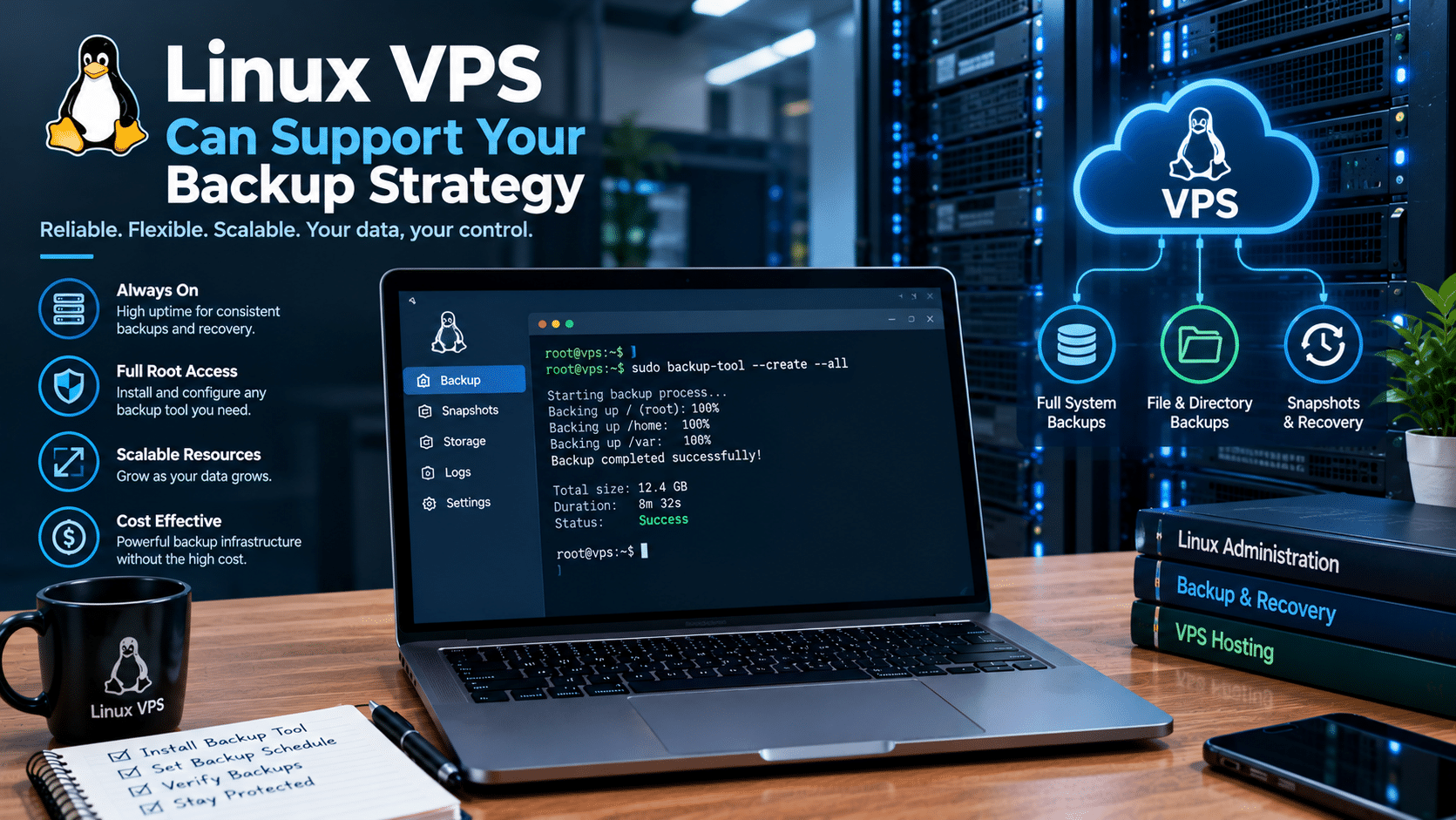
Backup software protects and organizes your data. Infrastructure provides the storage and computing resources needed to run that software.
A Linux VPS can serve as part of a backup workflow when its resources, configuration, and provider terms support your intended use.
Use a VPS as a Remote Backup Destination
A remote VPS can provide another location for encrypted backup data.
For example, you could configure Restic or BorgBackup to transfer archives from a local machine or application server to a separate Linux environment.
This arrangement can reduce dependence on the original machine.
However, the VPS must not become the only copy of your important data. Maintain another independent backup, particularly for business-critical information.
Automate Backup Tasks on Linux
A Linux VPS with root access allows administrators to configure compatible applications, scheduled jobs, and custom automation.
A typical workflow might:
- Select the directories that require protection.
- Create a backup snapshot.
- Transfer the encrypted backup to a separate destination.
- Record the operation’s status.
- Notify the administrator if the job fails.
- Apply a tested retention policy.
The exact implementation depends on your chosen backup tool and security requirements.
Automation improves consistency, but monitoring and recovery testing remain essential.
Protect Website and Application Data
Website owners and developers often need to protect more than static files.
Their backup strategy may include application code, uploaded media, database exports, configuration files, and deployment scripts.
A VPS can provide an environment for hosting compatible applications or running supporting administrative tasks.
For users who need a configurable Linux environment, 99RDP’s Linux VPS hosting offers root access, SSD storage, and Linux distribution options including Ubuntu and AlmaLinux, according to its published service page.
These capabilities can help administrators install compatible tools and configure their own workflows.
Before choosing a plan, evaluate:
- Storage capacity: Can the server accommodate the initial backup and future growth?
- Network bandwidth: Can it handle the expected volume of backup transfers?
- CPU and memory: Can it process encryption, compression, and other backup operations?
- Operating system: Does the plan support your selected backup software?
- Access controls: Can you restrict access to the repository and administrative services?
- Recovery requirements: Can you restore your data within your target timeframe?
A small VPS may work for a modest backup workload but may not suit large databases or extensive collections of system images.
Select resources according to your actual requirements.
Keep Production and Backup Systems Separate
Imagine that your website and its only backup both reside on the same VPS.
If the server fails or an attacker gains administrative access, you may lose access to both.
A stronger design separates the production system from the backup destination and maintains an additional copy elsewhere.
Use separate credentials and restrictive permissions to reduce the risk that a compromised production server can destroy every backup.
For critical workloads, consider protected snapshots, offline copies, or storage with immutability controls.
Where 99RDP Fits In
If you want a configurable Linux environment for compatible backup-related tasks, explore 99RDP’s Linux VPS plans.
Review the available storage, memory, bandwidth, operating system, and service terms before deploying a backup workflow.
The right VPS can support your infrastructure strategy, but you remain responsible for choosing appropriate backup software, securing access, and testing restoration.
Open-Source Backup Software vs. Cloud Backup Services
Should you manage backups yourself or pay for a managed service?
Both approaches can work well, but they involve different responsibilities.
| Factor | Open-Source Backup Software | Managed Cloud Backup |
|---|---|---|
| Software licensing | Many tools are available without license fees | Often uses a subscription or usage-based model |
| Configuration | May require technical expertise | Often provides guided setup |
| Storage | You select and arrange a destination | Provider supplies storage as part of the service |
| Control | Flexible configuration and destination choices | Depends on the provider’s features and policies |
| Maintenance | You may maintain software and infrastructure | Provider manages some service components |
| Costs | Depend on storage, infrastructure, and administration | Depend on service pricing and usage |
| Recovery | You must understand and test your procedures | Capabilities and responsibilities vary by provider |
Open-source software can reduce licensing expenses, but it does not eliminate storage and maintenance costs.
Managed services can reduce administrative work, but you should still evaluate access controls, encryption, retention, recovery performance, and data retrieval costs.
Some users combine the two approaches by using open-source software to create encrypted backups and storing those backups on separate infrastructure.
Choose the model that matches your technical expertise, budget, and recovery requirements.
Common Backup Mistakes to Avoid
A well-designed backup system must account for more than software selection.
Avoid these common mistakes to improve your chances of recovering data successfully.
1. Keeping Every Copy on the Same Device
A hardware failure can destroy the original data and its backup if both reside on the same physical device.
What to do: Maintain independent copies on separate storage systems.
2. Confusing Synchronization with Backup
Synchronization tools propagate changes between locations. An accidental deletion or corrupted file may also propagate.
What to do: Use a backup tool that preserves historical recovery points.
3. Ignoring Database Consistency
Copying active database files without an appropriate backup procedure may produce an inconsistent or unusable recovery copy.
What to do: Use database-native backup utilities, supported snapshots, or application-specific procedures.
4. Forgetting Encryption Passwords
Encrypted data may become inaccessible if you lose the required credentials.
What to do: Store recovery credentials securely and document how authorized administrators can retrieve them.
5. Ignoring Failed Jobs
A backup schedule does not guarantee successful execution.
What to do: Monitor job results and investigate failures promptly.
6. Letting Storage Fill Up
Insufficient storage can prevent new backups from completing.
What to do: Monitor capacity, apply appropriate retention policies, and plan for future growth.
7. Giving Production Systems Too Much Access
If a compromised production machine can freely delete the backup repository, attackers may be able to destroy both copies.
What to do: Apply least-privilege access, use separate credentials, and maintain additional protected copies.
8. Never Testing Recovery
A successful backup log does not prove that you can restore the complete application.
What to do: Test file, database, and system restoration procedures regularly.
EXPLORE MORE; Why Corporate Workloads Perform Better on 99RDP Dedicated Servers

READ OUR BLOGS


