Distributed File System (DFS) in Windows Server solves two common file-server problems. DFS Namespaces (DFSN) give users one path, such as \\corp.local\files, no matter which server the folders actually live on. DFS Replication (DFSR) keeps copies of those folders in sync between servers, for branch offices and redundancy. This guide covers the requirements, installing the roles, creating a namespace, adding folders and setting up replication, plus the limits you should know before you rely on it.
Quick answer
Install-WindowsFeature FS-DFS-Namespace, FS-DFS-Replication -IncludeManagementToolsThen open DFS Management, create a domain-based namespace, add folders that point to shares on your servers, and create a replication group for any folder that has more than one target.
DFS requirements
- Windows Server (2016, 2019, 2022 or 2025) on every namespace and replication server.
- Active Directory for domain-based namespaces and for DFS Replication. Without a domain you can only create a stand-alone namespace, and DFSR isn't available.
- NTFS volumes for replicated folders (ReFS is supported for DFSR on Windows Server 2016 and later).
- Network ports between servers: SMB (445), RPC (135 plus dynamic ports) and LDAP/Kerberos to domain controllers.
- Shared folders already created on each server, with sensible share and NTFS permissions.
Step 1: Install the DFS roles
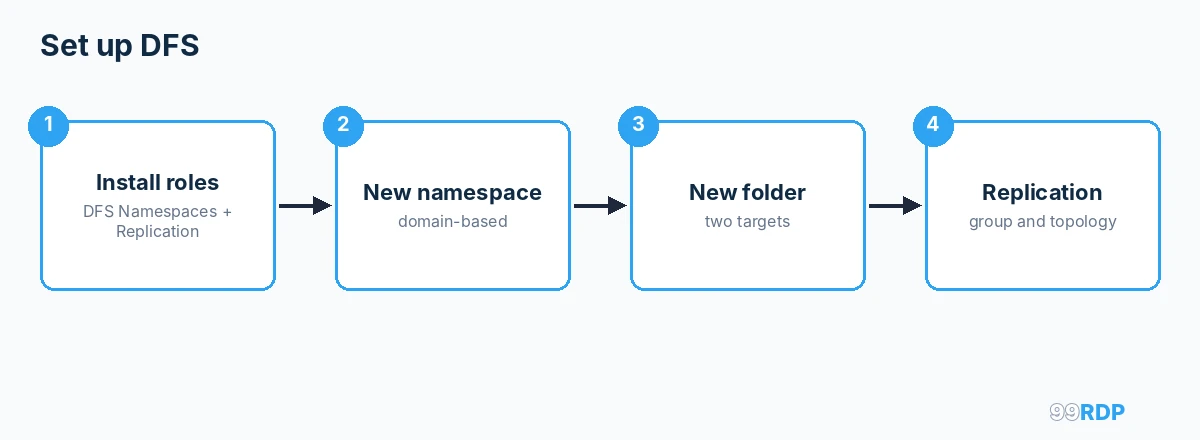
In Server Manager → Add Roles and Features, go to File and Storage Services → File and iSCSI Services and select DFS Namespaces and DFS Replication. Accept the management tools. Or use PowerShell on each server:
Install-WindowsFeature FS-DFS-Namespace, FS-DFS-Replication -IncludeManagementToolsInstall the namespace role on the servers that will host the namespace (two, for redundancy), and the replication role on every server that holds a copy of the data.
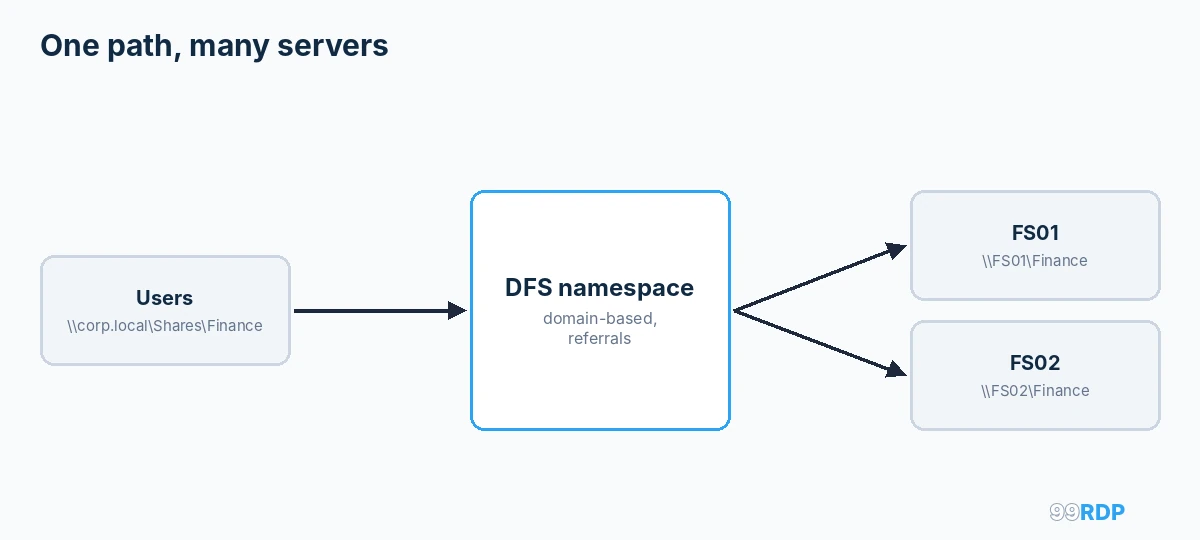
Step 2: Create a DFS namespace
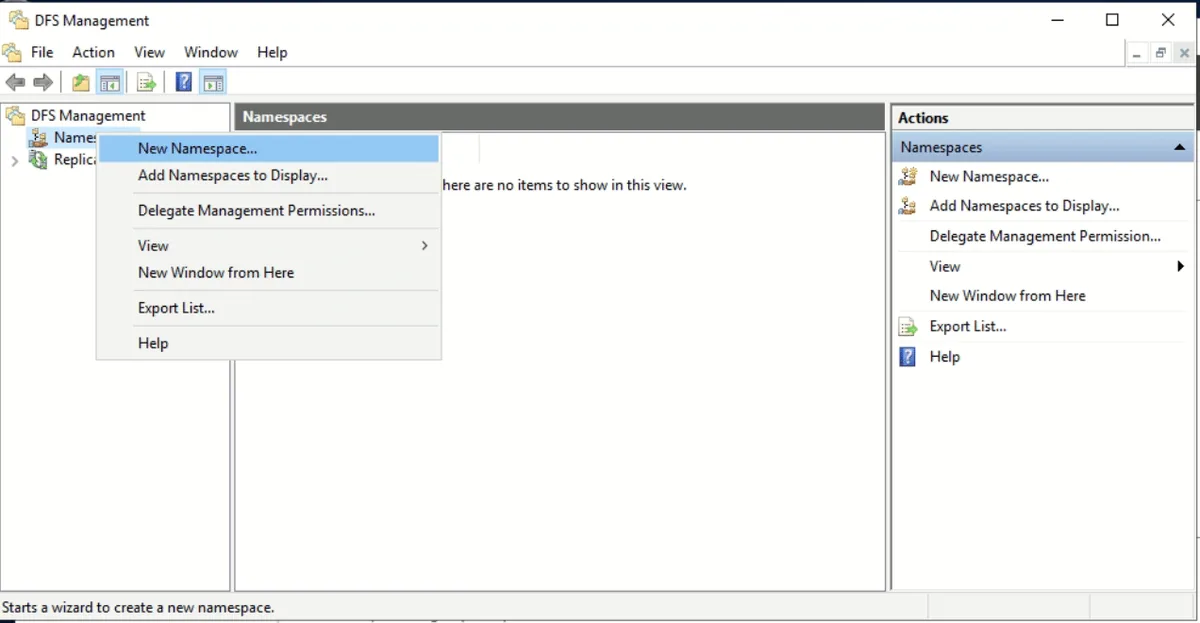
- Open DFS Management (
dfsmgmt.msc). - Right-click Namespaces → New Namespace.
- Enter the namespace server, for example
FS01. - Name the namespace, for example
files. The wizard creates a share for the namespace root on that server. - Choose Domain-based namespace and keep Enable Windows Server 2008 mode ticked; it supports access-based enumeration and large namespaces.
- Finish the wizard. Users can now browse to
\\corp.local\files.
Add a second namespace server (right-click the namespace → Add Namespace Server) so the path keeps working if one server is down.
# PowerShell equivalent
New-DfsnRoot -TargetPath "\\FS01\files" -Type DomainV2 -Path "\\corp.local\files"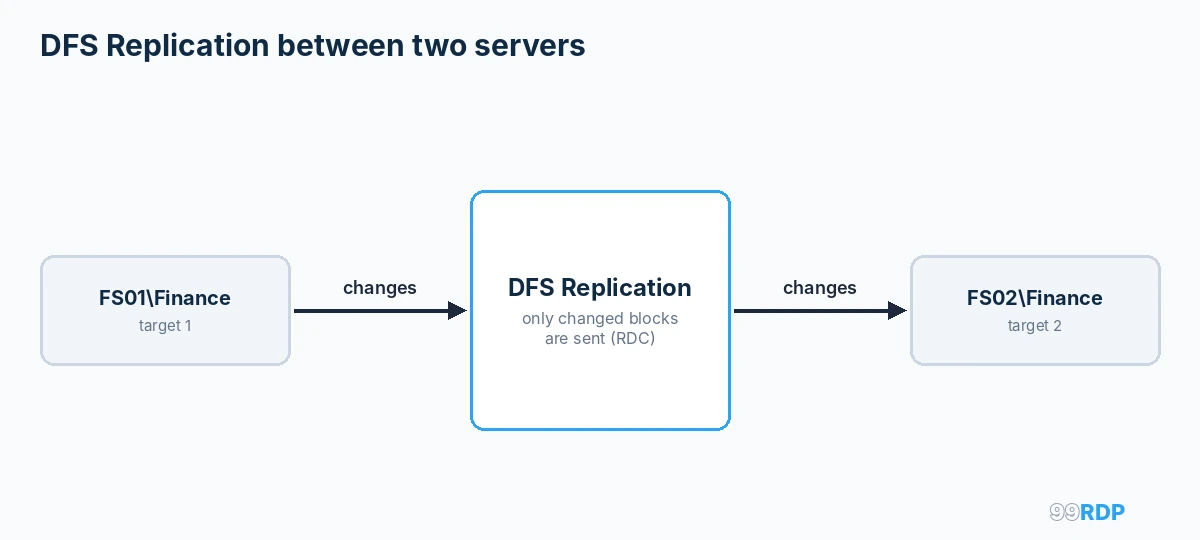
Step 3: Add folders to the namespace
- Right-click the namespace → New Folder.
- Name it, for example
Finance. - Click Add to add a folder target, the real share, for example
\\FS01\Finance. - To make the folder highly available, add a second target on another server, such as
\\FS02\Finance. The wizard then offers to create a replication group.
New-DfsnFolder -Path "\\corp.local\files\Finance" -TargetPath "\\FS01\Finance"
New-DfsnFolderTarget -Path "\\corp.local\files\Finance" -TargetPath "\\FS02\Finance"
Clients connect to the closest target in their Active Directory site and fail over to another target if theirs is unavailable.
Step 4: Configure DFS Replication
- In DFS Management, right-click Replication → New Replication Group (or accept the offer from step 3).
- Choose Multipurpose replication group to keep two or more servers in sync, or Replication group for data collection to copy branch data to a hub server for central backup.
- Add the member servers, for example
FS01andFS02. - Select the topology. Full mesh suits up to about ten members; use Hub and spoke for many branches.
- Set the bandwidth and schedule. You can limit replication during office hours on slow links.
- Pick the primary member, the server whose data wins during the first sync. Choose the one with the complete, current data.
- Add the folder to replicate and its local path on each member.
Initial replication can take hours for large folders. Pre-seeding the data with robocopy /B /MIR /COPYALL on the other members speeds it up.
Step 5: Tune and monitor
- Staging quota: the default 4 GB is too small for big files. Set it to at least the combined size of the 32 largest files in the folder (Properties → Staging).
- Check the backlog:
Get-DfsrBacklog -GroupName "Finance" -FolderName "Finance" -SourceComputerName FS01 -DestinationComputerName FS02 | Measure-Object - Health report: right-click the replication group → Create Diagnostic Report.
- Event logs: Applications and Services Logs → DFS Replication. Event 4012 means a member has been offline too long and has stopped replicating.
What DFS Replication is not good for
- No file locking across servers: if two users edit the same file on different servers, the last save wins and the other version goes to the ConflictAndDeleted folder. Point users at one active target per folder if they collaborate on the same files.
- Not for databases or VM disks: don't replicate SQL databases, VHDX files or other files that are always open.
- Not a backup: deletions and ransomware encryption replicate too. Keep separate backups.
Frequently asked questions
What is DFS in Windows?
Distributed File System is a set of Windows Server roles: DFS Namespaces groups shares from many servers under one path, and DFS Replication keeps folders in sync between servers.
Does DFS need Active Directory?
Domain-based namespaces and DFS Replication need Active Directory. Without a domain, only stand-alone namespaces are possible.
What is DFS Replication (DFSR)?
It's a multi-master replication engine that copies only the changed parts of files between servers, using a schedule and bandwidth limits you set.
Is DFS the same as a backup?
No. DFS keeps copies in sync, so mistakes and deletions are copied as well. You still need a separate backup.