BitLocker encrypts whole volumes so the data can't be read if a disk, backup image or snapshot falls into the wrong hands. On Windows Server it isn't installed by default: you add the feature first, then turn on encryption. This guide covers both steps with Server Manager and PowerShell, how to handle servers and VPS without a TPM, and how to keep your recovery keys safe.
Quick answer(PowerShell as Administrator):
Install-WindowsFeature BitLocker -IncludeAllSubFeature -IncludeManagementTools -Restart
# after the restart, encrypt a data volume:
Enable-BitLocker -MountPoint "D:" -EncryptionMethod XtsAes256 -RecoveryPasswordProtector
Enable-BitLockerAutoUnlock -MountPoint "D:"
(Get-BitLockerVolume -MountPoint "D:").KeyProtector    # save the recovery password!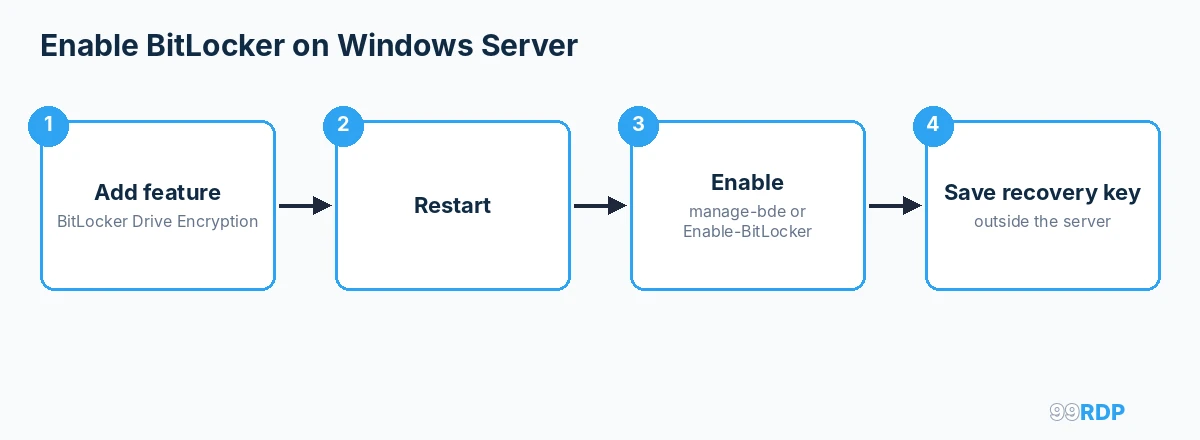
Before you start
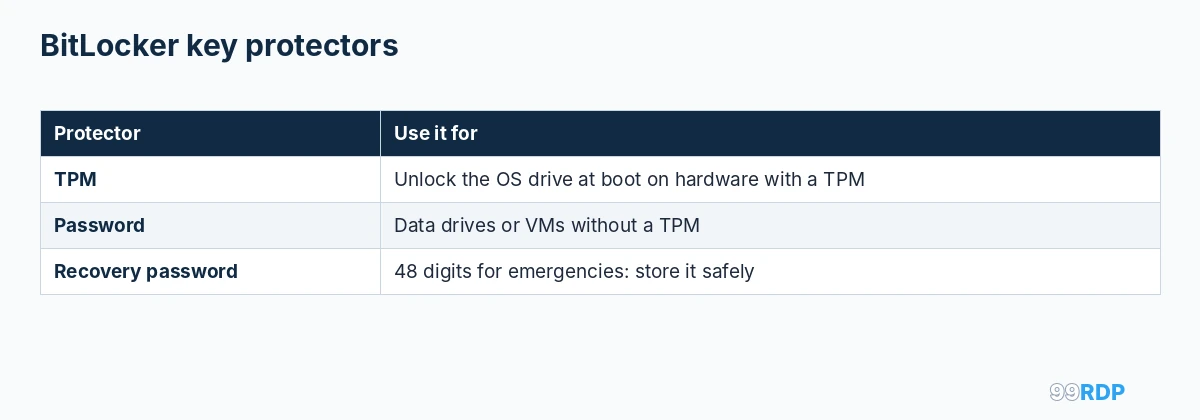
- TPM: to encrypt the operating system drive without typing a password at every boot, the server needs a TPM (version 2.0 recommended). Physical servers usually have one; virtual machines need a virtual TPM enabled by the hypervisor.
- Recovery keys: decide where they'll be stored (Active Directory, a password manager, a printed copy in a safe). Without the key, a locked volume can't be recovered.
- Backups: take a backup before encrypting.
Check for a TPM with Get-Tpm (look for TpmPresent: True and TpmReady: True).
Step 1: Install the BitLocker feature
Server Manager
Manage → Add Roles and Features → Features, tick BitLocker Drive Encryption, accept the management tools, install, and restart.
PowerShell
Install-WindowsFeature BitLocker -IncludeAllSubFeature -IncludeManagementTools -RestartStep 2: Encrypt the operating system drive (with a TPM)
Enable-BitLocker -MountPoint "C:" -EncryptionMethod XtsAes256 -TpmProtector -UsedSpaceOnly
Add-BitLockerKeyProtector -MountPoint "C:" -RecoveryPasswordProtector
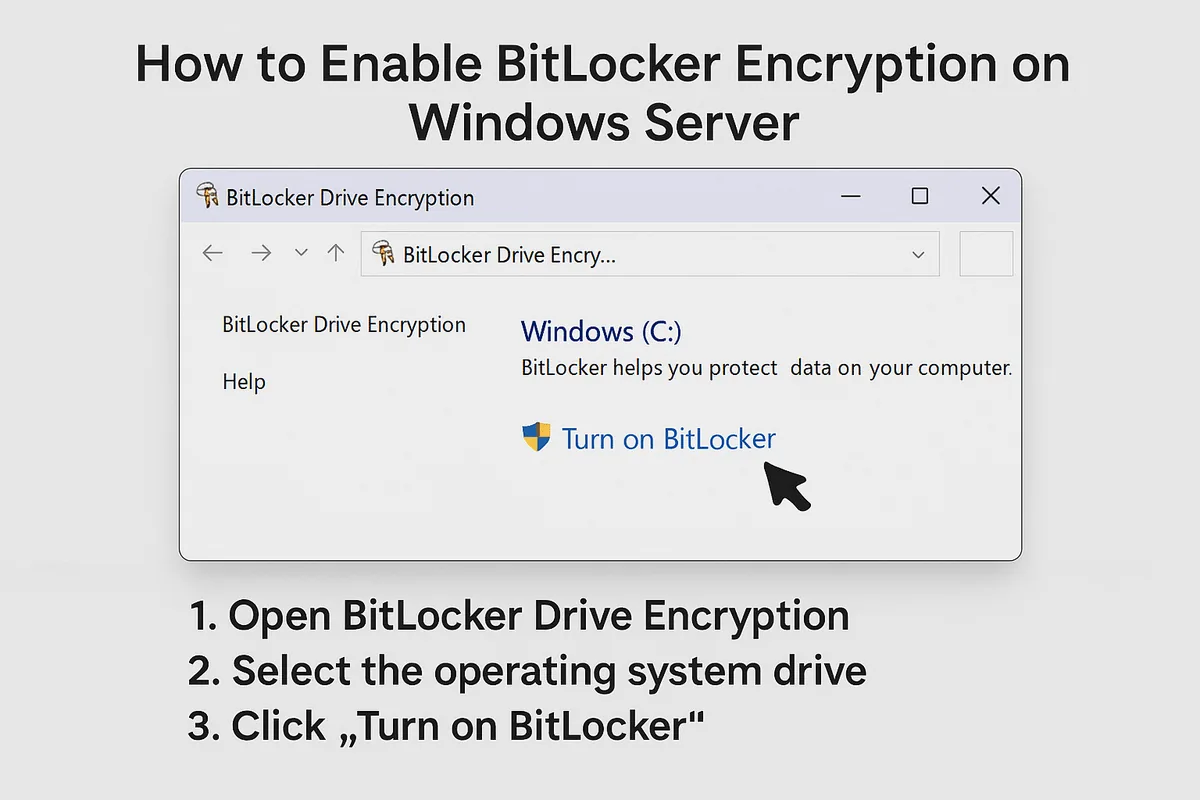
Or in Control Panel: System and Security → BitLocker Drive Encryption → Turn on BitLocker. Save the recovery key when prompted, and run the BitLocker system check if offered. Encryption continues in the background; you can keep working.
Step 3: Encrypt data volumes
Enable-BitLocker -MountPoint "D:" -EncryptionMethod XtsAes256 -RecoveryPasswordProtector
Enable-BitLockerAutoUnlock -MountPoint "D:"
Auto-unlock opens the data volume automatically once the encrypted OS drive has started, so services that use it start normally after a reboot. (Auto-unlock requires the OS volume to be BitLocker-protected.)
BitLocker on a VPS or server without a TPM
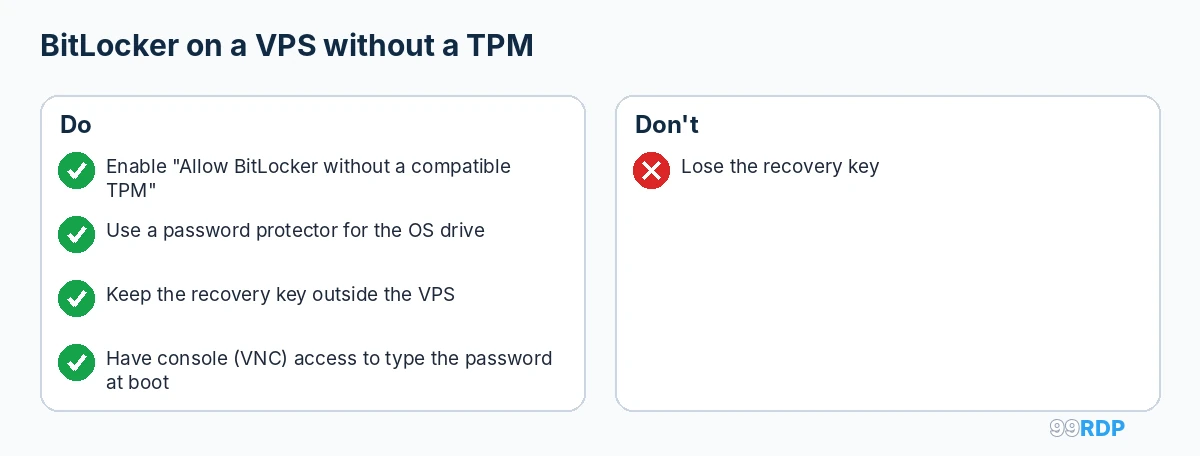
Without a TPM, encrypting the operating system drive means typing a password or inserting a USB key at every boot, before Windows starts, through the provider's console. That's impractical for most VPS. Better options:
- Ask your provider whether a virtual TPM can be enabled for your VM.
- Encrypt data volumes only and unlock them after boot with a password:
Enable-BitLocker -MountPoint D: -PasswordProtector, thenUnlock-BitLocker -MountPoint D: -Password (Read-Host -AsSecureString)when needed.
If you really need OS-drive encryption without a TPM, enable the Group Policy Computer Configuration → Administrative Templates → Windows Components → BitLocker Drive Encryption → Operating System Drives → Require additional authentication at startup with Allow BitLocker without a compatible TPM, and keep console access at hand for every restart.
Step 4: Back up the recovery key
(Get-BitLockerVolume -MountPoint "C:").KeyProtector | Where-Object KeyProtectorType -eq RecoveryPassword
# in a domain, store it in Active Directory:
$kp = (Get-BitLockerVolume -MountPoint "C:").KeyProtector | Where-Object KeyProtectorType -eq RecoveryPassword
Backup-BitLockerKeyProtector -MountPoint "C:" -KeyProtectorId $kp.KeyProtectorId
Keep the 48-digit recovery password somewhere outside the server, such as a password manager.
Step 5: Check the status
Get-BitLockerVolume
manage-bde -status
Fully Encrypted and Protection On mean the volume is protected.
Frequently asked questions
Is BitLocker available on Windows Server?
Yes, in all current editions (2016, 2019, 2022 and 2025). Install the BitLocker Drive Encryption feature first.
Can I use BitLocker without a TPM on Windows Server?
Yes, but the OS drive then needs a password or USB key at every boot. On a VPS, encrypt data volumes instead, or ask for a virtual TPM.
Does BitLocker slow down a server?
On modern CPUs with AES-NI the overhead is small for most workloads. The initial encryption causes extra disk activity until it finishes.
What happens if I lose the recovery key?
If BitLocker asks for it (after hardware changes or failed unlocks) and you don't have it, the data can't be recovered. Always back the key up outside the server.