A GPU server only helps your remote desktop if Windows actually uses the GPU. By default, Remote Desktop sessions on Windows Server render with the CPU (the Microsoft Basic Render Driver), so 3D apps, emulators, video editors and even a smooth desktop don't benefit from the graphics card. A few Group Policy settings change that: they let RDP sessions use the hardware GPU for rendering and for H.264 encoding of the stream. This guide covers Windows Server 2019, 2022 and 2025 on a GPU server.
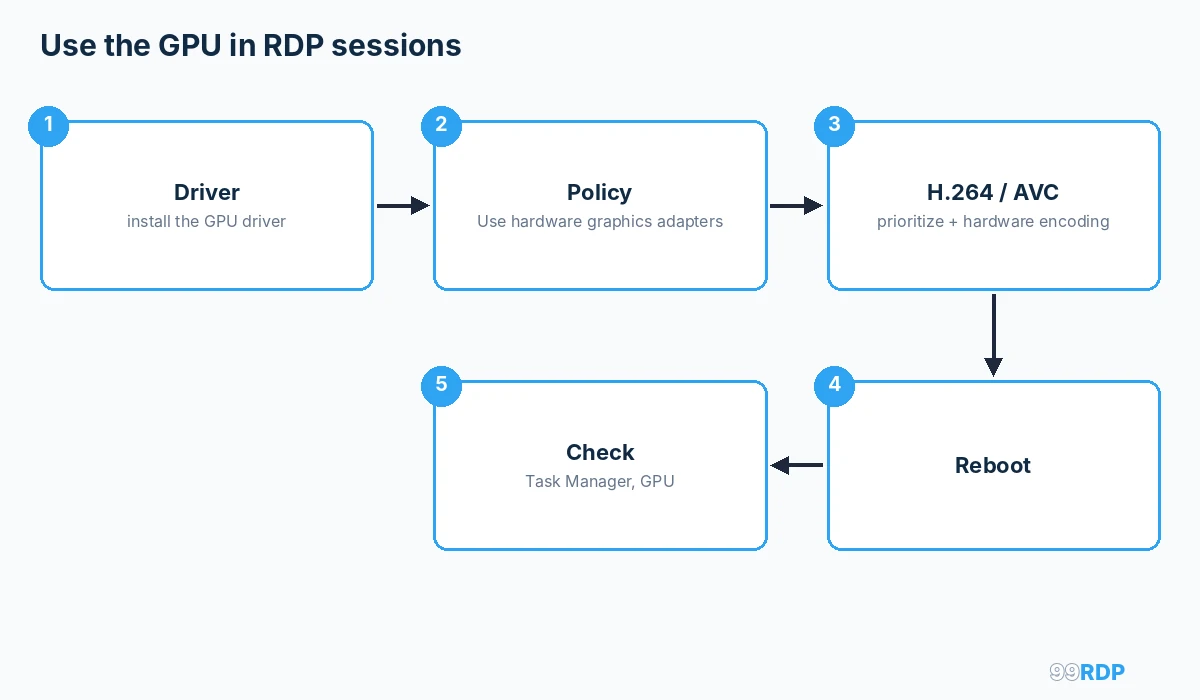
Quick answerInstall the GPU driver, then in gpedit.msc go to Computer Configuration → Administrative Templates → Windows Components → Remote Desktop Services → Remote Desktop Session Host → Remote Session Environment, enable Use hardware graphics adapters for all Remote Desktop Services sessions, Prioritize H.264/AVC 444 graphics mode and Configure H.264/AVC hardware encoding, run gpupdate /force and reconnect.
Step 1: Install the GPU driver
Check that Windows sees the card in Device Manager → Display adapters. If it shows "Microsoft Basic Display Adapter", install the vendor driver:
- NVIDIA: the data centre / workstation driver for your card from NVIDIA's driver site (or the vGPU/GRID driver if your provider uses virtual GPUs).
- AMD: the Radeon Pro / Instinct driver for your card.
On a 99RDP GPU server the driver is normally installed already; restart after any driver installation.
Step 2: Let RDP sessions use the GPU
- Press Win + R, run
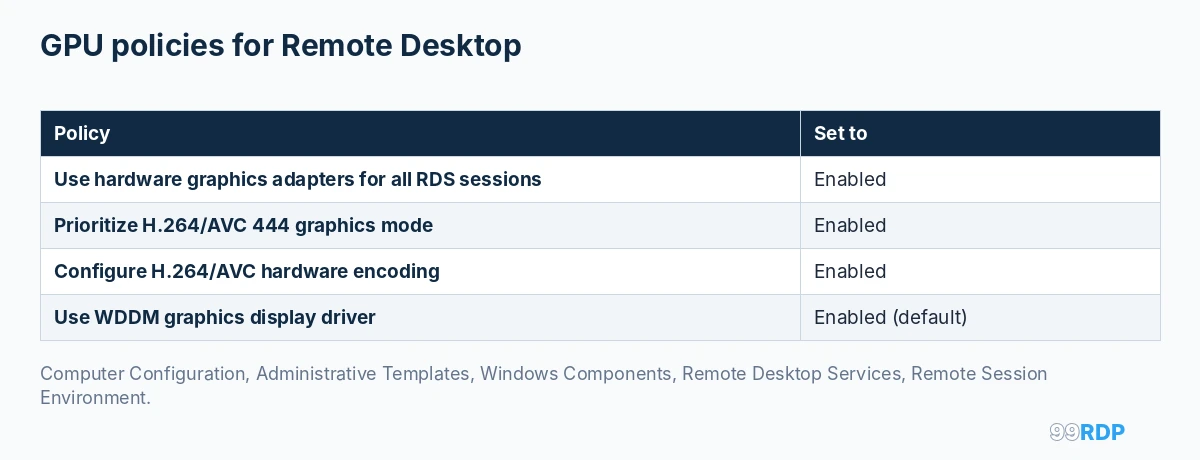
gpedit.msc. - Go to Computer Configuration → Administrative Templates → Windows Components → Remote Desktop Services → Remote Desktop Session Host → Remote Session Environment.
- Open Use hardware graphics adapters for all Remote Desktop Services sessions, set it to Enabled, click OK.
This is the key setting: without it, sessions render on the CPU even when a GPU and driver are present.
Step 3: Turn on H.264/AVC hardware encoding
In the same Remote Session Environment folder:
- Prioritize H.264/AVC 444 graphics mode for Remote Desktop Connections: Enabled. Gives sharper text and colours than the standard 4:2:0 mode.
- Configure H.264/AVC hardware encoding for Remote Desktop Connections: Enabled, with Prefer AVC Hardware Encoding set to Always attempt. The GPU then compresses the screen stream instead of the CPU.
- Configure compression for RemoteFX data (optional): choose Do not use an RDP compression algorithm if you have plenty of bandwidth and want the lowest CPU use.
On Windows Server 2019 with an NVIDIA card, if sessions still don't use the GPU, also check that Use WDDM graphics display driver for Remote Desktop Connections isn't disabled.
Step 4: Apply the policy
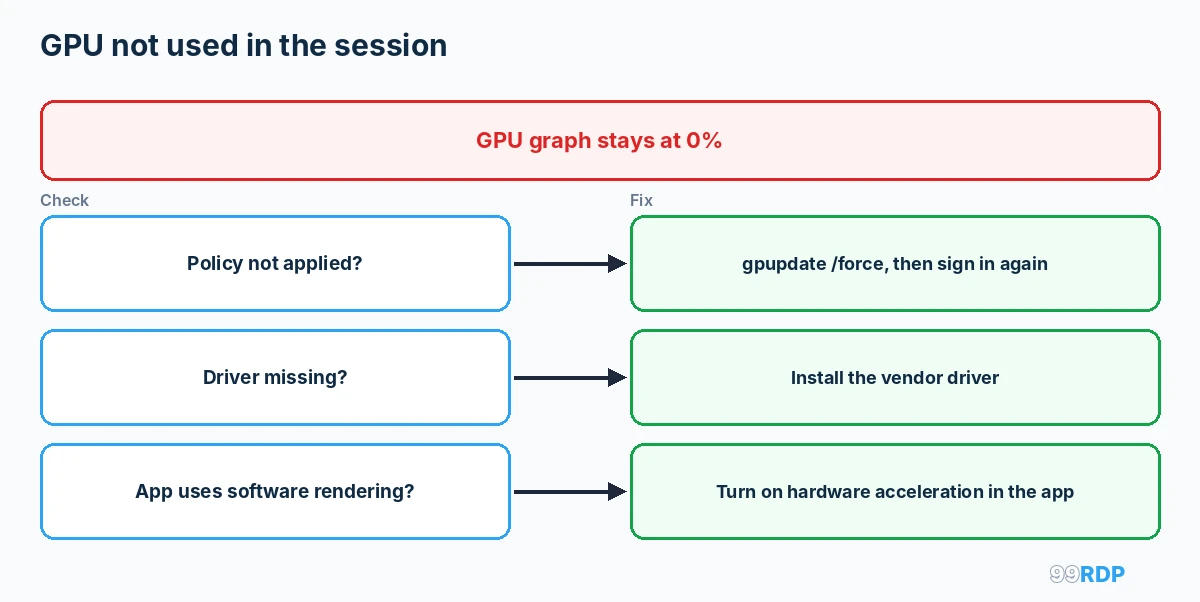
gpupdate /forceThen sign out of the RDP session completely (Start → user icon → Sign out) and connect again. Simply closing the window keeps the old session with the old settings.
Step 5: Verify the GPU is used
- Task Manager → Performance: the GPU appears and shows activity when you move windows or run a 3D app. In the Details tab, add the GPU column to see which processes use it.
- Event Viewer: open Applications and Services Logs → Microsoft → Windows → RemoteDesktopServices-RdpCoreTS → Operational. Event 162 confirms AVC 444 mode is in use and event 170 confirms hardware encoding.
- In the app: 3D programs, emulators and games should report your GPU instead of "Microsoft Basic Render Driver".
Client settings that help
- Use a current client: Remote Desktop Connection (mstsc) on Windows 10/11 or Windows App on other platforms. Both support AVC 444.
- In mstsc, Show Options → Experience: choose LAN (10 Mbps or higher) or Detect connection quality automatically so visual features aren't turned down.
- Set Display → Colors to Highest Quality (32 bit).
A note on RemoteFX vGPU
Older guides tell you to enable "RemoteFX vGPU". Microsoft disabled and then removed RemoteFX vGPU from Windows Server in 2020 for security reasons. The Group Policy settings above, which use the physical or provider-assigned GPU directly, are the current method.
Troubleshooting
- Still "Microsoft Basic Render Driver": the driver isn't installed or the policy hasn't applied. Check Device Manager, run
gpresult /rand sign out fully. - Black screen after enabling the policy: update the GPU driver; very old drivers can fail with WDDM in RDP sessions.
- Laggy despite GPU: the bottleneck may be bandwidth or latency rather than rendering. Lower the session resolution or frame rate, or connect from closer to the server.
Frequently asked questions
Does RDP use the GPU on Windows Server?
Not by default. Enable "Use hardware graphics adapters for all Remote Desktop Services sessions" in Group Policy and install the GPU driver.
How do I enable GPU acceleration for Remote Desktop?
Install the driver, enable the hardware graphics adapter, AVC 444 and H.264 hardware encoding policies, run gpupdate /force and reconnect.
How can I tell if hardware encoding is working?
Look for event 170 in the RemoteDesktopServices-RdpCoreTS Operational log, and GPU activity in Task Manager while the session updates.
Is RemoteFX still available?
RemoteFX vGPU has been removed from Windows Server. Use direct GPU access with the Group Policy settings in this guide.