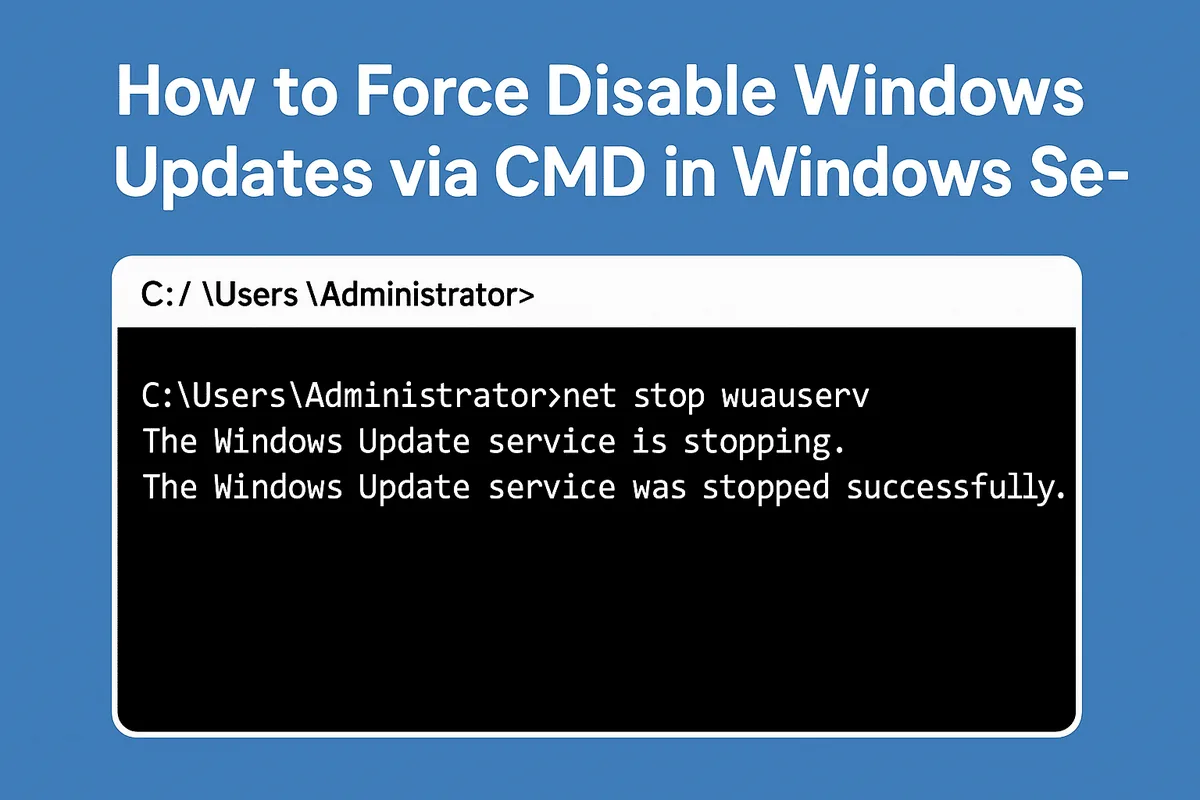
On production servers, an automatic update and restart at the wrong moment can take a service down. This guide shows how to stop and disable Windows Update from the Command Prompt on Windows Server 2016, 2019, 2022 and 2025, using three methods: the policy setting (most reliable), sconfig, and disabling the update services. The same commands also work on Windows 10 and 11 Pro.
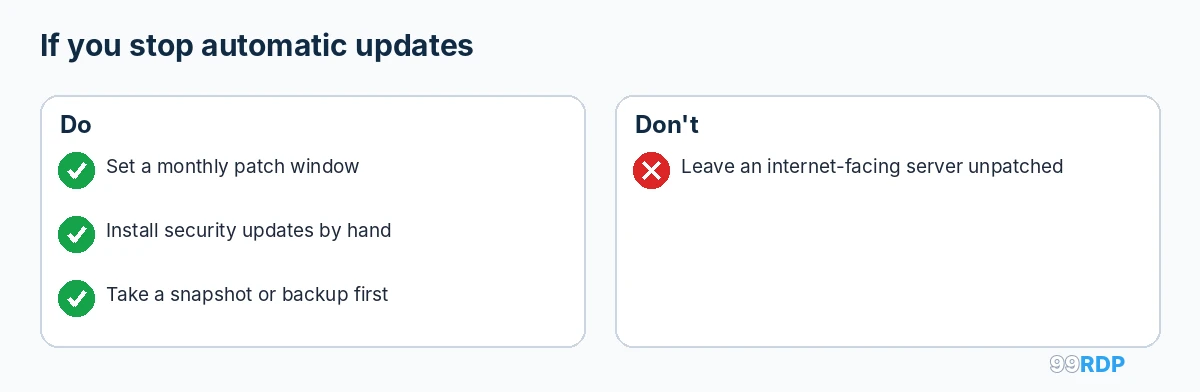
Important: turning updates off means you no longer get security patches automatically. Only do it on systems where you install updates yourself on a schedule. Don't leave a server unpatched.
Quick answerOpen CMD as Administrator and run:
net stop wuauserv
sc config wuauserv start= disabled
reg add "HKLM\SOFTWARE\Policies\Microsoft\Windows\WindowsUpdate\AU" /v NoAutoUpdate /t REG_DWORD /d 1 /f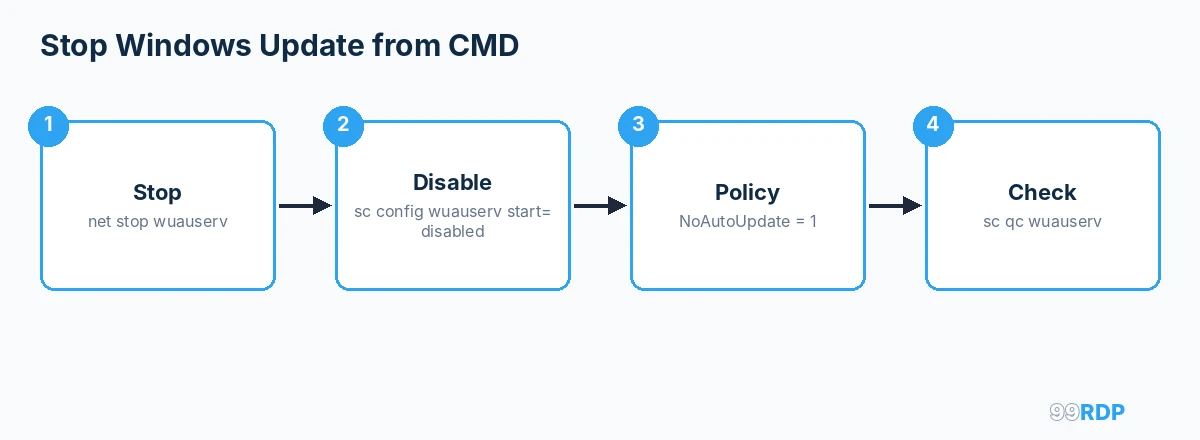
Before you start
- Open Command Prompt as Administrator: press Win, type
cmd, right-click it and choose Run as administrator. - In
sc configcommands, the space afterstart=is required.start=disabledwithout the space fails.
Method 1: Turn off automatic updates with a policy (recommended)
This is the method Microsoft supports, and Windows doesn't undo it. It sets the same value as the Group Policy Configure Automatic Updates → Disabled.
reg add "HKLM\SOFTWARE\Policies\Microsoft\Windows\WindowsUpdate\AU" /v NoAutoUpdate /t REG_DWORD /d 1 /fWould you rather be notified and install updates yourself, instead of turning them off completely? Use this instead:
reg add "HKLM\SOFTWARE\Policies\Microsoft\Windows\WindowsUpdate\AU" /v NoAutoUpdate /t REG_DWORD /d 0 /f
reg add "HKLM\SOFTWARE\Policies\Microsoft\Windows\WindowsUpdate\AU" /v AUOptions /t REG_DWORD /d 2 /f
AUOptions 2 means "notify before downloading and installing". Apply the change with gpupdate /force or a restart.
On a domain, set it once for many servers in Group Policy: Computer Configuration → Administrative Templates → Windows Components → Windows Update → Configure Automatic Updates.
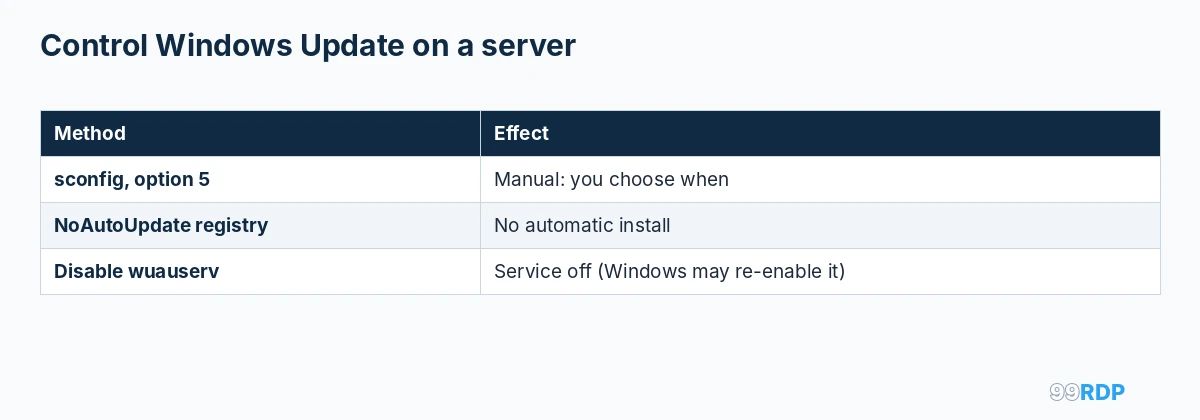
Method 2: Set updates to manual with sconfig (Windows Server)
Windows Server includes the sconfig menu, on Server Core and Desktop Experience alike:
- Run
sconfigin an administrator CMD or PowerShell window. - Choose the Update setting option.
- Select Manual updates.
The server will no longer download or install updates on its own. You can still install them from the same menu whenever you choose.
Method 3: Stop and disable the Windows Update service
1. Stop the service now
net stop wuauserv2. Stop it from starting again
sc config wuauserv start= disabled3. (Optional) Disable the related services
net stop bits
sc config bits start= disabled
sc config UsoSvc start= disabled
BITS downloads updates in the background, and UsoSvc (Update Orchestrator) schedules scans and installs. On newer builds, UsoSvc may return Access is denied. That's expected, so rely on Method 1 instead.
4. Check the result
sc qc wuauserv | findstr START_TYPE
sc query wuauserv | findstr STATE
You should see START_TYPE : 4 DISABLED and STATE : 1 STOPPED.
Why the service sometimes comes back: Windows has a protected Windows Update Medic Service (WaaSMedicSvc) that can repair, meaning re-enable, the update service. That's why the policy setting in Method 1 is the reliable way to keep automatic updates off. Disabling the service is best used together with it.
Disable automatic updates with PowerShell
Stop-Service wuauserv -Force
Set-Service wuauserv -StartupType Disabled
New-Item -Path "HKLM:\SOFTWARE\Policies\Microsoft\Windows\WindowsUpdate\AU" -Force | Out-Null
Set-ItemProperty -Path "HKLM:\SOFTWARE\Policies\Microsoft\Windows\WindowsUpdate\AU" -Name NoAutoUpdate -Value 1 -Type DWord
How to turn Windows Updates back on
reg delete "HKLM\SOFTWARE\Policies\Microsoft\Windows\WindowsUpdate\AU" /v NoAutoUpdate /f
sc config wuauserv start= demand
sc config bits start= delayed-auto
net start wuauserv
Then open Settings → Windows Update (or sconfig on Server) and run Check for updates.
Best practice for servers
Instead of switching updates off forever, set them to manual or notify (Method 1 with AUOptions 2, or Method 2). Then install updates in a planned maintenance window each month, after taking a snapshot or backup. You keep control over restarts without leaving the server exposed.
Frequently asked questions
How do I stop Windows Update permanently using CMD?
Set the policy with reg add ... /v NoAutoUpdate /d 1 and disable the service with sc config wuauserv start= disabled. The policy is what keeps it off, because Windows can re-enable the service by itself.
Why does Windows Update turn itself back on?
The protected Windows Update Medic Service repairs the update service. Use the policy method, which Windows respects.
Does this work on Windows 10 and 11?
Yes. The commands are the same. On Windows 10/11 Home, the NoAutoUpdate policy may be ignored, so set updates to pause in Settings instead.
Is it safe to disable Windows Updates on a server?
Only if you patch manually and regularly. An unpatched server that faces the internet is a security risk. Manual or notify mode is the safer choice.