A homelab is where you learn by doing: virtual machines, containers, media servers, home automation, a test Active Directory. One of the first decisions is the operating system. Linux and Windows both have a place, and most good homelabs end up using both: Linux for the host and most services, Windows for the things only Windows does. This guide compares them on cost, resources, virtualization, ease of use and career value, and suggests a practical layout.
Quick answerRun Linux (usually Proxmox VE) on the physical machine and for most services. Run Windows in virtual machines when you need it: Active Directory and Group Policy practice, Windows-only apps or a Windows desktop to remote into.
Windows vs Linux at a glance
| Linux | Windows / Windows Server | |
|---|---|---|
| Licence cost | Free (Ubuntu, Debian, Proxmox VE, AlmaLinux) | Paid; Windows Server evaluations run 180 days |
| Idle resource use | Very low; a headless server runs in 512 MB–1 GB | Higher; Windows Server wants 2–4 GB just for itself |
| Virtualization host | Proxmox VE, KVM, XCP-ng: free, web-managed | Hyper-V (in Windows Pro and Server) |
| Containers | Native Docker, Podman, Kubernetes | Docker Desktop/WSL2 or Windows containers |
| Self-hosted apps | Almost everything is built for Linux first | Fewer, often through WSL or Docker |
| Ease of use | Command line heavy; web UIs help | Familiar GUI, Server Manager, PowerShell |
| Best for learning | Linux admin, DevOps, networking, cloud | Active Directory, GPO, Microsoft 365 hybrid, Windows admin |
The host: Proxmox VE (Linux) vs Hyper-V (Windows)
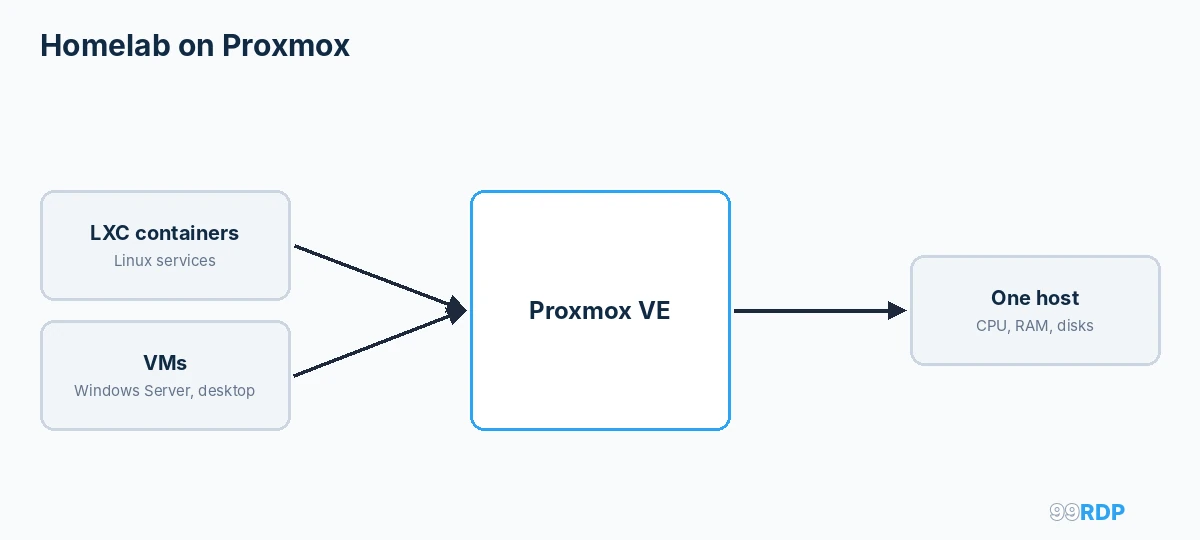
Proxmox VE is the most popular homelab hypervisor. It's free, based on Debian, runs KVM virtual machines and LXC containers, has a web interface, snapshots, built-in backups, ZFS and clustering. Version 9.2 (May 2026) is current. It runs Windows guests well with the VirtIO drivers.
Hyper-V is built into Windows 10/11 Pro and Windows Server. It's solid, but the free standalone Hyper-V Server ended with the 2019 version, so a Hyper-V host now needs a Windows licence, and management tools are mostly Windows-based. It makes sense if you specifically want to learn Microsoft virtualization.
Resource use and performance
Homelab hardware is usually an old PC, a mini PC or a used server, so every gigabyte of RAM counts. A Debian or Ubuntu Server VM for Pi-hole, Nginx or a small database runs comfortably in 1 GB; an LXC container needs even less. A Windows Server VM needs 2–4 GB before you install anything. On a 16 GB mini PC you can run a dozen Linux services, or a handful of Windows VMs.
Security and updates
Both are secure when patched and configured well. Linux makes it easy to run minimal servers with only the packages you need, and automatic security updates (unattended-upgrades, dnf-automatic). Windows Server updates are bigger and need more reboots, but Windows Update and WSUS make them predictable. Whatever you run, don't expose RDP or SSH directly to the internet; use a VPN such as WireGuard or Tailscale to reach your lab from outside.
Ease of use and learning curve
Windows feels familiar, and Server Manager and Windows Admin Center make roles easy to add. Linux has a steeper start because most work happens in the terminal, but tools like Proxmox's web UI, Cockpit and Portainer smooth that out, and the skills transfer directly to cloud servers, containers and DevOps jobs.
Cost
Linux, Proxmox VE and nearly all self-hosted apps are free. For Windows, you can use evaluation editions (Windows Server for 180 days, Windows Enterprise for 90 days) to learn, then rebuild, or buy licences for VMs you keep. Students can sometimes get licences through academic programmes.
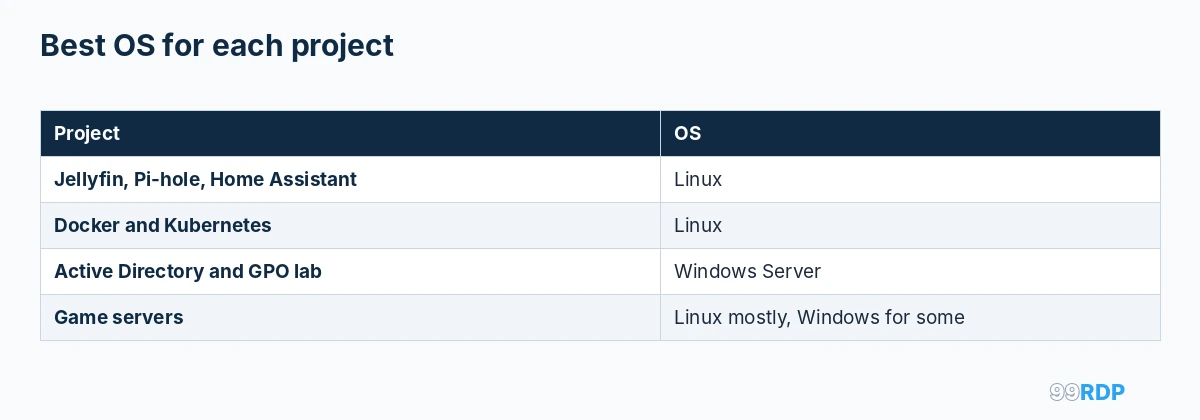
Popular homelab projects and the best OS for each
- Media server (Jellyfin, Plex): Linux in a container or VM.
- Network-wide ad blocking (Pi-hole, AdGuard Home): Linux container.
- Home Assistant: Home Assistant OS in a VM.
- NAS: TrueNAS or Proxmox with ZFS.
- Active Directory and Group Policy lab: Windows Server VMs.
- Monitoring (Prometheus, Grafana, Uptime Kuma): Linux containers.
- Windows desktop to remote into: Windows 11 VM with RDP.
Add a cloud node to your homelab
A homelab at home has limits: residential IP addresses, upload speed, power cuts. Many people add a small cloud server for the parts that need to be always on or reachable from anywhere: a VPN endpoint, an off-site backup target, uptime monitoring for the home lab, or a Windows RDP desktop for apps you use while travelling. Connect it to your home network with WireGuard and it behaves like another node in the lab.
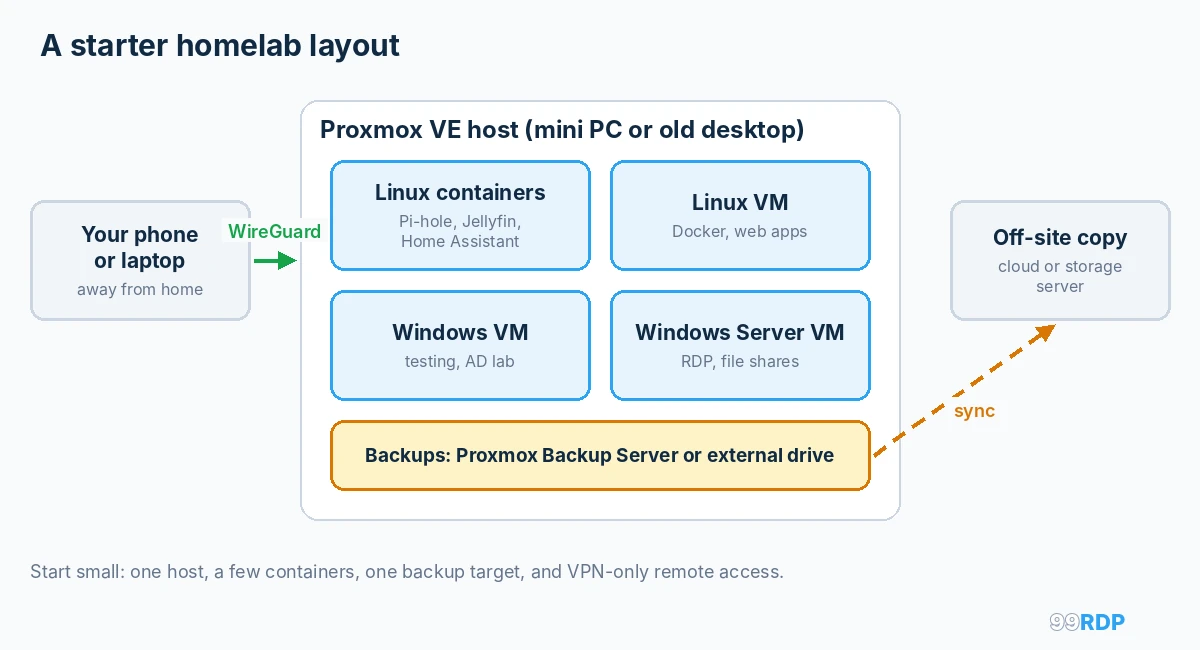
Suggested starter layout
- Install Proxmox VE on the physical machine.
- Create LXC containers for light Linux services (Pi-hole, Nginx Proxy Manager, Uptime Kuma).
- Create a Debian or Ubuntu VM with Docker for container stacks.
- Create Windows Server VMs for an AD lab, and a Windows 11 VM if you need a Windows desktop.
- Set up backups (Proxmox Backup Server or vzdump to another disk) and WireGuard for remote access.
Frequently asked questions
Is Linux or Windows better for a homelab?
Linux is better as the host and for most services because it's free and light. Windows is worth running in VMs to learn Active Directory and Windows administration.
Can I run Windows VMs on Proxmox?
Yes. Install the VirtIO drivers during setup for fast disk and network performance.
Is there a free Windows Server for a homelab?
Microsoft offers 180-day evaluation editions of Windows Server. The free standalone Hyper-V Server ended with the 2019 release.
How do I access my homelab remotely?
Use a VPN such as WireGuard or Tailscale rather than opening RDP or SSH ports to the internet.