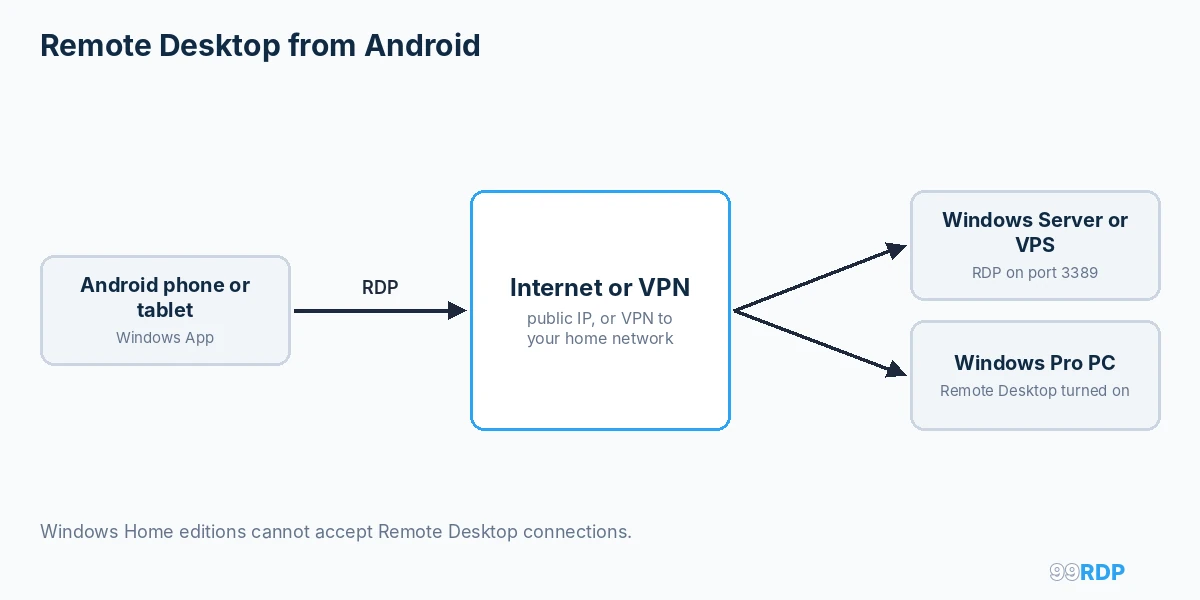
You can control a Windows PC, Windows Server or RDP server from an Android phone, tablet or Chromebook with Microsoft's official client. The old "Microsoft Remote Desktop" app for Android was replaced by the Windows App in 2025, so guides that tell you to install "RD Client" are out of date. This guide shows how to install Windows App, add a PC or server, connect, use the mouse and keyboard on a touchscreen, and fix common connection problems.
Quick answerInstall Windows App from Google Play, tap + and add a PC with your server's IP address (and port if it is not 3389), enter the user name and password, then tap the PC to connect. Accept the certificate prompt the first time.
What you need
- An Android phone or tablet with a recent Android version, or a Chromebook with Google Play.
- A computer that accepts Remote Desktop: Windows 10/11 Pro or Enterprise, Windows Server, or an RDP/Windows VPS from a hosting provider. Windows Home cannot be controlled with Remote Desktop.
- The computer's IP address or host name, a user name and a password.
- A network path to the computer: an internet-facing server, or a VPN into your home or office network.
Step 1: Install Windows App
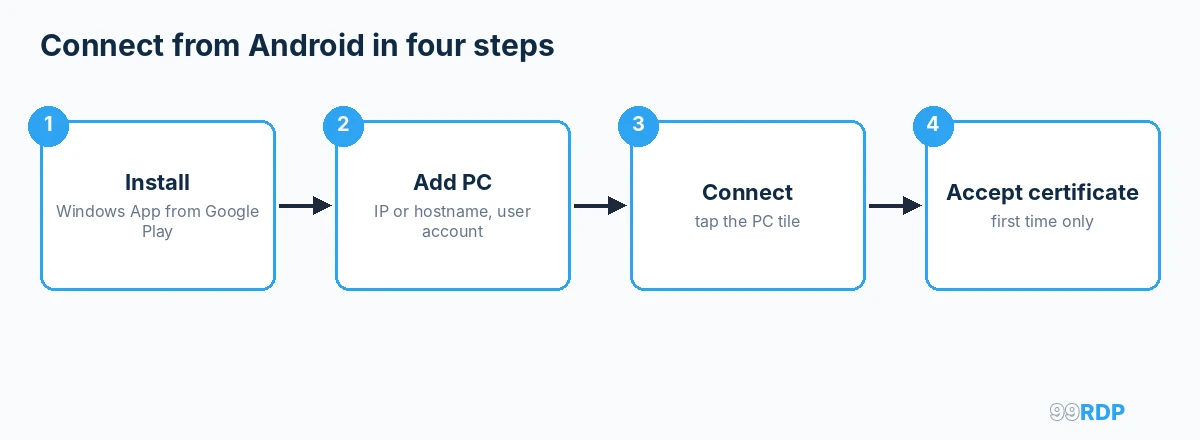
- Open the Google Play Store.
- Search for Windows App and check the publisher is Microsoft Corporation.
- Tap Install, then open the app.
If you still have the old "Remote Desktop" app, uninstall it after setting up Windows App; it is no longer supported.
Step 2: Add your PC or server
- In Windows App, tap the + button and choose Add PC.
- In PC name, enter the IP address or host name, for example
203.0.113.10. If the server uses a custom port, add it after a colon:203.0.113.10:3390. - Under Credentials, add a user account with the user name (for example
Administrator) and password, or choose to be asked every time. - Optionally set a friendly name, and adjust display and device settings such as sound and clipboard.
- Save the connection.
Step 3: Connect
- Tap the PC tile.
- The first time, a certificate warning appears because most servers use a self-signed certificate. Check the name, tick the option not to ask again for this PC if you trust it, and tap Connect.
- The remote Windows desktop opens on your screen.
Using Remote Desktop on a touchscreen
- Mouse mode vs touch mode: use the session toolbar at the top to switch. In mouse pointer mode, you move a cursor like a laptop touchpad; tap to click, and use a two-finger tap or long-press for right-click. Touch mode passes touches directly to Windows.
- Keyboard: tap the keyboard icon in the toolbar to show the on-screen keyboard.
- Zoom: pinch to zoom in on small text.
- Ctrl+Alt+Del: open the on-screen keyboard inside Windows (run
osk) or use the app's options, since the key combination cannot be typed directly. - Bluetooth keyboard and mouse make longer sessions much easier, especially on tablets and Chromebooks.
- Disconnect: use the toolbar to end the session. Your programs keep running on the server.
Connecting to a PC at home or work
A PC behind a router is not reachable from the internet by default. Use a VPN into the network, or your organisation's RD Gateway (added in the connection's gateway settings). Opening port 3389 on the router directly is risky, because exposed RDP ports are attacked constantly.
Troubleshooting
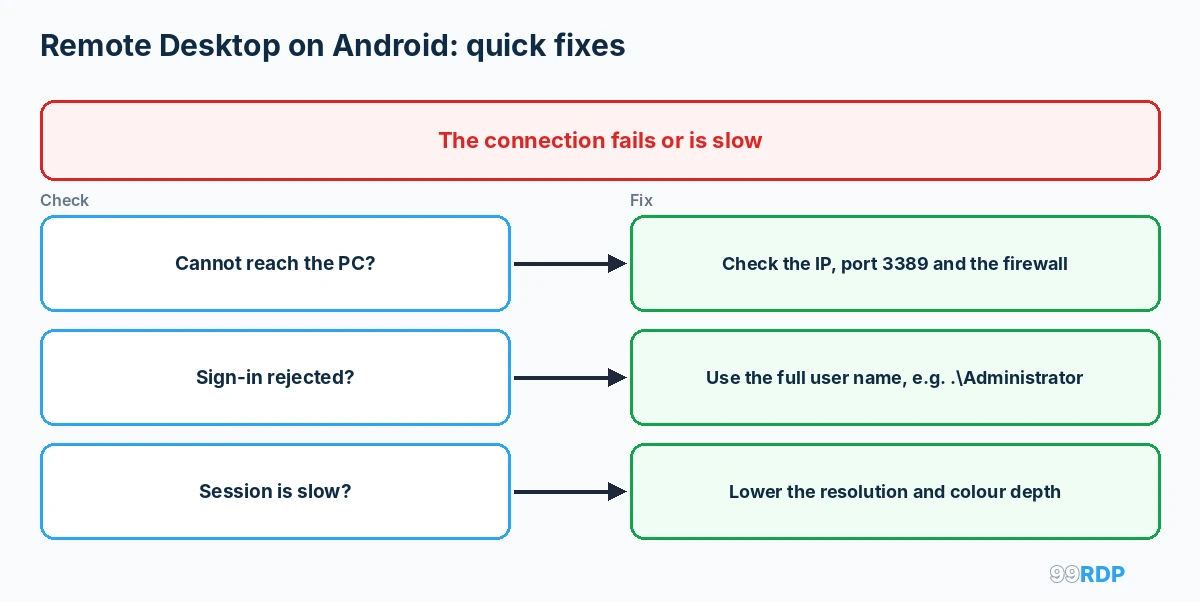
- "We couldn't connect to the remote PC": check the address and port, that Remote Desktop is enabled on the PC, and that the firewall allows port 3389. Make sure your phone's network (mobile data or Wi-Fi) can reach it.
- Login fails: use the right user name format (
Administrator,PCNAME\user, or the full email address for a Microsoft account) and the account password, not a PIN. - Slow or laggy: lower the display resolution in the connection settings, and prefer Wi-Fi to weak mobile signal.
- Connection drops when switching apps: Android may pause background apps; reopen Windows App to reconnect, or exclude it from battery optimisation.
Can Android be a Remote Desktop server?
No. Android cannot accept Microsoft Remote Desktop connections. To view or control an Android device from a computer, use tools designed for that, such as screen mirroring over USB or vendor remote-support apps.
Frequently asked questions
What is the Remote Desktop app for Android called now?
Windows App. It replaced the Microsoft Remote Desktop (RD Client) app, which is no longer supported.
Is Windows App free on Android?
Yes. It is free from Google Play.
Can I connect to an RDP server from my phone?
Yes. Add the server's IP address, user name and password in Windows App and connect over mobile data or Wi-Fi.
Does Windows App work on a Chromebook?
Yes, on Chromebooks that support Android apps from Google Play.