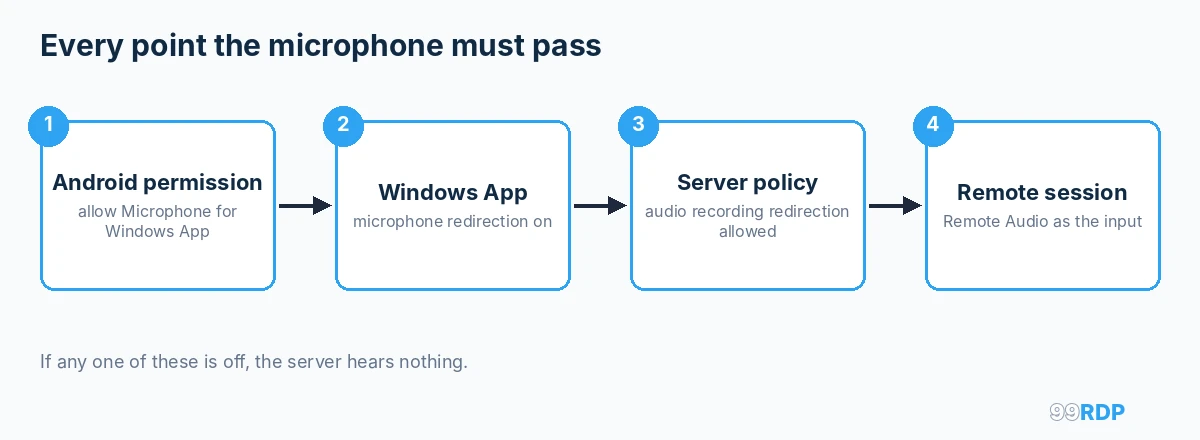
Want to join a voice call, use voice chat or record audio inside a Windows remote desktop from your Android phone or tablet? By default, sound plays from the remote PC to your phone, but your phone's microphone isn't passed to the remote session. You need to turn on microphone redirection in the app, give it Android's microphone permission, and make sure the Windows server accepts audio input. This guide covers all three.
Quick answerIn Microsoft's Windows App for Android (the successor to the Remote Desktop app), edit your saved PC, turn on the microphone redirection option, allow the microphone permission when Android asks, and reconnect. On the server, audio recording redirection must be allowed and the Windows Audio service running.
Step 1: Install or update Windows App
Microsoft replaced the old "Remote Desktop" app with Windows App on Android. Install it or update it from Google Play. Older app versions may not show all the options below, so update first.
Step 2: Turn on microphone redirection
- Open Windows App and find your PC (tap + → add a PC if it isn't there yet).
- Open the PC's menu and choose Edit.
- Open the additional or advanced options and find the audio and device redirection settings.
- Turn on the microphone option (labelled "Microphone" or "Redirect microphone", depending on the app version). Keep sound set to play on this device so you also hear the remote audio.
- Save the PC.
Step 3: Allow the microphone permission on Android
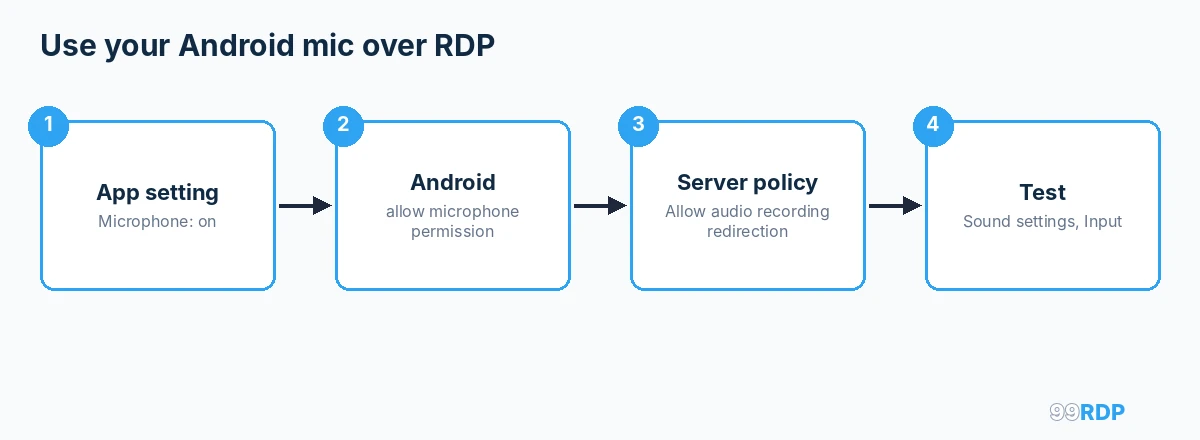
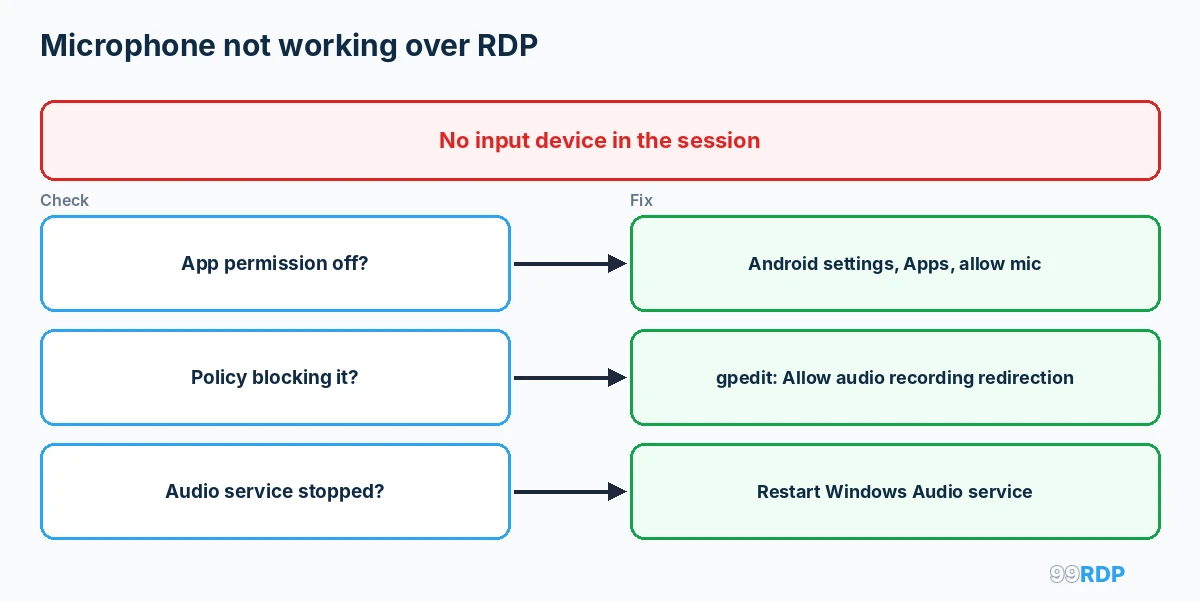
The first time you connect with microphone redirection on, Android asks whether the app may record audio. Tap While using the app. If you denied it earlier, open Settings → Apps → Windows App → Permissions → Microphone and choose Allow only while using the app.
Step 4: Make sure the server allows audio input
On most Windows VPS and RDP servers this is already enabled, but check if the microphone still doesn't appear:
- Windows Audio service: on Windows Server it may be set to Manual. Run in PowerShell as administrator:
Set-Service Audiosrv -StartupType Automatic Start-Service Audiosrv - Group Policy: open
gpedit.msc→ Computer Configuration → Administrative Templates → Windows Components → Remote Desktop Services → Remote Desktop Session Host → Device and Resource Redirection and make sure Allow audio recording redirection is Enabled (or Not Configured) and Allow audio and video playback redirection isn't disabled. - Run
gpupdate /force, then disconnect and reconnect.
Step 5: Test the microphone in the remote session
- In the remote desktop, right-click the speaker icon → Sound settings.
- Under Input, you should see Remote Audio. Speak into the phone and watch the level meter move.
- In your call or chat app (Teams, Zoom, Discord), choose Remote Audio as the microphone.
Troubleshooting
- No "Remote Audio" input: the microphone option wasn't on when you connected. Disconnect fully (not just switch apps) and reconnect.
- Input shows but stays silent: Android permission is denied, or another app on the phone is using the microphone.
- Choppy or delayed voice: switch from mobile data to Wi-Fi, or lower the display resolution in the PC's settings to free bandwidth.
- Works on Windows but not Android: update Windows App; redirection options vary between app versions.
- Linux server with xrdp: microphone redirection needs xrdp's PipeWire or PulseAudio module installed on the server.
Frequently asked questions
Can I use my phone's microphone in Remote Desktop?
Yes. Enable microphone redirection in Windows App for Android, allow the microphone permission, and make sure the server allows audio recording redirection.
Why isn't my microphone working in Remote Desktop on Android?
Usually microphone redirection is off in the PC's settings, Android's microphone permission is denied, or the Windows Audio service isn't running on the server.
Can I use voice chat in games or calls over RDP?
Yes, for calls and voice chat. Select "Remote Audio" as the input device in the app you're using inside the remote session.
Does the old Microsoft Remote Desktop app still work?
Microsoft has replaced it with Windows App. Use Windows App for current features and updates.