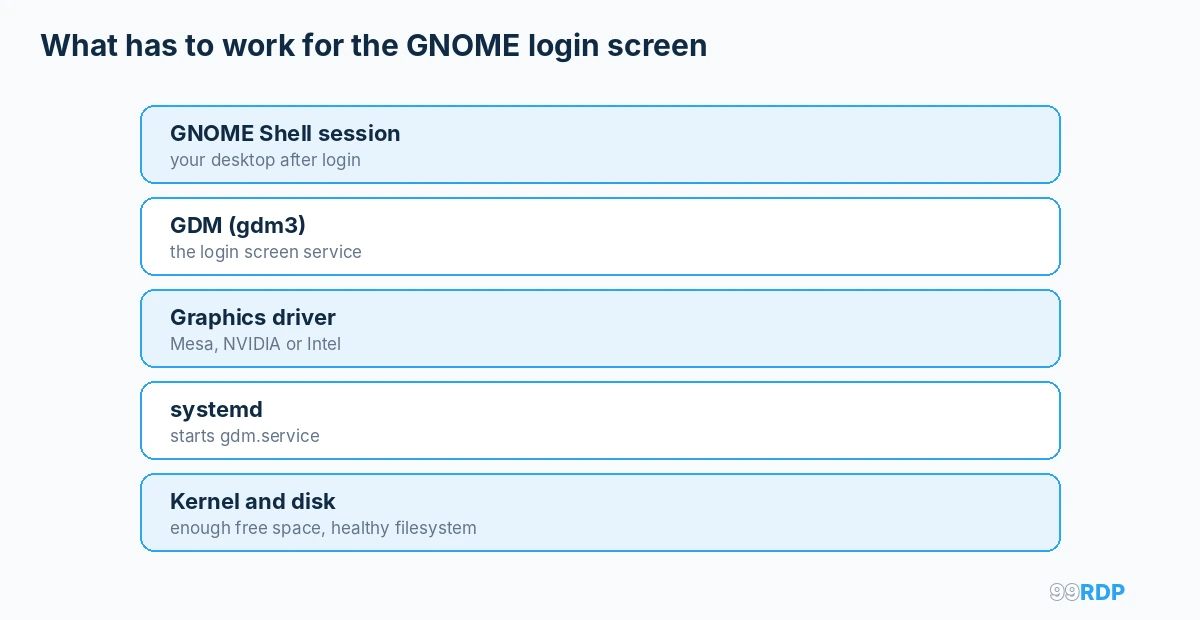
If Ubuntu boots to a black screen, loops back to the login screen, or shows Failed to start gdm.service – GNOME Display Manager, the desktop itself is usually fine. Something stops GDM or GNOME Shell from starting. The most common causes are a full disk, a broken graphics driver, interrupted package updates, and corrupted user settings. This guide works through them in order, from a text console. It's tested on Ubuntu 22.04 and 24.04.
Quick answerPress Ctrl+Alt+F3, log in, and run:
df -h /
sudo dpkg --configure -a
sudo apt install -f
sudo apt install --reinstall ubuntu-desktop gnome-shell gdm3
sudo reboot
Step 1: Open a text console (TTY)
Press Ctrl+Alt+F3 (or F2–F6) and log in with your username and password. If no console appears, reboot, hold Shift (BIOS) or press Esc (UEFI) to open the GRUB menu, and choose Advanced options → recovery mode → root.
Step 2: Read the error
systemctl status gdm3
journalctl -b -u gdm3 --no-pager | tail -50
journalctl -b -p err --no-pager | tail -50
The last lines usually point straight at the cause: No space left on device, an NVIDIA or Mesa error, or a crashing GNOME Shell extension. Jump to the matching step below.
Step 3: Check that the disk isn't full
df -h /If / shows 100% (or very close), GDM can't write its files and won't start. Free some space:
sudo apt clean
sudo journalctl --vacuum-size=200M
sudo apt autoremove --purge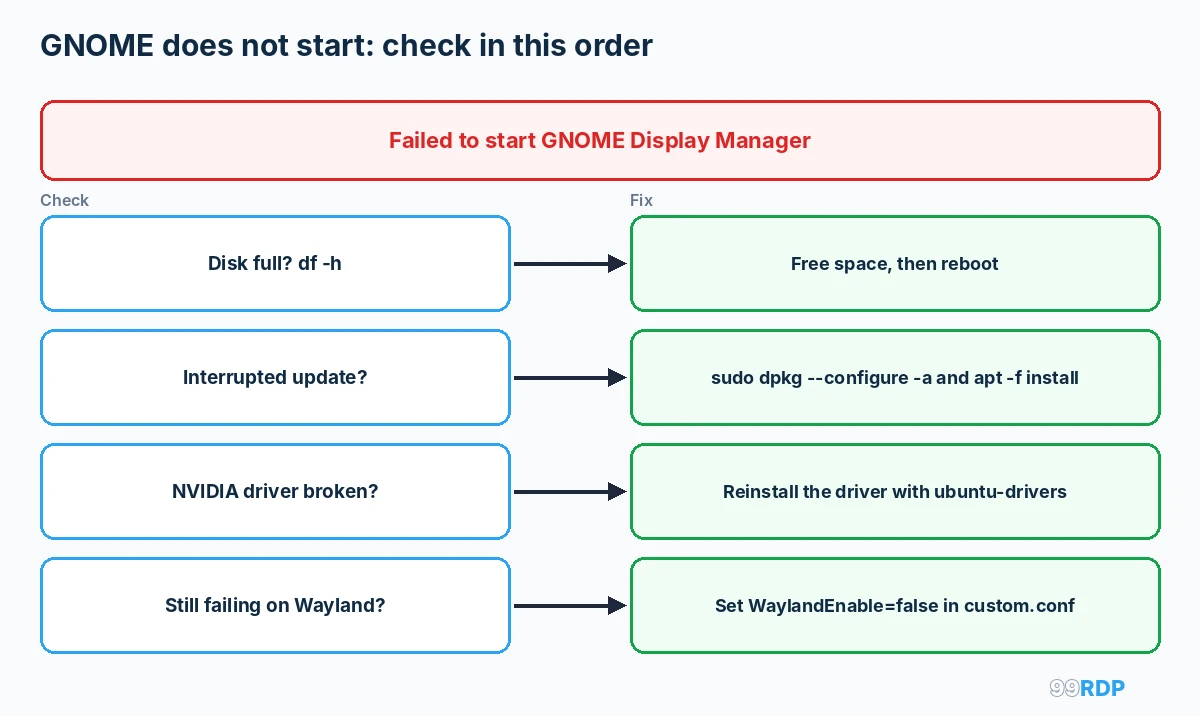
Step 4: Finish interrupted updates and fix broken packages
sudo dpkg --configure -a
sudo apt update
sudo apt install -f
sudo apt full-upgrade
A power loss or a closed terminal during an upgrade often leaves GNOME packages half-installed, and this finishes the job.
Step 5: Reinstall GNOME and GDM
sudo apt install --reinstall ubuntu-desktop gnome-shell gdm3
sudo dpkg-reconfigure gdm3
sudo systemctl restart gdm3
If you're asked to choose a display manager, select gdm3.
Step 6: Fix the graphics driver (NVIDIA in particular)
A failed or mismatched NVIDIA driver after a kernel update is a very common cause of a black screen. Reinstall the recommended driver:
ubuntu-drivers devices
sudo ubuntu-drivers install
sudo reboot
If that doesn't help, remove the NVIDIA driver and fall back to the open-source one:
sudo apt purge 'nvidia-*'
sudo apt autoremove
sudo reboot
Step 7: Try Xorg instead of Wayland
Some GPUs and drivers still have problems with Wayland. Switch GDM to Xorg:
sudo nano /etc/gdm3/custom.confUncomment WaylandEnable=false, save the file, and run sudo systemctl restart gdm3.
Step 8: Login loop? Reset your user's GNOME settings
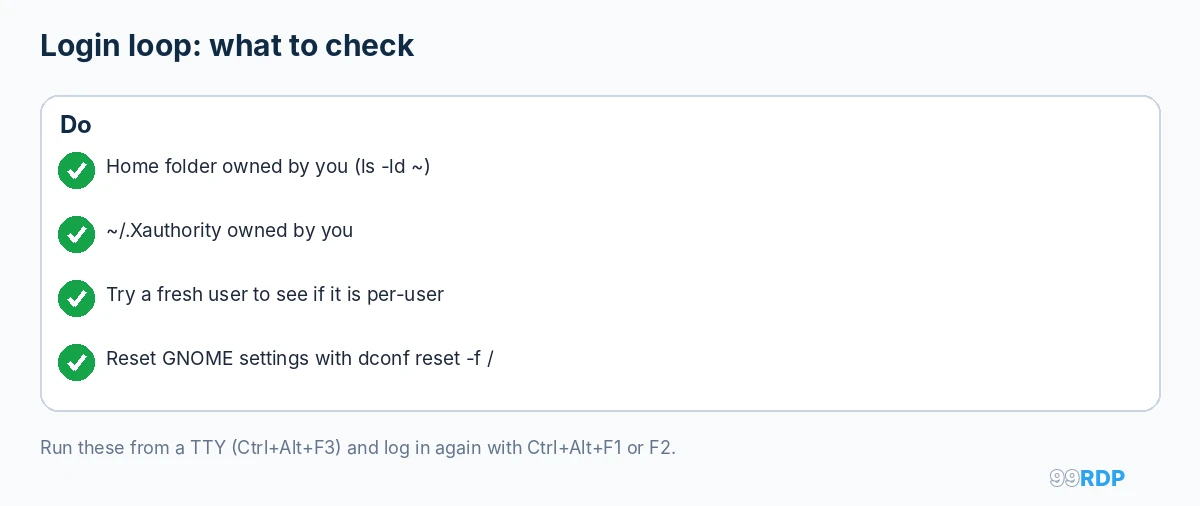
If the login screen appears but you're thrown back to it after entering your password, the problem is in your home folder.
# wrong owner on session files
sudo chown $USER:$USER ~/.Xauthority ~/.ICEauthority 2>/dev/null
# disable all GNOME Shell extensions
gsettings set org.gnome.shell disable-user-extensions true
# reset GNOME settings (keeps your files)
dconf reset -f /org/gnome/
# remove a broken monitor layout
mv ~/.config/monitors.xml ~/.config/monitors.xml.bak 2>/dev/null
Then sudo systemctl restart gdm3 and log in again. Run these commands as your normal user, not as root.
Frequently asked questions
How do I fix "Failed to start GNOME Display Manager" on Ubuntu?
Check journalctl -b -u gdm3 for the cause. In most cases freeing disk space, running sudo dpkg --configure -a && sudo apt install -f, reinstalling gdm3, or fixing the NVIDIA driver solves it.
How do I start GNOME from the command line?
Run sudo systemctl start gdm3 to start the login screen. To make Ubuntu boot to the desktop again: sudo systemctl set-default graphical.target.
How do I reinstall GNOME on Ubuntu without losing data?
sudo apt install --reinstall ubuntu-desktop gnome-shell gdm3 reinstalls the desktop packages only. Your files and installed apps aren't touched.
Can I run the GNOME desktop on a VPS?
Yes. Install ubuntu-desktop and connect with xrdp or a VNC server. A lighter desktop such as Xfce uses far less RAM on a server, though.