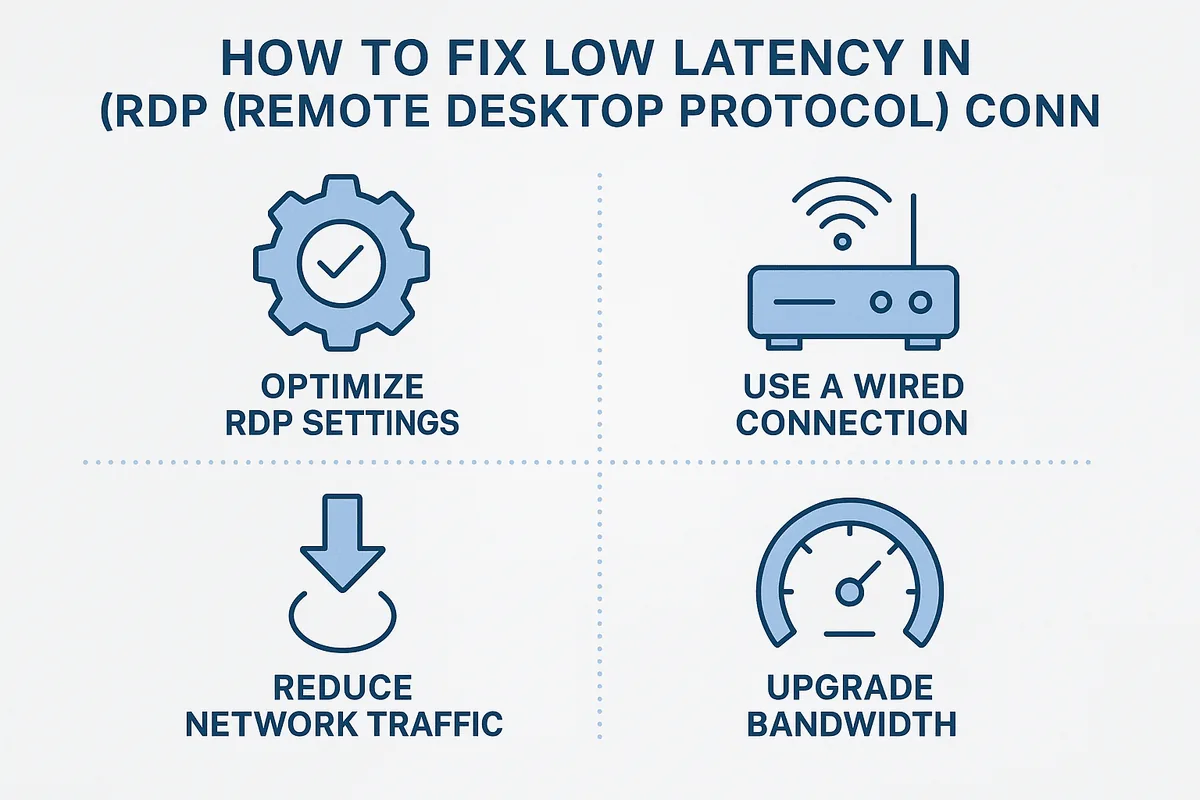
Lag in Remote Desktop, where the mouse trails behind and typing appears late, comes from latency: the time data takes to travel between you and the server. You can't beat physics, but you can make RDP far more responsive by choosing a nearby server, letting RDP use UDP, and cutting the amount of screen data it sends. This guide shows how to measure latency, what numbers to aim for, and the fixes that make the biggest difference.
Quick answer
- Measure:
ping your-server. Under 50 ms feels local; over 150 ms feels laggy. - Use a server location close to you.
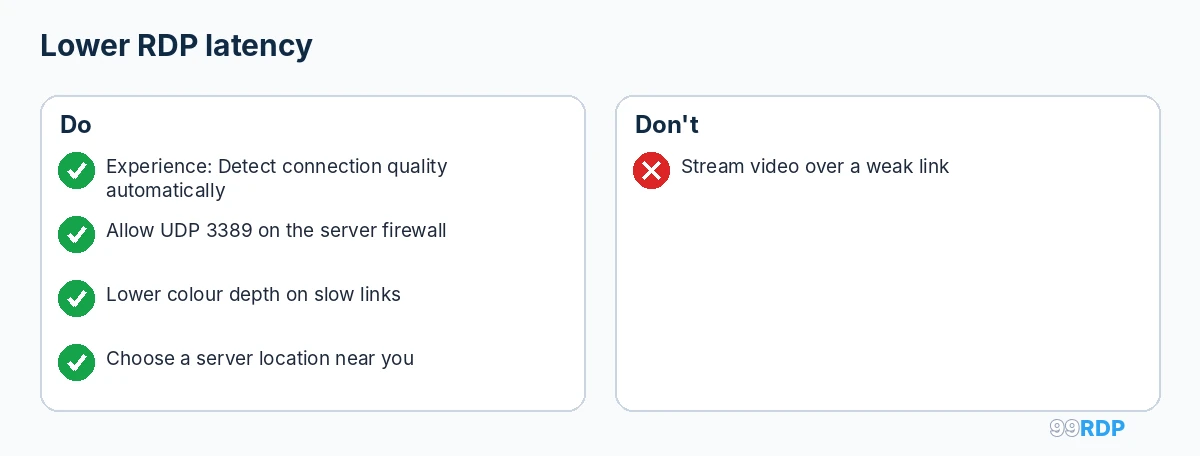
- Allow UDP 3389 through every firewall so RDP can use its faster UDP transport.
- In the RDP client's Experience tab, keep Detect connection quality automatically and turn off visual effects you don't need.
- Use a wired connection instead of Wi-Fi.
Step 1: Measure your latency
ping -n 20 203.0.113.10                     # Windows (use -c 20 on Linux/macOS)
Test-NetConnection 203.0.113.10 -Port 3389  # is RDP reachable?
tracert 203.0.113.10 # where along the route delay builds up| Round-trip time | How RDP feels |
|---|---|
| Under 50 ms | Like working locally |
| 50–100 ms | Fine for office work |
| 100–150 ms | Noticeable delay when typing or scrolling |
| Over 150 ms, or jitter | Laggy; video and fast mouse work suffer |
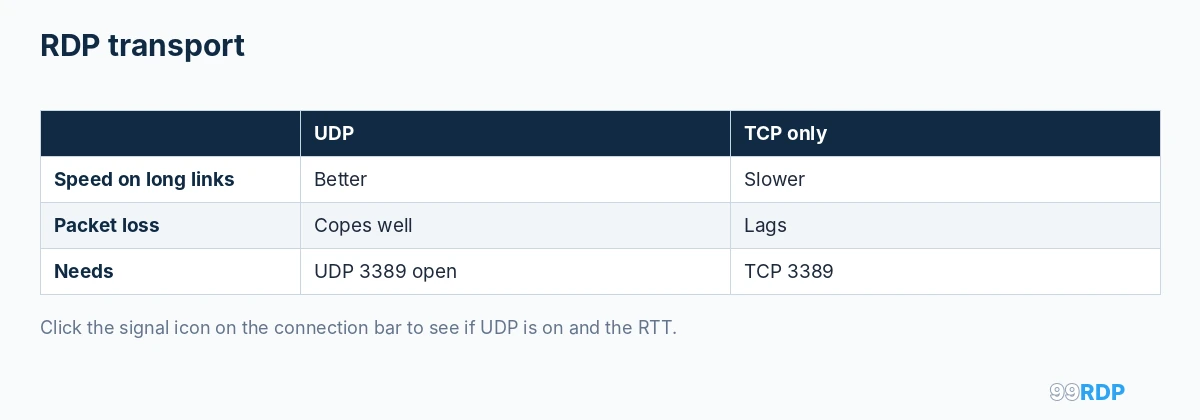
In an RDP session, the connection bar's signal icon shows the connection quality, and on recent Windows versions it shows the round-trip time and bandwidth too.
Step 2: Pick a server close to you
Distance is the biggest factor. Each 1,000 km adds roughly 10 ms of round-trip time at best, and real routes are longer. A server in your own country or region usually cuts latency more than any setting can.
Step 3: Let RDP use UDP
Modern RDP sends screen updates over UDP, which copes much better with delay and packet loss than TCP. If UDP is blocked, RDP silently falls back to TCP and feels slower.
- Allow UDP 3389 inbound on the server's firewall and any provider or router firewall:
New-NetFirewallRule -DisplayName "RDP UDP" -Direction Inbound -Protocol UDP -LocalPort 3389 -Action Allow - Make sure UDP isn't turned off in Group Policy: Computer Configuration → Administrative Templates → Windows Components → Remote Desktop Services → Remote Desktop Session Host → Connections → Select RDP transport protocols should be Not configured or Use both UDP and TCP.
- VPNs and some corporate networks block UDP. Test without the VPN if you can.
Step 4: Send less screen data
In Remote Desktop Connection, open Show Options → Experience:
- Keep Detect connection quality automatically. It adapts the image quality to your connection.
- Untick Desktop background, Menu and window animation and Visual styles on slow links.
- On the Display tab, lower the colour depth to 16-bit and use a smaller window or resolution if needed.
Inside the server, set Adjust for best performance in System Properties → Advanced → Performance, and avoid animated content or videos running in the background.
Step 5: Fix your local network
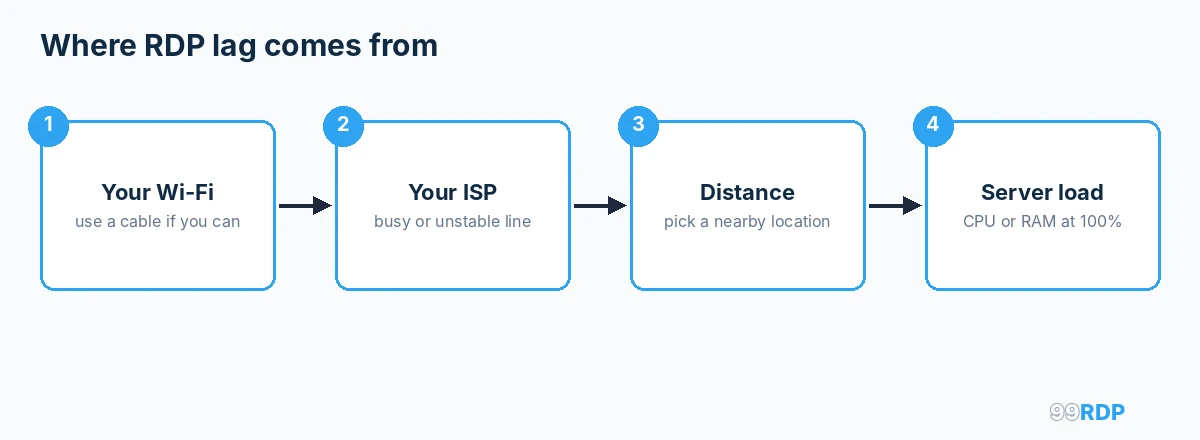
- Use Ethernet instead of Wi-Fi where possible. Wi-Fi adds jitter, which makes RDP feel worse than the average ping suggests.
- Pause large downloads, cloud backups and streaming on your connection while you work.
- Restart your router if latency to every site is high.
Step 6: Check the server isn't overloaded
If ping is fine but RDP still lags, the server may be the bottleneck. Open Task Manager in the session and check CPU, memory and disk. A server at 100% CPU or out of RAM responds slowly however good the network is. Close heavy applications or move to a plan with more resources.
Frequently asked questions
What is a good latency for RDP?
Under 50 ms feels like a local PC, and up to about 100 ms is comfortable for office work. Above 150 ms, delays become obvious.
Does RDP use UDP or TCP?
Both. RDP starts over TCP 3389 and adds UDP 3389 for screen data when it's allowed, which reduces lag on longer connections.
Why is my RDP slow even with fast internet?
Bandwidth isn't the issue; latency and packet loss are. A distant server, Wi-Fi, a VPN or blocked UDP can make RDP laggy on a fast connection.
How can I test RDP latency?
Ping the server, use Test-NetConnection to check the port, and check the connection bar in the RDP session for round-trip time.