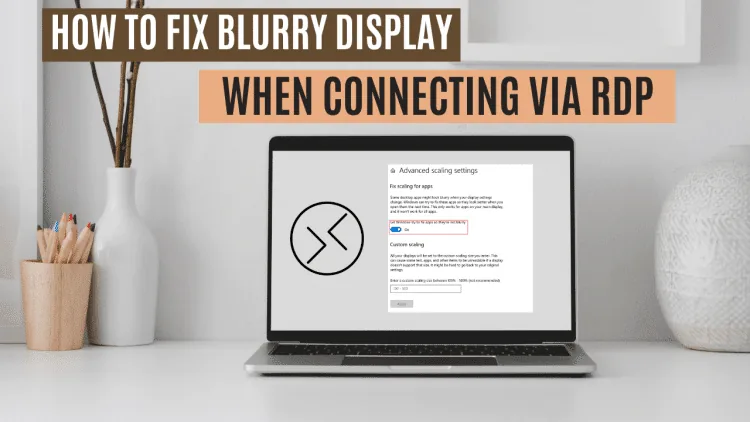
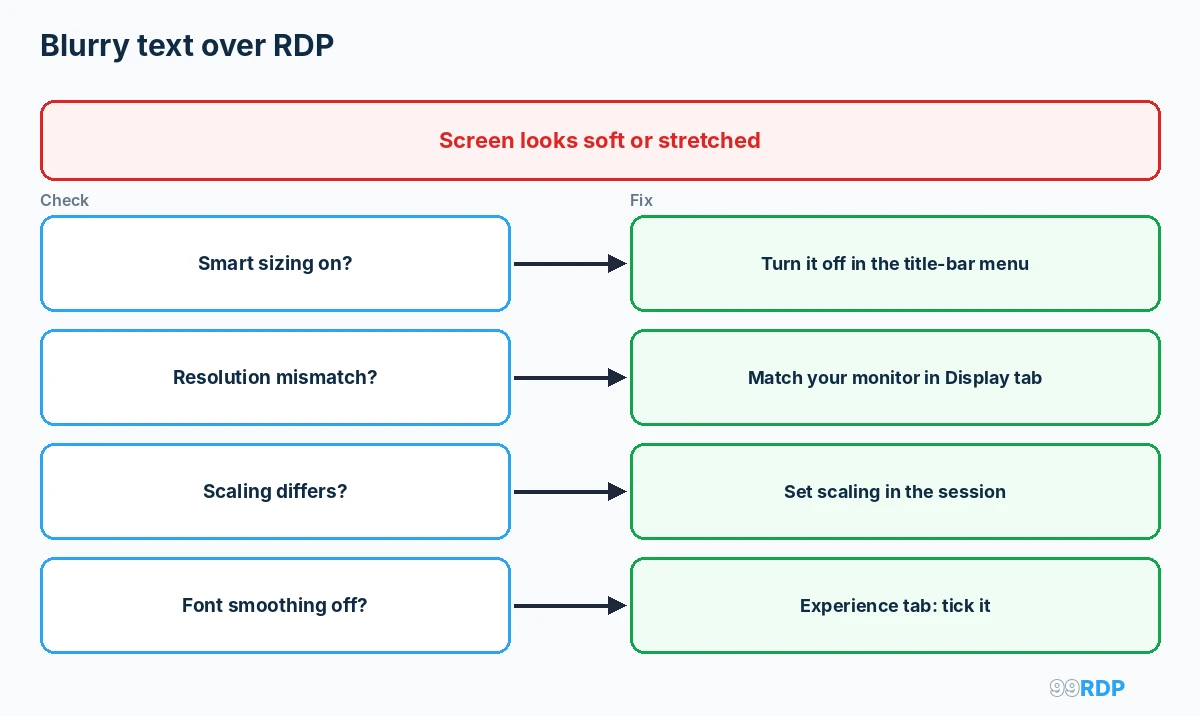
Blurry or fuzzy text in a Remote Desktop session usually comes from scaling: your local screen uses, say, 150% scaling, and the RDP client stretches a 100% remote desktop to fit, which smears the pixels. Other causes are "smart sizing", turned-off font smoothing, and low colour depth on slow connections. This guide fixes each one for the Windows Remote Desktop client and the Windows App.
Quick answer
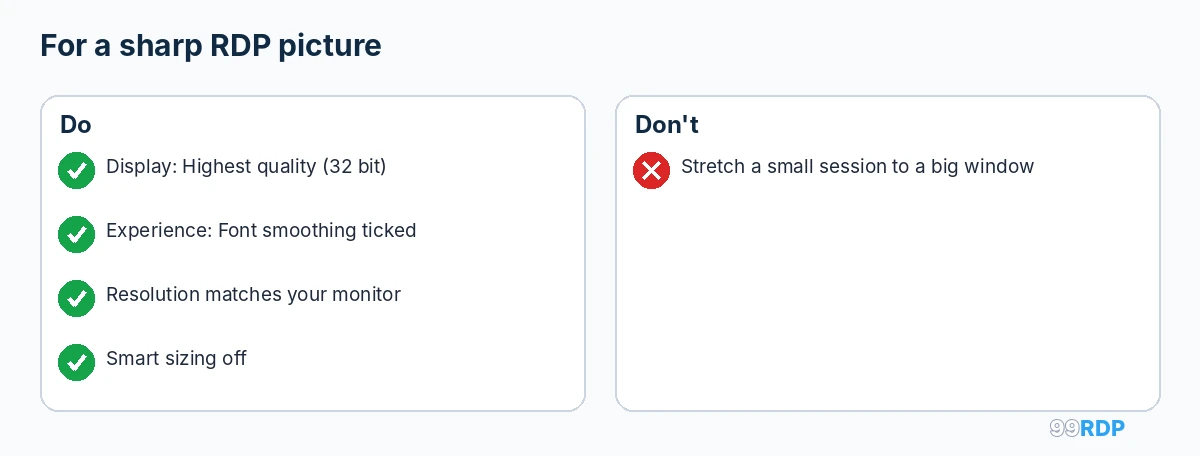
- In Remote Desktop Connection, Show Options → Experience: tick Font smoothing.
- Display tab: choose Full Screen and Highest Quality (32 bit).
- Turn off smart sizing (right-click the session's title bar and untick Smart sizing).
- If it's still blurry, set the scaling in the session to match your local screen (for example 150%).
Cause 1: Display scaling (most common)
On high-resolution laptop screens Windows scales everything up. If the remote session doesn't use the same scaling, the client enlarges the image and text looks soft.
- Let the session match your scaling: modern Windows clients pass your scaling to the server automatically. In a saved
.rdpfile you can force it withdesktopscalefactor:i:150anddevicescalefactor:i:100(use your own percentage). - Change scaling inside the session: in the remote session, open Settings → System → Display → Scale and pick the same value as your local screen. On older Windows Server versions, use Display settings → Custom scaling and sign out and back in.
- Use full screen: a windowed session at a size that doesn't match the remote resolution is often scaled. Full screen avoids it.
Cause 2: Smart sizing is on
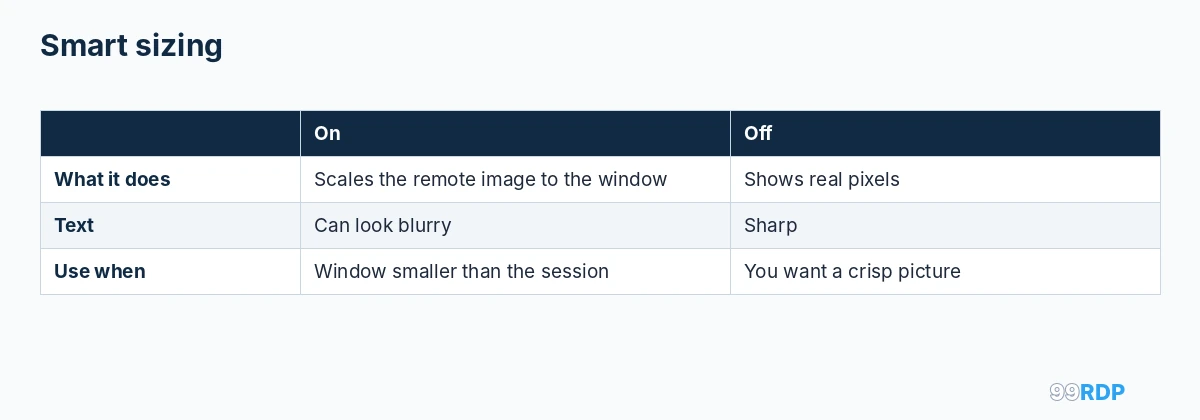
Smart sizing shrinks or stretches the whole remote screen to fit the window, which always makes text blurry. Right-click the session window's title bar and untick Smart sizing, or set smart sizing:i:0 in the .rdp file. Use dynamic resolution instead: maximise the window and the remote desktop resizes to fit at full sharpness.
Cause 3: Font smoothing is off
Without ClearType font smoothing, text looks jagged or fuzzy, especially at small sizes. In Remote Desktop Connection, go to Show Options → Experience and tick Font smoothing (the presets for slow connections turn it off). In an .rdp file: allow font smoothing:i:1. You can also run cttune inside the session to tune ClearType.
Cause 4: Low colour depth or connection quality
On slow connections, RDP compresses the image more heavily, which blurs text and gradients. On the Display tab, choose Highest Quality (32 bit); on the Experience tab, keep Detect connection quality automatically. If your connection is slow, a server closer to you helps more than any setting.
Cause 5: Compatibility settings on mstsc.exe
If someone changed the DPI compatibility of the client, Windows may stretch it. Right-click C:\Windows\System32\mstsc.exe → Properties → Compatibility → Change high DPI settings, and make sure Override high DPI scaling behavior is unticked, so the client handles scaling itself.
Windows App (formerly Microsoft Remote Desktop)
In the Windows App on Windows or Mac, edit the PC's settings and check the display options: turn off scaling to fit, and on a Mac with a Retina display, enable Optimize for Retina displays (or use the display's native resolution) for sharp text.
Frequently asked questions
Why is my Remote Desktop blurry?
Usually because the client scales the remote screen to match your local display scaling or window size. Use full screen, turn off smart sizing, and match scaling inside the session.
How do I fix blurry fonts in RDP?
Tick Font smoothing on the Experience tab and use 32-bit colour on the Display tab, then reconnect.
How do I fix blurry RDP on a high-DPI laptop?
Set the session's scaling to match your laptop (for example 150%) and use full screen, or set desktopscalefactor in the RDP file.
Does Windows Server 2022 support scaling in RDP?
Yes. Windows Server 2016 and later adjust scaling to the client's settings. Change it under Settings → System → Display in the session if text still looks soft.