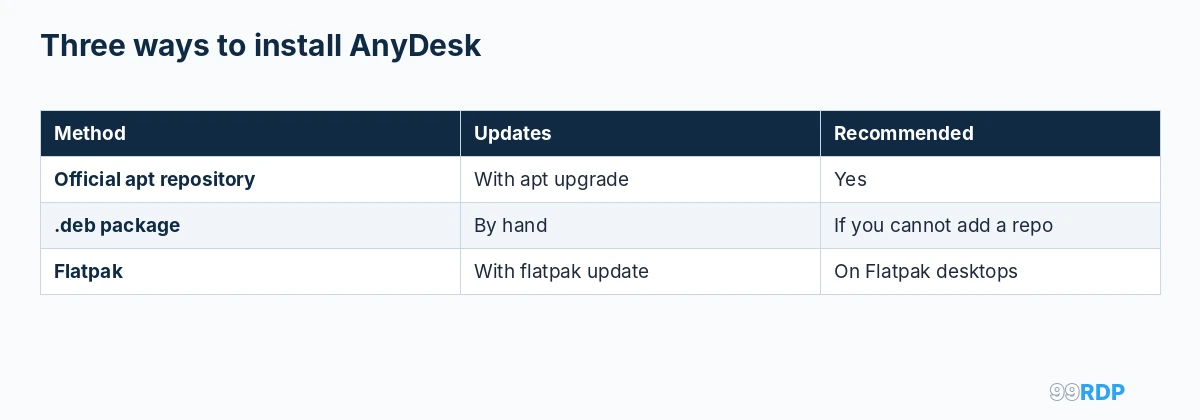
AnyDesk isn't in Ubuntu's default repositories, but the AnyDesk team publishes an official APT repository and .deb package for Debian-based systems. This guide shows three ways to install it: the official repository (recommended, because it keeps AnyDesk updated), the .deb file, and Flatpak. It also covers the Wayland setting you'll need to change on Ubuntu 22.04 and newer, or nobody will be able to connect to your machine.
Quick answer(official repository):
sudo install -m 0755 -d /etc/apt/keyrings
curl -fsSL https://keys.anydesk.com/repos/DEB-GPG-KEY | sudo gpg --dearmor -o /etc/apt/keyrings/anydesk.gpg
echo "deb [signed-by=/etc/apt/keyrings/anydesk.gpg] https://deb.anydesk.com/ all main" | sudo tee /etc/apt/sources.list.d/anydesk.list
sudo apt update && sudo apt install anydesk
Requirements
- Ubuntu 20.04, 22.04, 24.04 or newer, 64-bit (amd64)
- A user with
sudorights - A desktop environment. AnyDesk shares a graphical session, so a headless server needs a desktop installed first.
Method 1: Install AnyDesk from the official repository (recommended)
With this method AnyDesk updates together with the rest of your system through apt upgrade.
Step 1: Add the AnyDesk signing key
sudo apt update
sudo apt install -y curl gpg
sudo install -m 0755 -d /etc/apt/keyrings
curl -fsSL https://keys.anydesk.com/repos/DEB-GPG-KEY | sudo gpg --dearmor -o /etc/apt/keyrings/anydesk.gpg
Older guides use apt-key add. That command is deprecated on current Ubuntu releases, so use the keyring file above instead. AnyDesk refreshed its repository key in February 2025. If you added the repository before then and apt update shows a signature error, run the key command again.
Step 2: Add the repository
echo "deb [signed-by=/etc/apt/keyrings/anydesk.gpg] https://deb.anydesk.com/ all main" | sudo tee /etc/apt/sources.list.d/anydesk.listStep 3: Install AnyDesk
sudo apt update
sudo apt install anydesk
Step 4: Check the installation
anydesk --version
systemctl status anydesk
The anydesk service should show active (running). Open AnyDesk from the applications menu to see your AnyDesk ID.
Method 2: Install the .deb package
- Go to the official download page, anydesk.com/en/downloads/linux, and download the Debian/Ubuntu (64-bit) package.
- Install it from the folder you downloaded it to:
cd ~/Downloads
sudo apt install ./anydesk_*_amd64.deb
apt install ./file.deb installs any missing dependencies automatically, unlike dpkg -i. A .deb install doesn't update itself, so download the new version whenever you want to upgrade.
Method 3: Install with Flatpak
A community-maintained Flatpak is available on Flathub:
sudo apt install flatpak
flatpak remote-add --if-not-exists flathub https://dl.flathub.org/repo/flathub.flatpakrepo
flatpak install flathub com.anydesk.Anydesk
flatpak run com.anydesk.Anydesk
Use the official repository if you need unattended access. The Flatpak runs in a sandbox and isn't published by AnyDesk itself.
Important: allow incoming connections on Ubuntu 22.04 and newer (Wayland)
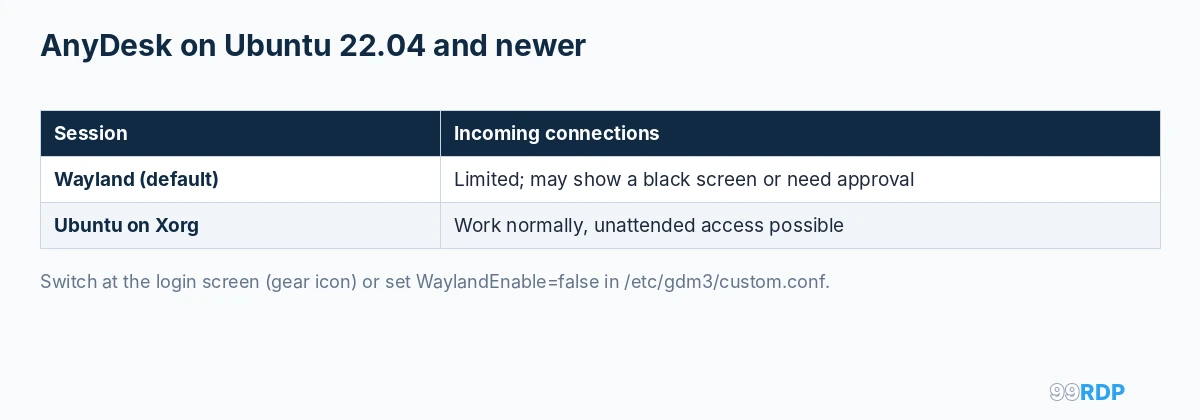
Ubuntu 22.04 and newer use Wayland by default. AnyDesk can make outgoing connections from Wayland, but other people usually can't connect to a Wayland session: they get a "display server not supported" message or a black screen. To fix it, switch the login screen to Xorg:
sudo nano /etc/gdm3/custom.confFind the line #WaylandEnable=false, remove the #, save the file, and reboot:
WaylandEnable=falseFor a single session, you can instead choose Ubuntu on Xorg from the gear icon on the login screen.
Set up unattended access
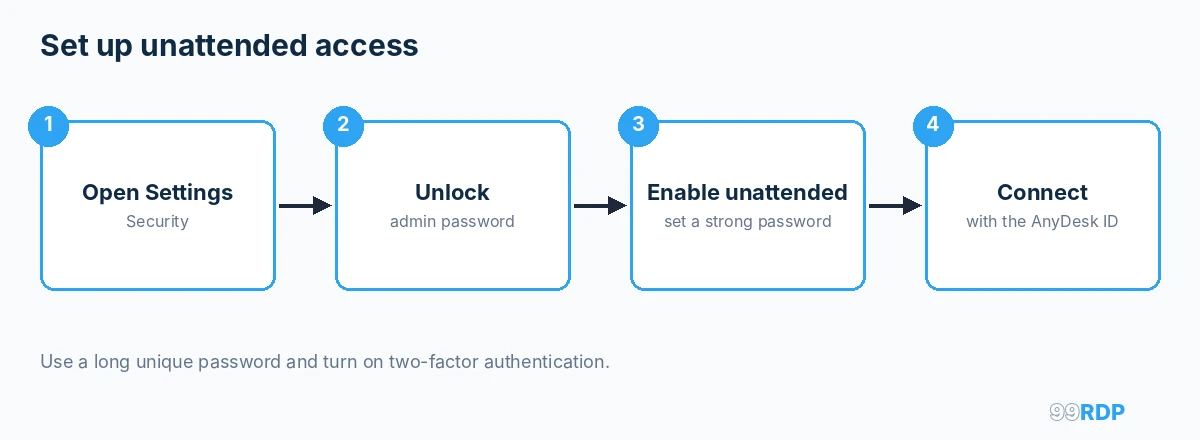
To connect to the machine without anyone clicking Accept, set a password from the terminal:
echo "YourStrongPassword" | sudo anydesk --set-password
anydesk --get-id
Use a long, unique password. Anyone with your ID and this password can control the machine.
Update or uninstall AnyDesk
sudo apt update && sudo apt upgrade anydesk      # update (repository install)
sudo apt remove --autoremove anydesk             # uninstall
sudo rm /etc/apt/sources.list.d/anydesk.list /etc/apt/keyrings/anydesk.gpg   # remove the repository
Frequently asked questions
Is AnyDesk available for Ubuntu ARM (Raspberry Pi)?
The repository and .deb above are for 64-bit x86 (amd64). AnyDesk lists other Linux builds separately on its download page, so check there for your architecture.
Why does AnyDesk show a black screen on Ubuntu?
Almost always because the session is running on Wayland. Set WaylandEnable=false as shown above and reboot.
Can I use AnyDesk on an Ubuntu server without a desktop?
No. AnyDesk shares a graphical session. Install a lightweight desktop such as Xfce first, or use SSH or xrdp for server access.