Internet Information Services (IIS) is Windows' built-in web server. You may want to remove it to free port 80 or 443 for another web server, reduce the attack surface, or clean up a server that no longer hosts sites. This guide shows how to uninstall IIS on Windows Server 2016, 2019, 2022 and 2025 (Server Manager, PowerShell, DISM) and on Windows 10 and 11, plus how to just disable it instead.
Quick answer
# Windows Server (PowerShell as Administrator)
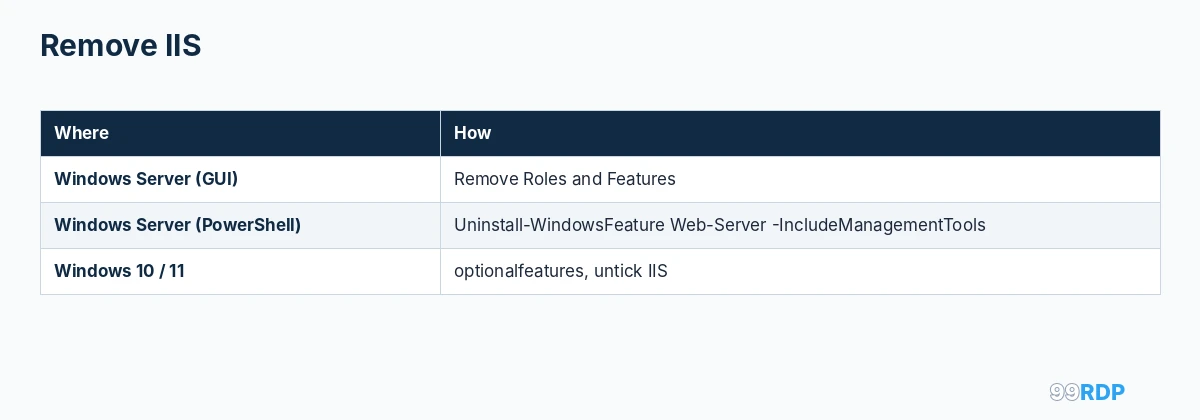
Uninstall-WindowsFeature -Name Web-Server -IncludeManagementTools -Restart

# Windows 10 / 11 (PowerShell as Administrator)
Get-WindowsOptionalFeature -Online | Where-Object { $_.FeatureName -like 'IIS-*' -and $_.State -eq 'Enabled' } |
  Disable-WindowsOptionalFeature -Online -NoRestart
Restart-Computer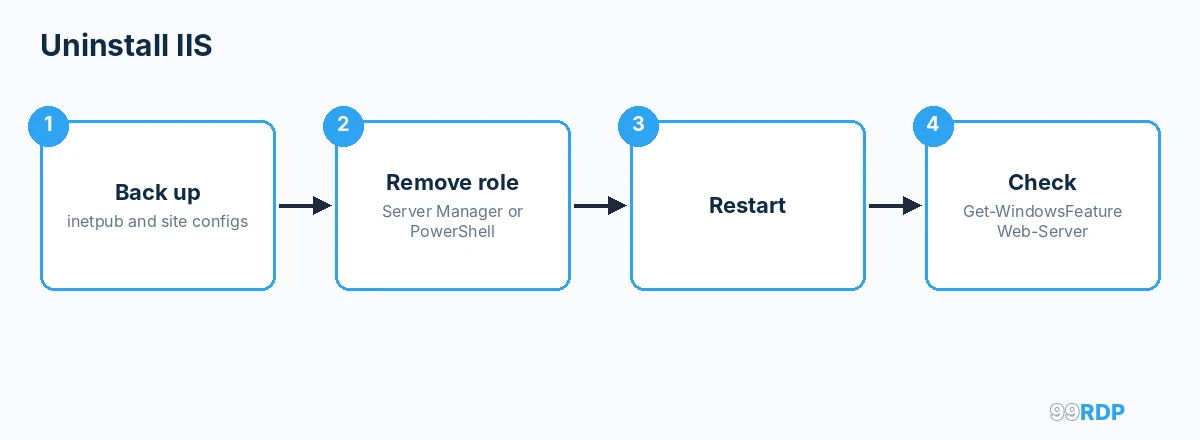
Before you uninstall IIS
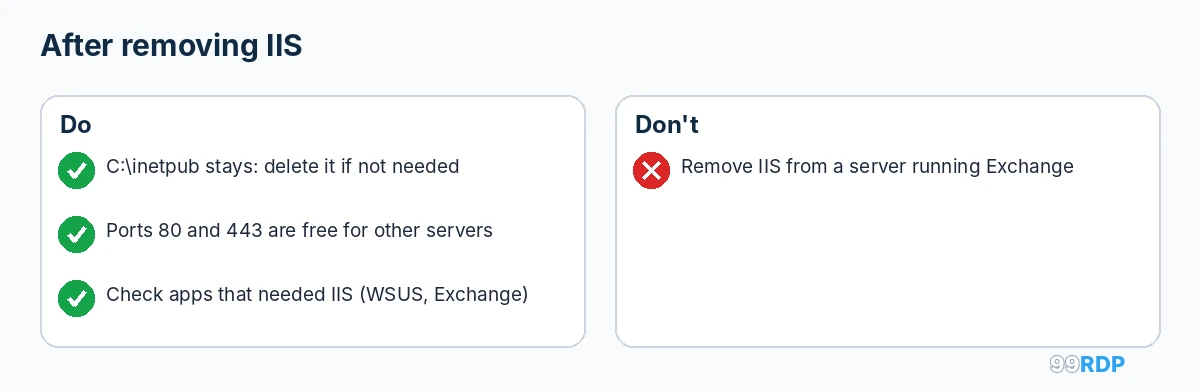
- Check what depends on it. WSUS, Exchange, SharePoint, RD Web Access, Certificate Services web enrollment and many line-of-business apps need IIS. Removing it breaks them.
- Back up your sites and settings if you might need them again:
%windir%\system32\inetsrv\appcmd.exe add backup "before-uninstall" robocopy C:\inetpub D:\Backup\inetpub /E - Plan a restart. Removing the Web Server role usually requires one.
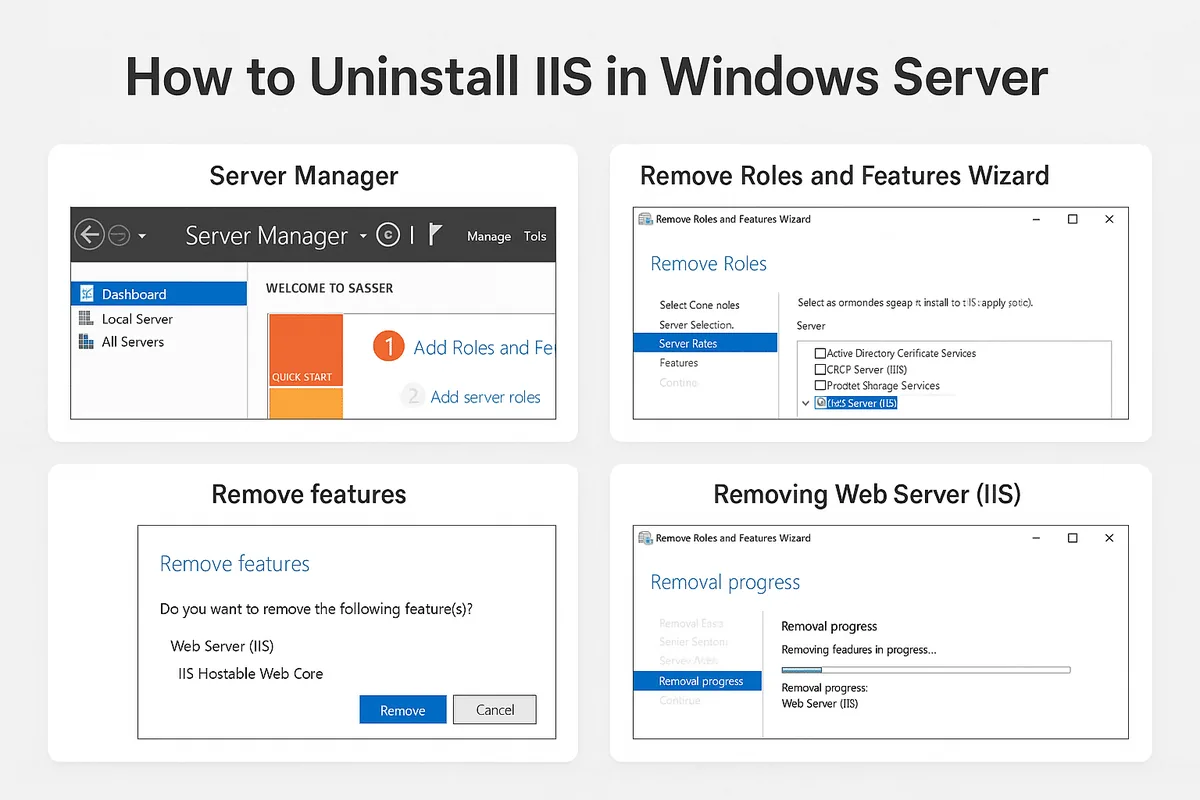
Method 1: Uninstall IIS with Server Manager
- Open Server Manager → Manage → Remove Roles and Features.
- Select your server and click Next.
- Untick Web Server (IIS). A dialog lists the features that will be removed with it, such as the IIS Management Console. Click Remove Features.
- Click Next through to the confirmation page, tick Restart the destination server automatically if required, and click Remove.
Method 2: Uninstall IIS with PowerShell
Get-WindowsFeature Web-* | Where-Object Installed     # see what is installed
Uninstall-WindowsFeature -Name Web-Server -IncludeManagementTools -Restart
Removing Web-Server also removes all IIS role services under it. Add -Remove if you also want to delete the feature files from the disk; you'll then need installation media to add IIS again.
Method 3: Uninstall IIS with DISM (Command Prompt)
DISM works on both Windows Server and Windows 10/11, including Server Core:
dism /online /get-features /format:table | findstr /i "IIS-"
dism /online /disable-feature /featurename:IIS-WebServerRole
If DISM reports that other features depend on it, disable the listed IIS-* features first, or use the PowerShell loop in the quick answer, which disables all of them.
Uninstall IIS on Windows 10 and Windows 11
- Press Win+R, type
optionalfeaturesand press Enter. - Untick Internet Information Services (the box empties for all its sub-features). Also untick Internet Information Services Hostable Web Core if it is ticked.
- Click OK and restart when asked.
Confirm IIS is removed
Get-WindowsFeature Web-Server               # Install State: Available (Windows Server)
Get-Service W3SVC, WAS -ErrorAction SilentlyContinue
netstat -ano | findstr ":80 "
No W3SVC service and nothing listening on port 80 mean IIS is gone. The C:\inetpub folder and its logs are left behind on purpose; delete it once you're sure you don't need the content.
Disable IIS instead of removing it
To stop IIS without uninstalling it, for example to test another web server first:
iisreset /stop
Set-Service W3SVC -StartupType Disabled
Set-Service WAS -StartupType Disabled
Re-enable it later with Set-Service W3SVC -StartupType Automatic and iisreset /start.
Frequently asked questions
How do I remove IIS from Windows Server 2022?
Run Uninstall-WindowsFeature -Name Web-Server -IncludeManagementTools -Restart in PowerShell as Administrator, or untick Web Server (IIS) in Server Manager's Remove Roles and Features wizard.
How do I uninstall IIS on Windows 11?
Open optionalfeatures, untick Internet Information Services, click OK and restart.
Does uninstalling IIS delete my websites?
No. Site files in C:\inetpub\wwwroot (or wherever you stored them) stay on the disk. The IIS configuration is removed, so back it up with appcmd add backup first.
Will removing IIS free port 80?
Yes, unless another service also uses it. Check with netstat -ano | findstr ":80 "; the last column is the process ID of whatever still listens on the port.