Remote Desktop Protocol (RDP) is often described as a "TCP port 3389" service, but modern RDP uses both TCP and UDP. Knowing how each is used helps you open the right firewall rules, troubleshoot slow sessions and secure your server. This guide explains the difference between TCP and UDP, how RDP uses each, which ports Remote Desktop needs (including RD Gateway), how to check which transport a session is using, and how to change or restrict the port.
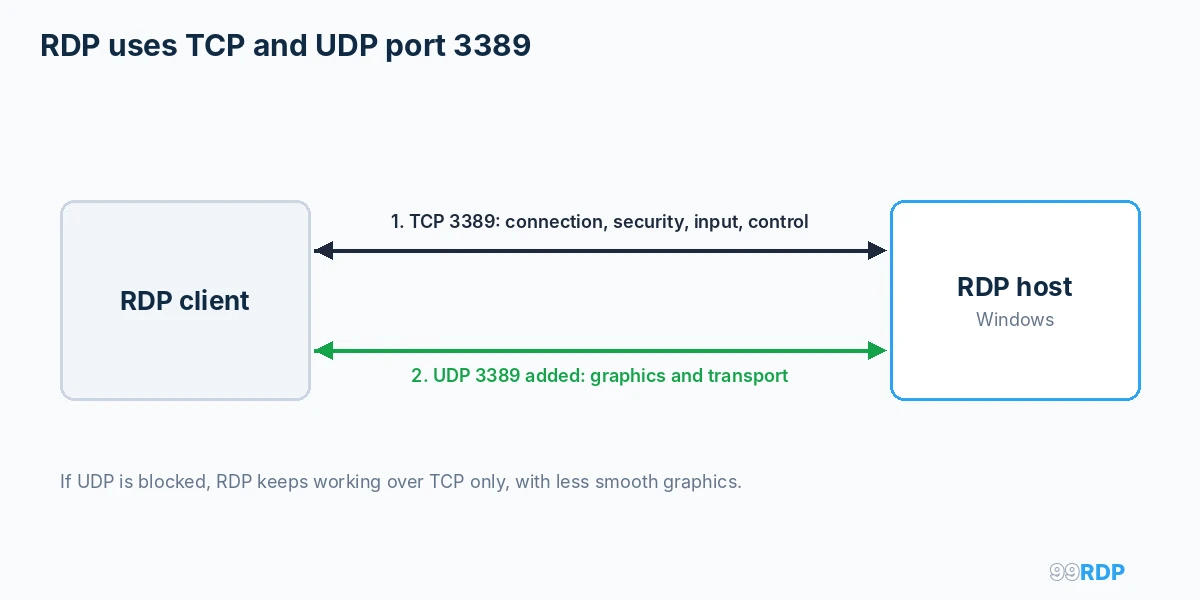
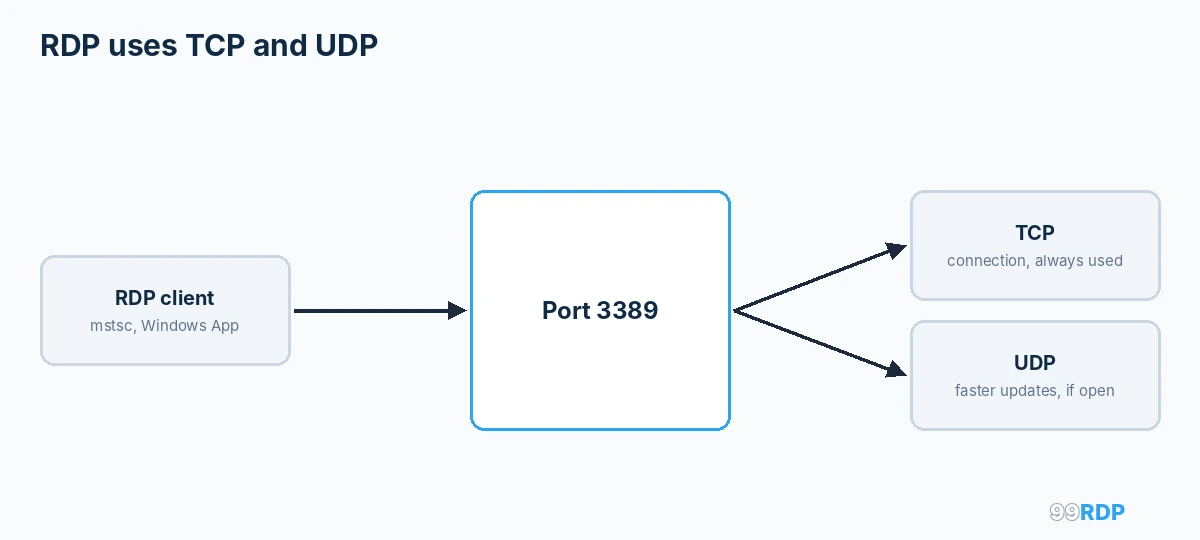
Quick answerRDP uses both. Every session starts over TCP port 3389, which carries the connection, authentication and control traffic. Since RDP 8.0 (Windows 8 and Server 2012), it also uses UDP port 3389 for screen updates when available, which makes sessions smoother on slow or lossy connections. If UDP is blocked, RDP simply falls back to TCP only.
TCP vs UDP in one minute
- TCP (Transmission Control Protocol) is connection-based and reliable: every packet is acknowledged and lost packets are resent in order. That makes it accurate but slower when packets are lost, because everything waits for the resend.
- UDP (User Datagram Protocol) sends packets without waiting for acknowledgements. It has less overhead and latency, which suits real-time traffic like video, voice and games, but the application must deal with any loss itself.
How RDP uses TCP and UDP
When you connect:
- The client opens a TCP connection to port 3389, negotiates encryption (TLS) and authenticates with Network Level Authentication.
- If both sides support it and UDP is reachable, RDP adds a UDP channel on port 3389 and sends graphics and other real-time data over it, with its own reliability and congestion control. TCP stays open for control traffic.
- If UDP cannot be established, everything continues over TCP.
With UDP, scrolling, video playback and typing feel noticeably more responsive on connections with packet loss or high latency, such as Wi-Fi, mobile data or long international routes.
Remote Desktop ports
| Port | Protocol | Used for |
|---|---|---|
| 3389 | TCP | RDP connections (required) |
| 3389 | UDP | RDP UDP transport (optional, improves performance) |
| 443 | TCP | RD Gateway (RDP wrapped in HTTPS) |
| 3391 | UDP | RD Gateway UDP transport (optional) |
When you enable Remote Desktop, Windows Defender Firewall automatically adds inbound rules named Remote Desktop - User Mode (TCP-In) and (UDP-In). On a network or cloud firewall, allow TCP 3389, and UDP 3389 too if you want the UDP benefits.
How to check whether your session uses UDP
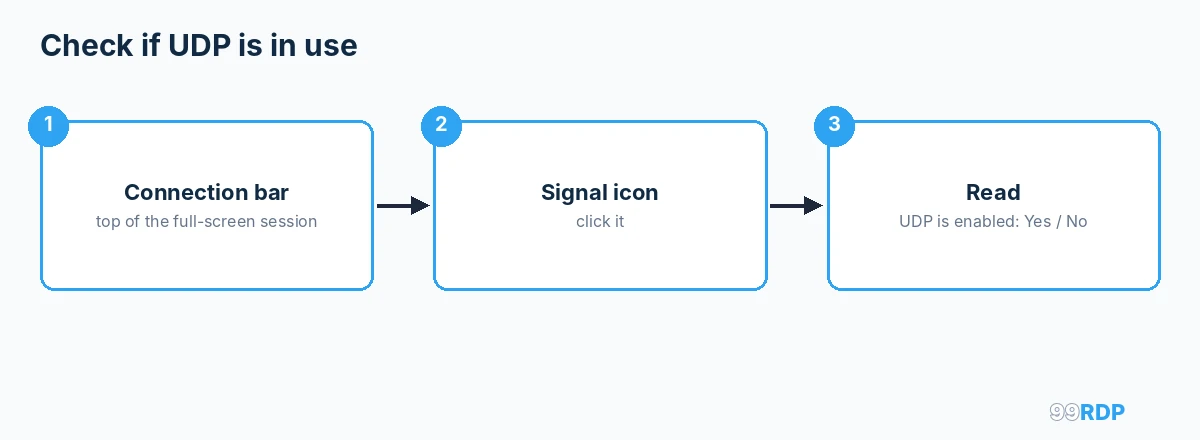
In a Remote Desktop Connection session, click the connection quality (signal) icon in the connection bar at the top of the full-screen session. It shows whether UDP is enabled and the connection quality. You can also check on the server with PowerShell:
Get-NetUDPEndpoint -LocalPort 3389
Get-NetTCPConnection -LocalPort 3389 -State Established
The Windows event log Microsoft-Windows-RemoteDesktopServices-RdpCoreTS/Operational also records the transport chosen for each connection.
Disable UDP for RDP (when needed)
A few VPNs and firewalls handle RDP's UDP traffic badly, causing freezes or disconnects. As a troubleshooting step, turn UDP off on the client with Group Policy (Computer Configuration → Administrative Templates → Windows Components → Remote Desktop Services → Remote Desktop Connection Client → Turn Off UDP On Client) or in the registry:
New-ItemProperty -Path "HKLM:\SOFTWARE\Policies\Microsoft\Windows NT\Terminal Services\Client" -Name fClientDisableUDP -Value 1 -PropertyType DWord -ForceOn the server, the matching policy is Select RDP transport protocols under Remote Desktop Session Host → Connections, set to Use only TCP. Turn UDP back on once the network issue is fixed.
Change the RDP port
Changing the port reduces automated scanning (it does not replace real security). In PowerShell as administrator:
Set-ItemProperty -Path "HKLM:\SYSTEM\CurrentControlSet\Control\Terminal Server\WinStations\RDP-Tcp" -Name PortNumber -Value 3390
New-NetFirewallRule -DisplayName "RDP 3390 TCP" -Direction Inbound -Protocol TCP -LocalPort 3390 -Action Allow
New-NetFirewallRule -DisplayName "RDP 3390 UDP" -Direction Inbound -Protocol UDP -LocalPort 3390 -Action Allow
Restart-Service TermService -Force
Add the new firewall rules before restarting the service, and connect with address:3390. Test the new port before closing your current session.
Securing RDP ports
- Do not leave 3389 open to the whole internet; restrict it to your IP addresses, or use a VPN or RD Gateway on 443.
- Keep Network Level Authentication enabled and use strong passwords with an account lockout policy.
- Keep Windows updated.
Frequently asked questions
Does RDP use TCP or UDP?
Both. TCP 3389 is always used; UDP 3389 is added when available for better performance.
Do I need to open UDP 3389?
No, RDP works with TCP alone. Opening UDP 3389 improves responsiveness, especially on slow or unstable connections.
What port does Remote Desktop Gateway use?
TCP 443, plus optional UDP 3391.
Is RDP port 3389 safe to open?
Only with strong protections. Open ports are attacked constantly, so restrict access by IP or use a gateway or VPN.