When a game server, web server, database or remote tool on Windows cannot be reached from other computers, the usual reason is that Windows Defender Firewall is blocking its port. Opening the port adds an inbound rule that allows traffic on that port number. This guide shows how to open a TCP or UDP port with the firewall console, PowerShell and the command line, how to limit it to specific IPs, check that it works, and close it again.
Quick answerOpen PowerShell as administrator and run:
New-NetFirewallRule -DisplayName "Allow TCP 8080" -Direction Inbound -Protocol TCP -LocalPort 8080 -Action AllowUse -Protocol UDP for UDP ports, and -LocalPort 27015,27016 or -LocalPort 50000-50100 for several ports.
Before you start
- Find out the port number and protocol (TCP, UDP or both) from the application's documentation.
- Make sure the application is actually running and listening, or the port will still look closed.
- Only open the ports you need. Every open port is a possible way in.
Method 1: Windows Defender Firewall with Advanced Security
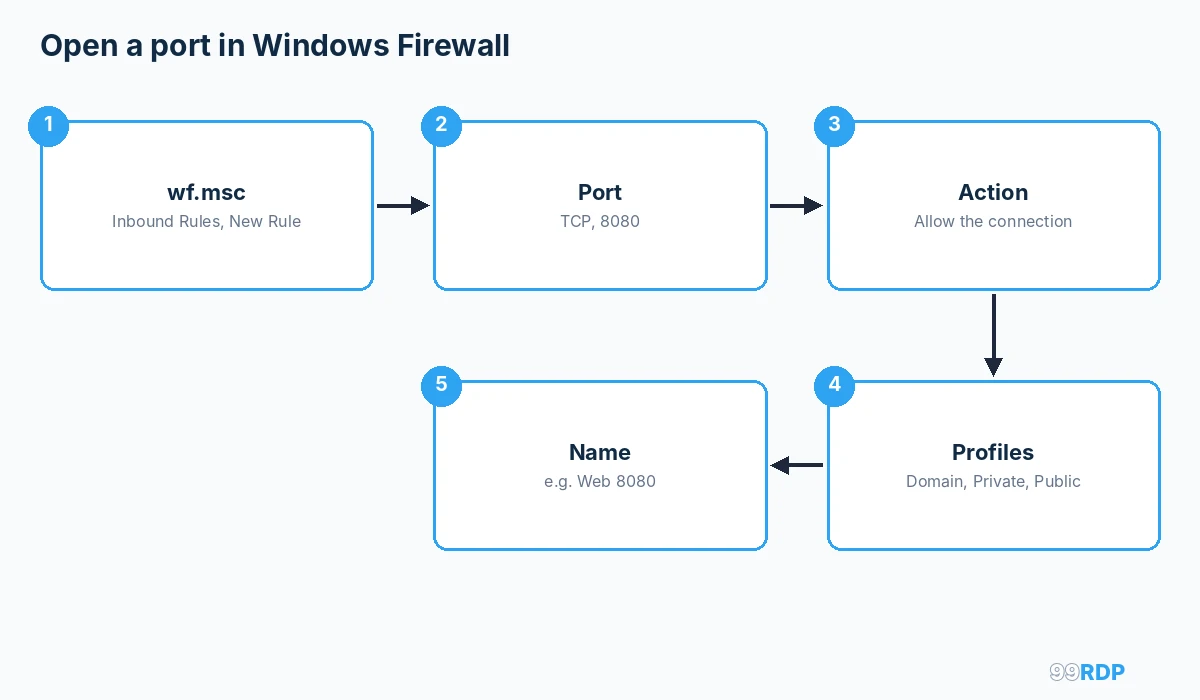
- Press Win + R, type
wf.mscand press Enter. - Click Inbound Rules in the left pane, then New Rule in the right pane.
- Choose Port and click Next.
- Select TCP or UDP, choose Specific local ports, and enter the port (for example
8080), several ports separated by commas, or a range such as50000-50100. Click Next. - Select Allow the connection. Click Next.
- Choose the profiles. On a server or VPS, leave Domain, Private and Public ticked. On a laptop, consider allowing only Private so the port is closed on public Wi-Fi.
- Name the rule clearly (for example "Web app TCP 8080") and click Finish.
If the application needs both TCP and UDP, create a second rule for the other protocol.
To restrict the port to certain IP addresses, open the new rule's Properties, go to the Scope tab, and add allowed addresses under Remote IP address.
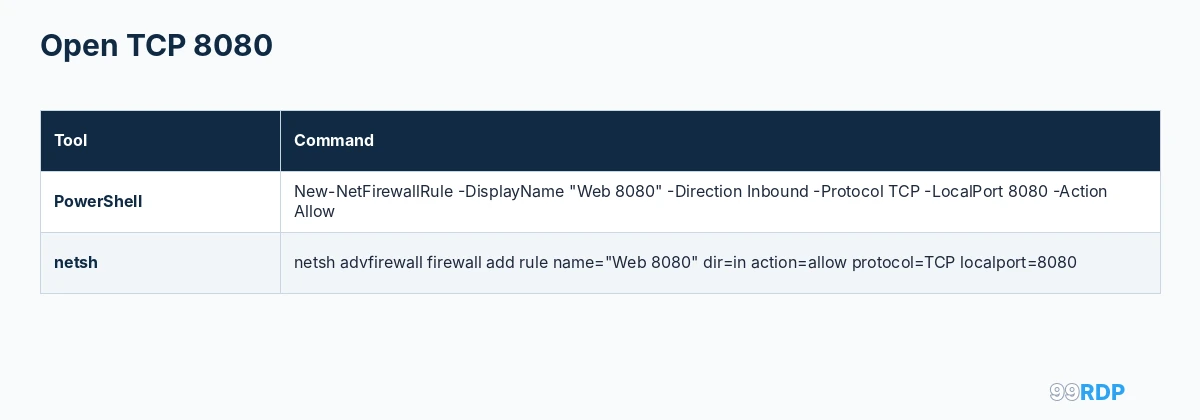
Method 2: PowerShell
# One TCP port
New-NetFirewallRule -DisplayName "Allow TCP 8080" -Direction Inbound -Protocol TCP -LocalPort 8080 -Action Allow

# UDP ports for a game server
New-NetFirewallRule -DisplayName "Game server UDP" -Direction Inbound -Protocol UDP -LocalPort 27015-27016 -Action Allow

# Only from one IP address (for example SQL Server from your office)
New-NetFirewallRule -DisplayName "SQL 1433 office" -Direction Inbound -Protocol TCP -LocalPort 1433 -RemoteAddress 198.51.100.25 -Action Allow
Method 3: Command Prompt (netsh)
netsh advfirewall firewall add rule name="Allow TCP 8080" dir=in action=allow protocol=TCP localport=8080
netsh advfirewall firewall add rule name="Allow UDP 9987" dir=in action=allow protocol=UDP localport=9987
Method 4: Allow a program instead of a port
For applications that use changing ports, allow the program itself:
New-NetFirewallRule -DisplayName "My server app" -Direction Inbound -Program "C:\Apps\server.exe" -Action AllowOr use Control Panel → Windows Defender Firewall → Allow an app or feature through Windows Defender Firewall.
Check that the port is open
On the Windows machine, confirm the application is listening:
netstat -ano | findstr :8080
Get-NetTCPConnection -LocalPort 8080 -State Listen
From another computer, test the connection:
Test-NetConnection 203.0.113.10 -Port 8080TcpTestSucceeded : True means the port is reachable. For UDP, test with the application itself, because UDP has no handshake to check.
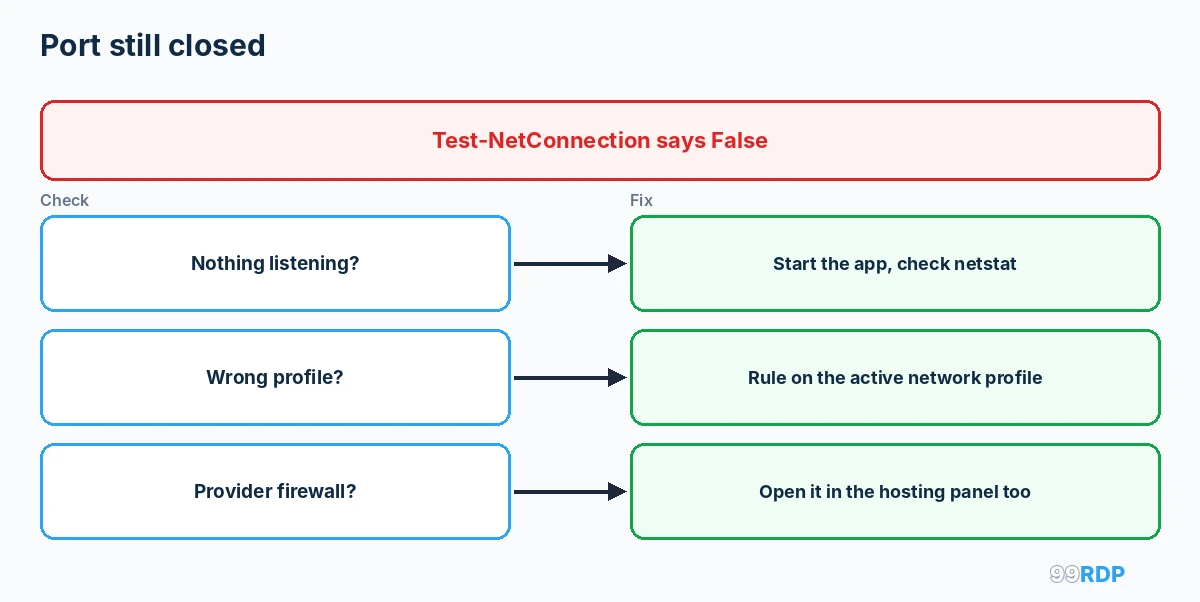
If the port is still closed
- Nothing is listening: start the application, or check it is bound to the right IP and port.
- Another firewall: on a VPS, open the port in the provider's firewall or security group too. At home, forward the port on your router to the PC's local IP.
- Wrong profile: check which network profile is active (
Get-NetConnectionProfile) and that the rule applies to it. - A block rule: block rules override allow rules; check for one covering the same port.
- Third-party security software with its own firewall may also need a rule.
Close the port again
Remove-NetFirewallRule -DisplayName "Allow TCP 8080"
# or temporarily:
Disable-NetFirewallRule -DisplayName "Allow TCP 8080"
Common ports
| Service | Port |
|---|---|
| HTTP / HTTPS | TCP 80 / 443 |
| Remote Desktop | TCP and UDP 3389 |
| Microsoft SQL Server | TCP 1433 |
| MySQL / MariaDB | TCP 3306 |
| FTP | TCP 21 plus passive range |
| SSH (OpenSSH Server) | TCP 22 |
Frequently asked questions
How do I open a port in Windows 11?
Open wf.msc, create a new inbound Port rule, enter the port and protocol, and choose Allow the connection. Or run New-NetFirewallRule in PowerShell.
Do I need an outbound rule too?
Usually not. Windows Firewall allows outbound connections by default, so only inbound rules are needed for servers.
Is it safe to open ports?
It is safe to open ports for services you run and keep updated. Restrict sensitive ports such as databases and RDP to known IP addresses.
How do I check which ports are open on Windows?
Run netstat -ano or Get-NetTCPConnection -State Listen to see listening ports, and Get-NetFirewallRule -Enabled True -Direction Inbound to see firewall rules.