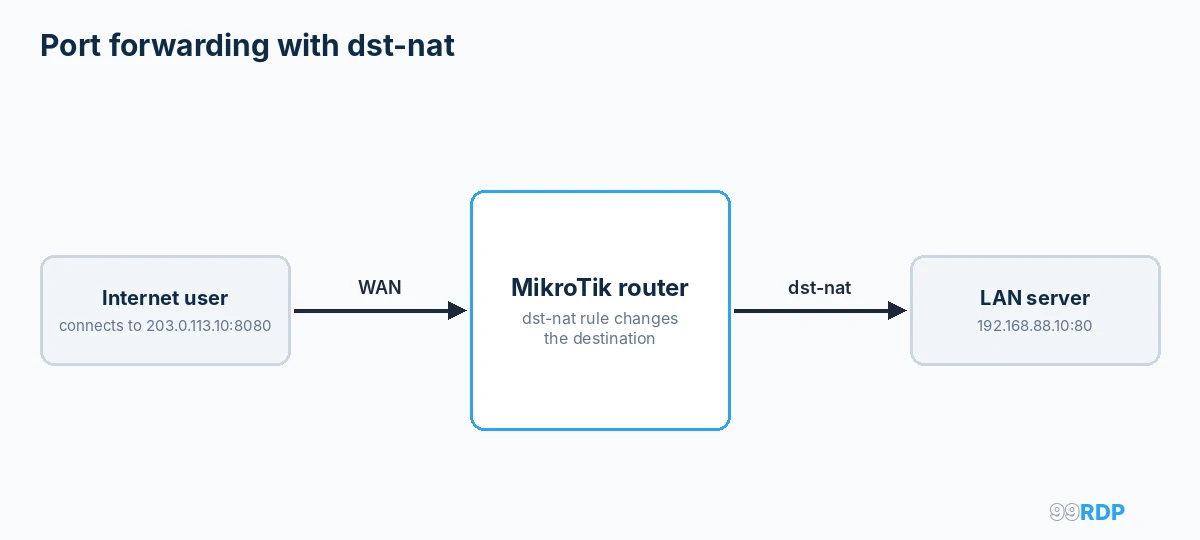
Port forwarding on a MikroTik router is a single dst-nat rule: traffic that arrives on the router's public address and a chosen port is sent on to a device inside your network. This guide shows how to create that rule in WinBox (including the new WinBox 4), the same rule from the terminal, how to make it work from inside your LAN (hairpin NAT), and how to troubleshoot a forward that doesn't respond.
Quick answer
/ip firewall nat add chain=dstnat in-interface-list=WAN protocol=tcp dst-port=8080 \
    action=dst-nat to-addresses=192.168.88.10 to-ports=80 comment="Web server"
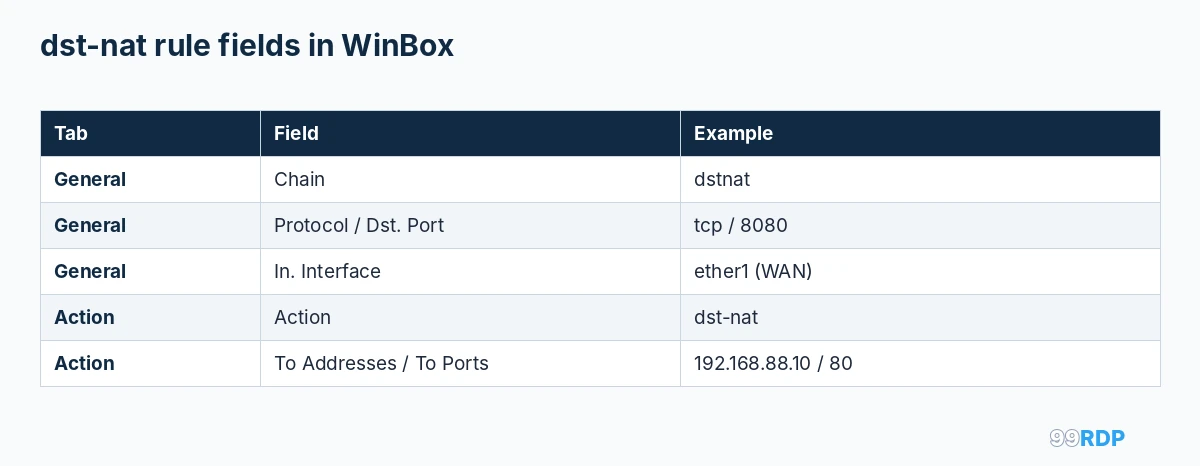
In WinBox, the same rule is IP → Firewall → NAT → +, with chain dstnat, protocol tcp, Dst. Port 8080, In. Interface List WAN, and on the Action tab dst-nat to 192.168.88.10 port 80.
What you need
- WinBox. Version 4 runs natively on Windows, macOS and Linux and is available from mikrotik.com/download/winbox; the older WinBox 3 still works on Windows.
- An admin login to the router.
- The internal device's IP address (give it a static IP or a DHCP reservation, or the forward breaks when the address changes).
- A public IP on the router's WAN interface. If your ISP puts you behind carrier-grade NAT (a WAN address in 100.64.0.0/10 or a private range), port forwarding from the internet won't work without a public IP or a tunnel.
Step 1: Connect to the router with WinBox
- Open WinBox. In the Neighbors list, the router shows up by MAC and IP address if you're on the same network.
- Click the router's IP address (or MAC address if the IP isn't reachable yet), enter the username and password, and click Connect.
- WinBox connects to TCP port 8291. If you connect from outside your network, that port must be reachable, but it's safer to limit it (see the security section below).
Step 2: Check your WAN interface
Go to Interfaces → Interface List. On a router with MikroTik's default configuration, the internet port (usually ether1, or pppoe-out1 for PPPoE) is a member of the WAN list. Using the list in your rule means it keeps working even if the WAN interface or its IP address changes. If you don't have a WAN list, use the interface name in In. Interface instead.
Step 3: Create the dst-nat rule
- Go to IP → Firewall and open the NAT tab.
- Click + (Add New).
- On the General tab set:
- Chain:
dstnat - Protocol:
tcp(orudpfor things like game servers or WireGuard) - Dst. Port: the port people connect to from outside, e.g.
8080 - In. Interface List:
WAN(on the Advanced tab in some versions), or In. Interface:ether1
- Chain:
- Open the Action tab and set:
- Action:
dst-nat - To Addresses: the internal device, e.g.
192.168.88.10 - To Ports: the port the device actually listens on, e.g.
80. Leave it empty if it's the same as Dst. Port.
- Action:
- Add a Comment so you remember what the rule is for, then click OK.
Need a range or several ports? Dst. Port accepts lists and ranges such as 80,443 or 27015-27030. To forward both TCP and UDP, create two rules.
Step 4: Check the firewall filter
MikroTik's default configuration includes a filter rule that drops traffic from WAN that isn't dst-natted ("drop all from WAN not DSTNATed"). Traffic that matches your NAT rule is therefore allowed through automatically. If you built your own firewall, make sure the forward chain accepts the connection, for example:
/ip firewall filter add chain=forward action=accept connection-nat-state=dstnat \
    in-interface-list=WAN comment="allow port forwards"
Place it above any drop rules in the forward chain.
Step 5: Test the forward
- Test from outside your network, for example from a phone on mobile data or with an online port checker, using your public IP and the external port.
- Watch the rule's Packets and Bytes counters in IP → Firewall → NAT. If they go up, the router is forwarding; if the service still doesn't answer, the problem is on the internal device.
Make it work from inside your LAN (hairpin NAT)
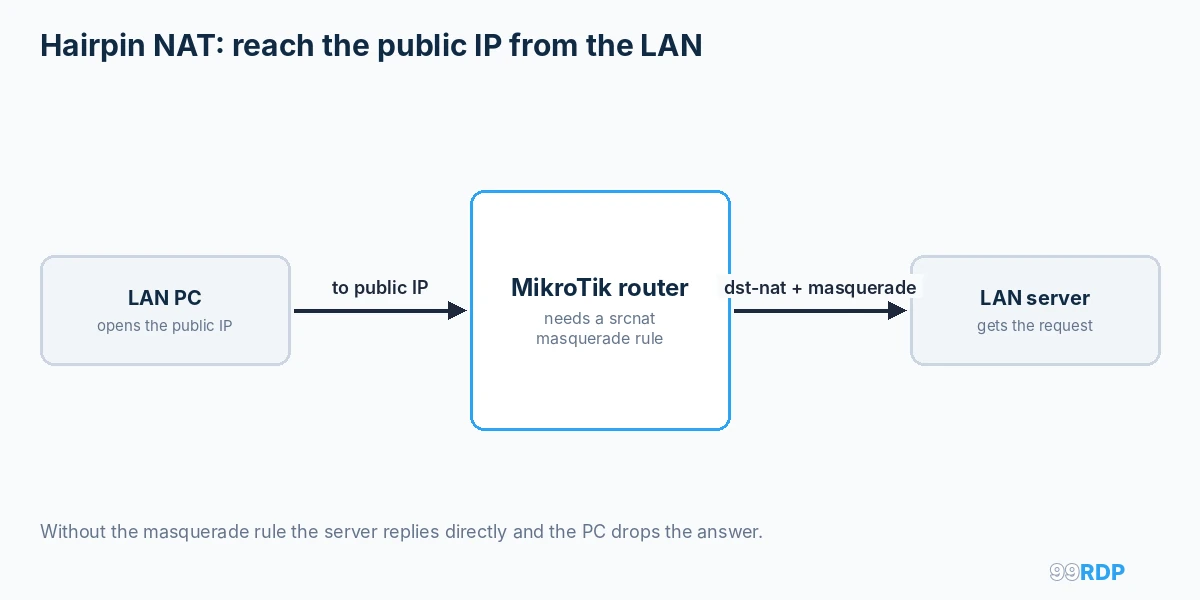
From a computer inside your network, connecting to your own public IP usually fails, because the reply comes back directly from the server instead of through the router. Two changes fix it:
- Match the public address instead of the WAN interface in the dst-nat rule: set Dst. Address to your public IP and remove In. Interface (or use
dst-address-type=local). - Add a srcnat masquerade rule for LAN-to-LAN traffic:
/ip firewall nat add chain=srcnat src-address=192.168.88.0/24 \
    dst-address=192.168.88.10 protocol=tcp dst-port=80 action=masquerade comment="hairpin"
Move the hairpin rule above your other srcnat rules.
Troubleshooting
- Counters stay at 0: the traffic isn't reaching the rule. Check the WAN interface, the port, the protocol, and whether your ISP gives you a real public IP.
- Counters rise but nothing answers: the device's own firewall (Windows Defender Firewall, UFW) is blocking the port, the service isn't listening, or the device's default gateway isn't the MikroTik.
- Works for a while, then stops: the internal IP changed. Add a static DHCP lease under IP → DHCP Server → Leases → Make Static.
- Rule order: NAT rules are processed top to bottom, so a broader dst-nat rule above yours can catch the traffic first.
Keep WinBox itself safe
Don't leave WinBox (port 8291) or other management services open to the whole internet. In IP → Services, disable services you don't use (telnet, ftp, www, api) and set Available From on winbox and ssh to your own IP or VPN subnet. Run a current RouterOS version and use a strong admin password.
Frequently asked questions
How do I port forward on a MikroTik router?
Add a NAT rule with chain dstnat, the protocol and external port, the WAN interface, and action dst-nat to the internal IP and port.
What port does WinBox use?
WinBox connects to TCP port 8291 by default. You can change it or restrict who can reach it in IP → Services.
Why doesn't my MikroTik port forward work from inside the network?
You need hairpin NAT: match the public address in the dst-nat rule and add a srcnat masquerade rule for traffic from the LAN to the server.
Is WinBox available for Linux and macOS?
Yes. WinBox 4 is a native app for Windows, macOS and Linux, so you no longer need Wine.