
Install a VPN client on a remote server, click Connect, and the RDP or SSH session freezes and never comes back. It's one of the most common support questions we get. The VPN isn't broken: it changed the server's default route, so replies to your connection now go out through the VPN tunnel instead of the server's own network, and your session drops. This guide explains why it happens, how to prevent it, and which free VPN options are actually safe to run on a server.
Quick answerBefore connecting the VPN, add a route that sends traffic for your own IP address through the server's normal gateway, or use the VPN app's split tunneling to exclude RDP (port 3389) or SSH. On Windows:
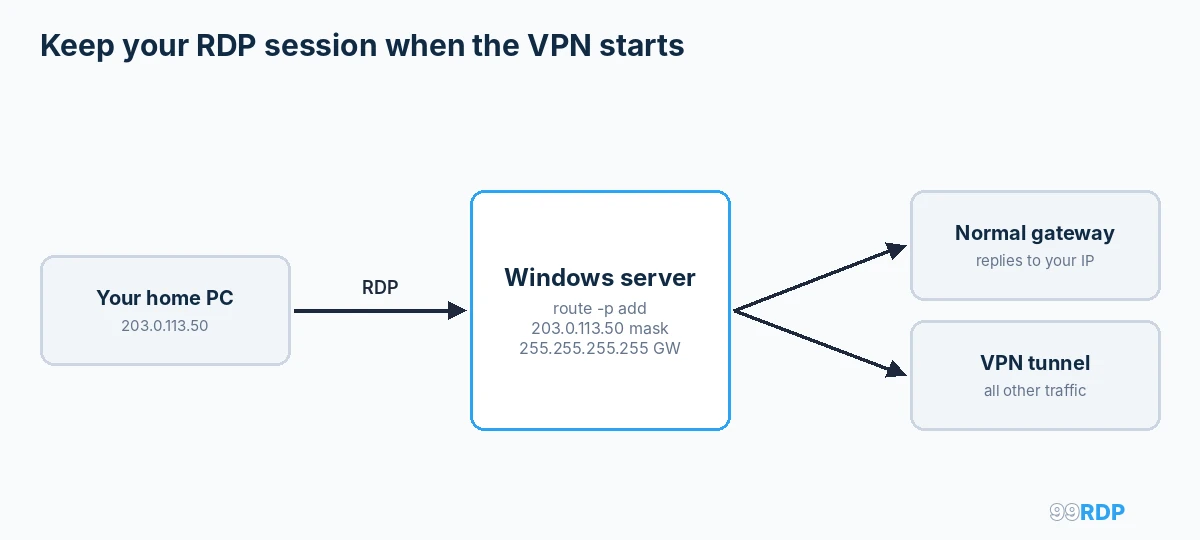
route -p add YOUR.HOME.IP.ADDR mask 255.255.255.255 SERVER.GATEWAY.IP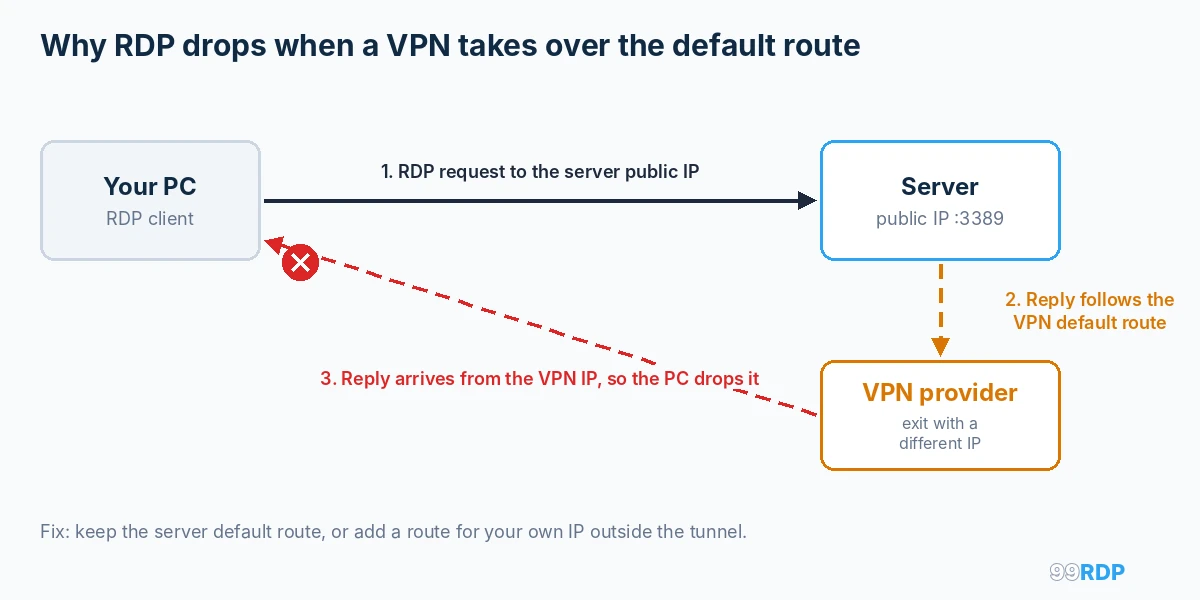
Why the VPN disconnects your remote session
A full-tunnel VPN replaces the server's default route (0.0.0.0/0) with its tunnel. Your RDP or SSH connection arrived on the server's public IP, but the reply packets now leave through the VPN, from a different IP address. Your computer doesn't recognize them, and the session times out. Some VPN apps also enable a "kill switch" that blocks all traffic outside the tunnel, which cuts you off immediately.
If this already happened, use your provider's VNC or web console to log in and disconnect the VPN.
Fix 1: Keep a route for your own IP (Windows)
- Find your home or office public IP (search "what is my IP" on your own computer).
- On the server, find the default gateway:
ipconfig | findstr /i "Gateway" - Add a persistent route for your IP through that gateway:
route -p add 198.51.100.25 mask 255.255.255.255 203.0.113.1 - Now connect the VPN. Traffic to and from your IP keeps using the server's normal network; everything else goes through the VPN.
If your home IP changes, update the route (route delete, then add it again), or add your ISP's whole range.
Fix 2: Split tunneling
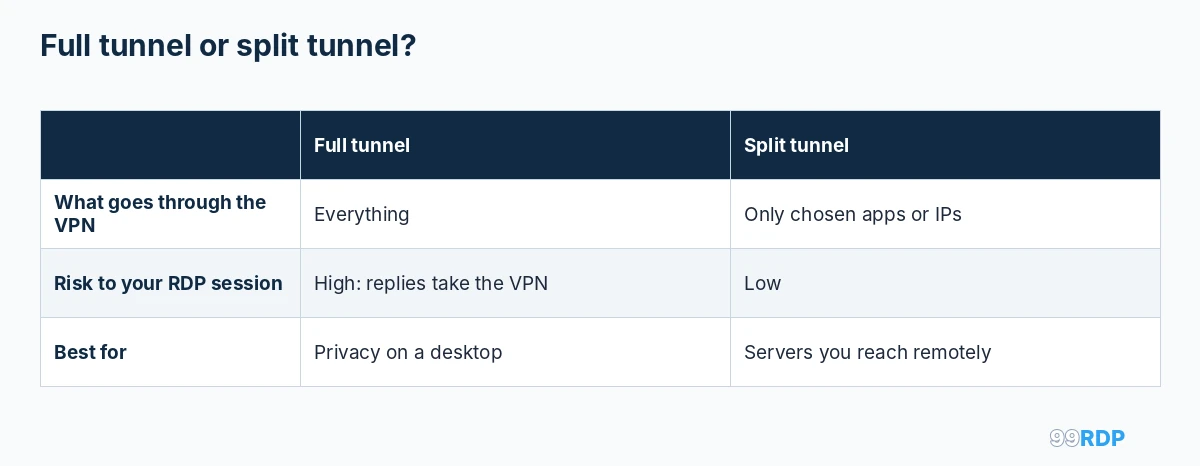
Many VPN apps can exclude specific apps, IP addresses or ports from the tunnel. Exclude your own IP, or keep the VPN for only the apps that need it (for example a browser). Turn off the kill switch on a server, or make sure it allows your management connection.
Fix 3: On Linux, use policy routing
For SSH on a Linux VPS, add a rule so replies from the server's public IP use the original routing table:
ip rule add from 203.0.113.10 table 128
ip route add table 128 default via 203.0.113.1
Replace the addresses with your server's public IP and gateway. With WireGuard, you can instead limit AllowedIPs to the networks you need, rather than 0.0.0.0/0.
Safe free VPN options for a server
1. Self-hosted WireGuard or OpenVPN
The software is free and open source. If you already have a second VPS, run WireGuard on it and connect your server to it. You control the logs and the IP address, there are no bandwidth limits, and it's the most reliable option for long-running servers.
2. Proton VPN Free
Proton's free tier has no data cap, a no-logs policy and no ads. Limits: one device, a small choice of server locations, and slower speeds at busy times. Its apps are built for desktop Windows, macOS and Linux, so check that it runs on your server edition before relying on it.
3. Cloudflare WARP
Free, fast and easy, with split tunneling settings. It encrypts traffic and hides it from the local network, but it isn't designed to change your visible country or to make you anonymous.
Free VPNs to avoid
Some popular "100% free" VPNs pay for themselves by collecting and selling browsing data. Urban VPN, which older guides recommend for servers, states in its own privacy policy that free users' browsing data can be collected and shared with an affiliated data company, and security researchers have reported that its browser extension collected users' AI chat conversations. Avoid VPNs without a clear business model, an audited no-logs policy or a known company behind them, especially on a server that handles customer data or logins.
Checklist before you connect a VPN on a server
- Know how to reach the server's VNC/web console in case you get locked out.
- Add the route for your own IP, or set up split tunneling, first.
- Disable the kill switch or allow your management IP.
- Test by connecting the VPN for a short time, then check your RDP/SSH session still responds.
- Remember that services hosted on the server (websites, game servers) may stop being reachable on the server's own IP while a full-tunnel VPN is active.
Frequently asked questions
Why does my RDP disconnect when I connect a VPN on the server?
The VPN takes over the server's default route, so RDP replies leave through the tunnel with a different IP and your client drops the session. Add a route for your IP or use split tunneling.
Is there a free VPN server I can use?
The safest free options are self-hosting WireGuard or OpenVPN on your own VPS, Proton VPN's free tier, or Cloudflare WARP.
Can I run a VPN on a Windows VPS?
Yes. Prepare a route for your own IP first, or your RDP session will disconnect when the VPN connects.
How do I recover if the VPN locked me out?
Log in through your provider's VNC or web console, disconnect the VPN, add the route or split tunnel, and try again.