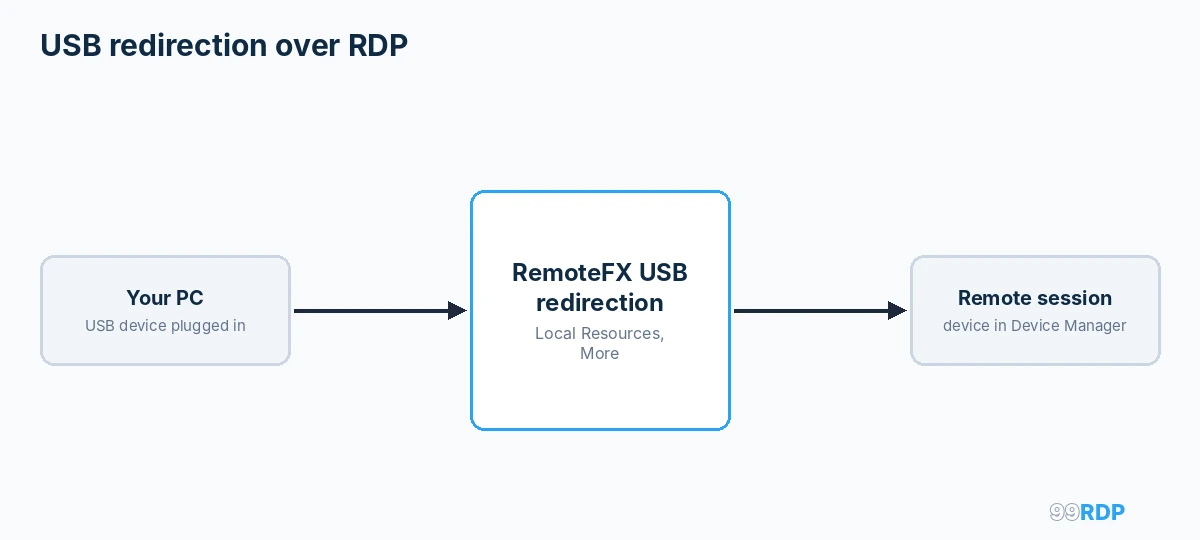
Remote Desktop can pass many local devices to the remote session: drives, printers, smart cards and cameras work out of the box. Other USB devices, such as licence dongles, scanners or specialised hardware, need RemoteFX USB redirection, which is switched off by default. This guide shows which method fits which device and how to enable USB redirection in Windows, step by step.
Quick answer
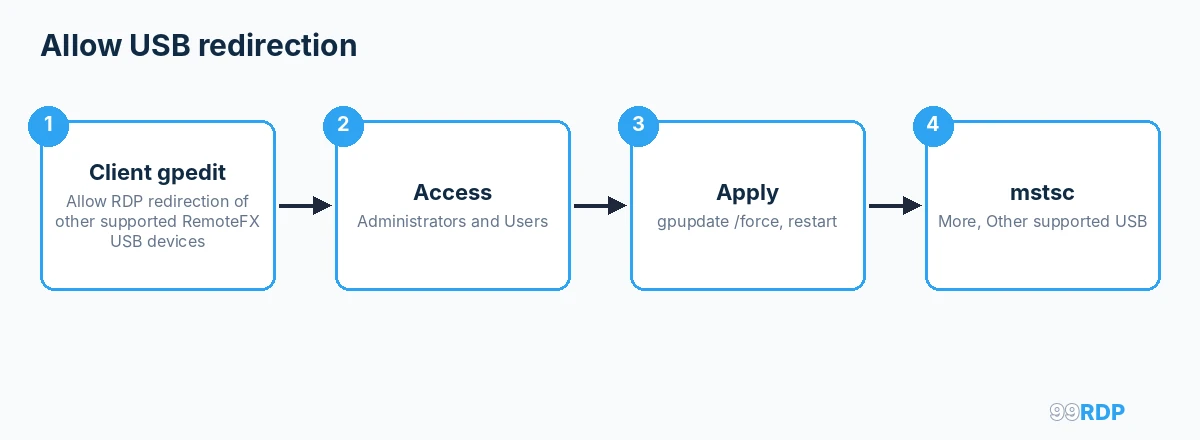
- On your local PC, enable the policy Allow RDP redirection of other supported RemoteFX USB devices from this computer (set access to Administrators and Users), run
gpupdate /forceand restart. - In Remote Desktop Connection, go to Local Resources → More and tick your device under Other supported RemoteFX USB devices.
- Connect.
Which redirection method do you need?
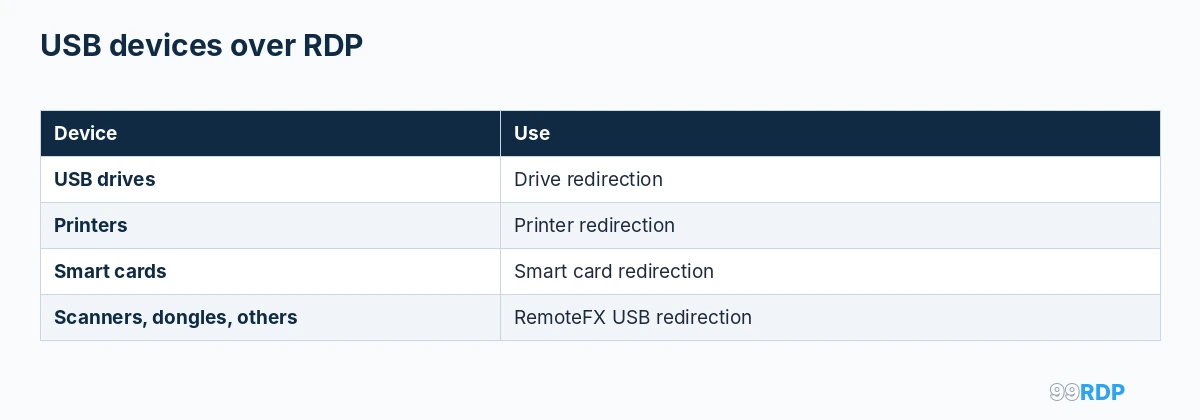
| Device | Method | Setup needed |
|---|---|---|
| USB flash drives and external disks | Drive redirection | Tick Drives in Local Resources |
| Printers | Printer redirection | On by default |
| Smart cards and many security keys | Smart card redirection | On by default |
| Webcams, phones (MTP/PTP) | Plug and Play redirection | Tick under More |
| Dongles, scanners, other USB devices | RemoteFX USB redirection | Client policy + restart (below) |
Use the simplest method that works. Drive redirection, for example, is faster and more reliable for storage than RemoteFX USB redirection.
Step 1: Enable RemoteFX USB redirection on your local PC
This is a client-side setting, on the computer the device is plugged into (Windows 10 or 11 Pro, Enterprise or Education).
- Press Win+R, type
gpedit.msc, and go to Computer Configuration → Administrative Templates → Windows Components → Remote Desktop Services → Remote Desktop Connection Client → RemoteFX USB Device Redirection. - Open Allow RDP redirection of other supported RemoteFX USB devices from this computer, set it to Enabled, and choose Administrators and Users under RemoteFX USB Redirection Access Rights.
- Run
gpupdate /forcein an administrator Command Prompt and restart the PC. The option only appears in the client after a restart.
Step 2: Allow device redirection on the server
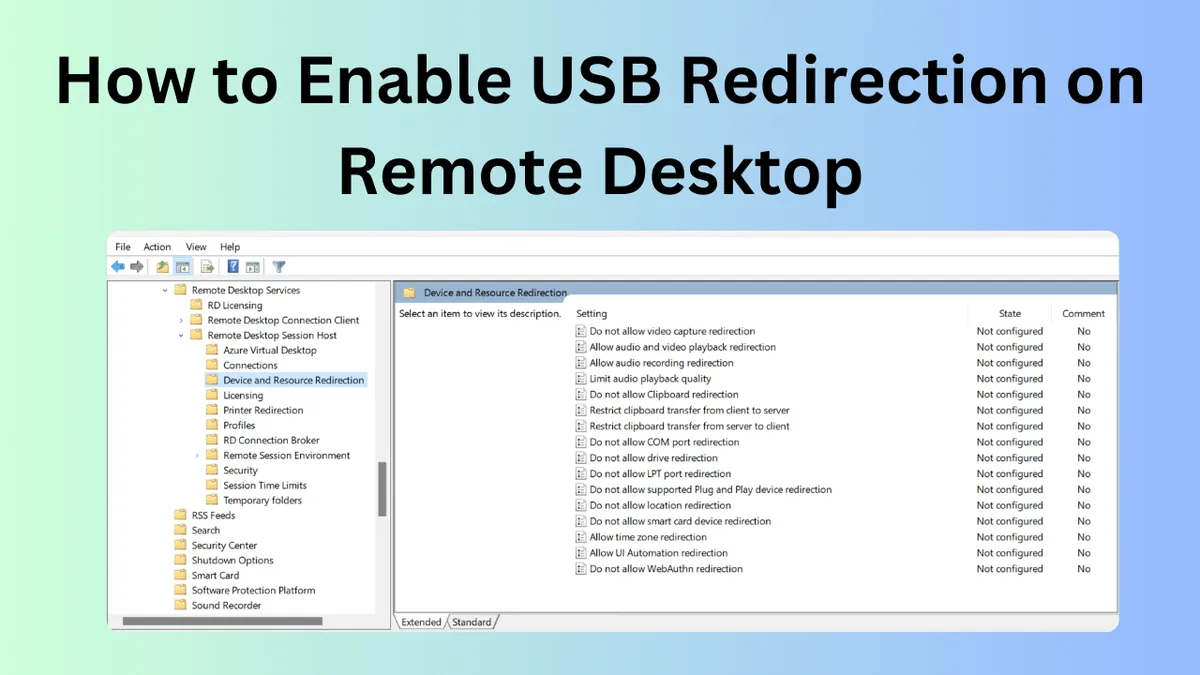
On the remote server, check that redirection isn't blocked. In gpedit.msc, go to Computer Configuration → Administrative Templates → Windows Components → Remote Desktop Services → Remote Desktop Session Host → Device and Resource Redirection and make sure Do not allow supported Plug and Play device redirection is Not configured or Disabled.
Step 3: Choose the device in the RDP client
- Plug in the USB device.
- Open Remote Desktop Connection (
mstsc) → Show Options → Local Resources. - Under Local devices and resources, click More.
- Expand Other supported RemoteFX USB devices and tick your device.
- Connect. The device appears in the remote session's Device Manager. Install its driver there if Windows asks.
In an .rdp file, usbdevicestoredirect:s:* redirects all supported devices.
While redirected, the device isn't available on your local PC. It returns when you disconnect.
Common problems
- "Other supported RemoteFX USB devices" doesn't appear: the client policy isn't applied. Run
gpupdate /forceand restart the local PC. - The device doesn't appear in the list: it may already be redirected by another method (for example as a drive or smart card), or it isn't supported. Try a different USB port, and unplug and re-plug it before connecting.
- Works on LAN but not over the internet: RemoteFX USB redirection sends raw USB traffic, so it is sensitive to latency. Devices that stream data, such as webcams and audio interfaces, work better through their own redirection type.
- Using the Windows App or a Mac/Linux client: these clients don't support RemoteFX USB redirection in the same way. Use the built-in Windows client (
mstsc), or a USB-over-IP tool that runs separately from RDP.
Frequently asked questions
How do I redirect a USB device to Remote Desktop?
Enable the RemoteFX USB redirection policy on your local PC and restart it, then tick the device under Local Resources → More → Other supported RemoteFX USB devices before connecting.
Can I use a USB licence dongle over RDP?
Often yes, with RemoteFX USB redirection. Some dongles refuse to work over remote connections by design; check with the software vendor.
How do I access a USB flash drive in Remote Desktop?
Tick Drives (or the specific drive) under Local Resources → More. It appears in the remote session's File Explorer as a redirected drive.
Does USB redirection work on Windows Home?
Windows Home has no Group Policy Editor, so you can't enable RemoteFX USB redirection there in the usual way. Drive, printer and smart card redirection still work.