Remote Desktop works out of the box between computers on the same network. Connecting from somewhere else, such as home to office or a laptop on the road to your desktop, is harder because your PC sits behind a router and its RDP port isn't reachable from the internet. There are four ways to solve that, and they're not equally safe. This guide explains each one, from the recommended VPN approach to classic port forwarding, so you can choose the right one for your situation.
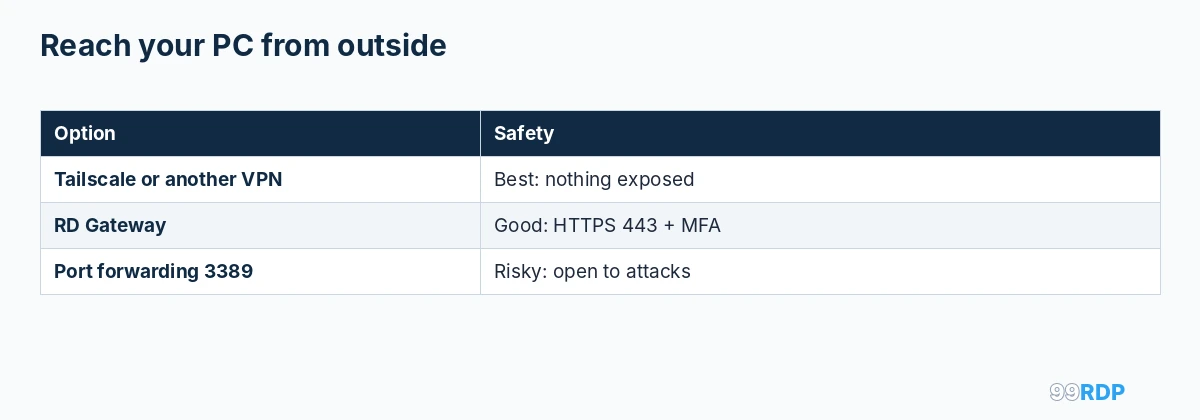
Quick answerThe safest easy option is a mesh VPN such as Tailscale or a WireGuard VPN: install it on both computers, then connect with Remote Desktop to the PC's VPN address. Avoid opening port 3389 directly to the internet.
First: enable Remote Desktop on the PC
- The PC you connect to must run Windows 10/11 Pro, Enterprise or Education, or Windows Server. Home editions can't host Remote Desktop.
- Open Settings → System → Remote Desktop and turn it On. Keep Require devices to use Network Level Authentication enabled.
- Note the PC name, and make sure your account has a password.
- Stop the PC from sleeping (Settings → System → Power), or it won't answer when you're away.
Test it from another computer on the same network with mstsc before setting up outside access.
Option 1: A VPN (recommended)
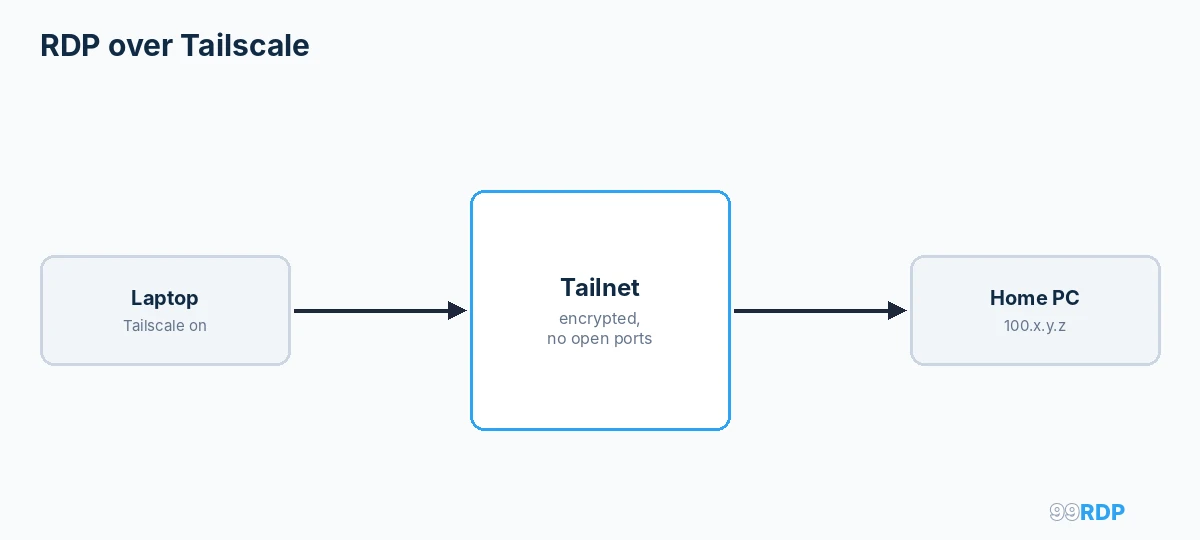
A VPN puts your remote laptop on the same private network as the PC, so Remote Desktop works as if you were in the office, and RDP is never exposed to the internet.
- Mesh VPN (Tailscale, ZeroTier, NetBird): install the app on both computers and sign in with the same account. Each device gets a private IP (for Tailscale, a
100.x.y.zaddress). Connect withmstsc /v:100.x.y.z. No router changes needed, and it works behind most NATs. - Router or server VPN (WireGuard, OpenVPN): many routers have a built-in VPN server. Set it up once, connect from your laptop, then use the PC's local IP (for example
192.168.1.50). - Company VPN: if your employer already provides one, use it; ask IT for the PC's address.
Option 2: Remote Desktop Gateway
For businesses with Windows Server, the Remote Desktop Gateway role wraps RDP inside HTTPS on port 443. Users authenticate at the gateway first, and you can add multi-factor authentication. In Remote Desktop Connection, the gateway is set under Show Options → Advanced → Settings. It's more work to set up, but it's the standard Microsoft way to publish many desktops securely.
Option 3: Port forwarding on your router (least safe)
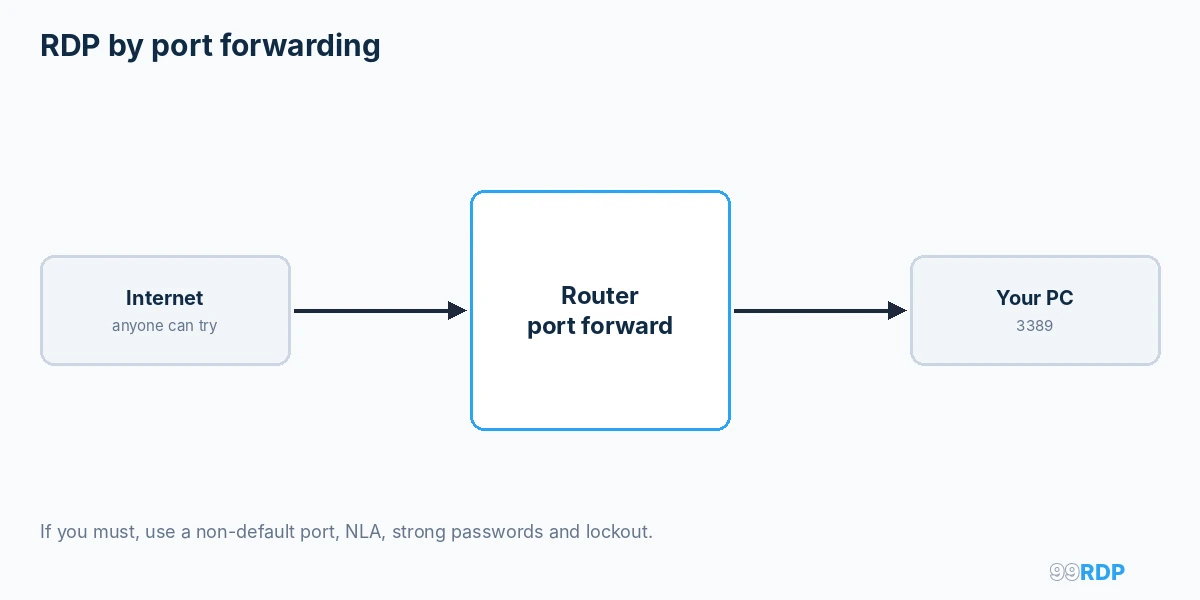
You can forward a port on your router to the PC's RDP port. It works, but anyone on the internet can then try to log in, and exposed RDP is one of the most common ways ransomware gets in. If you choose this route anyway, lock it down:
- Give the PC a fixed local IP (a DHCP reservation in the router).
- In the router, forward an unusual external port (for example
53389) to the PC's IP on port3389. - Allow RDP in Windows Firewall (it's added when you enable Remote Desktop).
- Find your public IP, or set up dynamic DNS (DDNS) if it changes.
- Connect with
mstsc /v:your.public.ip:53389.
Then harden it: use a long, unique password, keep NLA on, set an account lockout policy (secpol.msc → Account Lockout Policy), limit the router rule to your own IP addresses if possible, and keep Windows updated. Changing the port alone reduces noise but isn't protection.
Port forwarding doesn't work if your ISP uses carrier-grade NAT (your router's WAN address starts with 100.64 to 100.127, or is a private IP). In that case, use a VPN or a tunnel.
Option 4: Remote access apps or a cloud desktop
- Remote access apps such as Chrome Remote Desktop, AnyDesk or RustDesk connect through their own relay servers, so no router changes are needed. They share the PC's screen rather than creating an RDP session, and some are free only for personal use.
- A cloud RDP or Windows VPS is reachable from anywhere by design, with a public IP and a provider-managed network. If what you really need is an always-on Windows desktop rather than access to your specific home PC, it's the simplest option.
Which option should you use?
- One home or office PC, personal use: Tailscale or another mesh VPN.
- Small business with several PCs: a router or server VPN, or RD Gateway.
- Helping someone else: a remote access app.
- Need a Windows desktop available 24/7: a cloud RDP or Windows VPS.
Troubleshooting
- "Remote Desktop can't connect to the remote computer": check the PC is awake, Remote Desktop is on, and you're using the right IP and port. Test locally first.
- Works on the LAN but not from outside: the router forward or VPN isn't set up correctly, or the ISP uses CGNAT.
- Credentials rejected: sign in with the Windows account name (for Microsoft accounts, the email address) and its password, not the PIN.
Frequently asked questions
Can I use Remote Desktop over the internet?
Yes, through a VPN, a Remote Desktop Gateway, or router port forwarding. A VPN is the safest easy option.
How do I connect to Remote Desktop from a different network?
Install a mesh VPN such as Tailscale on both devices and connect to the PC's VPN IP with Remote Desktop Connection.
Is it safe to open port 3389 on my router?
Not really. Exposed RDP is constantly attacked. If you must, use a non-standard port, strong passwords, NLA, account lockout and IP restrictions.
Why can't I host Remote Desktop on Windows Home?
Microsoft only includes the Remote Desktop host in Pro, Enterprise, Education and Server editions. Home can connect to other PCs but not accept connections.