Forgot the password for your Ubuntu user, or never set one for root? As long as you can reach the boot menu (on a physical machine, in a virtual machine, or through your VPS provider's VNC console), you can set a new password in a few minutes. This guide covers the GRUB method, the recovery-mode method, and how to change or set the root password on an Ubuntu VPS when you can still log in. The steps work on Ubuntu 20.04, 22.04, 24.04 and 26.04.
Quick answerAt the GRUB menu press e, add rw init=/bin/bash to the end of the line that starts with linux, press Ctrl + X, then run:
passwd yourusername      # or: passwd root
sync
reboot -f
Before you start
- You need console access: a keyboard and screen, the hypervisor console, or the VNC/KVM console in your hosting panel. SSH won't help here, because you can't log in.
- If the disk is encrypted with LUKS, you still need the disk passphrase. Resetting the login password doesn't bypass disk encryption.
- On a VPS, take a snapshot first if your panel offers one.
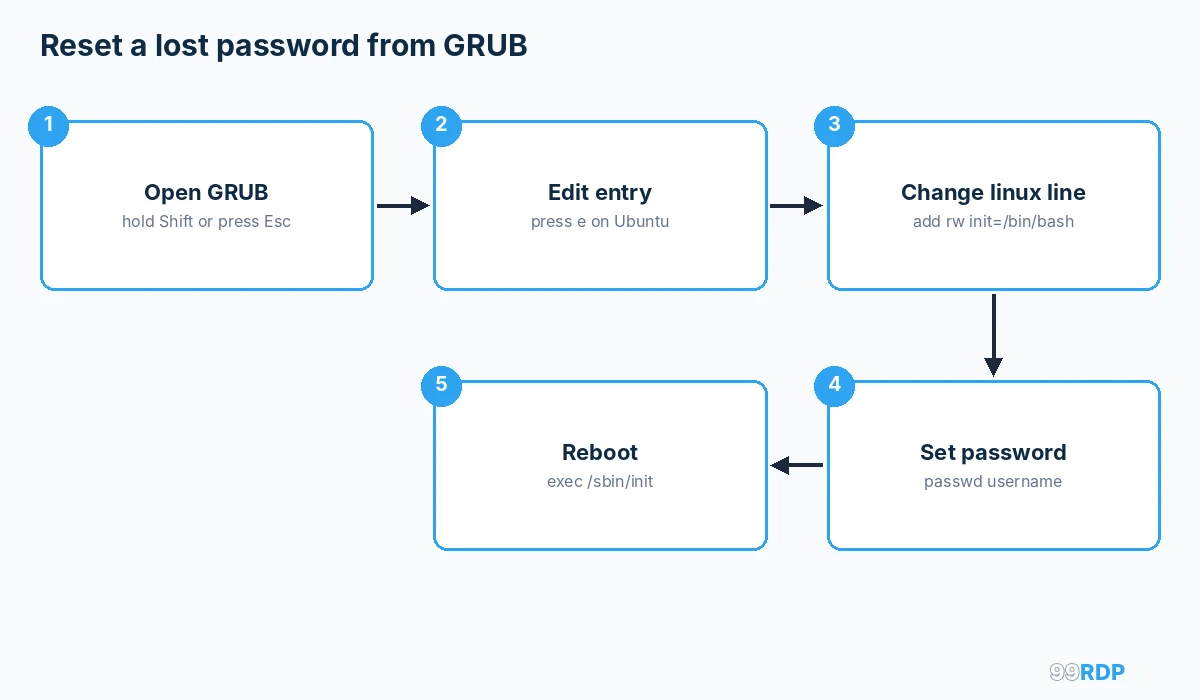
Step 1: Open the GRUB menu
Restart the machine. On many Ubuntu installs GRUB is hidden, so you have to call it up:
- BIOS systems: hold Shift right after the firmware screen.
- UEFI systems and most VPS consoles: tap Esc repeatedly as the machine starts. If you land at a
grub>prompt, typenormaland press Enter, then press Esc once.
When the menu appears, use the arrow keys to highlight the normal Ubuntu entry. Don't press Enter yet.
Step 2: Edit the boot entry
- Press e to edit the entry.
- Find the line that starts with
linux(it contains/boot/vmlinuz-…). - At the end of that line, replace
ro quiet splash(or justro) withrw init=/bin/bash. If you can't findro, simply addrw init=/bin/bashat the end. - Press Ctrl + X or F10 to boot.
This change is temporary. It only applies to this one boot and is not saved.
Step 3: Set the new password
You'll get a root shell prompt such as root@(none):/#. The root file system is already writable because of rw. If you forgot your username, list the users first:
ls /homeThen set the new password and confirm it (nothing appears on screen while you type):
passwd yourusernameTo set a root password instead, run passwd root. You should see password updated successfully. If you get an "Authentication token manipulation error", the disk is read-only: run mount -o remount,rw / and try again.
Step 4: Reboot normally
Normal commands like reboot don't work in this shell because systemd isn't running. Use:
sync
reboot -f
Ubuntu now starts as usual, and you can log in with the new password. On a desktop, the keyring may still use the old password; choose to reset it or enter the old one if you remember it.
Alternative: use recovery mode
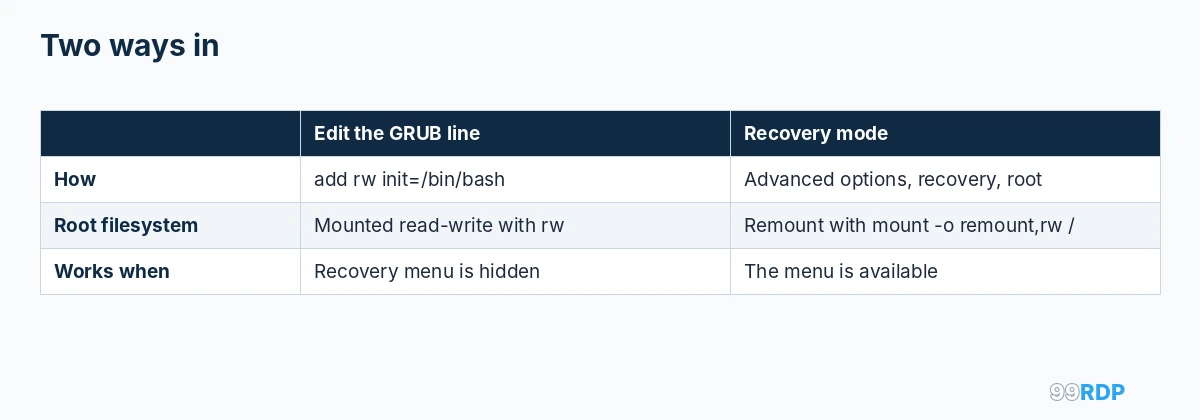
If editing the GRUB line feels risky, recovery mode gives you the same root shell from a menu:
- In GRUB, choose Advanced options for Ubuntu.
- Select the entry that ends in (recovery mode).
- In the Recovery Menu, choose root – Drop to root shell prompt and press Enter.
- Make the disk writable and set the password:
mount -o remount,rw /
passwd yourusername
reboot
Some systems ask for the root password before giving you this shell. Ubuntu's root account is locked by default, so on most installs you get the shell straight away. If it asks, use the GRUB method above.
Change or set the root password on an Ubuntu VPS
If you can still log in as a user with sudo rights, you don't need GRUB at all:
sudo passwd root          # set or change the root password
sudo passwd yourusername  # change another user's password
passwd                    # change your own password
On Ubuntu, root has no password and is locked until you set one, which is why many people search for "set Ubuntu root password". Setting one is fine for console access, but keep SSH root login with a password disabled (PermitRootLogin prohibit-password in /etc/ssh/sshd_config) and use SSH keys.
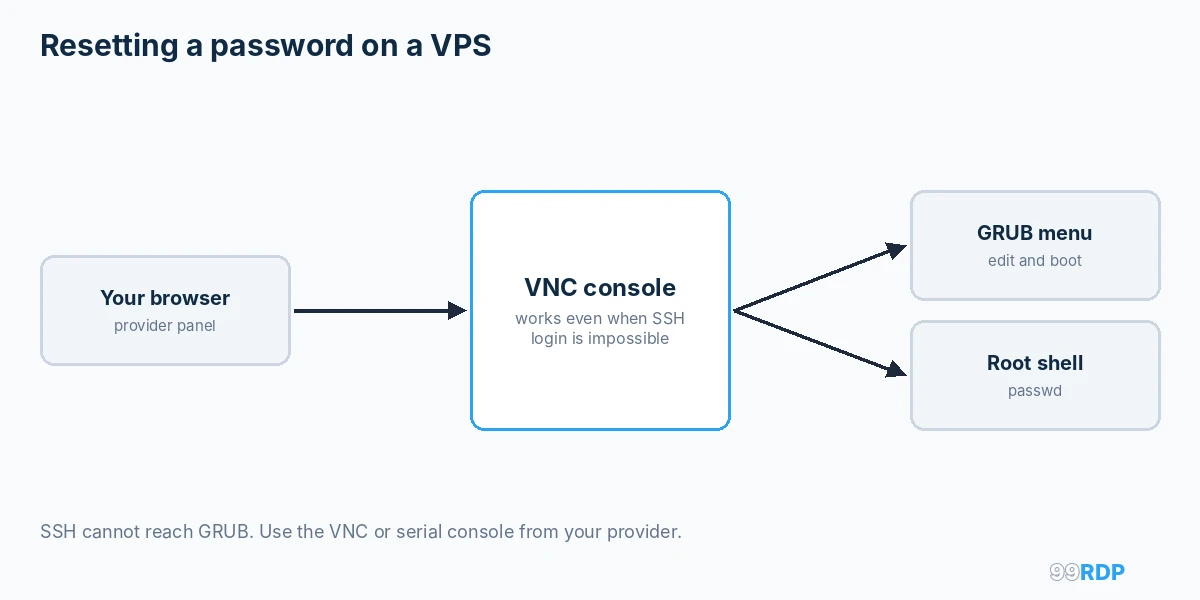
Forgot the password and only have SSH? Most VPS panels have a Reset root password button or a VNC console. Use the console and the GRUB steps above, or ask support to reset it for you.
Frequently asked questions
How do I reset my Ubuntu password if I forgot it?
Boot into GRUB, press e, add rw init=/bin/bash to the linux line, boot with Ctrl + X, run passwd username, then sync and reboot -f.
What is Ubuntu single-user mode?
It's a minimal boot that gives a root shell for repairs. On Ubuntu, you reach it through recovery mode or by booting with init=/bin/bash.
Does this work on Ubuntu 22.04 and 24.04?
Yes. The GRUB and recovery-mode steps are the same on 20.04, 22.04, 24.04 and 26.04. Note that Ubuntu 20.04's standard support ended in May 2025, so plan an upgrade.
Can I reset the password of a remote desktop user on Ubuntu?
Yes. xrdp uses normal Linux accounts, so changing the user's password with passwd also changes the password you use for remote desktop.