Blocking an IP address in Windows Defender Firewall stops a specific attacker, scanner or unwanted service from reaching your PC or Windows Server, or stops your machine from connecting out to an address. You can block a single IP, a list of IPs, or a whole range, using the graphical console, PowerShell or the command line. This guide covers all three, plus how to check, edit and remove rules, and how to find which IPs to block on a server under attack.
Quick answerOpen PowerShell as administrator and run:
New-NetFirewallRule -DisplayName "Block 203.0.113.50" -Direction Inbound -RemoteAddress 203.0.113.50 -Action BlockAdd a second rule with -Direction Outbound to block outgoing connections too.
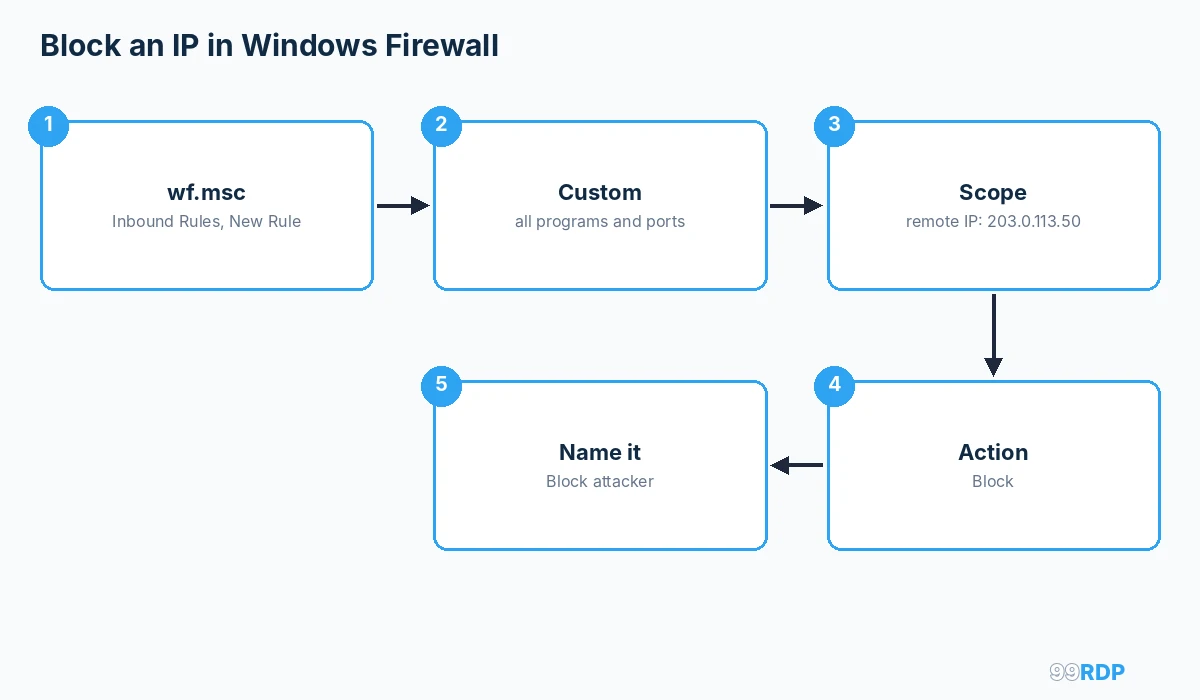
Method 1: Windows Defender Firewall with Advanced Security
- Press Win + R, type
wf.mscand press Enter. - In the left pane, click Inbound Rules, then in the right pane click New Rule.
- Choose Custom and click Next.
- On Program, leave All programs selected. Click Next.
- On Protocol and Ports, leave protocol type Any to block everything from the IP, or choose TCP/UDP and specific ports (for example 3389 for Remote Desktop). Click Next.
- On Scope, under Which remote IP addresses does this rule apply to?, select These IP addresses and click Add. Enter a single address (
203.0.113.50), a subnet (203.0.113.0/24) or a range (203.0.113.10-203.0.113.60). Add as many as you need. - On Action, select Block the connection.
- On Profile, leave Domain, Private and Public ticked so the rule always applies.
- Give the rule a clear name, such as "Block attackers RDP", and click Finish.
Repeat under Outbound Rules if you also want to stop this computer from connecting to those addresses.
Block rules take priority over allow rules in Windows Firewall, so a blocked IP stays blocked even if another rule allows the port.
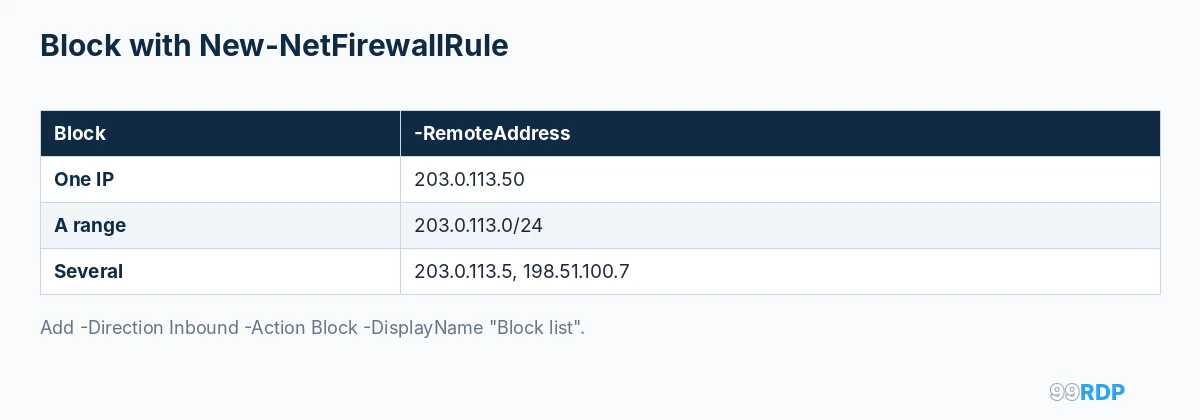
Method 2: PowerShell
Block one IP, several IPs and a range in a single rule:
New-NetFirewallRule -DisplayName "Block bad IPs" -Direction Inbound -Action Block `
  -RemoteAddress 203.0.113.50, 198.51.100.0/24, "192.0.2.10-192.0.2.20"
Block an IP only on the Remote Desktop port:
New-NetFirewallRule -DisplayName "Block IP on RDP" -Direction Inbound -Protocol TCP -LocalPort 3389 -RemoteAddress 203.0.113.50 -Action BlockAdd more addresses to an existing rule later:
$rule = Get-NetFirewallRule -DisplayName "Block bad IPs"
$current = ($rule | Get-NetFirewallAddressFilter).RemoteAddress
Set-NetFirewallRule -DisplayName "Block bad IPs" -RemoteAddress ($current + "203.0.113.77")
Block a list of IPs from a text file (one per line):
$ips = Get-Content C:\block-list.txt
New-NetFirewallRule -DisplayName "Block list" -Direction Inbound -RemoteAddress $ips -Action Block
Method 3: Command Prompt (netsh)
netsh advfirewall firewall add rule name="Block 203.0.113.50" dir=in action=block remoteip=203.0.113.50
netsh advfirewall firewall add rule name="Block range" dir=in action=block remoteip=198.51.100.0/24
netsh still works on all current Windows versions, though PowerShell is more flexible.
Check, disable or remove a block
Get-NetFirewallRule -DisplayName "Block*" | Format-Table DisplayName, Enabled, Direction, Action
Disable-NetFirewallRule -DisplayName "Block 203.0.113.50"
Remove-NetFirewallRule -DisplayName "Block 203.0.113.50"
In wf.msc, right-click a rule to disable, edit or delete it.
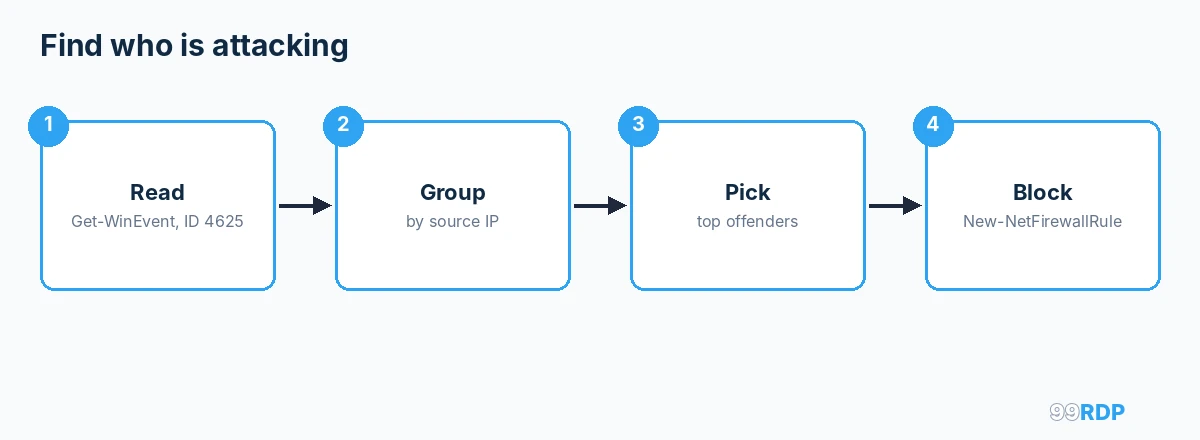
Find which IPs to block on a server
On a Windows server under brute-force attack, failed logons are recorded as event ID 4625 in the Security log. To list the IP addresses with the most failures in the last day:
Get-WinEvent -FilterHashtable @{LogName='Security'; Id=4625; StartTime=(Get-Date).AddDays(-1)} |
  ForEach-Object { $_.Properties[19].Value } |
  Group-Object | Sort-Object Count -Descending | Select-Object -First 10 Count, Name
Blocking individual IPs only slows attackers down, because they rotate addresses. For Remote Desktop, the better fix is to allow only your own IPs to port 3389 (edit the Remote Desktop rule's Scope), or put RDP behind a VPN or RD Gateway. Also set an account lockout policy.
Tips
- Never block your own IP or the provider's management ranges; you could lose access. Test with a second connection open.
- On a cloud VPS, blocking at the provider's network firewall (if available) stops traffic before it reaches Windows.
- Keep block rules organised with a naming convention so you can find and clean them up later.
- Very long address lists in one rule are fine, but thousands of separate rules slow firewall management.
Frequently asked questions
How do I block an IP address on Windows 10 or 11?
Open wf.msc, create a custom inbound rule, add the IP on the Scope page, and choose Block the connection. Or use New-NetFirewallRule in PowerShell.
Can I block a range of IP addresses?
Yes. Enter a subnet such as 198.51.100.0/24 or a range such as 192.0.2.10-192.0.2.20.
Does blocking an IP in Windows Firewall block it completely?
An inbound rule with all programs and all protocols blocks all incoming traffic from that IP. Add an outbound rule to stop your computer connecting to it as well.
How do I unblock an IP address?
Disable or delete the rule in wf.msc, or run Remove-NetFirewallRule -DisplayName "rule name".