Whether you're checking that a server matches what you ordered, troubleshooting slow performance, or seeing if software will run, Ubuntu gives you every hardware detail through a few built-in commands. This guide covers the fastest way to see everything at once, then each component on its own: CPU, RAM, disk, GPU, motherboard and Ubuntu version. The commands work on Ubuntu desktops and on headless servers over SSH.
Quick answerFor a one-screen summary, run:
hostnamectl
lscpu | head -20
free -h
lsblk
Check specs from the desktop (GUI)
Open Settings → System → About (on Ubuntu 22.04 it's Settings → About). You'll see the device name, processor, memory, graphics, disk capacity and Ubuntu version. For live CPU, memory and network usage, open the System Monitor app.
See everything at once
inxi: full hardware report
sudo apt install inxi
inxi -Fxz
-F shows the full report and -x adds extra detail. -z hides private information such as IP and MAC addresses, so the output is safe to paste into a forum or support ticket.
lshw: hardware summary
sudo lshw -shortThis lists every component with its class (processor, memory, disk, network, display). Run it with sudo, or some details will be missing.
fastfetch: quick overview with logo
neofetch, which many older guides recommend, is no longer maintained. Its successor is fastfetch:
sudo apt install fastfetch
fastfetch
fastfetch is in the official repositories from Ubuntu 24.10. On Ubuntu 22.04 and 24.04, install it from the project's PPA or GitHub releases.
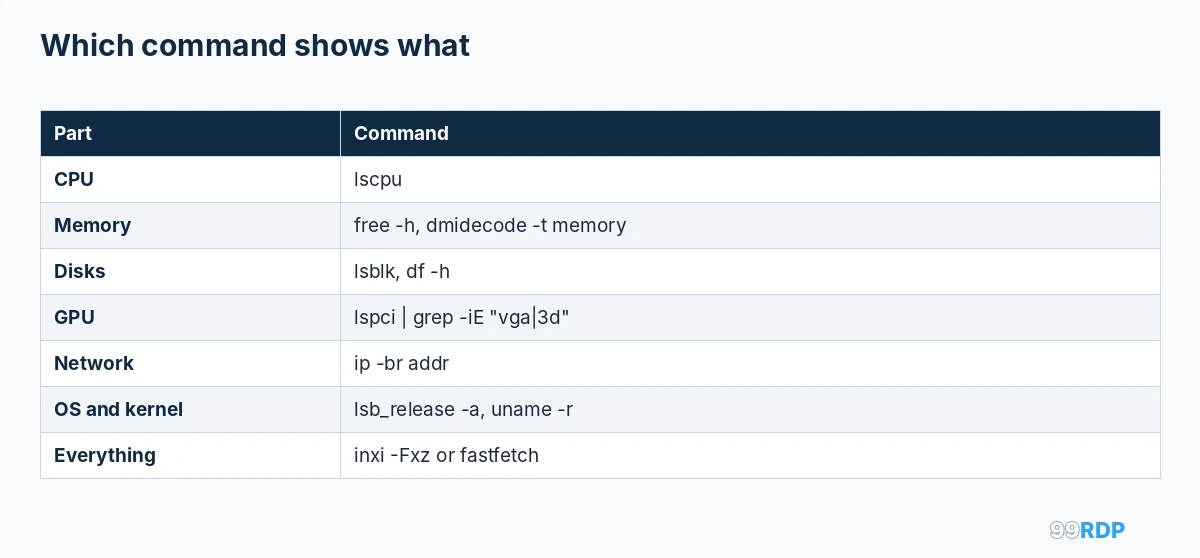
Check each component
CPU: model, cores and threads
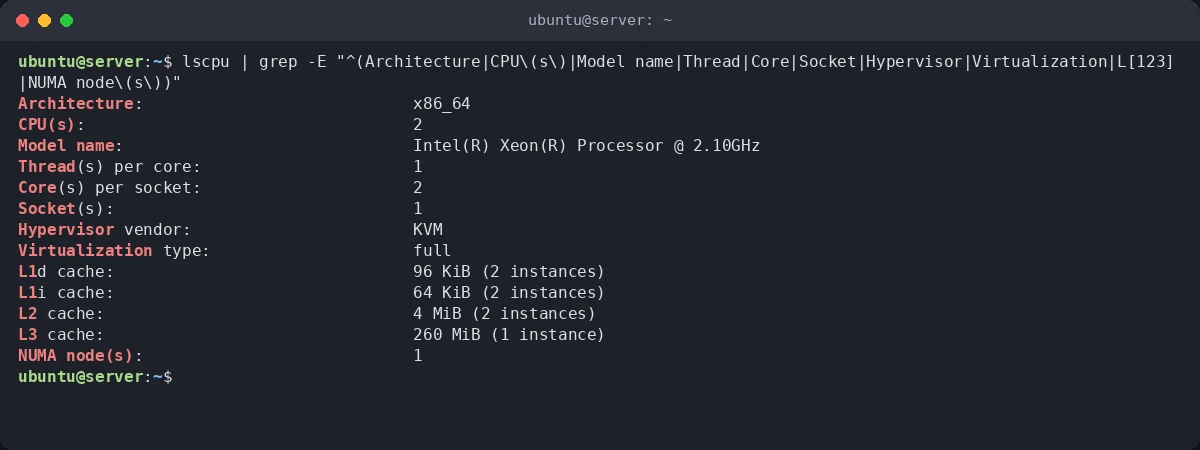
lscpuLook at Model name, CPU(s) (logical threads), Core(s) per socket and Thread(s) per core. For the thread count alone, run nproc.
RAM: total and used memory
free -hThe total column is installed memory and available is what new programs can use. For memory module details (type, speed, slots):
sudo dmidecode -t memory | grep -E "Size|Type:|Speed" | grep -v "No Module"Disk: drives, sizes and free space
lsblk -o NAME,SIZE,TYPE,MOUNTPOINT,MODEL   # drives and partitions
df -h                                      # used/free space per filesystem
To see whether a drive is an SSD or HDD, run lsblk -d -o NAME,ROTA. 0 means SSD/NVMe and 1 means a spinning hard disk.
Graphics card (GPU)
lspci | grep -iE "vga|3d|display"On machines with an NVIDIA GPU and its driver installed, nvidia-smi shows the model, VRAM, driver version and current load.
Motherboard and BIOS
sudo dmidecode -t baseboard
sudo dmidecode -t bios
Network interfaces
ip -br link     # interfaces and their state
ip -br addr     # IP addresses
Ubuntu version and kernel
lsb_release -a      # Ubuntu release, e.g. 24.04 LTS
cat /etc/os-release
uname -r            # kernel version
hostnamectl shows the OS, kernel and architecture together. On a cloud server it also shows the virtualization type, e.g. kvm.
Checking specs on a VPS or dedicated server
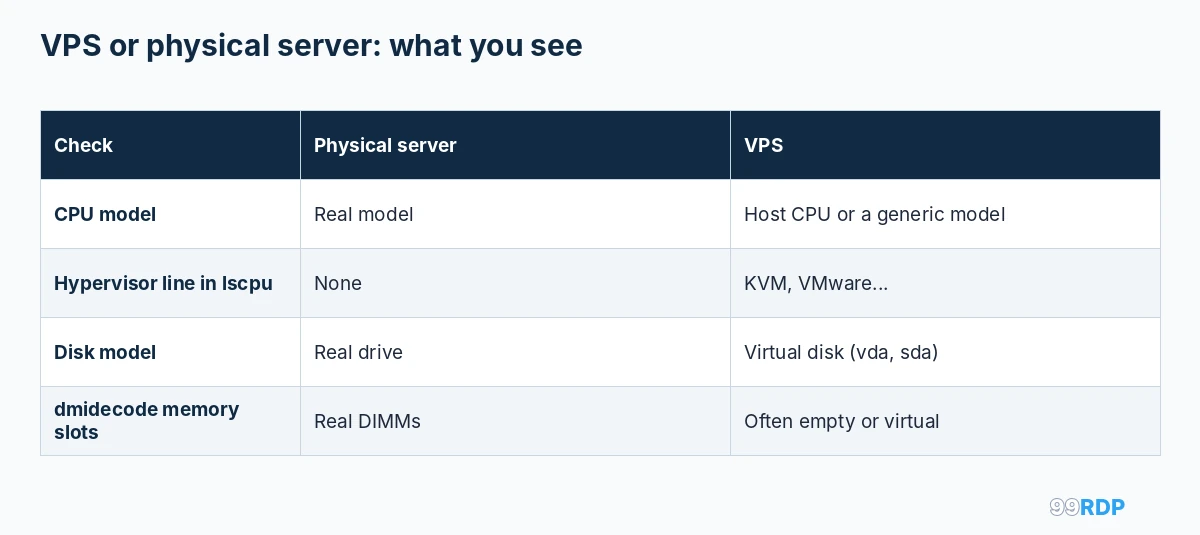
On a VPS, these commands show the resources assigned to your virtual machine, not the physical host. hostnamectl or systemd-detect-virt tells you whether you're on a VM (kvm, vmware, etc.) or bare metal (none). On a dedicated server, lscpu, free -h and lsblk should match the CPU, RAM and disks in your plan exactly. It's worth checking right after delivery.
Frequently asked questions
What is the command to check system specs in Ubuntu?
For a full report, use inxi -Fxz or sudo lshw -short. For individual parts: lscpu (CPU), free -h (RAM), lsblk and df -h (disks), lspci | grep -i vga (GPU).
How do I check RAM size in Ubuntu?
Run free -h and read the total value on the Mem line.
How do I check which Ubuntu version I have?
Run lsb_release -a or cat /etc/os-release, or open Settings → About.
Is neofetch still available?
Its development has stopped. Use fastfetch instead. It's faster and shows the same kind of summary.