Every Linux desktop comes with a file manager, but the default is not always the best fit. Some are built for speed on old hardware, some for power users who want two panes and built-in archive and FTP support, and some run right in the terminal on a server. This guide compares the best free Linux file managers, what each does well, which desktop it belongs to, and how to install it on Ubuntu, Debian and Fedora.
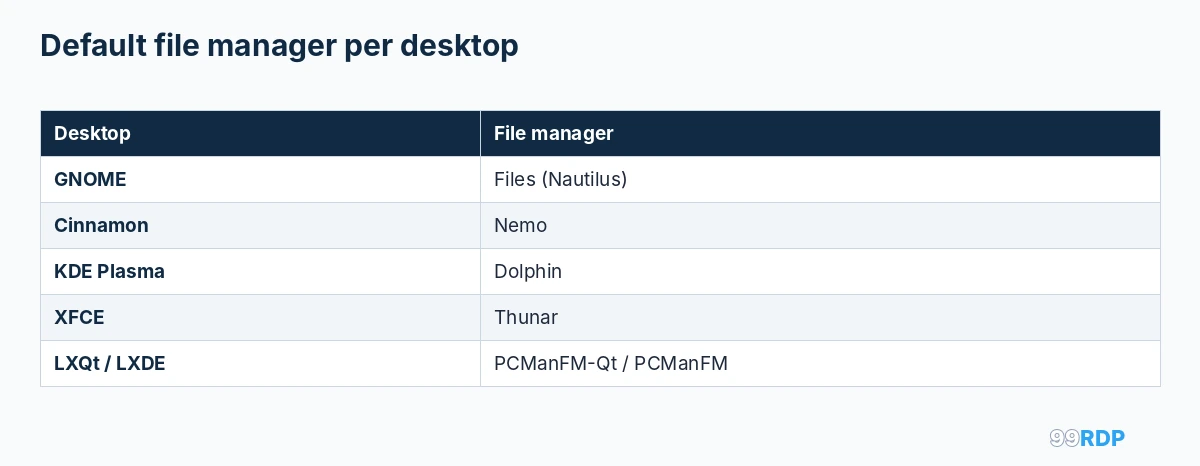
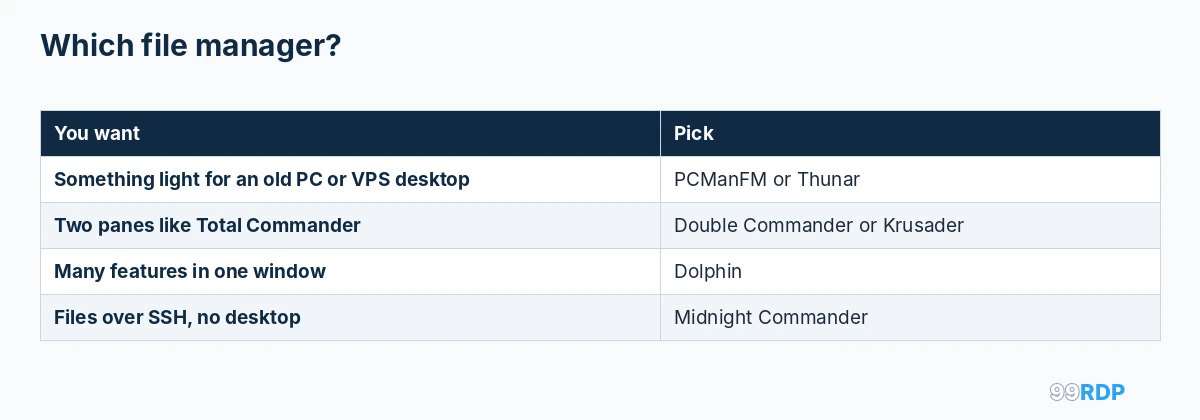
Quick answerFor most people, the file manager that comes with your desktop is the best choice: Files (Nautilus) on GNOME, Dolphin on KDE, Nemo on Cinnamon, Thunar on XFCE. For a lightweight option on old PCs, use PCManFM. For two-pane power use, try Krusader or Double Commander. On a server over SSH, use Midnight Commander.
1. Nemo
Nemo is the file manager of the Cinnamon desktop (Linux Mint). It started as a fork of GNOME Files and keeps the classic features many users missed: a full toolbar, an editable path bar, split view with F3, and a right-click "Open in Terminal" and "Open as Root".
sudo apt install nemo        # Ubuntu / Debian
sudo dnf install nemo        # Fedora
Best for: users who want a traditional, full-featured file manager that is still simple.
2. Dolphin
Dolphin is KDE's file manager and one of the most powerful in Linux. It offers tabs, split view, an integrated terminal panel (F4), previews for many file types, batch rename, and network access over SFTP, SMB and more.
sudo apt install dolphin
sudo dnf install dolphin
Best for: KDE Plasma users and anyone who wants many features in one window. On other desktops it pulls in a number of KDE libraries.
3. PCManFM
PCManFM is the default file manager of LXDE, and its Qt version, PCManFM-Qt, is used in LXQt (Lubuntu). It starts quickly, uses little memory, and still has tabs, a dual-pane mode, thumbnails and network browsing.
sudo apt install pcmanfm        # GTK version
sudo apt install pcmanfm-qt     # Qt version
Best for: old computers, lightweight desktops, and remote desktops on small VPS plans.
4. Thunar
Thunar is XFCE's file manager. It is fast and clean, with tabs, a split view, a bulk renamer and "custom actions" that add your own commands to the right-click menu. Thunar is a natural choice on a Linux VPS running XFCE with xrdp.
sudo apt install thunar
sudo dnf install thunar
5. Krusader
Krusader is a two-pane "orthodox" file manager for KDE, modelled on Total Commander. It has built-in archive handling, folder comparison and synchronization, FTP and SFTP connections, a powerful search and keyboard shortcuts for everything.
sudo apt install krusader
sudo dnf install krusader
Best for: power users who move and compare large numbers of files.
6. Double Commander
Double Commander is another two-pane manager inspired by Total Commander, available in GTK and Qt builds for Linux, Windows and macOS. It supports tabs, archives as folders, a built-in text viewer and many Total Commander plugins.
sudo apt install doublecmd-gtk # or doublecmd-qtBest for: people coming from Total Commander on Windows.
7. X File Explorer (Xfe)
Xfe is a very light file manager with no dependency on GNOME or KDE. Its interface looks dated, but it runs on almost anything, includes a text editor, image viewer and package viewer, and supports one, two or three panels.
sudo apt install xfeBest for: minimal window manager setups and very old hardware.
8. Midnight Commander (terminal)
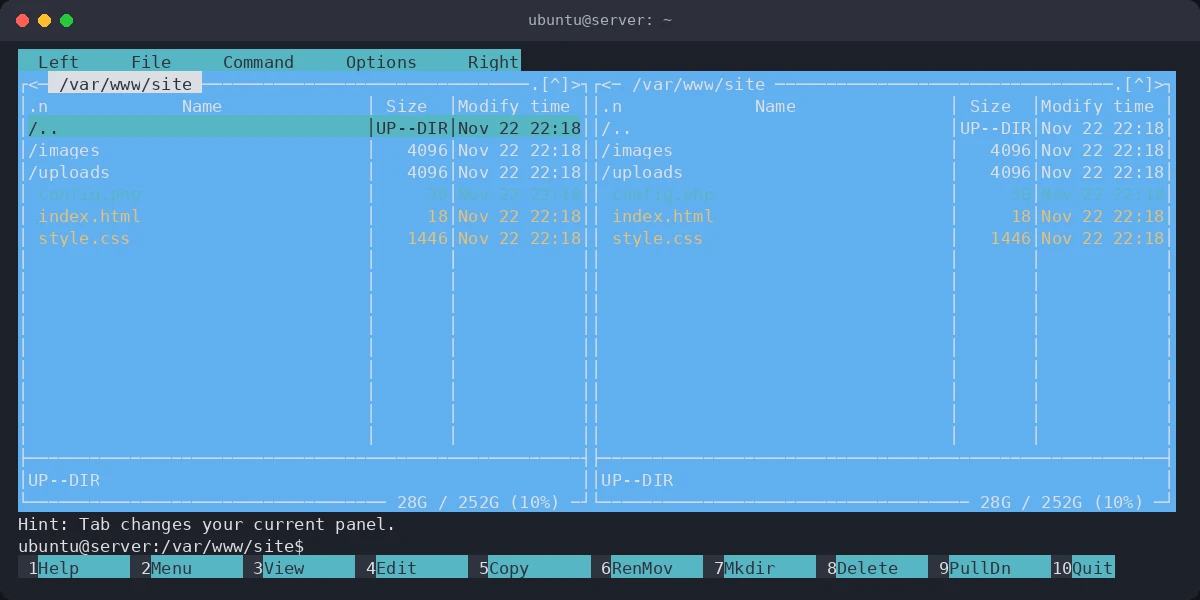
Midnight Commander (mc) is a two-pane file manager that runs inside a terminal, so it works over SSH on any server. It can browse archives, connect to other servers over SFTP, edit files with its built-in editor (F4) and copy or move with F5/F6.
sudo apt install mc
mc
Other terminal favourites include ranger, nnn and yazi, which use keyboard navigation and file previews.
Quick comparison
| File manager | Desktop | Weight | Two panes | Best for |
|---|---|---|---|---|
| Nemo | Cinnamon | Medium | Split view | Classic full-featured use |
| Dolphin | KDE | Medium-heavy | Split view | Power features in one window |
| PCManFM | LXDE/LXQt | Very light | Dual-pane mode | Old PCs, small VPS |
| Thunar | XFCE | Light | Split view | XFCE and xrdp desktops |
| Krusader | KDE | Medium | Yes | Comparing and syncing folders |
| Double Commander | Any | Light | Yes | Total Commander users |
| Xfe | Any | Very light | Yes | Minimal setups |
| Midnight Commander | Terminal | Tiny | Yes | Servers over SSH |
Set a new default file manager
xdg-mime default nemo.desktop inode/directoryReplace nemo.desktop with thunar.desktop, org.kde.dolphin.desktop or another manager's desktop file. Desktop environments may also have their own setting under Default Applications.
Frequently asked questions
What is the best file manager for Linux?
Dolphin is the most feature-rich, Nemo and Thunar are the best balance of features and simplicity, and PCManFM is the lightest graphical option.
What is the lightest Linux file manager?
PCManFM and Xfe among graphical managers; Midnight Commander or nnn in the terminal.
Can I install a different file manager than my desktop's default?
Yes. Install it from your package manager and set it as the default with xdg-mime or your desktop's settings.
Is there a Linux file manager like Total Commander?
Yes: Double Commander and Krusader both use the two-pane layout and keyboard workflow of Total Commander.