The error Read-only file system (for example cannot remove 'file': Read-only file system) means the filesystem you're writing to is mounted read-only. Sometimes that is by design. More often, Linux switched the disk to read-only on purpose after it detected filesystem errors, to protect your data. Forcing it back to read-write without checking can make the damage worse, so work through the steps below in order. They apply to Ubuntu, Debian, Linux Mint, RHEL-based distributions and VPS servers.
Quick answer
findmnt -no TARGET,OPTIONS -T /path/that/fails  # is it mounted "ro"?
sudo dmesg | grep -iE 'remount|EXT4-fs error|XFS|I/O error'
sudo mount -o remount,rw /path/mountpoint       # only if no disk errors are logged
# if errors are logged: back up, then fsck the unmounted filesystem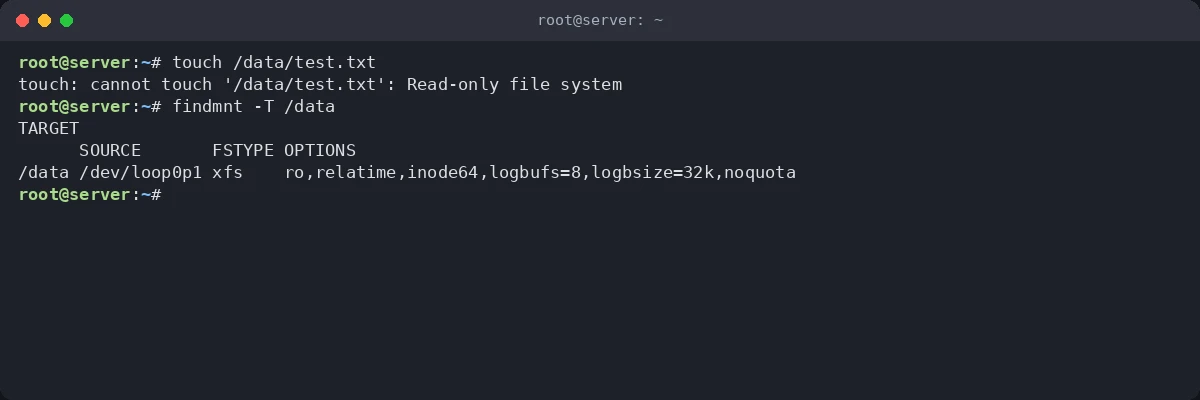
Step 1: Confirm the filesystem is read-only
findmnt -no SOURCE,TARGET,FSTYPE,OPTIONS -T /path/that/failsAn option list starting with ro confirms it. Note the device (for example /dev/sda1) and the filesystem type (ext4, xfs, ntfs and so on).
Step 2: Check whether it is read-only by design
Some locations are always read-only, and the error is expected there:
- Snap packages under
/snap/are read-only squashfs images. Change settings in~/snap/or through the app instead. - Parts of
/procand/sys, ISO images and CD/DVD media. - Docker containers started with
--read-only, and immutable systems such as Fedora Silverblue, where/usris read-only. - SD cards and USB sticks with a physical write-protect switch.
Step 3: Find out why it went read-only
sudo dmesg -T | grep -iE 'remount|read-only|EXT4-fs error|XFS|I/O error|blk_update_request'
sudo journalctl -k -b | grep -iE 'error|read-only' | tail -30
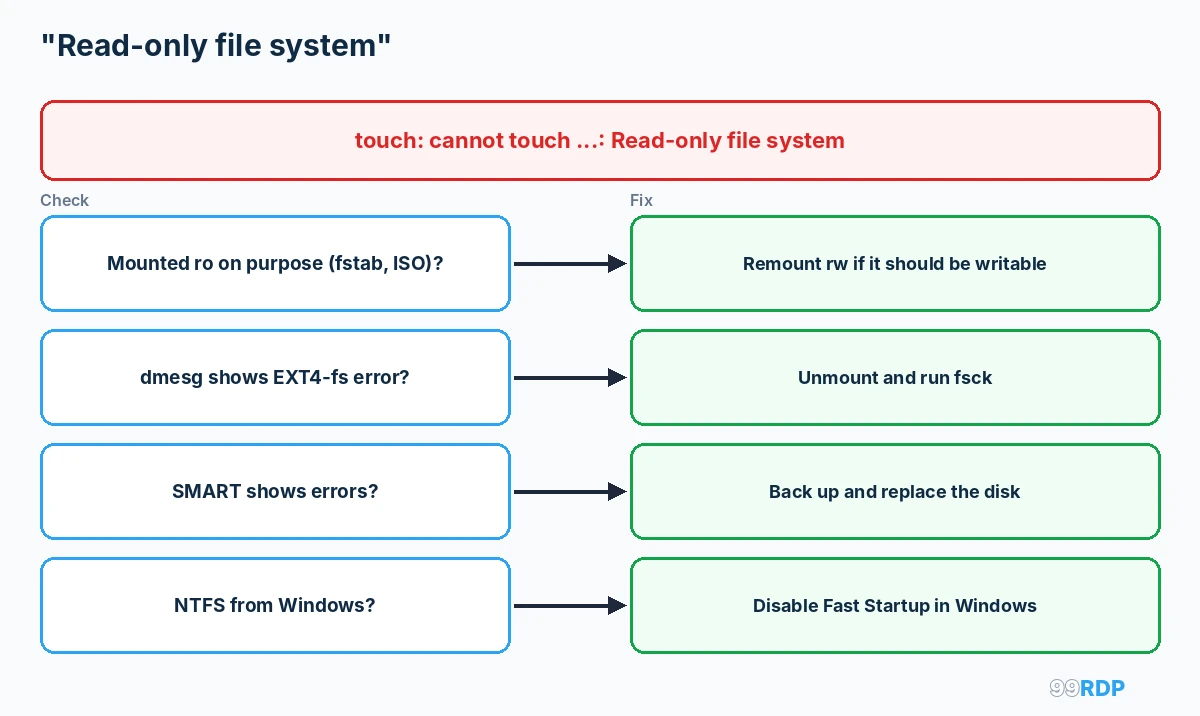
EXT4-fs error ... Remounting filesystem read-only: the kernel found filesystem corruption. Ext4 mounts witherrors=remount-roon most distributions, which is why the disk flipped to read-only. Go to Step 5.I/O errororblk_update_request: the disk or its connection is failing. Back up immediately and go to Step 6.- No errors logged: the filesystem was probably mounted read-only on purpose, for example by an
roentry in/etc/fstab. Go to Step 4.
Step 4: Remount as read-write
If no errors were logged, remount it:
sudo mount -o remount,rw /           # root filesystem
sudo mount -o remount,rw /mnt/data   # any other mount point
If it mounts read-only again after a reboot, check its line in /etc/fstab and change ro to defaults (or rw). If the remount fails with cannot remount ... read-write, is write-protected, the device itself is write-protected or failing.
Step 5: Repair the filesystem with fsck
Back up important data first, while the disk is still readable. Never run fsck on a mounted filesystem.
A data disk (not root)
sudo umount /dev/sdb1
sudo fsck -f /dev/sdb1          # ext2/3/4
sudo xfs_repair /dev/sdb1       # XFS (use instead of fsck)
sudo mount /dev/sdb1 /mnt/data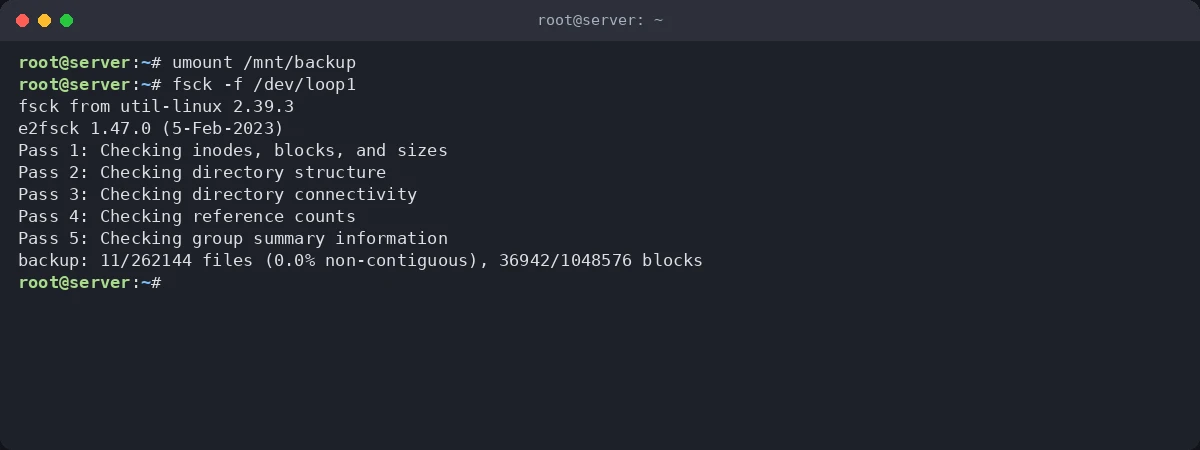
The root filesystem
The root filesystem can't be unmounted while the system is running. Choose one:
- Reboot, open the GRUB menu, press e on the boot entry, add
fsck.mode=force fsck.repair=yesto the line that starts withlinux, and press Ctrl+X. The check runs before root is mounted. - Boot from a live USB, or the rescue system on a VPS, and run
fsck -f /dev/sdXNon the root partition.
Step 6: Check disk health
sudo apt install smartmontools        # or: sudo dnf install smartmontools
sudo smartctl -H /dev/sda
sudo smartctl -A /dev/sda | grep -iE 'Reallocated|Pending|Uncorrectable|Wear'
sudo smartctl -a /dev/nvme0n1         # NVMe drives
A failed health check, or growing reallocated or pending sector counts, means the drive needs replacing. Fixing the filesystem will only hold until the next error.
Step 7: NTFS drives (dual boot and external disks)
Linux mounts an NTFS partition read-only when Windows left it in an unclean state, usually because of Fast Startup or hibernation. Fix it from Windows: turn off Control Panel → Power Options → Choose what the power buttons do → Turn on fast startup, then shut down completely. If Windows isn't available, run sudo ntfsfix -d /dev/sdb1 with the partition unmounted.
Read-only file system on a VPS or cloud server
On a virtual server, the most common cause is a storage problem on the host or a hard power-off. Check dmesg as above, reboot into the provider's rescue mode to run fsck, and contact your provider's support if I/O errors keep appearing.
Preventing the error
- Shut down properly. Don't cut the power.
- Monitor disk health with
smartdand free space with your monitoring tool. - Keep regular, tested backups, so a failing disk is an inconvenience rather than data loss.
Frequently asked questions
How do I fix "Read-only file system" in Linux?
Check dmesg for why the disk went read-only. If there are no errors, run sudo mount -o remount,rw /mountpoint. If there are filesystem errors, back up and run fsck on the unmounted partition. If there are I/O errors, replace the disk.
Why does Linux suddenly make my disk read-only?
Ext4 is mounted with errors=remount-ro by default on most distributions. When the kernel finds corruption or I/O errors, it switches the filesystem to read-only to prevent further damage.
How do I fix "cannot remove: Read-only file system"?
First check whether the path is read-only by design, such as /snap, an ISO image or a write-protected USB stick. Otherwise follow the steps above to remount or repair the filesystem.
Is it safe to just remount as read-write?
Only when no filesystem or disk errors are logged. If the kernel made the filesystem read-only because of errors, writing to it without running fsck first can corrupt more data.
How do I fix a read-only file system in Linux Mint?
The steps are the same as for Ubuntu: check dmesg, remount if it's clean, and run fsck from the GRUB menu or a live USB if errors are logged.