
The error bash: sudo: command not found means the sudo program isn't installed, or your shell can't find it. It's especially common on Debian: if you set a root password during installation, Debian doesn't install sudo at all. It also shows up in Docker containers and minimal cloud images. This guide fixes it on Debian, Ubuntu, RHEL-based systems, Arch and Alpine, and covers the Windows "sudo is not recognized" message too.
Quick answer
su -                       # become root (use the root password)
apt update && apt install sudo
usermod -aG sudo yourusername
exit                       # then log out and back in
sudo whoami                # should print: root
Step 1: Check whether sudo is installed
ls -l /usr/bin/sudo
command -v sudo- No such file: sudo isn't installed. Go to Step 2.
- The file exists but the command isn't found: your PATH is broken. Go to Step 4.
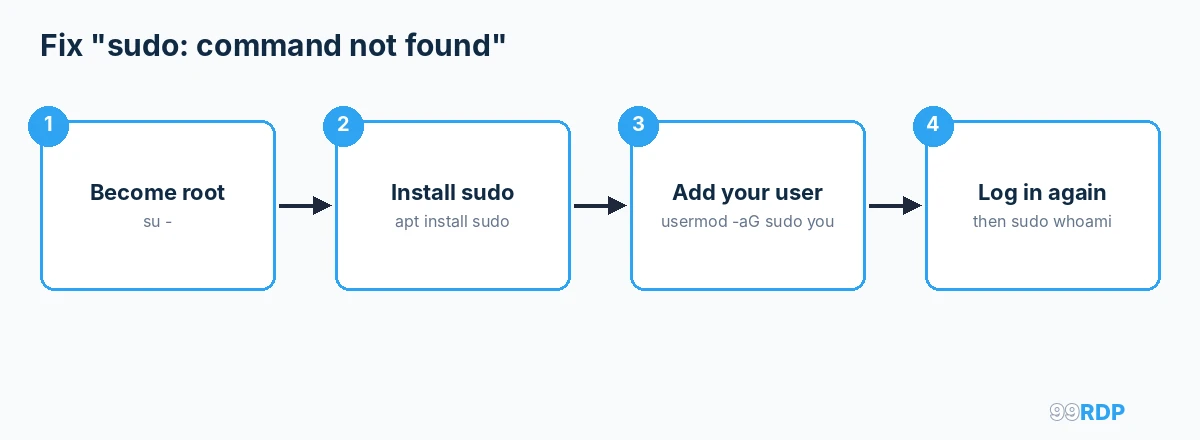
Step 2: Install sudo as root
You need root access to install sudo. Log in as root at the console, or switch with su - (the dash gives you root's full PATH). Then install it for your distribution:
| Distribution | Command (as root) |
|---|---|
| Debian, Ubuntu | apt update && apt install sudo |
| RHEL, Rocky, AlmaLinux, Fedora | dnf install sudo |
| CentOS 7 | yum install sudo |
| Arch Linux | pacman -S sudo |
| Alpine | apk add sudo (or use the lighter doas) |
If you don't know the root password and can't use sudo, reset it from the bootloader or your provider's rescue system.
Step 3: Give your user sudo rights
Installing sudo isn't enough: your user must be allowed to use it.
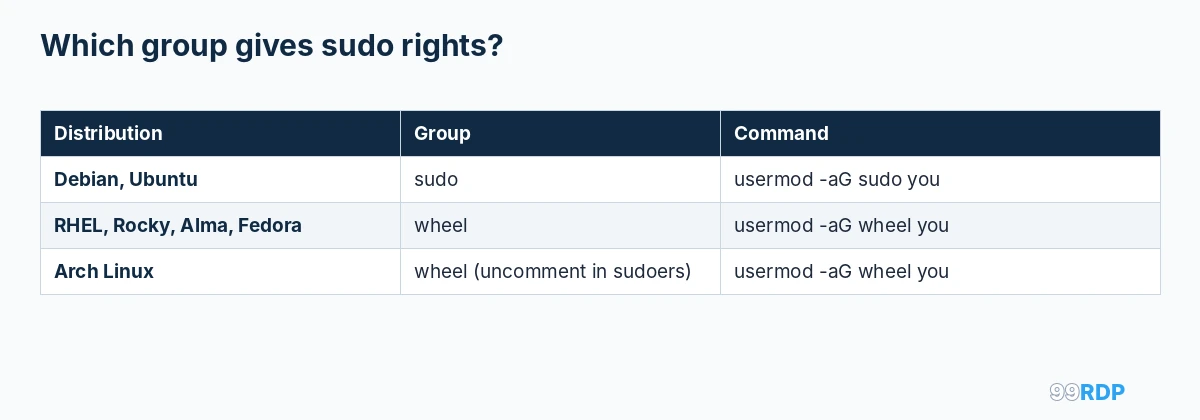
# Debian / Ubuntu: the "sudo" group
usermod -aG sudo yourusername
# RHEL family, Fedora, Arch: the "wheel" group
usermod -aG wheel yourusername
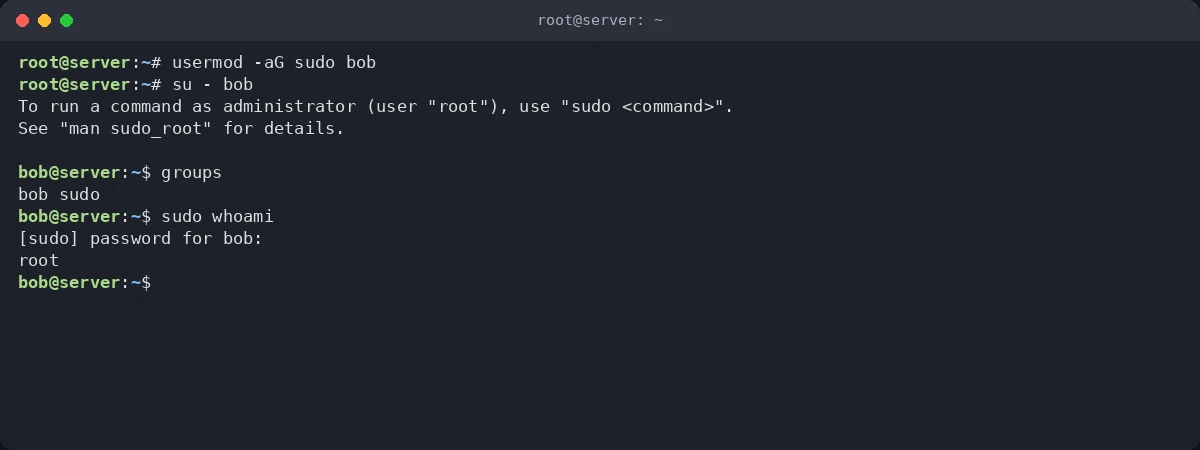
On Arch, also uncomment the %wheel ALL=(ALL:ALL) ALL line with EDITOR=nano visudo. Then log out and back in (or start a new SSH session) so the new group membership applies, and test with sudo whoami.
If sudo now says yourusername is not in the sudoers file, the group step didn't apply. Check with groups.
Step 4: Fix a broken PATH
If /usr/bin/sudo exists but isn't found, your PATH is wrong, often because of a bad line in ~/.bashrc or ~/.profile:
echo $PATH
/usr/bin/sudo whoami                       # works with the full path?
export PATH=/usr/local/sbin:/usr/local/bin:/usr/sbin:/usr/bin:/sbin:/bin
Then find and fix the line that overwrites PATH (look for PATH= without $PATH) in your shell startup files.
sudo not found in a Docker container
Most container images don't include sudo because commands already run as root. Simply drop sudo from the command. If a script insists on it, install it in the Dockerfile (RUN apt-get update && apt-get install -y sudo) or run the container as root.
"sudo is not recognized" on Windows
That message comes from Windows, not Linux. Windows 11 version 24H2 and later include their own Sudo for Windows, turned off by default: enable it in Settings → System → For developers → Enable sudo. On older Windows versions, open the terminal with Run as administrator instead. If you meant to run a Linux command, run it inside WSL.
Frequently asked questions
Why is sudo not installed on Debian?
If you set a root password during installation, Debian expects you to use su and doesn't install sudo. Leave the root password empty during installation and Debian installs sudo and adds your user automatically.
How do I install sudo without sudo?
Become root with su - or log in as root at the console, then install sudo with your package manager.
What's the difference between su and su -?
su - starts a full root login with root's environment and PATH. Plain su keeps your user's PATH, so commands in /usr/sbin may not be found.
Is it safe to add a user to the sudo group?
It gives that user full administrator rights, so only do it for trusted accounts, and protect them with strong passwords or SSH keys.