An ISO file is a complete image of a CD, DVD or installer disc. On Linux you don't need to burn it or install extra software to read it: you can mount it like a drive and browse the files in a second. This guide shows how to mount an ISO from the command line on Debian, Ubuntu, AlmaLinux and other distributions, how to do it without root, how to mount it automatically at boot, how to unmount it (and fix "target is busy"), and how to extract files without mounting at all.
Quick answer
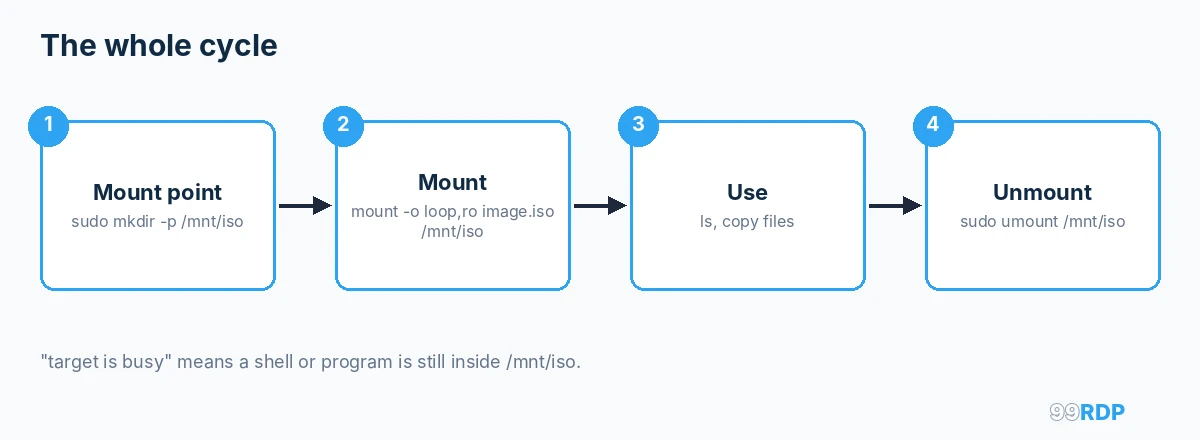
sudo mkdir -p /mnt/iso
sudo mount -o loop,ro image.iso /mnt/iso
ls /mnt/iso
sudo umount /mnt/iso
Step 1: Create a mount point
A mount point is just an empty folder where the ISO's contents will appear:
sudo mkdir -p /mnt/isoYou can use any empty directory, for example ~/iso in your home folder.
Step 2: Mount the ISO
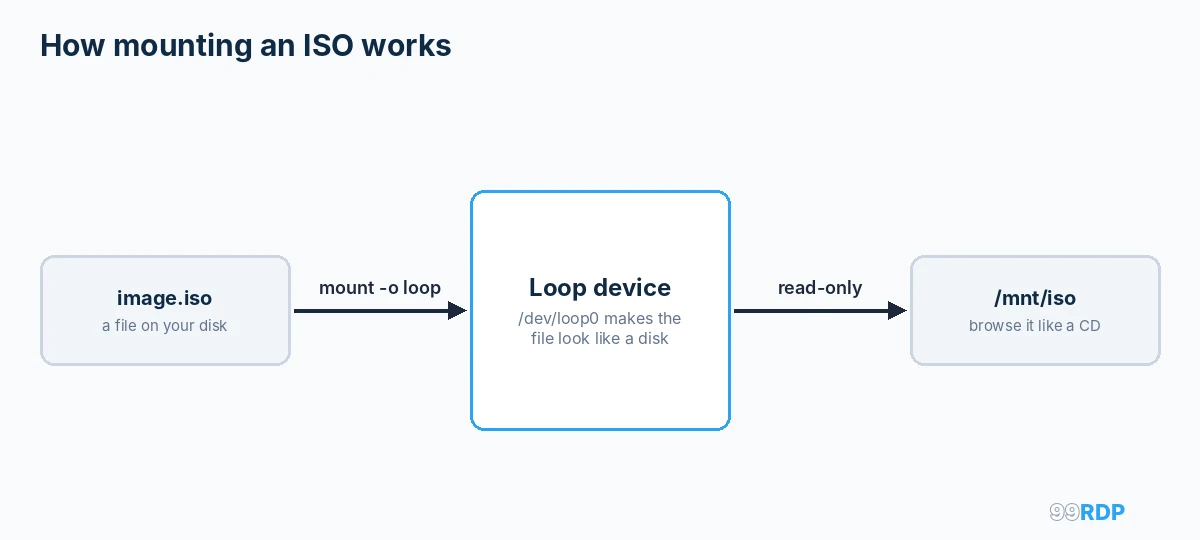
sudo mount -o loop,ro /path/to/image.iso /mnt/isolooptells Linux to treat the file as a block device (a "loop device").romounts it read-only. ISO 9660 images are always read-only, and saying so avoids the warningmount: /mnt/iso: WARNING: source write-protected, mounted read-only.
On current distributions, mount sets up the loop device automatically, so sudo mount image.iso /mnt/iso also works. If mount can't detect the format, name it: -t iso9660 for most images, or -t udf for some DVD and Windows installation ISOs.
Step 3: Check the contents
ls -l /mnt/iso
df -h /mnt/iso
lsblk | grep loop
lsblk shows which loop device (for example /dev/loop0) is in use. You can now copy files out with cp or rsync, or install packages from the image.
Step 4: Unmount the ISO
sudo umount /mnt/isoNote the spelling: umount, without the first "n". The loop device is released automatically.
Fix "target is busy"
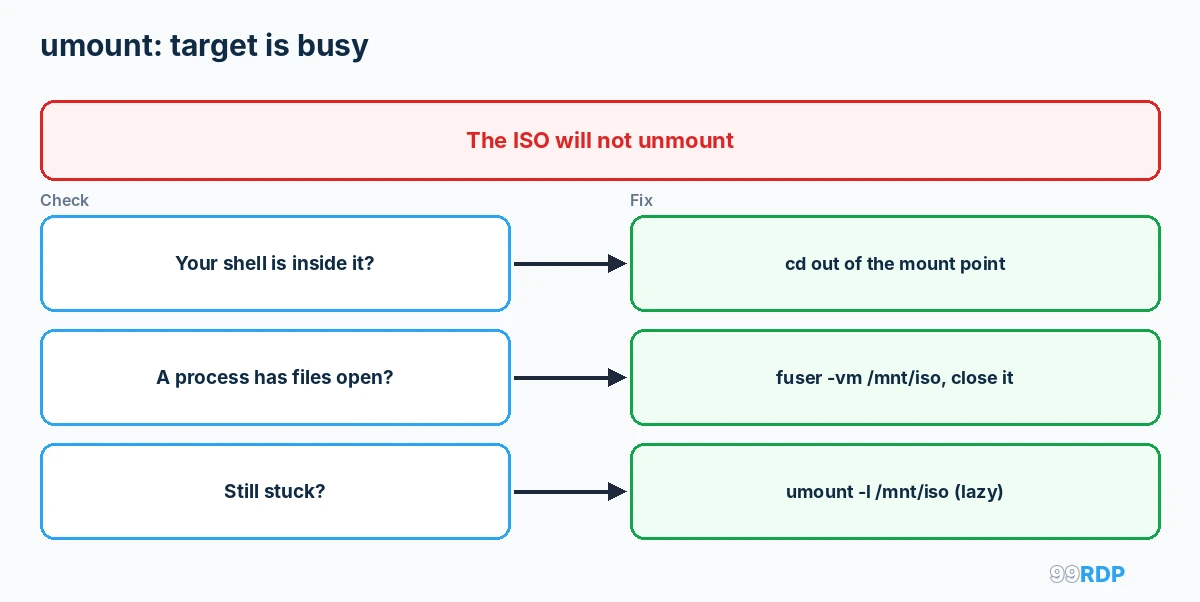
This means a program (often your own shell) is still using the folder. Leave the directory with cd ~, close any file manager window that shows it, then find the remaining process:
sudo fuser -vm /mnt/iso # or: sudo lsof +f -- /mnt/isoClose that program and try again. As a last resort, sudo umount -l /mnt/iso does a lazy unmount: it detaches now and cleans up once the folder is no longer in use.
Mount an ISO without root (desktop or udisks)
On a desktop, right-click the ISO and choose Open With → Disk Image Mounter (GNOME) or simply double-click it in KDE's Dolphin. From a terminal, udisksctl does the same without sudo:
udisksctl loop-setup -r -f image.iso     # prints e.g. Mapped file image.iso as /dev/loop0
udisksctl mount -b /dev/loop0            # mounts under /media/$USER/...
udisksctl unmount -b /dev/loop0
udisksctl loop-delete -b /dev/loop0
On desktop systems, loop-setup often mounts the image automatically.
Mount an ISO automatically at boot
To keep an ISO mounted permanently (for example a local package repository), add a line to /etc/fstab:
/srv/iso/debian-13-dvd.iso /mnt/debian-dvd iso9660 loop,ro,nofail 0 0Create the mount point, then test the entry without rebooting:
sudo mkdir -p /mnt/debian-dvd
sudo mount -a
findmnt /mnt/debian-dvd
nofail stops the server from hanging at boot if the ISO file is missing.
Extract files without mounting
If you only need a few files, or you're inside a container where loop devices aren't allowed, extract the ISO instead:
sudo apt install p7zip-full        # Debian/Ubuntu (7zip on newer releases)
7z x image.iso -o./iso-files

# or with bsdtar (package libarchive-tools)
mkdir iso-files && bsdtar -xf image.iso -C iso-files
Useful extras
- Verify a download first: run
sha256sum image.isoand compare it with the checksum published by the distribution. - Make a bootable USB:
sudo dd if=image.iso of=/dev/sdX bs=4M status=progress conv=fsync. Double-check/dev/sdXwithlsblk; dd overwrites the target drive completely. - Use it in a virtual machine: attach the ISO as a virtual CD/DVD drive in KVM/virt-manager, VirtualBox or Proxmox instead of mounting it on the host.
- Several ISOs at once: give each one its own mount point; the kernel creates more loop devices as needed.
Frequently asked questions
How do I mount an ISO in Linux?
Create a folder and run sudo mount -o loop,ro image.iso /mnt/iso. The ISO's files appear in /mnt/iso.
How do I unmount an ISO in Linux?
Run sudo umount /mnt/iso. If it says "target is busy", leave the folder and close programs using it, then try again.
How do I mount an ISO on Debian?
The same way: sudo mount -o loop,ro image.iso /mnt/iso. On a Debian desktop you can also right-click the file and use Disk Image Mounter.
Can I write to a mounted ISO?
No. ISO images are read-only. Copy the files out, change them, and build a new ISO with a tool such as xorriso if you need a modified image.