CentOS servers usually run without a graphical interface, but you can add the GNOME desktop with a single package group. First, a note on versions: CentOS Linux 7 reached end of life on 30 June 2024 and no longer gets updates. Today "CentOS" means CentOS Stream, and most servers that used CentOS have moved to Rocky Linux or AlmaLinux, which install a GUI the same way. This guide covers all of them, plus how to reach the desktop remotely on a VPS.
Quick answer(CentOS Stream, Rocky Linux, AlmaLinux 8/9):
sudo dnf groupinstall -y "Server with GUI"
sudo systemctl set-default graphical.target
sudo reboot
Before you start
- A user with
sudorights. - At least 2 GB of RAM (4 GB is more comfortable) and about 4–5 GB of free disk space for the desktop packages.
- On a VPS without a monitor, plan how you'll see the desktop: through the provider's VNC console or with xrdp (below).
Step 1: Update the system
sudo dnf update -yStep 2: Install the GNOME desktop
See the available environment groups:
dnf group listThen install one of them:
sudo dnf groupinstall -y "Server with GUI"      # GNOME plus server management tools
# or a plainer desktop:
sudo dnf groupinstall -y "Workstation"
For a lighter desktop that suits a small VPS, install Xfce from EPEL instead:
sudo dnf install -y epel-release
sudo dnf groupinstall -y "Xfce"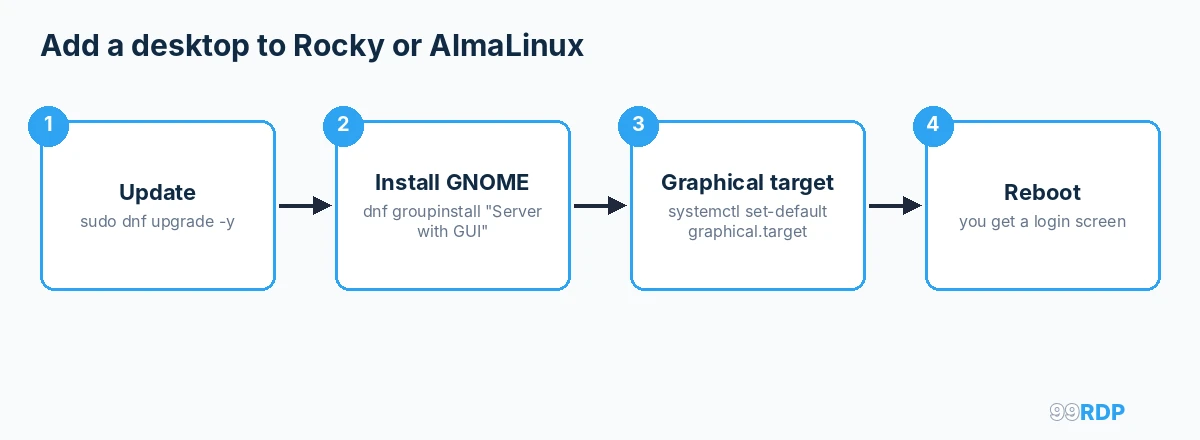
Step 3: Boot into the graphical target
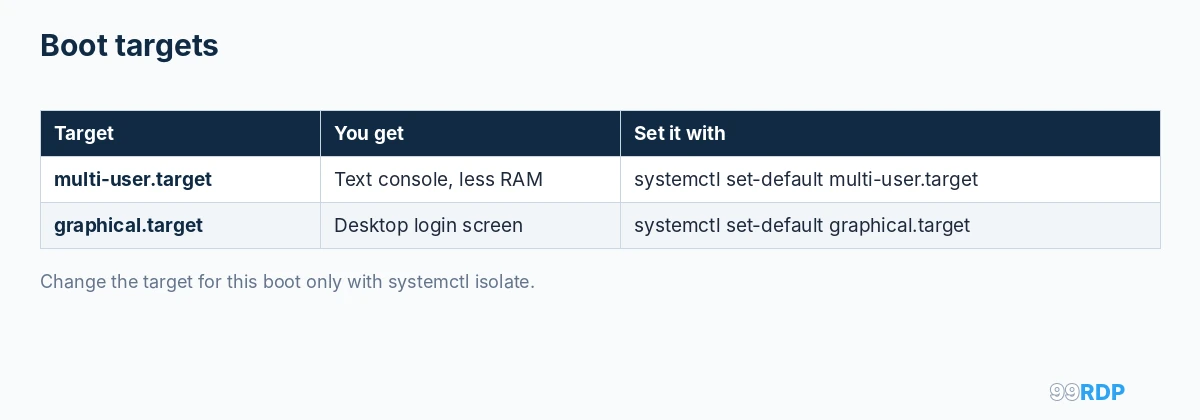
sudo systemctl set-default graphical.target
sudo reboot
After the reboot, the GNOME login screen appears on the console. To start it once without changing the default, run sudo systemctl isolate graphical.target.
CentOS 7 (legacy)
CentOS 7 uses yum, and its repositories have moved to the vault archive since the end of life, so installing packages may fail until you point the repositories at vault.centos.org. If you can, migrate to Rocky Linux or AlmaLinux instead. On a working CentOS 7 system the commands were:
sudo yum groupinstall -y "GNOME Desktop" "Graphical Administration Tools"
sudo systemctl set-default graphical.target
sudo reboot
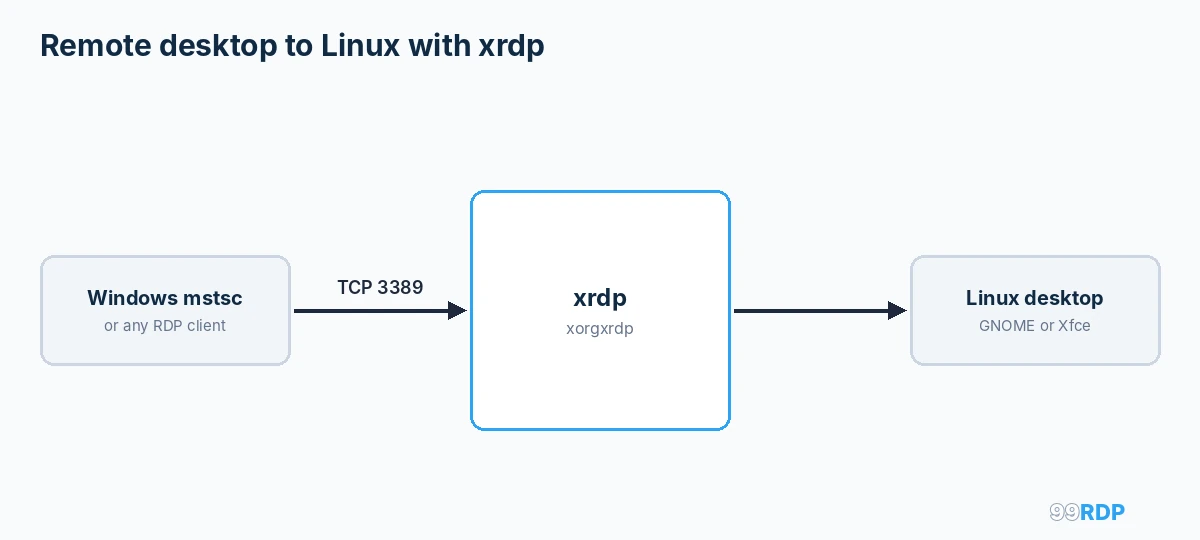
Use the desktop remotely with xrdp
To connect to the desktop from Windows Remote Desktop (or any RDP client):
sudo dnf install -y epel-release
sudo dnf install -y xrdp
sudo systemctl enable --now xrdp
sudo firewall-cmd --permanent --add-port=3389/tcp
sudo firewall-cmd --reload
Connect to the server's IP with mstsc and log in with your Linux username and password. Log out of the console session first: the same user can't be logged in on the console and over xrdp at the same time. Limit port 3389 to your own IP in the firewall.
Switch back to text mode
sudo systemctl set-default multi-user.target
sudo reboot
This keeps the desktop installed but stops it starting, freeing memory for your services.
Frequently asked questions
Does CentOS have a GUI?
Yes. It isn't installed on minimal server installs, but you can add GNOME with dnf groupinstall "Server with GUI", or choose "Server with GUI" during installation.
How do I start the GUI in CentOS from the command line?
Run sudo systemctl isolate graphical.target, or set it as the default with sudo systemctl set-default graphical.target and reboot.
Is CentOS 7 still supported?
No. CentOS Linux 7 reached end of life on 30 June 2024. Migrate to Rocky Linux, AlmaLinux or CentOS Stream for updates.
Should I install a GUI on a production server?
Usually not: it uses memory and adds packages to patch. Use it for test machines or desktop-style VPS, and manage production servers over SSH or a web console.