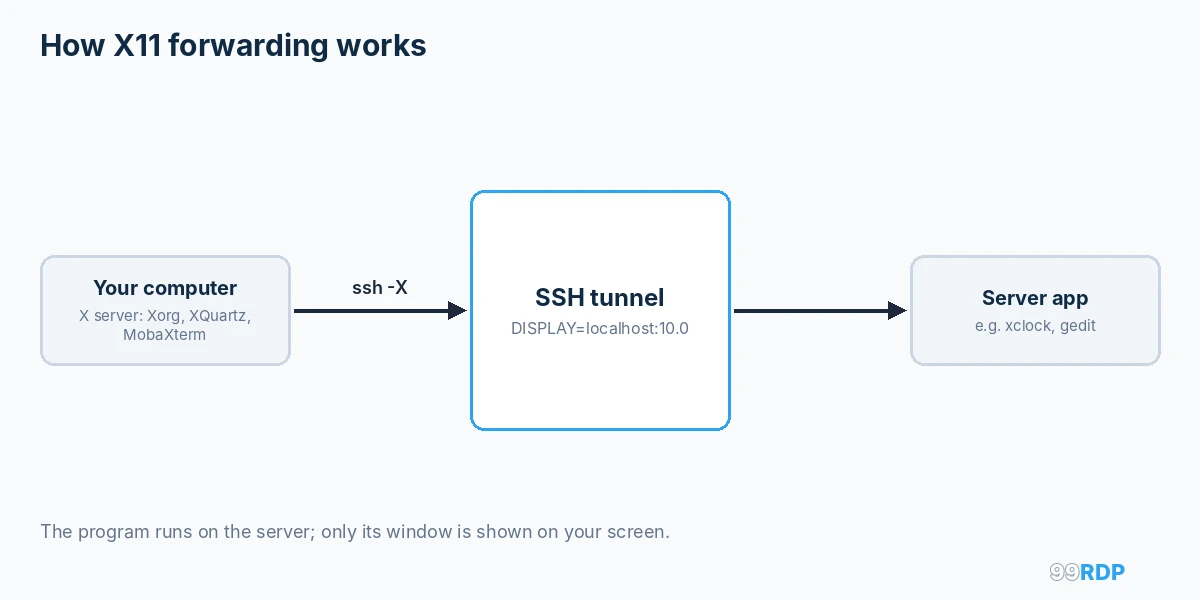
X11 forwarding lets you run a graphical program on a remote Linux server and see its window on your own computer, tunnelled securely through SSH. You don't need a full desktop or VNC on the server, just a couple of small packages and one SSH setting. This guide covers the server setup on CentOS 7 and on its successors (AlmaLinux, Rocky Linux and RHEL 8, 9 and 10), and the client side on Linux, macOS and Windows.
Quick answerOn the server, install xorg-x11-xauth, make sure /etc/ssh/sshd_config has X11Forwarding yes, restart sshd, then connect with ssh -X user@server and run a GUI program.
A note on CentOS 7
CentOS 7 reached end of life on 30 June 2024. It gets no more security updates, and its default yum mirrors are offline, so package installs fail unless you point the repos at vault.centos.org. The steps below still work on CentOS 7, but for any server that faces the internet, move to AlmaLinux or Rocky Linux. The configuration is the same there; only yum becomes dnf.
Step 1: Install xauth on the server
SSH needs the xauth program on the server to set up the forwarded display. Without it you'll see "X11 forwarding request failed".
# CentOS 7
sudo yum install -y xorg-x11-xauth

# AlmaLinux / Rocky Linux / RHEL 8, 9, 10
sudo dnf install -y xorg-x11-xauth
For a quick test, also install a small X program. On CentOS 7, sudo yum install -y xorg-x11-apps gives you xclock and xeyes. On newer releases, any GUI program you actually need (for example gedit or firefox) works as a test.
You do not need to install a desktop environment or an X server on the server. The X server runs on your own computer.
Step 2: Enable X11 forwarding in sshd
Open the SSH server config:
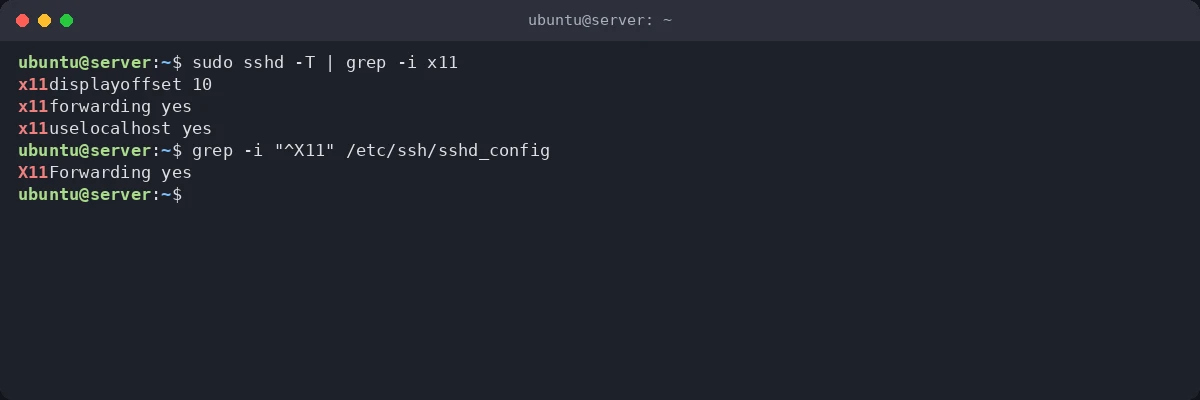
sudo vi /etc/ssh/sshd_configMake sure these lines are present and not commented out:
X11Forwarding yes
X11DisplayOffset 10
X11UseLocalhost yes
On CentOS, X11Forwarding yes is usually on already. Check the result and restart SSH:
sudo sshd -t && sudo systemctl restart sshd
sudo sshd -T | grep -i x11
sshd -t checks the file for errors before the restart, so a typo can't lock you out.
Step 3: Connect from your computer
From Linux
Your desktop already runs an X server (or XWayland), so just connect with -X:
ssh -X user@server-ipUse -Y (trusted forwarding) only if a program fails with -X; it gives the remote program more access to your display.
From macOS
Install XQuartz from xquartz.org, log out and back in once, then use ssh -X user@server-ip from Terminal.
From Windows
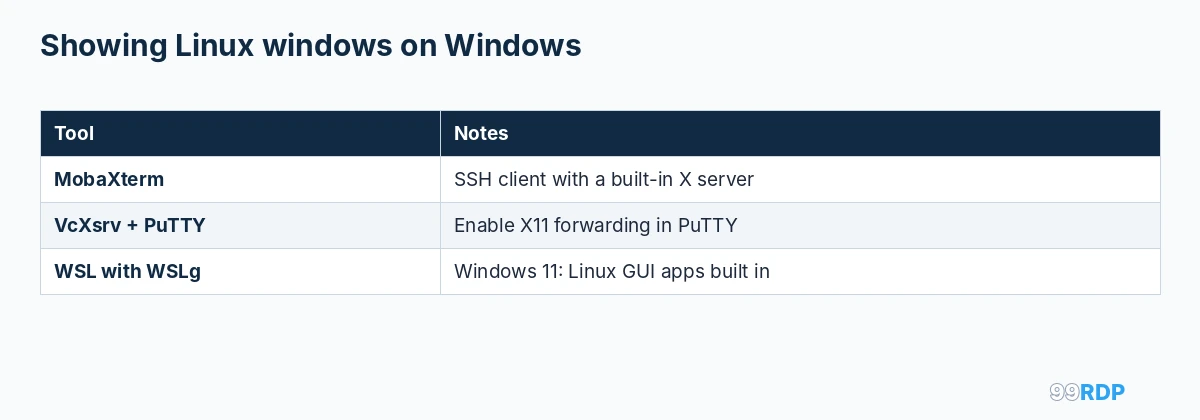
- MobaXterm: the easiest option. It includes an X server, and X11 forwarding is on by default for SSH sessions.
- PuTTY + VcXsrv: start VcXsrv (XLaunch), then in PuTTY go to Connection → SSH → X11, tick Enable X11 forwarding and set the display to
localhost:0. - Windows 11 with WSL: WSLg includes an X server, so
ssh -Xfrom a WSL terminal works without extra software.
Step 4: Verify that it works
After logging in, check the display variable:
echo $DISPLAYIt should print something like localhost:10.0. If it's empty, forwarding isn't active. Now start a program:
xclock &A clock window should open on your own screen. The program runs on the server; only its window is drawn locally.
Troubleshooting
- "X11 forwarding request failed on channel 0":
xauthis missing, or IPv6 is disabled on the server. Installxorg-x11-xauth; if IPv6 is off, addAddressFamily inettosshd_configand restart sshd. - "Can't open display" or empty
$DISPLAY: you connected without-X, or your local X server (XQuartz, VcXsrv) isn't running. - Works as your user but not after
sudo: root doesn't have your X cookie. Runsudo -Eor copy it withxauth listandsudo xauth add …. - Very slow windows: X11 over the internet is chatty. Add compression with
ssh -XC, or use a full remote desktop (xrdp or VNC) for heavy GUI apps.
Frequently asked questions
What is X11 forwarding?
It's an SSH feature that sends a remote program's graphical window to the X server on your local computer, encrypted inside the SSH connection.
Do I need a desktop environment on the server for X11 forwarding?
No. You only need xauth and the program you want to run. The X server runs on your own machine.
What's the difference between ssh -X and ssh -Y?
-X uses untrusted forwarding with X security restrictions; -Y is trusted and less restricted. Use -X unless a program doesn't work with it.
Is X11 forwarding still useful on Wayland desktops?
Yes. Wayland desktops run XWayland, which accepts forwarded X11 windows, so ssh -X keeps working.