When you add a new disk to a Linux server, you need to partition it, create a filesystem and mount it before you can use it. This guide does all three with fdisk and parted, and makes the mount permanent with /etc/fstab. The steps were written for CentOS 7 and work the same on CentOS Stream, Rocky Linux, AlmaLinux and most other distributions.
Quick answer(new, empty disk /dev/sdb):
sudo parted /dev/sdb --script mklabel gpt mkpart primary xfs 0% 100%
sudo mkfs.xfs /dev/sdb1
sudo mkdir -p /data
sudo mount /dev/sdb1 /data
echo "UUID=$(sudo blkid -s UUID -o value /dev/sdb1) /data xfs defaults 0 0" | sudo tee -a /etc/fstab
Step 1: Find the disk
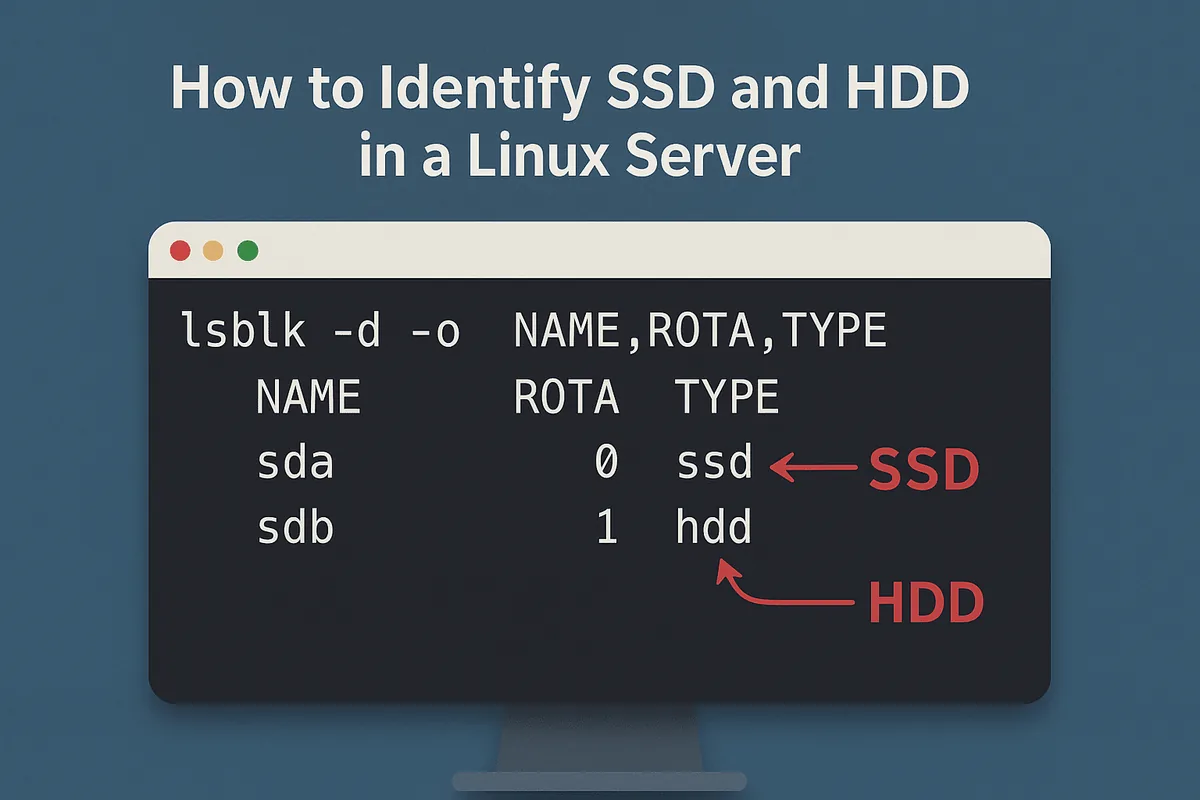
lsblk
sudo fdisk -l
A new disk shows up without partitions, for example sdb or vdb with nothing under it. Double-check the device name: partitioning the wrong disk destroys its data.
Step 2: Create the partition
Option A: fdisk (interactive)
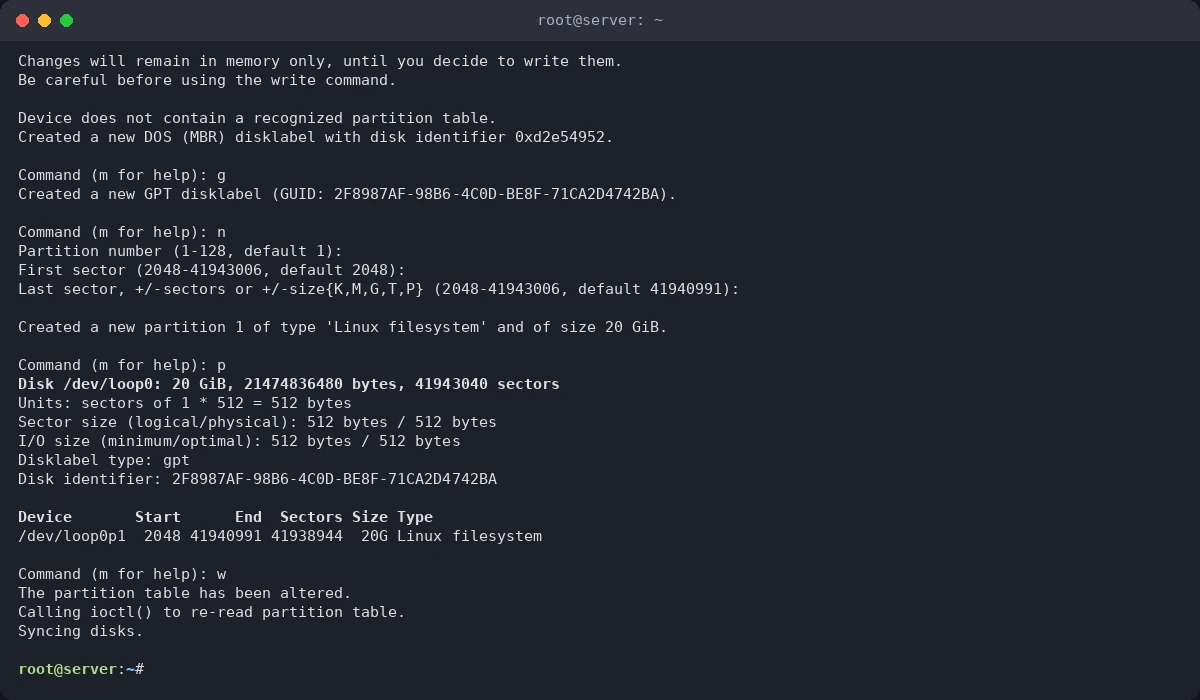
sudo fdisk /dev/sdbInside fdisk:
- g creates a new GPT partition table (use o for MBR/DOS on old systems; MBR is limited to 2 TB disks).
- n creates a new partition. Press Enter to accept the default number, first sector and last sector (whole disk), or type a size such as
+50G. - p prints the table to check it.
- w writes the changes and exits. Nothing changes on disk until you press w.
Option B: parted (scriptable, best for disks over 2 TB)
sudo parted /dev/sdb --script mklabel gpt
sudo parted /dev/sdb --script mkpart primary xfs 0% 100%
sudo parted /dev/sdb print
Using 0% and 100% lets parted align the partition correctly for performance.
Check the result:
lsblk /dev/sdbIf the new partition doesn't appear, run sudo partprobe /dev/sdb.
Step 3: Create a filesystem
XFS is the default on CentOS, Rocky and AlmaLinux; ext4 is a good alternative:
sudo mkfs.xfs /dev/sdb1
# or
sudo mkfs.ext4 /dev/sdb1
Step 4: Mount it
sudo mkdir -p /data
sudo mount /dev/sdb1 /data
df -h /data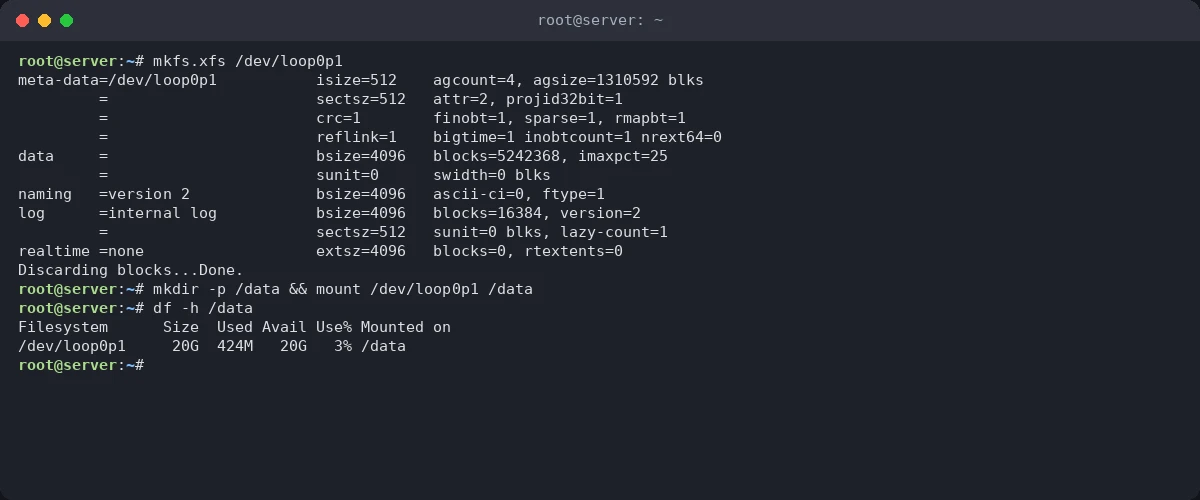
Step 5: Mount it automatically at boot
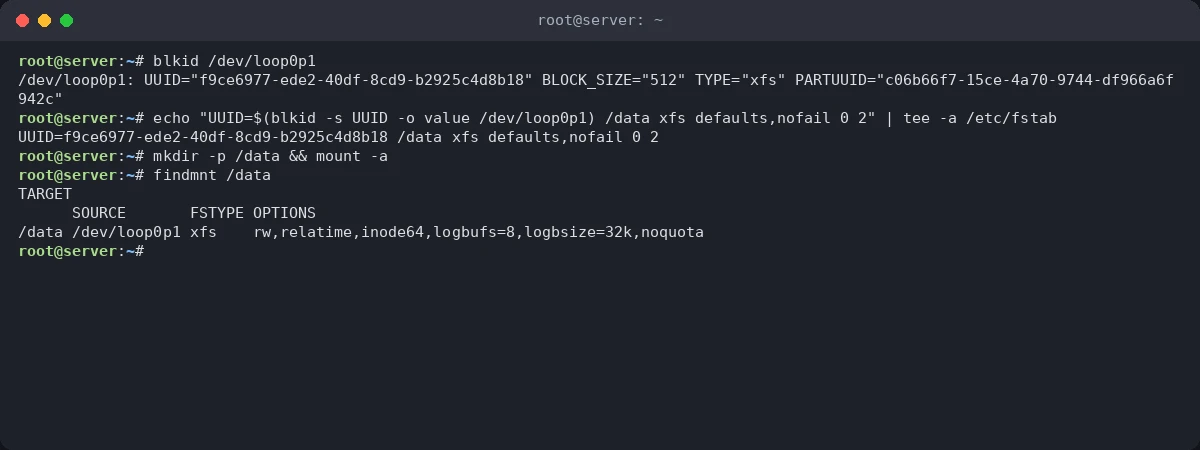
Use the partition's UUID, which doesn't change if disk names shift:
sudo blkid /dev/sdb1Add a line to /etc/fstab (replace the UUID and filesystem type with yours):
UUID=3f1c9e2a-7b4d-4c1e-9a77-2f5e8d0c1b23 /data xfs defaults 0 0Test the file before rebooting, so a mistake can't stop the server from booting:
sudo umount /data
sudo mount -a
df -h /data
If mount -a shows an error, fix the line in /etc/fstab first. On a VPS, add nofail to the options (defaults,nofail) so the server still boots if the disk is missing.
Partitioning tips
- For a data disk, one partition across the whole disk is usually best.
- Consider LVM (
pvcreate,vgcreate,lvcreate) if you may want to resize or combine disks later. - Back up before changing the partition table of any disk that already holds data.
Frequently asked questions
Should I use fdisk or parted?
Both handle GPT. fdisk is simple and interactive; parted is easier to script and handles very large disks well. Use whichever you prefer.
MBR or GPT?
Use GPT unless an old system needs MBR. MBR can't use disks larger than 2 TB and allows only four primary partitions.
Why doesn't my new partition show up?
The kernel hasn't re-read the partition table. Run sudo partprobe, or reboot.
How do I delete a partition?
Unmount it, remove its /etc/fstab line, then delete it with d in fdisk (or parted /dev/sdb rm 1) and write the change.