xrdp is an open-source RDP server for Linux. It lets you log in to a Linux desktop with the same Remote Desktop clients you use for Windows: mstsc, Windows App on macOS and mobile, or Remmina on Linux. It's the standard way to get a graphical desktop on a Linux VPS. This guide explains how xrdp works, how to install it on Ubuntu, Debian, Fedora and AlmaLinux, which desktop to use with it, how to secure it, and how to fix common problems.
Quick answer
sudo apt install xfce4 xfce4-goodies xrdp
sudo adduser xrdp ssl-cert
echo "startxfce4" > ~/.xsession
sudo systemctl enable --now xrdp
Connect with any RDP client to the server's IP on port 3389 and log in with your Linux username and password.
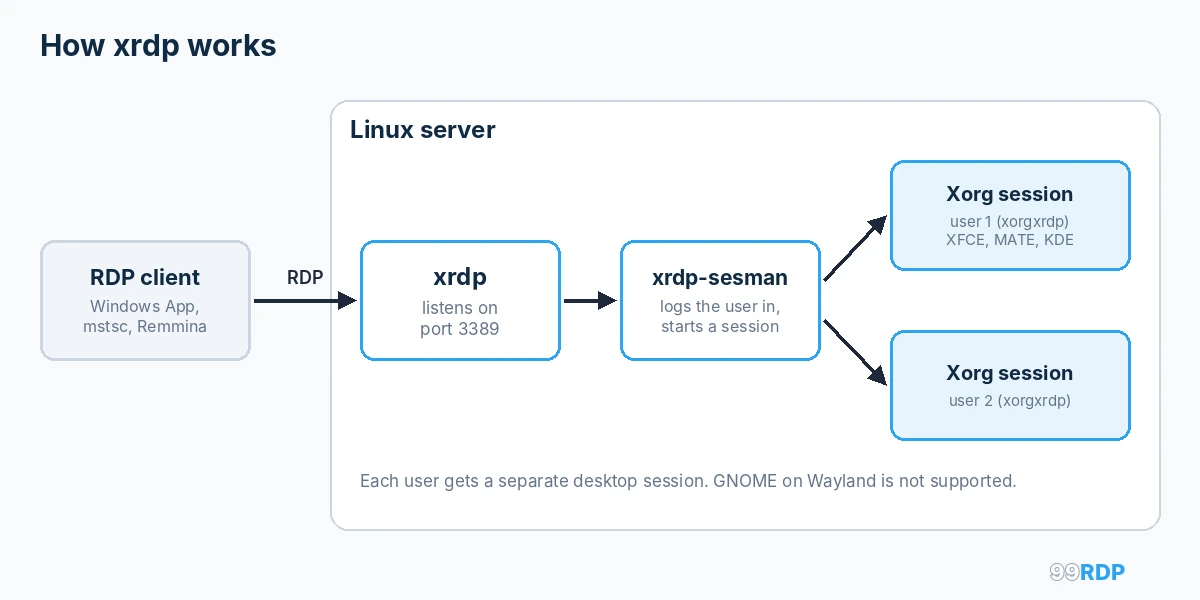
How xrdp works
xrdp accepts RDP connections on port 3389. After you log in, its session manager (xrdp-sesman) starts a separate X11 desktop session for your user, using the xorgxrdp backend (or Xvnc on some systems), and streams it to your client. Each user gets their own independent session, and if you disconnect without logging out, you can reconnect to the same session later.
The current release series is xrdp 0.10; the older 0.9 branch is end of life.
Important: xrdp needs an X11 desktop
xrdp's released versions only start X11 sessions. GNOME is now Wayland-only on Ubuntu 25.10 and later (including Ubuntu 26.04 LTS) and on recent Fedora Workstation, so a GNOME desktop won't start under xrdp there. Use a desktop that still has an X11 session:
- XFCE: light and the most reliable with xrdp (recommended for VPS).
- MATE or Cinnamon: traditional layouts, also work well.
- KDE Plasma on X11, where your distribution still ships the X11 session.
Wayland support for xrdp is being developed but isn't in a stable release yet. For remote access to a GNOME desktop on a physical machine, use GNOME's built-in Remote Desktop instead.
Install xrdp
Ubuntu and Debian
sudo apt update
sudo apt install -y xfce4 xfce4-goodies dbus-x11 xrdp
sudo adduser xrdp ssl-cert
sudo systemctl enable --now xrdp
Fedora
sudo dnf install -y xrdp xorgxrdp
sudo dnf group install -y xfce-desktop
sudo systemctl enable --now xrdp
sudo firewall-cmd --permanent --add-port=3389/tcp && sudo firewall-cmd --reload
AlmaLinux and Rocky Linux
sudo dnf install -y epel-release
sudo dnf groupinstall -y "Xfce"
sudo dnf install -y xrdp xorgxrdp
sudo systemctl enable --now xrdp
sudo firewall-cmd --permanent --add-port=3389/tcp && sudo firewall-cmd --reload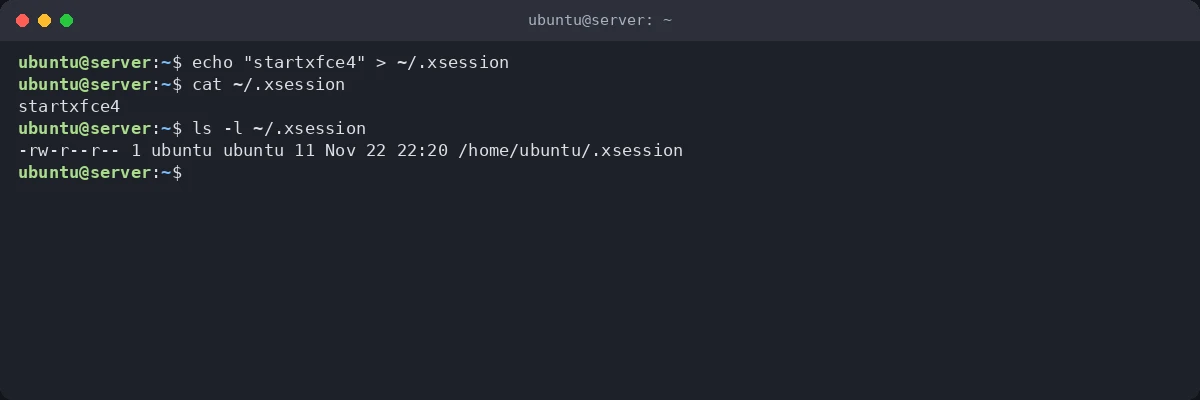
Choose the desktop for each user
xrdp runs /etc/xrdp/startwm.sh, which reads the user's ~/.xsession. Set it once per user:
echo "startxfce4" > ~/.xsession          # XFCE
echo "mate-session" > ~/.xsession        # MATE
echo "startplasma-x11" > ~/.xsession     # KDE on X11
Make sure the same user isn't also logged in to that desktop on the local screen; one user can't usually run two X sessions of the same desktop at once.
Connect to xrdp
- Windows:
mstsc→ enter the IP → Connect. At the xrdp login screen, keep Xorg as the session type. - macOS, iOS, Android: Windows App → add a PC with the server's IP.
- Linux: Remmina → new connection → protocol RDP.
Useful configuration
- Main settings:
/etc/xrdp/xrdp.ini(port, TLS, colour depth, encryption). - Session settings:
/etc/xrdp/sesman.ini(session limits, idle timeouts, who may log in). - Change the port: set
port=3390inxrdp.iniand restart xrdp. - Clipboard and drives: copy-paste works out of the box; local drives you share in the client appear in
~/thinclient_drives. - Sound: install the PipeWire or PulseAudio xrdp module for your distribution to hear audio in the session.
After changes, run sudo systemctl restart xrdp.
Secure your xrdp server
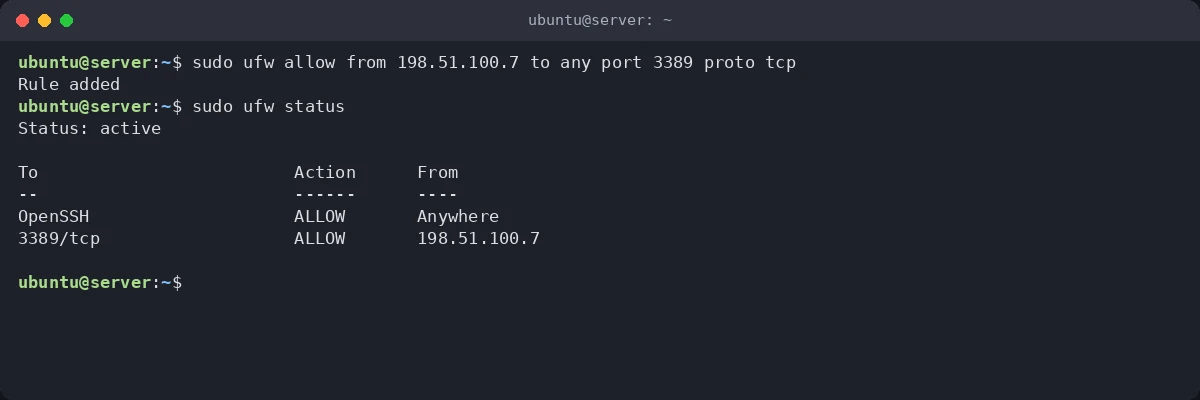
- Restrict port 3389 to your own IP:
sudo ufw allow from YOUR.IP to any port 3389 proto tcp. - Or tunnel it over SSH and keep 3389 closed:
ssh -L 3389:127.0.0.1:3389 user@server, then connect tolocalhost. - Use strong passwords and don't allow root logins (
AllowRootLogin=falseinsesman.ini). - Use a real TLS certificate instead of the self-signed default (
certificate=andkey_file=inxrdp.ini). - Add Fail2ban to block repeated failed logins, and keep xrdp updated; the 0.10.6.1 release, for example, was mainly a security fix.
Troubleshooting
- Black screen after login: missing
~/.xsession, a Wayland-only desktop (GNOME), or the user is already logged in locally. - Session closes immediately: read
/var/log/xrdp-sesman.logand~/.xsession-errorsfor the failing command. - "Authentication required to create a color managed device": a harmless polkit prompt; cancel it or add a polkit rule for colord.
- Slow or laggy desktop: disable the compositor in XFCE (Window Manager Tweaks), lower colour depth in the client, and check the server isn't short of RAM.
- Can't connect: check
sudo ss -tlnp | grep 3389, the local firewall and your provider's firewall.
Frequently asked questions
What is xrdp?
An open-source Remote Desktop Protocol server for Linux that lets RDP clients log in to a Linux desktop session.
Does xrdp work with GNOME?
Not on Wayland-only GNOME (Ubuntu 25.10+, 26.04 LTS). Use XFCE, MATE or KDE on X11, or GNOME's own Remote Desktop.
Which port does xrdp use?
TCP 3389 by default, configurable in /etc/xrdp/xrdp.ini.
Can several users use xrdp at the same time?
Yes. Each user gets their own separate desktop session, limited only by the server's CPU and RAM.