7-Zip is a free, open-source archiver with excellent compression. It creates and extracts .7z archives and also handles ZIP, TAR, GZIP, XZ, ISO and many other formats. On Linux it runs from the command line, which makes it ideal for servers and scripts. This guide shows how to install 7-Zip on Ubuntu 22.04, 24.04 and 26.04, how to get the latest official build, and how to compress, extract, password-protect and split archives.
Quick answer
sudo apt update
sudo apt install 7zip
7z x archive.7z                  # extract
7z a backup.7z /path/to/folder   # compress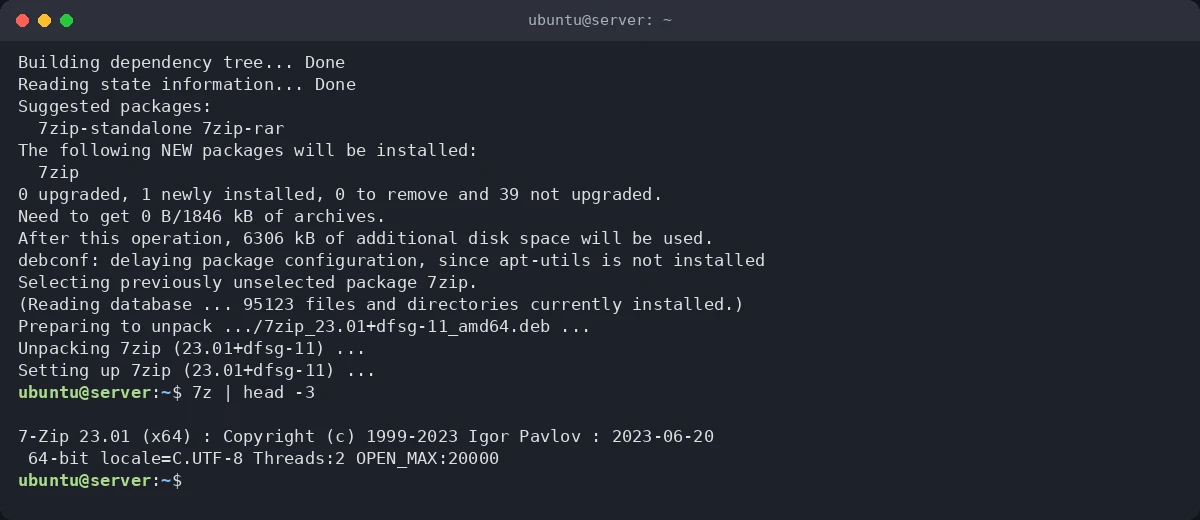
Step 1: Install 7-Zip from Ubuntu's repositories
Ubuntu ships the official 7-Zip for Linux in the 7zip package (in the universe repository, which is enabled by default):
sudo apt update
sudo apt install 7zip
Check that it works:
7zThe first lines show the 7-Zip version. On some older releases the main command is 7zz instead of 7z; if 7z is not found, try 7zz.
You may also see the older p7zip-full package recommended in guides. p7zip is an unmaintained community port; on current Ubuntu releases it is only a transitional package that pulls in 7zip, so install 7zip directly.
RAR files: Ubuntu's 7zip package does not include RAR extraction for licensing reasons. To open .rar archives, install the extra codec from the multiverse repository:
sudo add-apt-repository multiverse
sudo apt install 7zip-rar
Step 2 (optional): Install the latest official build
Ubuntu's package can lag behind the upstream release. 7-Zip is updated regularly (version 26.06 came out in November 2026), and recent releases include security fixes and faster compression on Linux. To get the newest version, download the "7-Zip for Linux: console version" for your architecture (x86-64 or arm64) from the official site, 7-zip.org, then:
mkdir 7zip && tar -xf 7z*-linux-x64.tar.xz -C 7zip
sudo install -m 755 7zip/7zz /usr/local/bin/7zz
7zz
The official binary is called 7zz and is completely self-contained. Download it only from 7-zip.org.
Step 3: Compress files and folders
The a (add) command creates an archive. The format is chosen from the file extension:
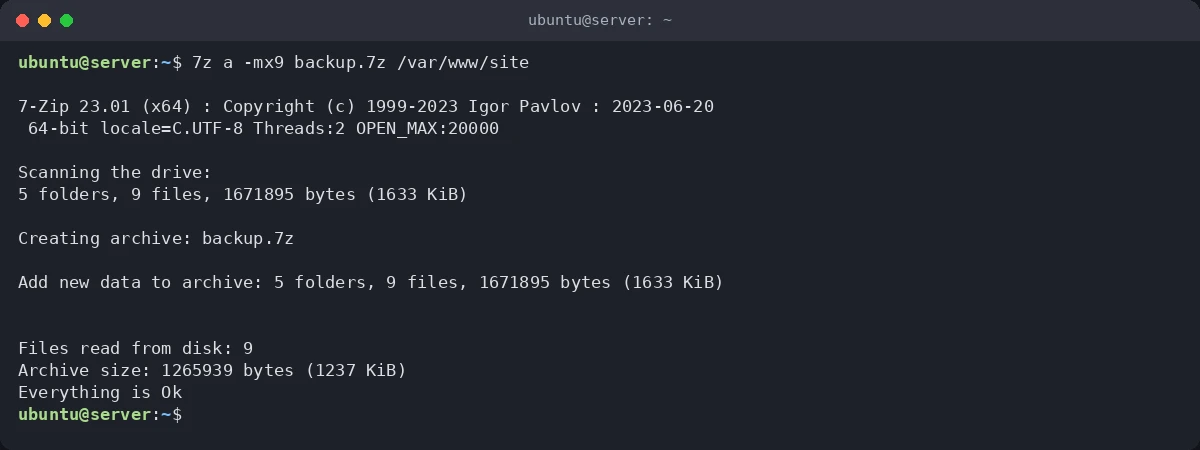
7z a backup.7z /var/www/site
7z a documents.zip ~/Documents
7z a logs.tar /var/log/nginx
Control the compression level with -mx, from 0 (store only) to 9 (ultra):
7z a -mx9 backup.7z /var/www/siteHigher levels give smaller files but take longer and use more memory. -mx5 (the default) is a good balance.
Step 4: Extract archives
7z x backup.7z                 # extract with full folder structure
7z x backup.7z -o/tmp/restore  # extract to a folder (no space after -o)
7z e backup.7z                 # extract all files into one folder, ignoring paths
Use x in almost all cases; e flattens everything into the current directory. 7-Zip extracts ZIP, TAR, GZ, XZ, BZ2, ISO, CAB, DMG and more with the same command.
List and test an archive
7z l backup.7z   # list contents
7z t backup.7z   # test integrity
Testing is worth doing after creating a backup archive, before you delete the original files.
Password-protect an archive
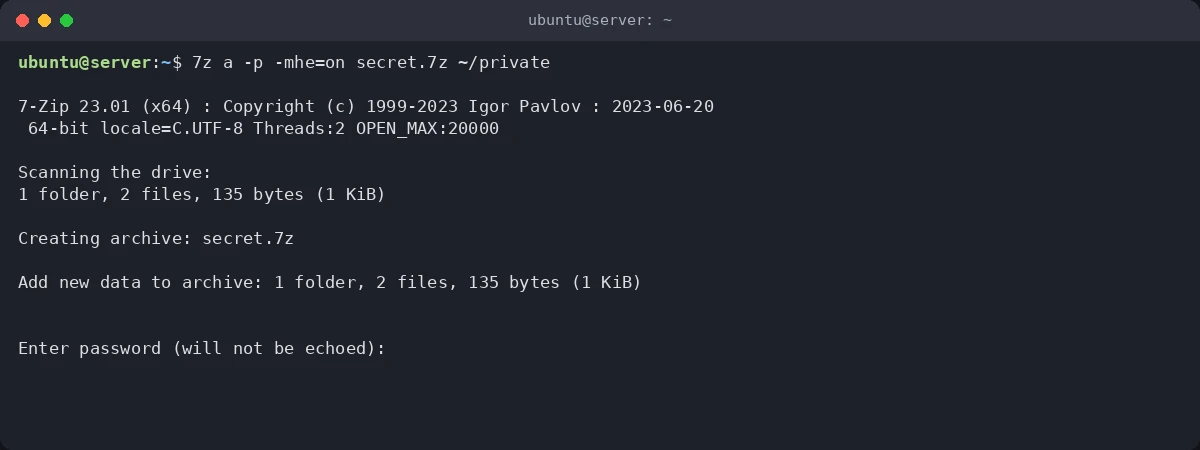
7z a -p -mhe=on secret.7z ~/private-p asks for a password (avoid typing it on the command line, where it is saved in your shell history). -mhe=on also encrypts the file names, so nobody can see what is inside without the password. The .7z format uses AES-256 encryption. Header encryption works only with .7z, not ZIP.
Split a large archive into parts
7z a -v500m bigbackup.7z /dataThis creates bigbackup.7z.001, .002 and so on, each 500 MB. To extract, run 7z x bigbackup.7z.001 with all parts in the same folder.
Using 7-Zip from the desktop
On Ubuntu Desktop, the built-in file manager can open and create many archive formats directly (right-click a file and choose Compress or Extract). With the 7zip package installed, the archive manager can also handle .7z files. For a dedicated graphical archiver similar to 7-Zip on Windows, PeaZip is available as a Flatpak.
Uninstall 7-Zip
sudo apt remove 7zip 7zip-rar
sudo rm -f /usr/local/bin/7zz   # if you installed the official build
Frequently asked questions
Is 7-Zip available for Ubuntu?
Yes. The official command-line version is in Ubuntu's repositories as the 7zip package, and the latest build can be downloaded from 7-zip.org. There is no official graphical version for Linux.
What is the difference between 7z, 7za and 7zz?
They are variants of the same tool. 7zz is the standalone official binary, 7z supports all formats through plugins, and 7za and 7zr are reduced versions with fewer formats. For everyday use, 7z or 7zz is all you need.
How do I extract a .7z file in Ubuntu?
Run 7z x file.7z. To extract into a specific folder, add -o/path/to/folder with no space after -o.
Can 7-Zip open RAR files on Ubuntu?
Yes, after installing the 7zip-rar package from the multiverse repository. Creating RAR archives is not supported.