We check every server every few minutes so we can react quickly when one goes down. If RdpGuard, IPBan or a firewall on your server blocks our monitoring address, your server page says Status check blocked. Your server may still be working normally.
RdpGuard
- Open RdpGuard on the server and go to White List.
- Click Add….
- Enter our monitoring IP address (ask us on live chat) and save.
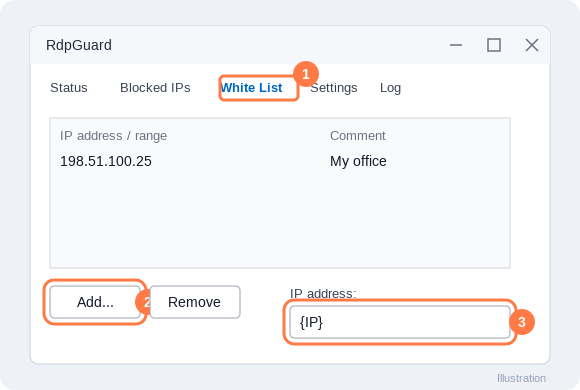
RdpGuard → White List → Add… → our monitoring IP
Windows Firewall
If you limited Remote Desktop to your own IP addresses, also allow our monitoring IP address (ask us on live chat):
- Open Windows Defender Firewall with Advanced Security → Inbound Rules and double-click the Remote Desktop rule.
- On the Scope tab, under Remote IP address, click Add… and enter our monitoring IP address (ask us on live chat).
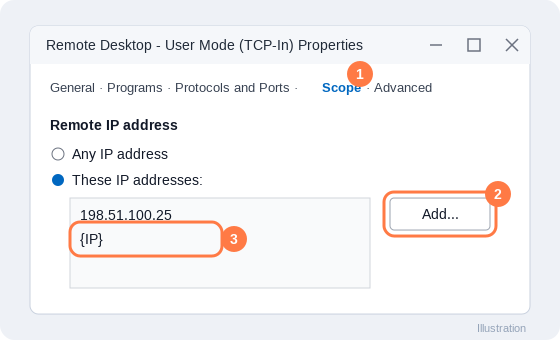
Remote Desktop rule → Scope → Add… → our monitoring IP
This only lets our status check through. It does not give anyone a login. Within a few minutes your server page shows Online again.
Still stuck? Our server team is online 24/7 on live chat, or open a ticket in the client area.