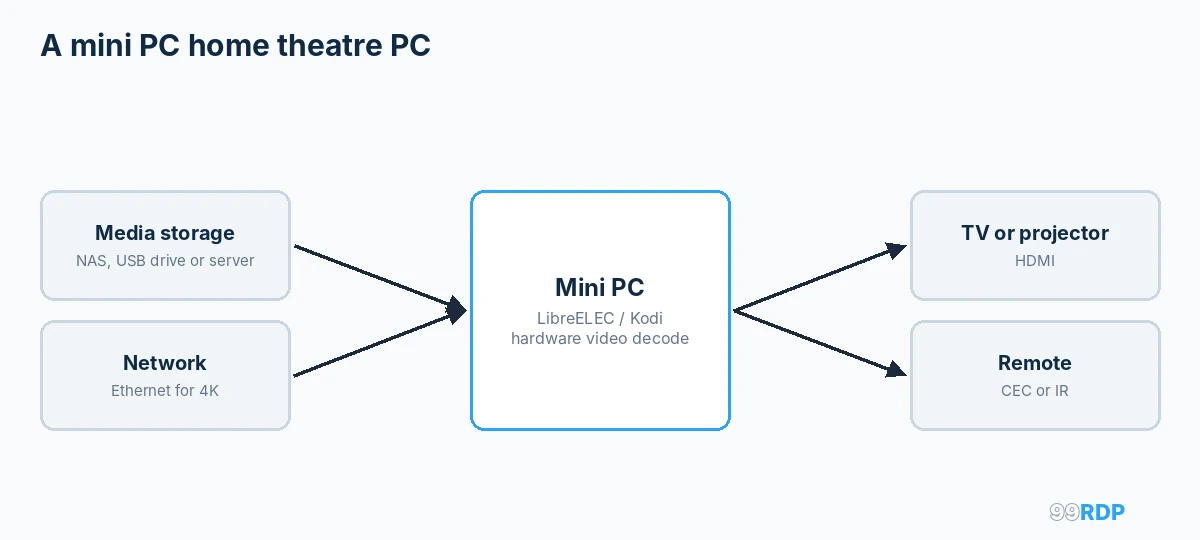
A home theatre PC (HTPC) is a small computer that sits next to your TV and plays your films, shows, music and live TV from one menu you control with a remote. A modern mini PC is ideal for the job: it is silent or nearly silent, uses less power than a light bulb, and has hardware video decoding that plays 4K files without effort. This guide covers the hardware to buy, the Linux software to run and the small details that make an HTPC pleasant to use every day.
Quick answerBuy a fanless or quiet mini PC with an Intel N150/N100 (or a newer Intel Core) processor, 8–16 GB of RAM, an NVMe SSD, wired Ethernet and an HDMI 2.0 or newer port. Install LibreELEC if you only want Kodi, or Ubuntu with Kodi if you also want a desktop and other apps. Keep your media on a NAS or a separate server, and use a CEC adapter or a small remote so you never need a keyboard on the sofa.
What an HTPC can do
- Play your own films, TV episodes and music with artwork, descriptions and "resume where you stopped".
- Stream from a media server such as Jellyfin or Plex, including from other rooms.
- Watch live TV and recordings with a TV tuner and Kodi's PVR add-ons.
- Run retro games, a web browser or Steam Big Picture on the same box.
Hardware for a Linux HTPC
- Processor: Intel N100 or N150 is the sweet spot. Their Quick Sync video engine decodes H.264, HEVC, VP9 and AV1 in hardware, so 4K playback uses very little CPU. A Core i3/i5 or a Ryzen mini PC adds headroom for games and emulators.
- Memory and storage: 8 GB is enough for Kodi; 16 GB if the box also runs a desktop and browser. A 256–512 GB NVMe SSD for the system is plenty when films live elsewhere.
- Video output: HDMI 2.0 or newer for 4K at 60 Hz with HDR. Check the port, not just the box: some cheap models run one port at 30 Hz.
- Network: Gigabit Ethernet. Wi-Fi works, but high-bitrate 4K remuxes stutter on a busy wireless network.
- Noise: a fanless case or a model with a large, slow fan. Avoid tiny high-pitched fans in a quiet living room.
- Remote control: most mini PCs have no HDMI-CEC, so the TV remote cannot control them directly. A USB-CEC adapter (for example from Pulse-Eight) fixes this; a small air-mouse remote or a phone app such as Kore for Kodi also works.
Choose the software
LibreELEC: Kodi and nothing else
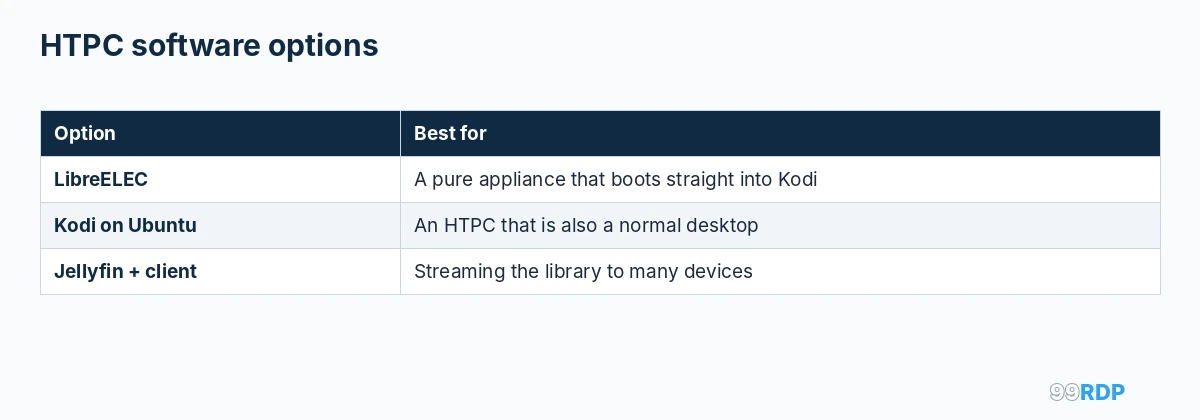
LibreELEC is a small Linux system that boots straight into Kodi. It updates itself, has nothing to maintain and is the easiest way to get reliable playback, including HDR output on supported Intel graphics. Choose it if the box will only ever be a media player.
Ubuntu (or another desktop distribution) with Kodi
A full desktop lets you run Kodi alongside a browser, Steam and other apps. Install Kodi from the official Kodi PPA or as a Flatpak from Flathub, then set it to start automatically when you log in. Kodi 21 "Omega" is the current stable version; Kodi 22 "Piers" was at the release-candidate stage in November 2026.
Jellyfin or Plex clients
If you already run a media server, install its client instead of (or as well as) Kodi: Jellyfin Media Player, the Jellyfin for Kodi add-on, or Plex HTPC. The server does the library management and the HTPC just plays.
Step by step: install LibreELEC on a mini PC
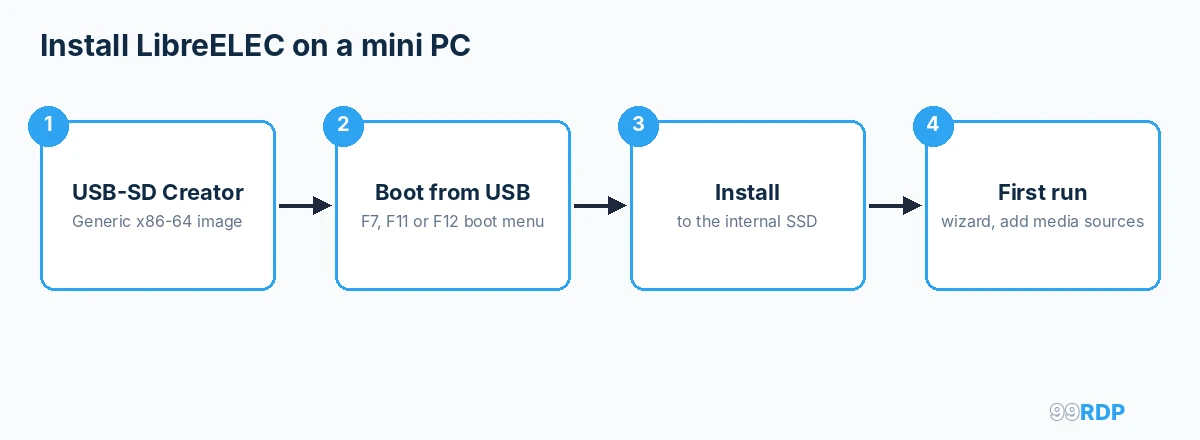
- On another computer, download the LibreELEC USB-SD Creator from libreelec.tv and write the "Generic x86-64" image to a USB stick.
- Plug the stick into the mini PC, open the boot menu (often F7, F10, F11 or F12) and boot from USB.
- Choose Install LibreELEC and select the internal NVMe drive. This erases the drive.
- After a reboot, the first-run wizard sets the language, host name, network and SSH access.
- In Settings → System → Display, set the resolution and refresh rate to match your TV, and turn on Adjust display refresh rate so 24 fps films play without judder.
- Add your media: Videos → Files → Add videos, then point Kodi at your NAS share (SMB or NFS) and set the content type so it fetches artwork.
Where to keep the media
Keep large libraries off the HTPC. A NAS or a home server with Jellyfin serves every TV in the house, keeps the HTPC small and lets you rebuild or replace it without moving files. Whatever you use, follow the 3-2-1 backup rule: three copies of anything you cannot replace, on two kinds of storage, with one copy off-site.
Small details that make a big difference
- Refresh-rate switching (above) removes the slight stutter in panning shots.
- Audio passthrough: if you have an AV receiver, enable passthrough for Dolby and DTS formats in Kodi's audio settings.
- Wake and sleep: set the BIOS to power on after a power cut, and use suspend rather than shutdown for a fast start.
- Updates: LibreELEC updates itself; on Ubuntu, let unattended upgrades handle security fixes and update Kodi when you choose.
Frequently asked questions
Is Linux a good choice for an HTPC?
Yes. Kodi and Jellyfin run very well on Linux, hardware decoding works out of the box on Intel graphics, and there are no adverts or forced updates. LibreELEC in particular is built only for this job.
Can an Intel N100 mini PC play 4K HDR?
Yes. Its Quick Sync engine decodes 4K HEVC and AV1 in hardware. For HDR output, LibreELEC is the most reliable choice; HDR on a full desktop depends on the desktop environment and is improving with each release.
Do I need a TV tuner?
Only for broadcast TV. A USB or network tuner such as an HDHomeRun works with Kodi's PVR add-ons and TVHeadend.
Should the HTPC also be my media server?
It can be, but splitting them is better: the HTPC stays silent and simple, while a separate server handles downloads, transcoding and backups.