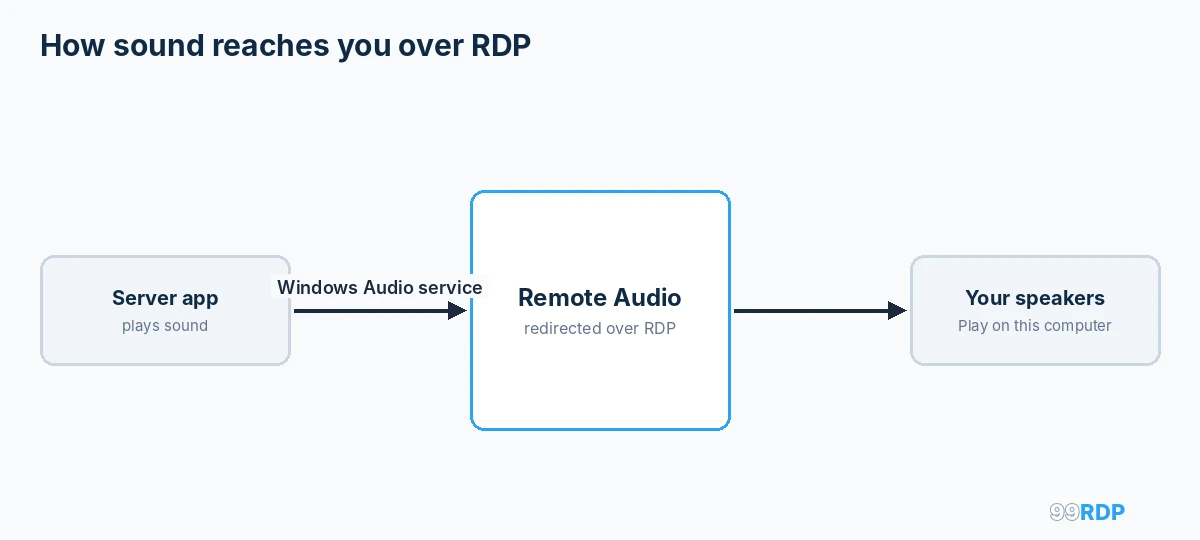
By default, Remote Desktop plays the remote computer's sound on your local PC. If you hear nothing, either the client is set to leave audio on the remote machine, the Windows Audio service isn't running on the server (it's often off on Windows Server), or a policy blocks audio redirection. This guide fixes playback and microphone input for Windows, Windows Server, RemoteApp and Linux clients.
Quick answer
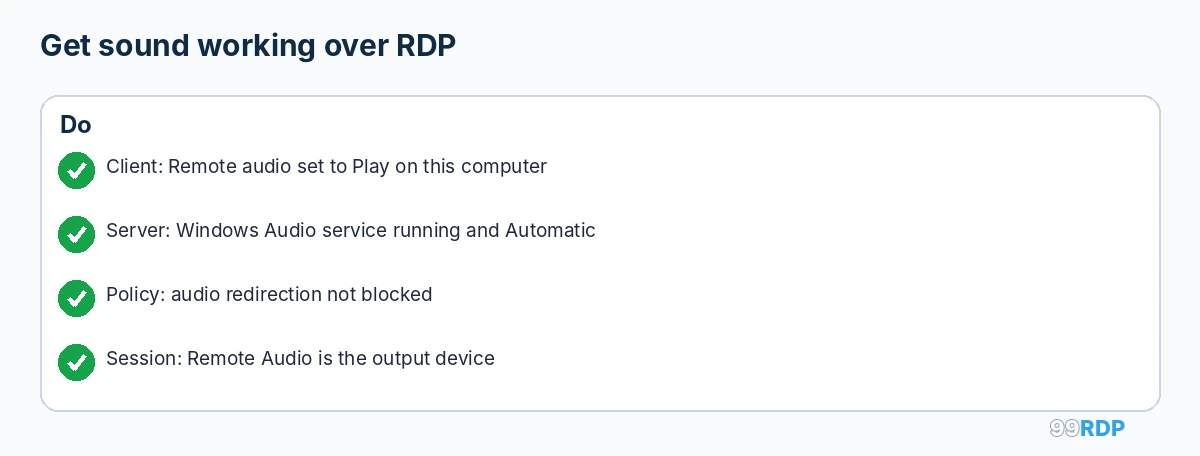
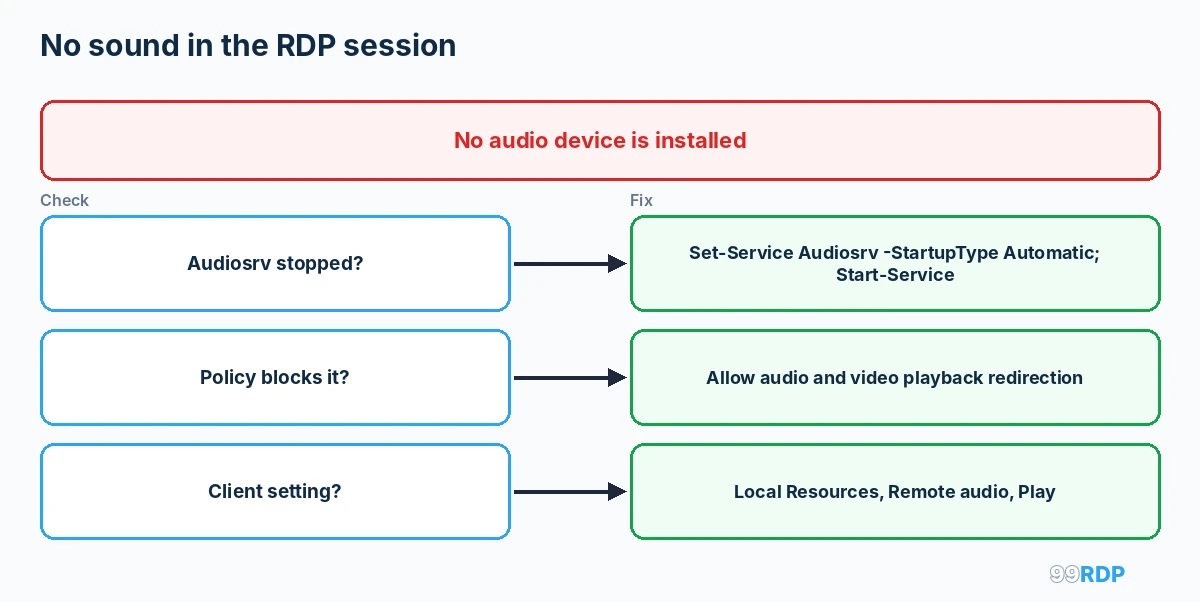
- In Remote Desktop Connection, open Show Options → Local Resources → Remote audio → Settings, choose Play on this computer and, for a microphone, Record from this computer.
- On a Windows Server, start the audio service:
Set-Service Audiosrv -StartupType Automatic; Start-Service Audiosrv. - Reconnect.
Step 1: Set audio options in the RDP client
- Open Remote Desktop Connection (
mstsc) and click Show Options. - On the Local Resources tab, under Remote audio, click Settings.
- Under Remote audio playback, select Play on this computer.
- Under Remote audio recording, select Record from this computer if you need your microphone in the remote session.
- Click OK, go back to the General tab and Save the connection so the settings stick.
In a saved .rdp file, the same settings are audiomode:i:0 (play locally) and audiocapturemode:i:1 (redirect microphone).
Step 2: Start the Windows Audio service on the server
Windows Server installs with the audio service stopped. Run this on the remote server in PowerShell as Administrator:
Set-Service -Name Audiosrv -StartupType Automatic
Start-Service -Name Audiosrv
Get-Service Audiosrv, AudioEndpointBuilder
Both services should show Running. Disconnect and reconnect. The speaker icon in the taskbar should now show Remote Audio as the output device.
Step 3: Check the Group Policy settings
If sound still doesn't play, a policy may block redirection. On the server, open gpedit.msc and go to Computer Configuration → Administrative Templates → Windows Components → Remote Desktop Services → Remote Desktop Session Host → Device and Resource Redirection:
- Allow audio and video playback redirection: set to Enabled (or Not configured).
- Allow audio recording redirection: set to Enabled for microphones. It's disabled by default.
Run gpupdate /force and reconnect. In a domain, check with your administrator, because domain policies override local ones.
Step 4: Allow microphone access inside the session
On Windows 10, 11 and Windows Server 2019 and later, apps also need permission to use the redirected microphone: in the remote session open Settings → Privacy → Microphone and allow access for desktop apps. Then test under Sound settings → Input, where Remote Audio should react when you speak.
RemoteApp audio
RemoteApp programs use the same settings as full desktops. Set audio in the RDP file or in the RemoteApp collection's properties (Client Settings → Audio and video playback / Audio recording in Server Manager), then reconnect.
Linux clients with sound
With FreeRDP, add sound and microphone options:
xfreerdp /v:203.0.113.10 /u:Administrator /sound /microphoneIn Remmina, open the connection's settings and set Audio output mode to Local.
Troubleshooting
- "No audio output device is installed" on the server: the Windows Audio service isn't running (Step 2), or you connected before starting it. Reconnect.
- Choppy sound: lower the display colour depth or resolution, and check your connection's latency. Audio uses UDP when available, so allow UDP 3389 in the firewall.
- Sound plays on the server's speakers instead: the client is set to Play on remote computer. Change it in Step 1.
Frequently asked questions
How do I enable audio in Remote Desktop?
In the RDP client, go to Local Resources → Remote audio → Settings and choose Play on this computer. On Windows Server, also start the Windows Audio service.
Why is there no sound on my Windows Server RDP?
The Windows Audio service is disabled by default on Windows Server. Set Audiosrv to Automatic, start it, and reconnect.
How do I use my microphone over RDP?
Select Record from this computer in the client's audio settings, make sure the Allow audio recording redirection policy isn't disabled on the server, and allow microphone access in the remote session's privacy settings.
Can I use voice chat over Remote Desktop?
Yes, once both playback and recording are redirected. Expect a short delay, which depends on your connection's latency.