Formatting a USB drive erases it and creates a fresh filesystem, which fixes many errors and lets you choose a format that works with Windows, macOS or Linux. On Linux you can do it with a graphical tool in a few clicks or from the terminal with mkfs. This guide explains which filesystem to choose, how to format with GNOME Disks and KDE Partition Manager, how to format from the command line (including creating a new partition table), and how to fix a drive that will not format.
Quick answerFind the drive with lsblk, unmount it, then format the partition, for example as exFAT:
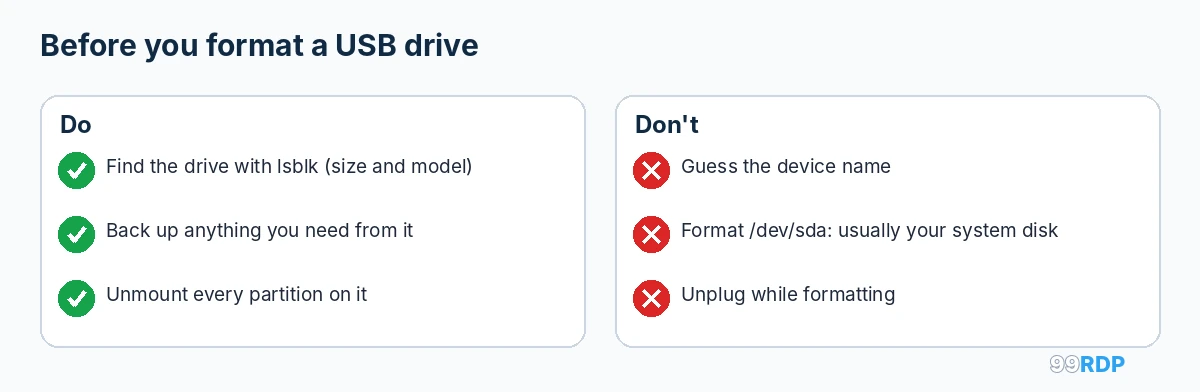
lsblk
sudo umount /dev/sdb1
sudo mkfs.exfat -n MYUSB /dev/sdb1
Double-check the device name: formatting the wrong disk destroys its data.
Which filesystem should you choose?
| Filesystem | Works with | Max file size | Use it for |
|---|---|---|---|
| exFAT | Windows, macOS, Linux, most TVs and cameras | Practically unlimited | The best general choice for sharing drives |
| FAT32 (vfat) | Almost everything, including old devices and UEFI boot | 4 GB | Small drives, car stereos, firmware updates |
| NTFS | Windows; Linux reads and writes; macOS read-only | Very large | Drives used mainly with Windows |
| ext4 | Linux | Very large | Drives used only with Linux, backups with Linux permissions |
Before you start
- Copy anything you want to keep from the drive. Formatting erases it.
- Install the tools for the formats you need:
sudo apt install exfatprogs dosfstools ntfs-3g(on Fedora, usednf).
Method 1: GNOME Disks
- Open Disks (install with
sudo apt install gnome-disk-utilityif missing). - Select your USB drive in the left panel. Check the size and model.
- To format one partition: select it, click the gear icon and choose Format Partition.
- Enter a volume name and choose a type: "For use with all systems and devices (FAT)", "For use with Windows (NTFS)", "Internal disk for use with Linux systems only (Ext4)", or Other for exFAT.
- Click Next, then Format.
To wipe the whole drive and start over, use the menu at the top right and choose Format Disk, then create a new partition with the + button.
Method 2: KDE Partition Manager or GParted
On KDE, open KDE Partition Manager; on other desktops, GParted (sudo apt install gparted). Select the USB device from the drop-down at the top, unmount its partition, right-click it and choose Format as (GParted) or Edit/Format, pick the filesystem, and apply the changes.
Method 3: Command line
Step 1: Identify the drive
lsblk -o NAME,SIZE,FSTYPE,LABEL,MOUNTPOINTSFind your USB drive by size, for example sdb with partition sdb1. Your system disk is usually sda or nvme0n1; do not touch it.
Step 2: Unmount it
sudo umount /dev/sdb1If the drive has several partitions, unmount each one (sudo umount /dev/sdb?).
Step 3: Format the partition
sudo mkfs.exfat -n MYUSB /dev/sdb1          # exFAT
sudo mkfs.vfat -F 32 -n MYUSB /dev/sdb1     # FAT32 (label up to 11 characters)
sudo mkfs.ntfs -f -L MYUSB /dev/sdb1        # NTFS (quick format)
sudo mkfs.ext4 -L MYUSB /dev/sdb1           # ext4
Note that you format the partition (sdb1), not the whole disk (sdb).
Optional: create a new partition table first
If the drive was used as a bootable installer or has a strange layout, recreate its partition table with one partition covering the whole drive:
sudo wipefs -a /dev/sdb
sudo parted /dev/sdb --script mklabel gpt mkpart primary 1MiB 100%
sudo mkfs.exfat -n MYUSB /dev/sdb1
Use mklabel msdos instead of gpt for very old devices that only understand MBR.
Step 4: Check the result
lsblk -f /dev/sdb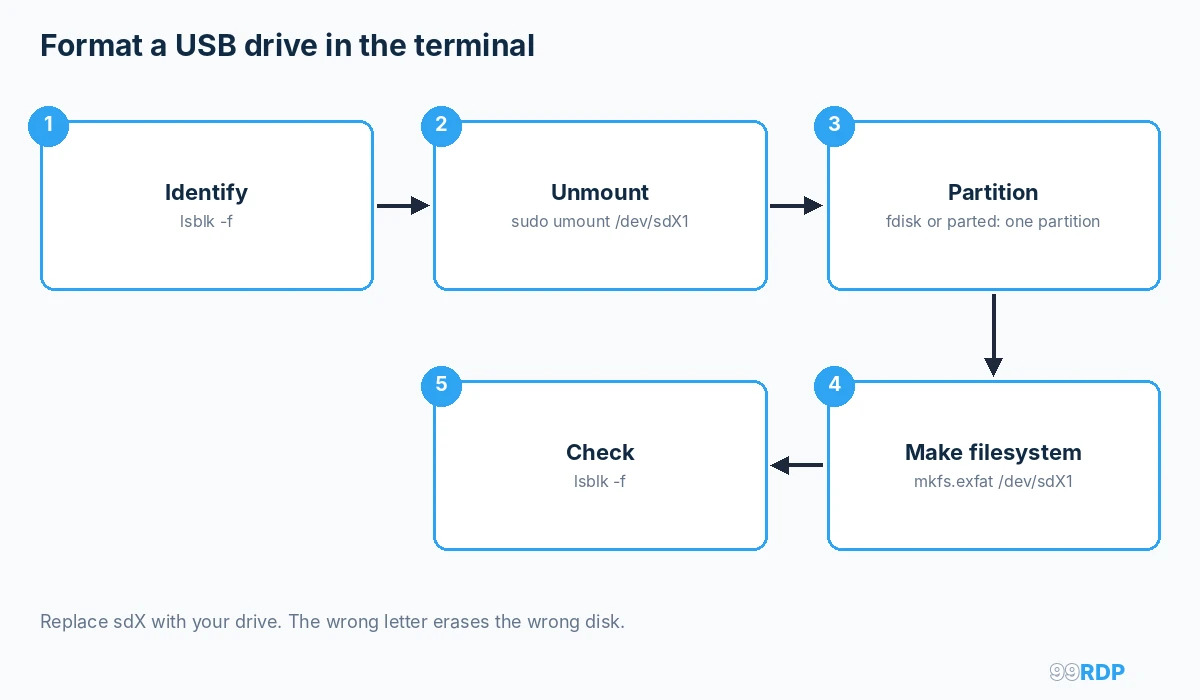
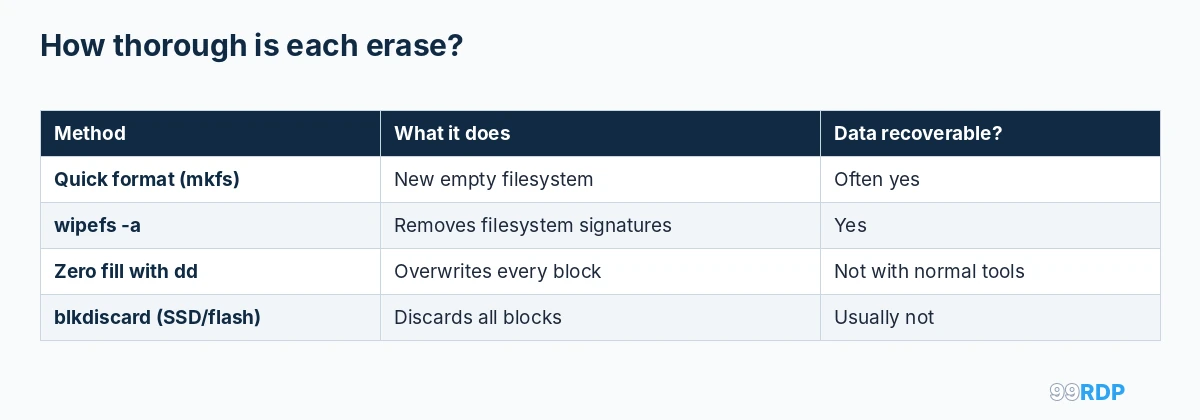
Securely erasing a drive
A normal format leaves old data recoverable. To overwrite everything before giving a drive away:
sudo dd if=/dev/zero of=/dev/sdb bs=4M status=progressThis writes zeros over the entire device and then needs a new partition table and format. It takes a long time on large drives, and on flash memory some old blocks may survive; physical destruction is the only guarantee for very sensitive data.
Troubleshooting
- "Device or resource busy": a partition is still mounted or a program is using it. Unmount it and close file managers.
- "mkfs.exfat: command not found": install
exfatprogs. - Drive is read-only: check for a physical lock switch, and look at
dmesg; a drive that switched itself to read-only is often failing. - Wrong size shown (for example after writing an ISO): recreate the partition table as shown above.
Frequently asked questions
What format should a USB drive be for Linux and Windows?
exFAT. It works on Windows, macOS and Linux and has no 4 GB file size limit.
How do I format a USB drive to FAT32 in Linux?
Unmount it and run sudo mkfs.vfat -F 32 /dev/sdb1, replacing sdb1 with your partition.
Can I format a USB drive in the Linux terminal without losing data?
No. Formatting erases the filesystem. Copy your files elsewhere first.
How do I make a bootable USB drive back into a normal one?
Wipe it with wipefs -a, create a new partition table with parted, and format the new partition.