
You can use the Remote Desktop client for Mac to work with Windows apps, resources, and desktops from
your Mac computer.
After activation of a Windows VPS server, it takes 15 to 40 minutes to load the Operating System for the
first time then you can connect to the VPS server with Windows Remote Desktop Connection ( On Apple
computers including tablets, smartphones, you can get the Microsoft Remote Desktop from the App store
– In Linux, you can use Remmina Remote Desktop Client or similar – Android you can use RD client ).
Follow these steps to connect with Remote desktop through Mac (this guide is for Mac users however
other Operating System or devices are very similar):
1. Check the client area or registered email for login details.
2. If you have the Microsoft Remote Desktop app on your Mac device, skip this.
Open your Mac app store and search for “remote desktop 10” and download the app.
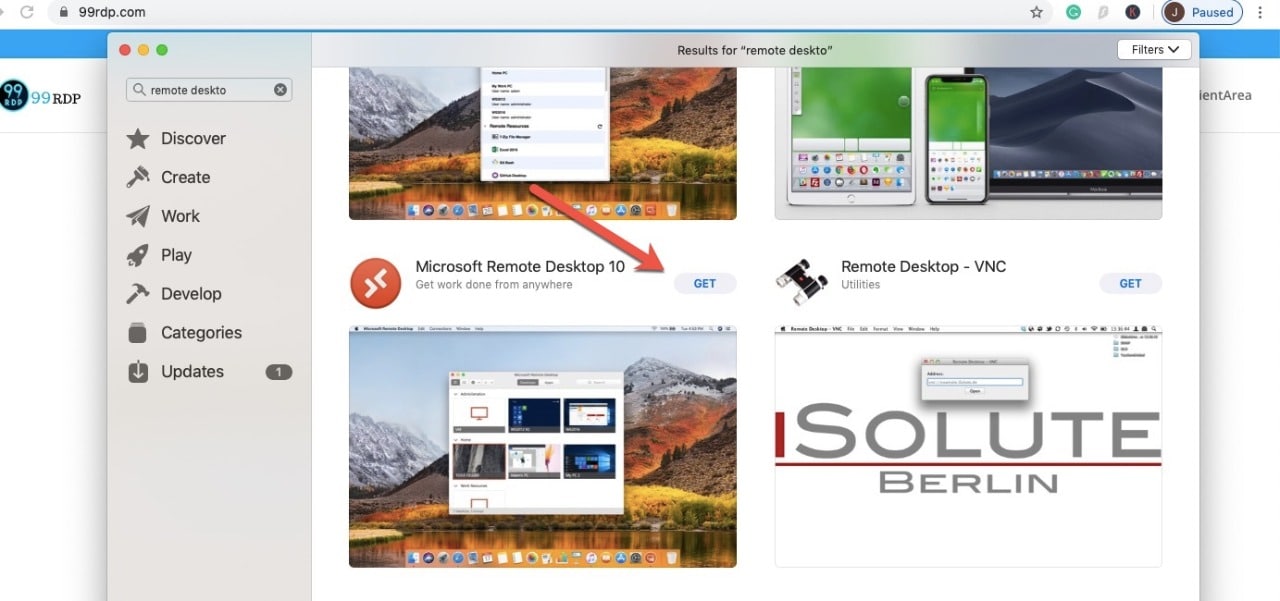
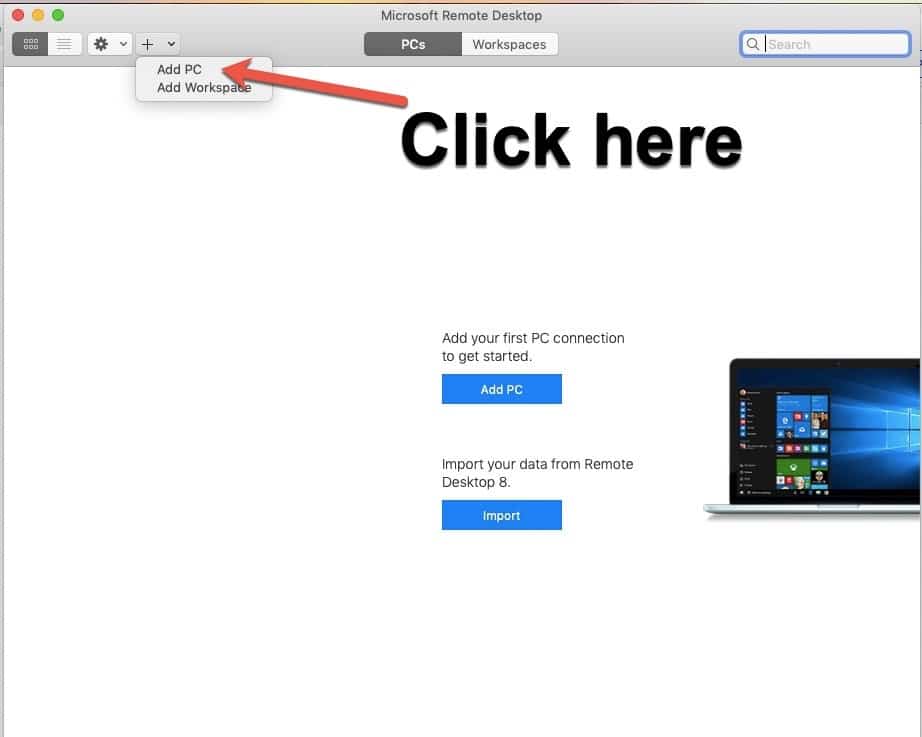
3. Now open the Microsoft Remote Desktop app and create an RDP connection.
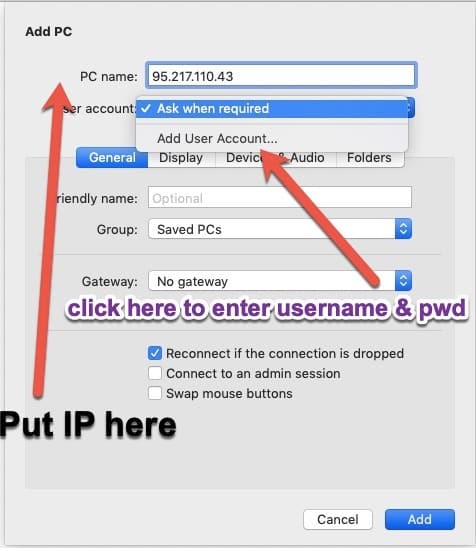
4. Enter your IP Address and Save it.
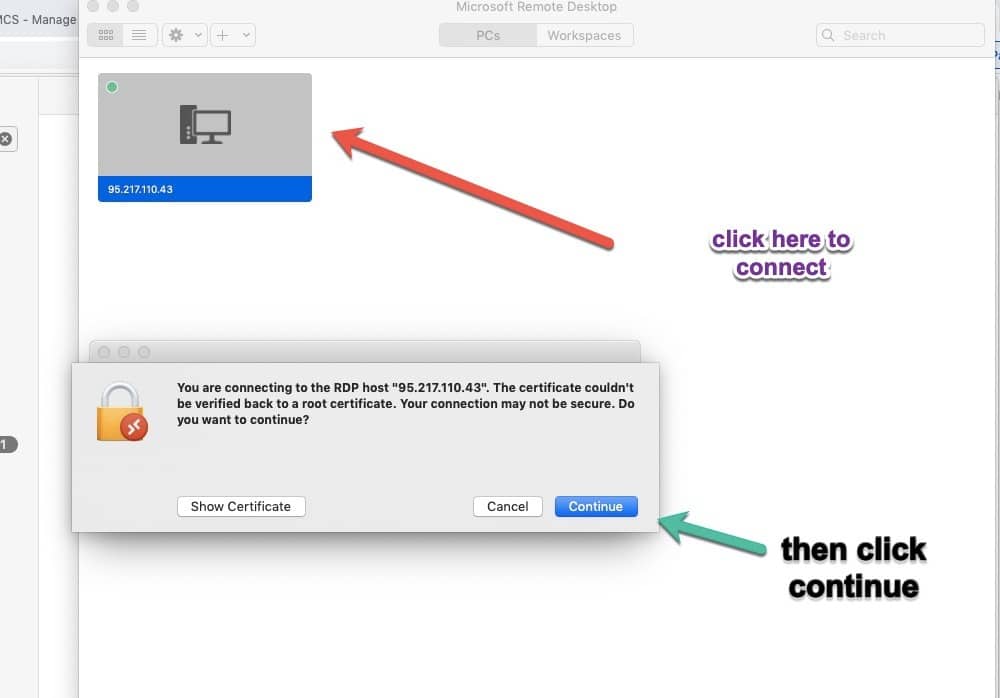
5. Double click on the saved RDP to start the session.
6. A Window like this will pop out – Enter the username and password (which you have received in
the email) and press Done.
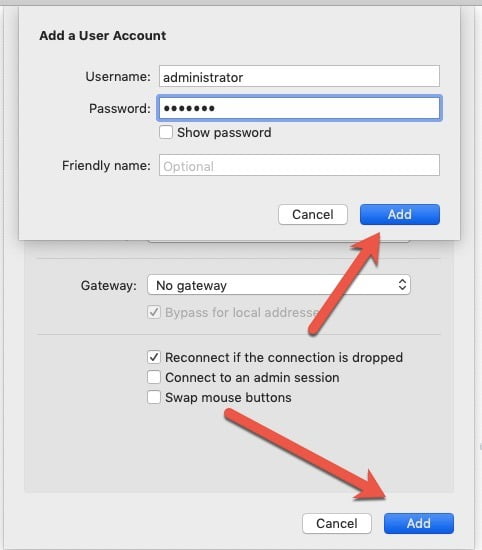
7. Click Continue.
Now you are connected to your Windows VPS via Microsoft RDP (Remote Desktop Connection). And now
you can use it just like your own computer and can run any software you wish for. Your server can be on
online 24/7 days. If you are running a program on it then make sure you do not log off. Just disconnect it.
Enjoy it. If you had any questions related to this guide please comment below. For any queries with your
VPS please please open a ticket from your client area to our support department.
Note: The Mac client runs on computers running macOS 10.10 and newer.
Try it on 99RDP: Need a Windows server to try this on? 99RDP Windows RDP comes with full admin access and instant setup from $4.99/month.


