
Top Free Office Suites in 2026: Is LibreOffice Better Than ONLYOFFICE?
The way people work with documents, spreadsheets, and presentations has changed significantly. Businesses increasingly depend on digital productivity tools to manage everyday operations, collaborate with employees, prepare reports, and exchange information with customers.
For years, Microsoft Office has dominated the office productivity market. However, subscription expenses, software dependency, and growing interest in open-source technologies have encouraged individuals and businesses to explore alternative office suites.
Two particularly interesting options are LibreOffice and ONLYOFFICE.
Both offer free desktop applications, support popular document formats, and provide essential productivity tools. However, they approach office productivity differently. LibreOffice emphasizes open document standards, extensive desktop functionality, and flexibility, while ONLYOFFICE focuses on Microsoft Office compatibility, modern document editing, and collaborative workflows.
For businesses looking to reduce software expenses without sacrificing productivity, understanding these differences is essential.
But which office suite deserves a place on your computer in 2026? Is LibreOffice still the better free alternative, or does ONLYOFFICE offer a more practical experience for modern businesses?
Let’s explore their features, capabilities, limitations, and real-world applications to find out.
1. Why Free Office Suites Are Becoming More Important in 2026
Office productivity software is essential for almost every modern organization. Employees use these applications to create business proposals, prepare financial reports, manage customer information, and communicate with colleagues.
However, purchasing productivity software for an entire workforce can become expensive, particularly for startups, freelancers, educational institutions, and small businesses.
Free office suites offer an alternative.
Applications such as LibreOffice and ONLYOFFICE provide essential productivity functionality without requiring users to purchase traditional desktop software licenses.
Several factors are encouraging businesses to consider these alternatives.
Reduced software expenses
Free desktop office applications help organizations reduce recurring software licensing expenses.
Instead of purchasing a paid subscription for every employee, businesses can evaluate free alternatives for workflows that do not require specialized Microsoft Office functionality.
Greater flexibility
Open-source software provides greater flexibility for organizations that want to understand, customize, or integrate their productivity tools.
Businesses can evaluate different applications according to their operational requirements rather than depending entirely on one software ecosystem.
Cross-platform compatibility
Both LibreOffice and ONLYOFFICE support major desktop operating systems, including:
- Windows.
- macOS.
- Linux.
This flexibility allows employees to work with documents across different computing environments.
Better control over document workflows
Organizations can choose how they create, store, exchange, and manage documents.
For example, a company might use LibreOffice for desktop productivity and a self-hosted document collaboration platform for sharing files between employees.
Growing interest in self-hosted infrastructure
Businesses increasingly evaluate self-hosted applications when they want greater control over their digital environments.
Platforms such as ONLYOFFICE Docs can integrate with compatible document management and cloud storage systems, creating additional opportunities for organizations that manage their own infrastructure.
This is also where reliable Linux VPS hosting becomes relevant.
2. LibreOffice: A Powerful Free Office Suite for Everyday Productivity
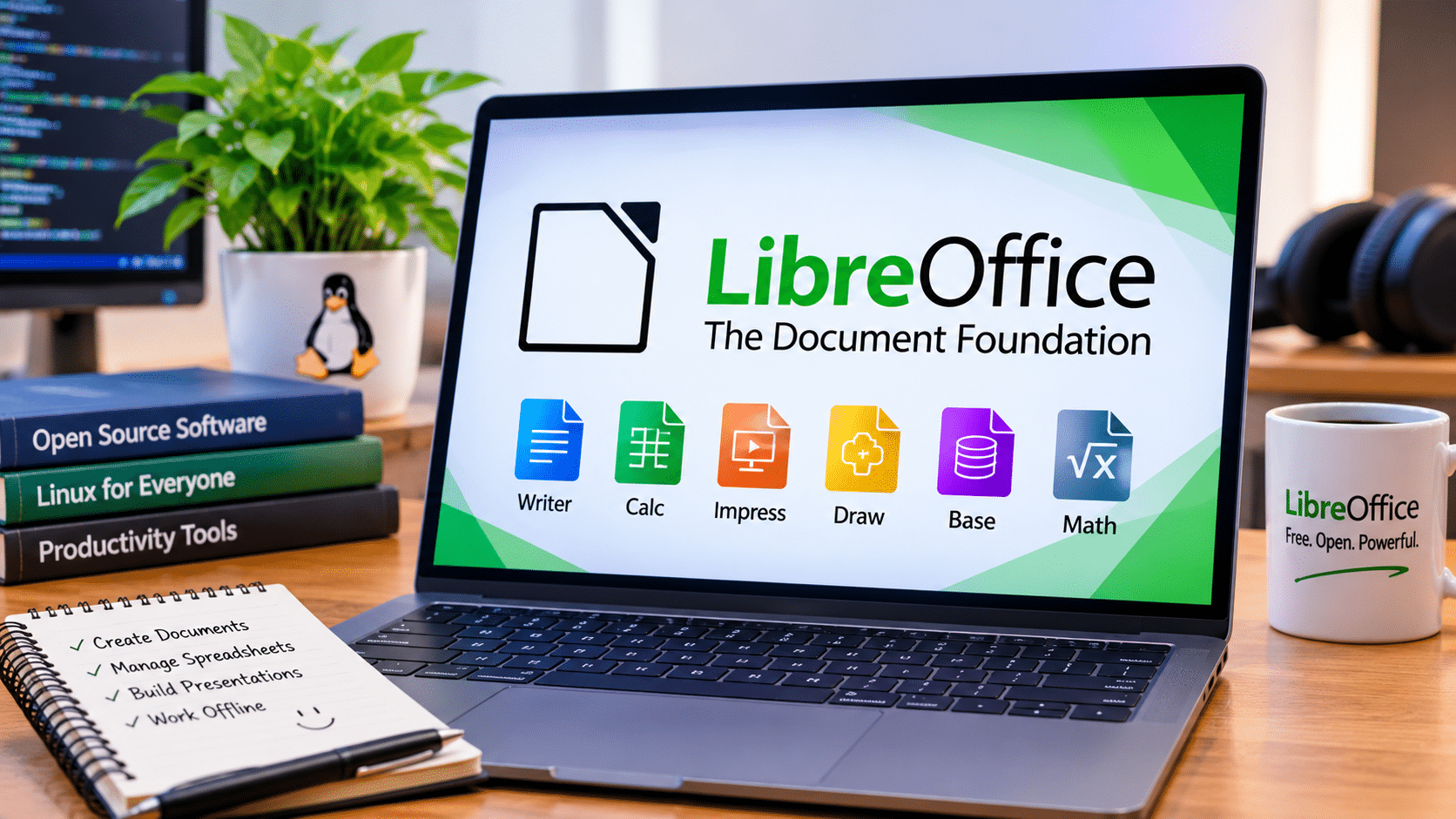
LibreOffice is one of the most established open-source alternatives to Microsoft Office.
Developed by The Document Foundation, it provides a comprehensive collection of applications for creating documents, managing spreadsheets, designing presentations, drawing diagrams, and working with mathematical formulas.
Unlike productivity tools that concentrate primarily on documents and spreadsheets, LibreOffice offers a broader desktop application ecosystem.
Its six primary components serve different productivity requirements.
1. Writer: Word Processing
Writer is LibreOffice’s word-processing application.
Users can create and edit:
- Business reports.
- Letters and proposals.
- Academic assignments.
- Research documents.
- Newsletters.
- Technical documentation.
- Professional resumes.
Writer supports formatting tools, tables, images, page layouts, styles, templates, and document export.
It can also open and save Microsoft Word formats, including DOCX.
For freelancers, students, and businesses that regularly prepare written documents, Writer provides a practical alternative to Microsoft Word.
2. Calc: Spreadsheet Management
Calc is LibreOffice’s spreadsheet application.
It helps users organize information, perform calculations, analyze datasets, and create charts.
Its capabilities include:
- Mathematical and statistical functions.
- Financial calculations.
- Data filtering.
- Spreadsheet formatting.
- Charts and graphs.
- Scenario analysis.
- Conditional formatting.
According to the LibreOffice documentation, Calc includes more than 500 functions for financial, statistical, and mathematical calculations.
This makes it useful for businesses managing budgets, invoices, sales records, and operational data.
3. Impress: Presentation Creation
Impress allows users to create professional presentations.
Employees can prepare business proposals, educational slides, project updates, and marketing presentations.
It supports:
- Slide transitions.
- Animations.
- Multimedia content.
- Charts.
- Images.
- Presentation templates.
- PowerPoint file compatibility.
4. Draw: Diagrams and Graphics
Draw provides tools for creating diagrams, flowcharts, technical illustrations, and vector graphics.
Businesses can use it to prepare workflow diagrams, organizational charts, and visual explanations.
5. Base: Database Management
Base provides database-related functionality.
Users can create and manage tables, forms, queries, and reports.
It can connect with supported database systems, making it useful for certain administrative and database-related workflows.
6. Math: Mathematical Formula Editing
Math is LibreOffice’s formula editor.
Students, educators, researchers, and technical professionals can use it to create mathematical equations and insert them into documents and presentations.
Major advantages of LibreOffice
LibreOffice offers several benefits that make it attractive in 2026.
Comprehensive desktop functionality: Its six applications cover a wide range of productivity requirements.
OpenDocument support: It uses OpenDocument formats, including ODT, ODS, and ODP, as its native document formats.
Offline operation: Users can create and edit locally stored documents without depending on a continuous internet connection.
Customization: Users can personalize interfaces and configure different application settings.
Cross-platform availability: It supports Windows, macOS, and Linux.
No mandatory subscription: Users can access its desktop productivity applications without paying recurring software licensing fees.
What are LibreOffice’s limitations?
Despite its extensive capabilities, LibreOffice has certain limitations.
Its Microsoft Office compatibility is not perfect. Complex spreadsheets, specialized formatting, and advanced macros may require adjustments when users exchange documents with Microsoft Office applications.
Its standard desktop installation also does not provide a complete browser-based real-time collaboration environment.
Organizations requiring online collaborative editing must evaluate additional solutions, such as Collabora Online.
Best for: Students, freelancers, Linux users, educational institutions, and businesses that prioritize offline productivity and open document standards.
Official website:
3. ONLYOFFICE: A Modern Alternative for Document Editing and Collaboration
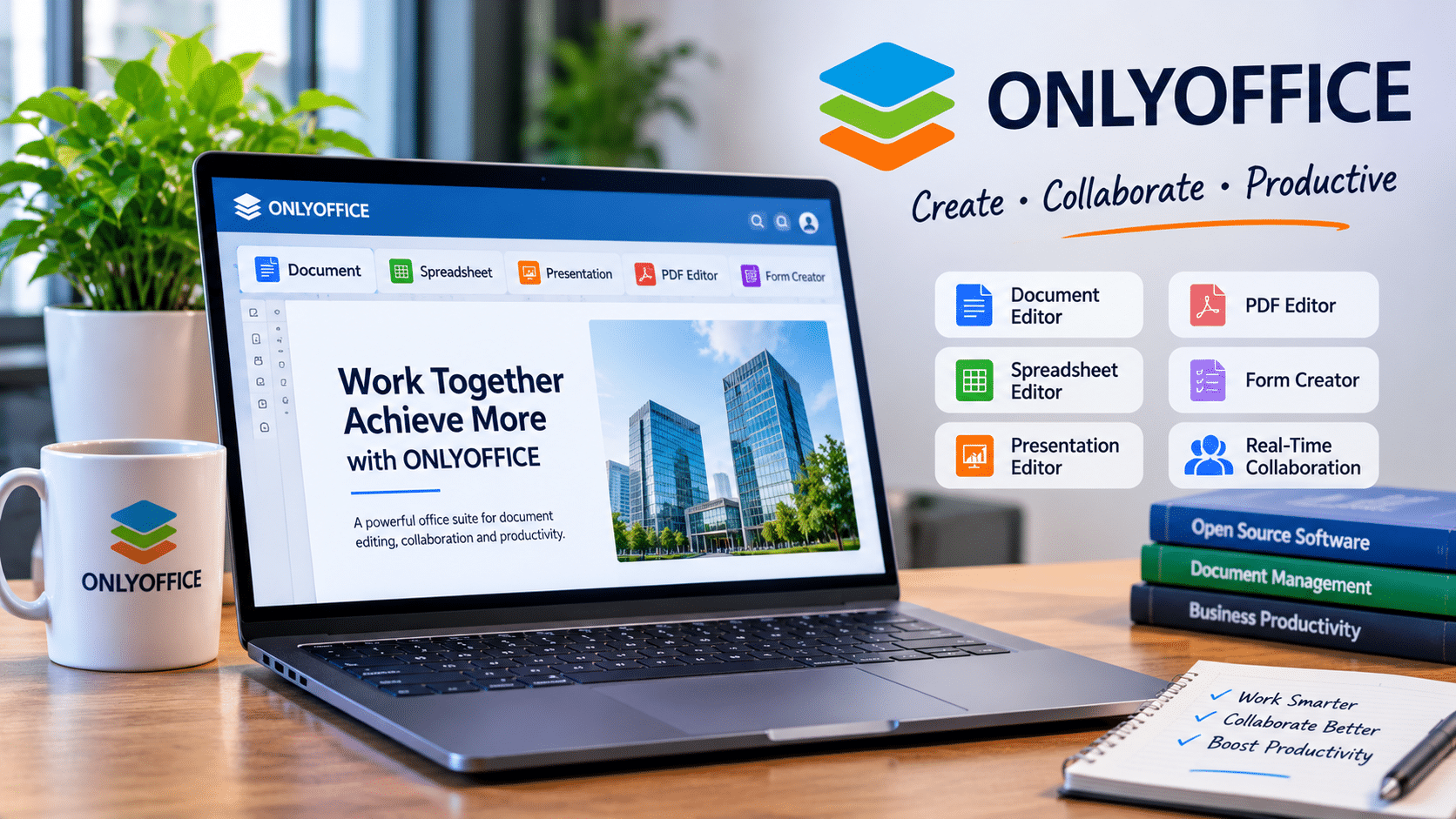
ONLYOFFICE is another popular office productivity platform that provides desktop editors and server-based document collaboration solutions.
Developed by Ascensio System, ONLYOFFICE focuses on document editing, Microsoft Office format support, and collaborative productivity.
Its interface is particularly interesting for people who are familiar with modern office applications.
ONLYOFFICE offers several productivity tools within its desktop and online ecosystems.
1. Document Editor
The Document Editor helps users create, edit, and format professional documents.
Its functionality includes:
- Text formatting.
- Tables and images.
- Headers and footers.
- Comments.
- Track Changes.
- Page layouts.
- Document collaboration.
It supports common document formats, including DOCX and ODT.
2. Spreadsheet Editor
The Spreadsheet Editor provides tools for organizing and analyzing information.
Users can work with formulas, charts, tables, and other spreadsheet functionality.
Businesses can use it to manage financial information, calculate expenses, organize sales records, and prepare reports.
3. Presentation Editor
The Presentation Editor allows users to create slideshows and business presentations.
It supports multimedia elements, transitions, animations, and presentation formatting.
4. PDF Editor
ONLYOFFICE also provides PDF editing capabilities.
Users can view, annotate, and work with PDF documents using its dedicated editor.
This is useful for organizations that regularly handle contracts, forms, and administrative documentation.
5. Form Creator
The form functionality allows users to create fillable digital forms.
Businesses can use these forms for collecting information, preparing internal documentation, and organizing administrative processes.
Important advantages of ONLYOFFICE
Microsoft Office-oriented workflows: Its document editors support widely used formats such as DOCX, XLSX, and PPTX.
Modern interface: Its ribbon-style interface provides a familiar environment for many Microsoft Office users.
Offline desktop editing: Users can work with locally stored documents without requiring a permanent internet connection.
Real-time collaboration: ONLYOFFICE Docs supports collaborative editing through compatible platforms and integrations.
Self-hosted deployment: Organizations can deploy ONLYOFFICE Docs on their own infrastructure.
PDF functionality: Its dedicated PDF tools provide additional document management capabilities.
What are ONLYOFFICE’s limitations?
The biggest consideration is understanding the difference between ONLYOFFICE Desktop Editors and ONLYOFFICE Docs.
The desktop application provides offline editing functionality. It does not automatically create a centralized collaborative document platform.
Businesses that require browser-based collaboration need the appropriate server-based solution and compatible integrations.
ONLYOFFICE also does not directly execute Microsoft VBA macros. Existing automation workflows may require conversion and testing.
Best for: Businesses, distributed teams, professionals who frequently exchange Microsoft Office documents, and organizations interested in self-hosted document collaboration.
Official website:
LibreOffice vs ONLYOFFICE: Complete Feature Comparison

Both applications provide essential office productivity functionality, but their differences become more apparent when comparing their individual capabilities.
Here is a practical comparison of LibreOffice Community and ONLYOFFICE Desktop Editors.
| Feature | LibreOffice | ONLYOFFICE |
|---|---|---|
| Desktop pricing | Free | Free |
| Commercial desktop usage | Yes | Yes |
| Windows support | Yes | Yes |
| macOS support | Yes | Yes |
| Linux support | Yes | Yes |
| Word processing | Writer | Document Editor |
| Spreadsheet editing | Calc | Spreadsheet Editor |
| Presentation creation | Impress | Presentation Editor |
| PDF functionality | PDF export and related tools | Dedicated PDF Editor |
| Form creation | Through available tools | Dedicated form functionality |
| Database application | Base | No equivalent dedicated application |
| Formula editor | Math | Formula functionality in editors |
| Native document formats | ODT, ODS, ODP | OOXML-oriented workflows |
| Microsoft Office compatibility | Yes | Yes |
| Offline editing | Yes | Yes |
| Browser-based collaboration | Requires another solution | Available through ONLYOFFICE Docs |
| Customization | Extensive | Available |
| VBA macro execution | Partial compatibility | No direct VBA execution |
Important: This comparison covers the free desktop applications. Server products, enterprise editions, support contracts, and cloud services have separate licensing and deployment considerations.
Neither application guarantees perfect compatibility with every Microsoft Office document.
Document Compatibility: Which Office Suite Handles Files Better?
Document compatibility is one of the most important factors when choosing an office suite.
Businesses rarely work in isolated software environments.
Employees regularly receive documents from customers, suppliers, partners, and external organizations.
These documents may contain complicated formatting, formulas, charts, and automated workflows.
Both LibreOffice and ONLYOFFICE support commonly used Microsoft Office file formats.
However, their compatibility approaches differ.
LibreOffice and Microsoft Office formats
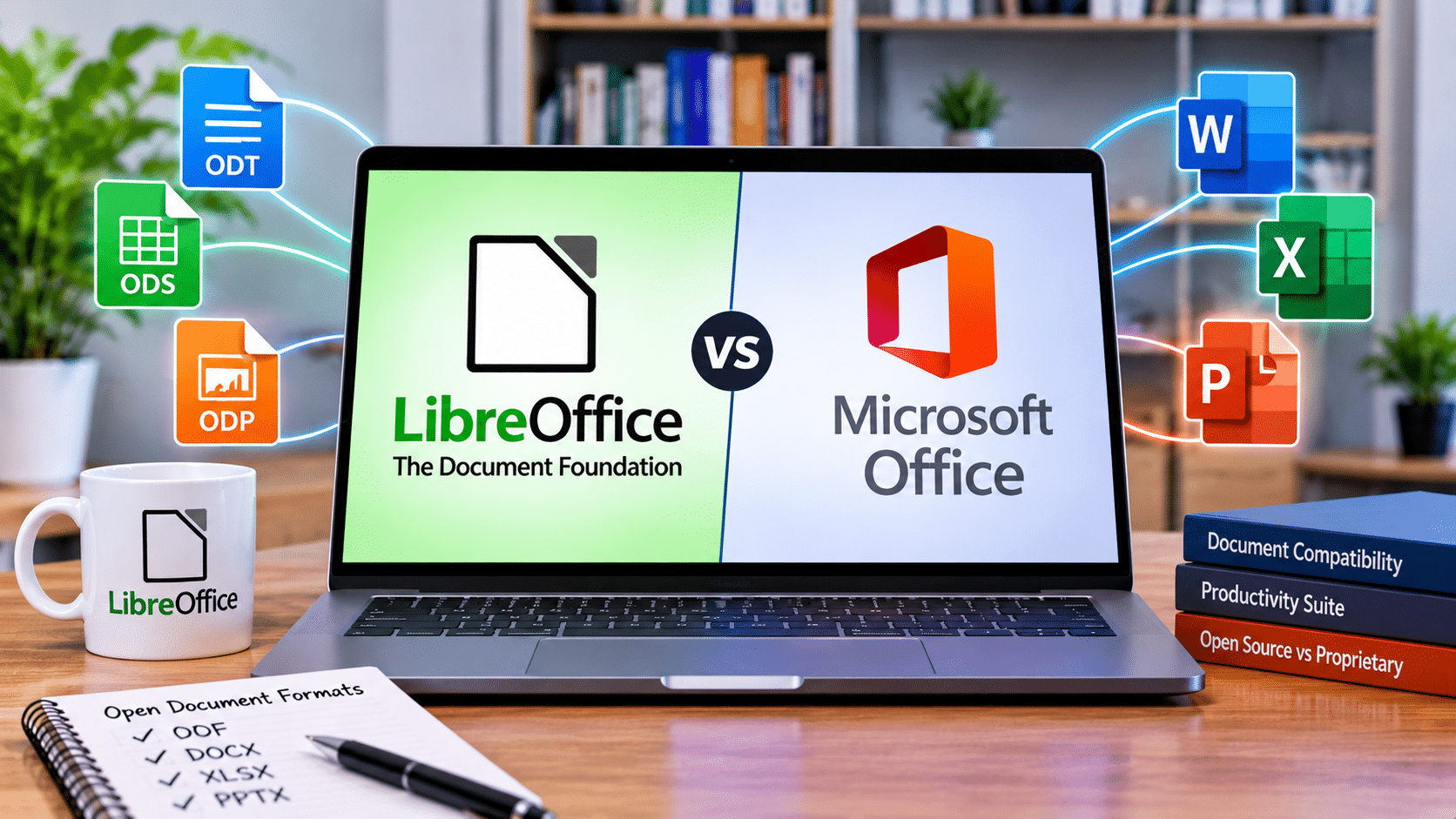
LibreOffice supports opening and saving Microsoft Office formats, including:
- DOCX.
- XLSX.
- PPTX.
It also uses OpenDocument formats as its native standards.
This is particularly useful for organizations that want to maintain documents in open formats while continuing to exchange files with Microsoft Office users.
ONLYOFFICE and Microsoft Office formats

ONLYOFFICE emphasizes compatibility with Office Open XML formats.
Its editors support working with DOCX, XLSX, and PPTX files.
This makes it an interesting option for businesses whose employees regularly exchange Microsoft Office documents.
However, format support should not be confused with perfect feature compatibility.
A complicated Excel workbook may contain functions that behave differently between applications.
Similarly, a Word document containing custom fonts, complex tables, and advanced page layouts may require adjustments after conversion.
How should businesses test compatibility?
Before replacing existing office software, perform a practical compatibility test.
- Collect 10–20 representative business documents.
- Include Word documents, Excel spreadsheets, and PowerPoint presentations.
- Open each document in both applications.
- Edit the files using normal business workflows.
- Save them in their original formats.
- Reopen them in Microsoft Office or the original application.
- Compare formatting, calculations, charts, and document layouts.
- Ask employees to verify the results.
This sample size is a suggested pilot approach, not an industry-standard benchmark.
Verdict: ONLYOFFICE deserves early consideration for Microsoft Office-heavy workflows, while LibreOffice offers a particularly attractive option for organizations prioritizing OpenDocument standards and comprehensive desktop productivity.
The best choice ultimately depends on the documents your organization actually uses.
User Interface and Ease of Use: Which One Feels Better?
An office suite can provide hundreds of features, but those features become less valuable if employees struggle to use them.
Interface design therefore plays an important role in software selection.
LibreOffice interface
LibreOffice provides a traditional desktop productivity experience.
Its interface includes menus, toolbars, formatting controls, and customizable layouts.
Users can choose different interface arrangements according to their preferences.
People familiar with traditional desktop office software may find the environment comfortable.
However, users migrating from modern Microsoft Office applications may need some time to become familiar with its menus and settings.
ONLYOFFICE interface
ONLYOFFICE offers a more modern ribbon-style interface.
Its layout resembles the general design approach used by contemporary productivity applications.
This can make the transition easier for employees familiar with Microsoft Word, Excel, and PowerPoint.
Its integrated document tools also provide a consistent editing experience.
Which interface should businesses choose?
The answer depends on employee preferences.
For example:
- Traditional desktop users may prefer LibreOffice.
- Microsoft Office users may find ONLYOFFICE more familiar.
- Technical users may appreciate LibreOffice’s customization options.
- Teams working with shared documents may prefer ONLYOFFICE’s broader collaboration ecosystem.
Businesses should involve actual employees in their software evaluation rather than choosing an application based exclusively on screenshots or feature lists.
Real-Time Collaboration: A Major Advantage of ONLYOFFICE
Modern workplaces increasingly depend on collaboration.
Employees may work from different offices, cities, or countries while contributing to the same business project.
Traditional document-sharing workflows can create unnecessary complications.
Consider a marketing team preparing a campaign proposal.
One employee creates the document, another reviews it, and a third suggests changes.
When everyone exchanges separate copies through email, managing revisions becomes difficult.
Real-time collaboration offers a more efficient approach.
How ONLYOFFICE supports collaboration
ONLYOFFICE Docs provides collaborative document editing through supported platforms.
Its collaboration features include:
- Simultaneous document editing.
- Comments and discussions.
- Track Changes.
- Document permissions.
- Version history.
- Different co-editing modes.
These capabilities help employees work together without constantly exchanging separate document versions.
What about LibreOffice?
LibreOffice’s standard desktop installation focuses on individual desktop productivity.
Organizations can explore Collabora Online, a separate collaboration solution based on LibreOffice technology, when they need browser-based collaborative editing.
This distinction matters because businesses should compare equivalent products rather than assuming that a desktop application includes every capability available across its broader ecosystem.
Which application is better for remote teams?
ONLYOFFICE Docs is a strong option for organizations that prioritize browser-based collaborative editing.
However, deployment requires suitable server infrastructure, compatible integrations, and proper configuration.
Spreadsheet Automation: What About Excel Macros?
Spreadsheets are essential for businesses that manage financial reports, customer information, inventory, and operational data.
Many organizations also use automation to reduce repetitive work.
Microsoft Excel VBA macros are particularly common in established business environments.
However, moving these workflows to another office suite requires careful planning.
LibreOffice macro support
LibreOffice supports its own Basic programming environment and provides some compatibility with Microsoft VBA.
However, users should not assume that every existing Excel macro will work without modification.
Some macros may require adjustments to functions, objects, or application-specific commands.
ONLYOFFICE macro support
ONLYOFFICE supports JavaScript-based macros.
However, it does not directly execute VBA macros.
Organizations migrating existing Excel automation may need to convert and test their scripts.
What should businesses do before migrating?
Follow these recommendations:
- Identify spreadsheets that depend on macros.
- Document their existing functionality.
- Test important workbooks in both applications.
- Identify automation features that require modification.
- Validate calculations and generated reports.
- Retain original Excel files until the new workflows are verified.
For businesses with complicated financial automation, keeping Microsoft Excel for specific departments may be more practical than immediately replacing every application.
Verdict: Neither LibreOffice nor ONLYOFFICE should be treated as a guaranteed drop-in replacement for VBA-dependent Excel workflows.
Privacy, Security, and Data Control
Businesses regularly work with confidential documents.
These may include financial statements, customer records, employee information, contracts, and internal business strategies.
Consequently, security deserves as much attention as productivity.
LibreOffice and local document storage
LibreOffice allows users to work with locally stored documents.
Organizations can manage file storage through their own computers, internal networks, or existing storage platforms.
This provides flexibility when developing document management policies.
ONLYOFFICE and self-hosted document editing
ONLYOFFICE Docs supports self-hosted deployment.
Businesses can install the platform on their own infrastructure and integrate it with compatible document storage systems.
This approach provides administrators with greater control over their deployment environment.
However, self-hosting also introduces operational responsibilities.
Organizations must manage:
- Server security.
- Software updates.
- User authentication.
- Access permissions.
- Firewall configuration.
- HTTPS certificates.
- Backup policies.
- Application monitoring.
A self-hosted application does not automatically guarantee complete security.
Administrators must configure and maintain the infrastructure correctly.
Five security practices every business should follow
1. Enable HTTPS: Protect communication between users and browser-based applications.
2. Use strong authentication: Restrict access to authorized employees.
3. Apply regular updates: Keep operating systems and applications current.
4. Maintain reliable backups: Protect important documents against accidental deletion and infrastructure failures.
5. Monitor server activity: Review access logs and investigate suspicious activity.
Businesses using VPS infrastructure should incorporate these practices into their regular server administration routines.
Other Free Office Suites Worth Considering in 2026
Although LibreOffice and ONLYOFFICE are the primary focus of this comparison, they are not the only productivity applications available.
Businesses evaluating free office software can also explore several alternatives.
1. Google Docs
Google Docs is a browser-based word processor that supports online document creation and collaboration.
Its advantages include:
- Real-time editing.
- Automatic cloud saving.
- Document sharing.
- Comments and suggestions.
- Collaboration with multiple users.
Google Docs is particularly useful for teams that prefer cloud-based productivity.
However, businesses should evaluate its storage, account, internet connectivity, and data management requirements.
2. WPS Office
WPS Office provides word-processing, spreadsheet, and presentation applications.
It offers a familiar interface and supports widely used office document formats.
Its free offering has limitations, and some features require paid subscriptions.
3. FreeOffice
FreeOffice is another alternative for users who want a traditional desktop office experience.
It provides applications for documents, spreadsheets, and presentations.
Unlike LibreOffice and the community editions of ONLYOFFICE, it is proprietary freeware rather than an open-source office suite.
4. Calligra Suite
Calligra Suite is an office and graphics application suite associated with the KDE ecosystem.
It offers applications for documents, presentations, spreadsheets, and visual content.
Linux users interested in alternative desktop productivity environments may find it worth exploring.
Quick comparison of popular free office suites
| Office suite | Main strength | Best suited for |
|---|---|---|
| LibreOffice | Comprehensive desktop tools | Students and businesses |
| ONLYOFFICE | Microsoft-format workflows and collaboration | Business teams |
| Google Docs | Online collaboration | Distributed teams |
| WPS Office | Familiar desktop interface | Everyday productivity |
| FreeOffice | Traditional desktop applications | Individual users |
| Calligra Suite | KDE ecosystem integration | Linux users |
Not every product in this table is open source. Businesses should evaluate licensing terms separately before adopting them commercially.

Why Linux VPS Hosting Matters for Modern Office Productivity
Choosing the right office suite is only one part of building an efficient digital workplace.
Organizations interested in centralized document management and online collaboration may also need reliable server infrastructure.
This is where Linux VPS hosting becomes relevant.
A Virtual Private Server provides an isolated virtual computing environment with allocated resources and administrative access.
Businesses can use VPS infrastructure to deploy compatible applications, manage services, configure security, and build their own digital environments.
For example, an organization planning to deploy ONLYOFFICE Docs alongside Nextcloud can evaluate a Linux VPS as part of its infrastructure strategy.
How 99RDP Linux VPS Hosting Can Support Business Infrastructure

Businesses and developers looking for Linux-based hosting infrastructure can explore 99RDP Linux VPS Hosting.
A Linux VPS provides several capabilities relevant to organizations managing their own applications and services.
1. Root access and server customization
Administrative access allows developers and system administrators to configure compatible software and manage server environments.
This flexibility is useful when deploying applications that require specific dependencies or configurations.
2. Support for Linux-based applications
Linux distributions such as Ubuntu are widely used for application hosting, development, and server administration.
Organizations can select a suitable operating system according to their software requirements.
3. Infrastructure for self-hosted applications
Businesses can evaluate VPS infrastructure for hosting compatible applications, including:
- ONLYOFFICE Docs.
- Nextcloud.
- File management platforms.
- Development environments.
- Database services.
- Monitoring applications.
The actual suitability of a VPS depends on the application’s technical requirements and expected workload.
4. Storage for application data
Storage capacity matters when businesses manage documents, application files, and backups.
Organizations should evaluate SSD capacity, available storage, and backup arrangements before selecting a configuration.
5. Flexible resource planning
CPU, RAM, storage, and bandwidth influence server performance.
Businesses should select resources according to the number of users, document complexity, and applications running simultaneously.
Understanding ONLYOFFICE VPS requirements
A particularly important consideration involves the hardware requirements of ONLYOFFICE Docs.
According to its official Docker deployment documentation, the Community Edition has a reference minimum configuration of:
- 2 GHz single-core CPU or better.
- 4 GB RAM or more.
- At least 40 GB of available disk space.
- At least 4 GB of swap, depending on the host operating system.
The documentation also recommends stronger CPU configurations for production use and explains that requirements increase with concurrent users.
This is why businesses should avoid selecting a server solely because it is inexpensive.
A suitable deployment requires sufficient resources, network connectivity, secure configuration, and regular maintenance.
LibreOffice vs ONLYOFFICE: Which One Should You Choose?
There is no universal winner because both applications serve different productivity requirements.
Your choice should depend on how employees create, edit, store, and exchange documents.
Here is a practical decision guide.
| Business requirement | Recommended option |
|---|---|
| Free offline desktop productivity | Both |
| OpenDocument-based workflows | LibreOffice |
| Comprehensive desktop application collection | LibreOffice |
| Database and formula editing tools | LibreOffice |
| Frequent Microsoft Office document exchange | Evaluate ONLYOFFICE |
| Browser-based document collaboration | ONLYOFFICE Docs |
| Self-hosted collaborative editing | ONLYOFFICE Docs |
| PDF editing and digital forms | ONLYOFFICE |
| Traditional desktop productivity | Both |
| Existing VBA-dependent workflows | Test before migrating |
Choose LibreOffice if:
- You primarily work with locally stored documents.
- Your organization values open document standards.
- You need a broad collection of desktop productivity applications.
- You regularly use Linux computers.
- You want to reduce recurring office software expenses.
- Your employees do not require integrated browser-based collaboration.
Choose ONLYOFFICE if:
- Your organization frequently exchanges DOCX, XLSX, and PPTX documents.
- Employees need collaborative document editing.
- You want to explore self-hosted office productivity.
- Your business uses compatible platforms such as Nextcloud or ownCloud.
- You need integrated PDF and form editing functionality.
- Your team prefers a modern ribbon-style interface.
Consider using both
Some organizations do not need to select a single office suite for every employee.
For example, a business could use LibreOffice for everyday desktop productivity while deploying ONLYOFFICE Docs for employees who require centralized collaborative editing.
This hybrid approach can reduce migration risks and provide greater flexibility.
How to Switch to a Free Office Suite Without Disrupting Business Operations
Migrating an entire organization to new office software requires planning.
Even when the replacement application is free, a poorly managed migration can create unnecessary operational problems.
Businesses should follow a structured approach.
Step 1: Audit existing software requirements
Identify the applications employees currently use.
Determine how frequently they depend on advanced spreadsheet functions, macros, specialized formatting, and external integrations.
Step 2: Identify critical documents
Collect representative business documents.
Include:
- Financial spreadsheets.
- Customer reports.
- Business proposals.
- Contracts.
- Presentations.
- Internal templates.
Step 3: Test both applications
Install LibreOffice and ONLYOFFICE Desktop Editors.
Ask employees to perform their regular tasks using each application.
Step 4: Check document compatibility
Open, edit, save, and reopen important files.
Pay particular attention to formatting, formulas, charts, and automation.
Step 5: Evaluate collaboration requirements
Determine whether employees need individual desktop editing or centralized browser-based collaboration.
If collaboration is essential, investigate ONLYOFFICE Docs and compatible integrations.
Step 6: Evaluate infrastructure requirements
For self-hosted deployment, assess:
- CPU and memory requirements.
- Storage capacity.
- Network bandwidth.
- User authentication.
- Security configurations.
- Backup arrangements.
A Linux VPS from a provider such as 99RDP can be evaluated as part of this infrastructure planning.
Step 7: Calculate the total cost
Compare potential software licensing savings against migration, training, hosting, and maintenance expenses.
Step 8: Expand gradually
Start with a small department.
Once the new environment performs reliably, expand the deployment to additional employees.
This approach gives businesses more control over migration risks.
The Future of Free and Open-Source Office Software
The office productivity market continues to evolve.
Businesses increasingly expect software to support remote collaboration, flexible deployment, document compatibility, and secure information management.
Free and open-source office suites are becoming increasingly relevant in this environment.
Several developments will influence their future.
Greater focus on Microsoft Office compatibility
Businesses frequently exchange documents with customers and external partners.
Consequently, maintaining compatibility with commonly used document formats will remain an important priority.
Expansion of self-hosted productivity
Organizations interested in controlling their infrastructure may continue exploring self-hosted document editing and file management platforms.
Solutions such as ONLYOFFICE Docs provide an option for businesses that want to integrate collaborative editing with their existing environments.
More flexible working environments
Remote and hybrid work arrangements require productivity tools that support employees across different devices and locations.
Browser-based document editing and file synchronization will remain important capabilities.
Better automation
Businesses depend on spreadsheets and documents to perform repetitive administrative tasks.
Improved automation tools and integration capabilities can help reduce manual work.
Increased attention to data security
Organizations will continue evaluating where documents are stored, who can access them, and how information is protected.
Self-hosted applications and properly configured server infrastructure can play a role in these strategies.
Ultimately, the most successful office suites will be those that help employees work efficiently without creating unnecessary technical complexity.
Conclusion: Is LibreOffice Better Than ONLYOFFICE in 2026?
LibreOffice and ONLYOFFICE demonstrate that businesses do not always need expensive office software to maintain productive working environments.
Both applications offer valuable features, support popular document formats, and provide practical alternatives to traditional productivity suites.
However, their strengths serve different audiences.
LibreOffice stands out for its comprehensive desktop productivity tools, OpenDocument support, customization, and offline capabilities.
ONLYOFFICE stands out for its Microsoft Office-oriented workflows, integrated PDF functionality, and collaborative document editing through its server-based ecosystem.
For students, freelancers, and individuals who primarily create documents and spreadsheets, LibreOffice is an excellent choice.
For businesses that exchange Microsoft Office files frequently or require browser-based collaboration, ONLYOFFICE deserves serious consideration.
Organizations should also remember that software licensing represents only one part of their productivity expenses. Migration, compatibility, infrastructure, employee training, and security all influence the final decision.
For businesses interested in building a flexible, self-hosted productivity environment, reliable Linux infrastructure can provide another important advantage.
99RDP Linux VPS hosting gives developers and organizations an option to explore Linux-based server environments for compatible applications, document management systems, and other business workloads.
Explore 99RDP Linux VPS Hosting to find a suitable server environment for your next infrastructure project.
Ultimately, the best office suite is not necessarily the one with the most features. It is the one that helps your team complete everyday tasks efficiently, exchange documents reliably, and manage productivity without unnecessary expenses.
EXPLORE MORE ; Top 10 Use Cases for a Windows Botting RDP in 2026

READ OUR BLOGS


